
CITLLA L570
CITLLA L570 Alailowaya Bluetooth Asin olumulo Afowoyi
Model: L570 | Brand: CITLLA
Ọrọ Iṣaaju
This manual provides detailed instructions for the setup, operation, and maintenance of your CITLLA L570 Wireless Bluetooth Mouse. Please read this manual thoroughly before using the product to ensure proper functionality and to maximize your user experience.

Aworan: Oke view of the CITLLA L570 Wireless Bluetooth Mouse.

Image: User operating the CITLLA L570 mouse.
Package Awọn akoonu
Jẹrisi pe gbogbo awọn ohun kan wa ninu package:
- CITLLA L570 Wireless Bluetooth Mouse
- USB-A Receiver (stored inside the mouse)
- Iru-C Ngba agbara USB
- Afowoyi Olumulo (iwe-ipamọ yii)
Ọja Pariview
Familiarize yourself with the components and key features of your CITLLA L570 mouse.

Aworan: Pariview of the CITLLA L570 mouse features.

Image: CITLLA L570 mouse alongside a keyboard.
Awọn ẹya pataki:
- 4-Way Scroll Wheel: Provides both vertical high-speed scrolling and horizontal tilt scrolling.
- DPI ti o le ṣatunṣe: Four levels (1000/1600/2400/3000) for precise control.
- Asopọmọra-ẹrọ pupọ: Connects to up to three devices via one 2.4G USB-A receiver and two Bluetooth channels.
- Batiri gbigba agbara: Built-in high-capacity lithium battery with Type-C charging.
- Awọn titẹ ipalọlọ: Designed for a quiet working environment.
- Awọn bọtini Iwaju/Sẹhin: Located on the side for enhanced navigation.
Ṣeto
The CITLLA L570 mouse offers flexible connectivity options. Choose between 2.4G wireless or Bluetooth connections.
1. 2.4G USB-A Receiver Connection
- Locate the USB-A receiver. It is typically stored in a compartment on the underside of the mouse.
- Insert the USB-A receiver into an available USB port on your computer or device.
- Tan-an Asin nipa lilo agbara yipada ti o wa ni isalẹ.
- Press the device switch button (usually on the top or bottom of the mouse) to select the 2.4G mode (indicated by a specific LED color or number, refer to the mouse's physical markings). The mouse should connect automatically.
2. Asopọ Bluetooth (BT1 / BT2)
The mouse supports two independent Bluetooth connections (BT1 and BT2).
- Tan-an Asin nipa lilo agbara yipada.
- Press the device switch button to select either Bluetooth 1 (BT1) or Bluetooth 2 (BT2) mode. The corresponding indicator light will flash.
- For initial pairing, hold down the device switch button for three seconds until the indicator light flashes rapidly. This indicates the mouse is in pairing mode.
- Lori ẹrọ rẹ (kọmputa, tabulẹti, foonuiyara), lilö kiri si awọn eto Bluetooth.
- Wa fun new devices. The mouse should appear as "CITLLA L570" or a similar name.
- Select the mouse to pair. Once connected, the indicator light will stop flashing and remain solid for a few seconds before turning off.
To connect to a second Bluetooth device, repeat steps 2-6, selecting the other Bluetooth channel (BT2).

Image: Multi-device connectivity of the CITLLA L570 mouse.
Awọn ilana Iṣiṣẹ
1. DPI Atunṣe
The mouse features 4 adjustable DPI settings to suit various tasks and preferences.
- 1000 DPI: Suitable for design work requiring high precision.
- 1600 DPI: Ideal for general study and browsing.
- 2400 DPI: Recommended for work and productivity tasks.
- 3000 DPI: Optimal for gaming or fast-paced activities.
To change the DPI setting, press the DPI bọtini located below the scroll wheel. Each press cycles through the available DPI levels.

Image: DPI adjustment settings and their recommended uses.
2. 4-Way Scroll Wheel
The innovative scroll wheel provides enhanced navigation capabilities:
- Vertical Scrolling: Scroll the wheel up or down for standard vertical navigation. The smart fly scroll feature allows for super-fast scrolling on long web awọn oju-iwe.
- Yi lọ petele: Tilt the scroll wheel to the left or right to enable horizontal scrolling, useful for wide documents or spreadsheets.
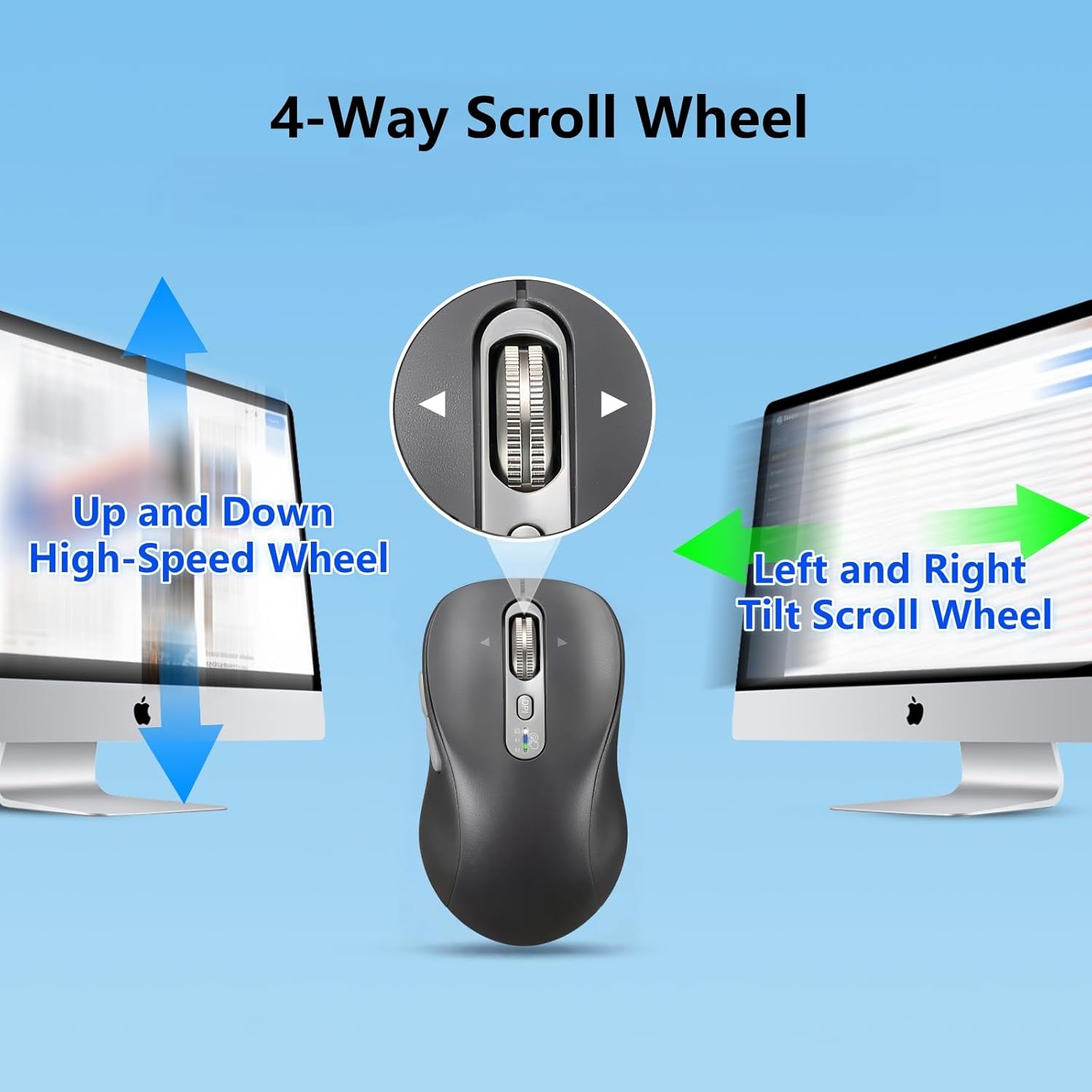
Image: Explanation of the 4-way scroll wheel functionality.
3. Olona-Device Yipada
To switch between connected devices (2.4G, BT1, BT2), simply press the device switch button. The indicator light will show which channel is currently active.

Image: Mouse used with multiple devices.
4. Gbigba agbara
The CITLLA L570 mouse is equipped with a rechargeable battery.
- Connect the provided Type-C charging cable to the charging port on the front of the mouse and to a USB power source.
- A full charge typically takes 1.5-2 hours and can provide approximately 60 days of normal use.
- The low power indicator light will illuminate when the remaining power is sufficient for less than 7 days of use, providing ample time to recharge.

Image: Mouse charging via Type-C cable.

Àwòrán: Asin ti a so pọ̀ fún gbigba agbara.
Ibamu
The CITLLA L570 mouse is designed for broad compatibility across various operating systems and devices.
- Awọn ọna ṣiṣe: Windows (8/10/11 and later), Mac OS (10.15 and later; USB connection supports 10.10 and later), Chrome OS (11 and later; USB connection supports 9 and later), iOS (13.4 and later), Android (5.0 and later), Linux (10 and later; USB connection supports 8 and later).
- Awọn ẹrọ: Desktops, Laptops, Tablets, Smartphones, All-in-one PCs.

Image: Operating system compatibility icons.

Image: Specific system version compatibility details.
Itoju
To ensure the longevity and optimal performance of your CITLLA L570 mouse, follow these maintenance guidelines:
- Ninu: Lo asọ ti o rọ, ti o gbẹ lati nu dada ti Asin naa. Fun idoti alagidi, die-die damp A le lo aṣọ, ṣugbọn rii daju pe ọrinrin ko wọ inu awọn ẹya inu. Yẹra fun awọn kemikali lile tabi awọn afọmọ fifọ.
- Ibi ipamọ: Tí o kò bá lò ó fún ìgbà pípẹ́, tọ́jú eku náà sí ibi tí ó tutù tí ó sì gbẹ.
- Itọju Batiri: Avoid fully discharging the battery frequently. Charge the mouse when the low power indicator appears. Do not expose the battery to extreme temperatures.
- Olugba: Keep the USB-A receiver in its designated storage slot within the mouse when not in use to prevent loss.
Laasigbotitusita
| Isoro | Ojutu |
|---|---|
| Àákù kò dáhùn (2.4G) |
|
| Asin ko dahun (Bluetooth) |
|
| Ìṣíṣẹ́ kọ́sọ̀ kò dúró déédéé tàbí ó lọ́ra |
|
| Yi lọ kẹkẹ ko ṣiṣẹ |
|
| Low battery indicator always on |
|
Awọn pato
| Ẹya ara ẹrọ | Ẹ̀kúnrẹ́rẹ́ |
|---|---|
| Nọmba awoṣe | L570 |
| Asopọmọra Technology | 2.4G USB-A Receiver, Bluetooth 1, Bluetooth 2 |
| Awọn Eto DPI | 1000/1600/2400/3000 |
| Aṣayan Iṣipopada | Opitika |
| Pataki Awọn ẹya ara ẹrọ | 4-Way Scrolling, Forward/Back buttons, Multi-Device (3 devices), Quiet Clicks (10 million click lifespan), Rechargeable (Type-C charging) |
| Batiri Iru | High-capacity Lithium Battery (500mAh) |
| Gbigba agbara Port | Iru-C |
| Igbesi aye batiri (isunmọ.) | 60 days after 1-hour charge |
| Iwọn Nkan | 5.6 iwon |
| Awọn iwọn | 5.59 x 3.11 x 2.13 inches |
Atilẹyin ọja ati Support
CITLLA products are manufactured with quality and reliability in mind. For warranty information or technical support, please refer to the contact details provided with your purchase or visit the official CITLLA webojula.
Fun iranlọwọ siwaju sii, o tun le kan si olutaja taara nipasẹ pẹpẹ ti a ti ra ọja naa.
Olupese: CITLLA
Ile Itaja Brand: Visit the CITLLA Store on Amazon
Ask a question about this manual
Ask about setup, troubleshooting, compatibility, parts, safety, or missing instructions. Manuals+ will review the question and use this page’s manual context to help answer it.