
Ọrọ Iṣaaju
Welcome to the user manual for your CWOWDEFU P25L 11-inch Android 14 Tablet. This guide provides essential information to help you set up, operate, maintain, and troubleshoot your device. Please read this manual carefully to ensure optimal performance and longevity of your tablet.
1. Eto
1.1 Unboxing ati Package Awọn akoonu
Before starting, ensure all items are present in the package. Carefully remove the tablet and accessories from the box.

Image: The CWOWDEFU P25L tablet packaging showing the tablet, charging head, Type-C cable, instruction manual, screen protector, and ejector pin.
Apapọ yẹ ki o ni:
- 1 x CWOWDEFU P25L Tablet
- 1 x Charging Head
- 1 x Okun Iru-C
- 1 x Ilana itọnisọna (iwe yii)
- 1 x Olugbeja iboju
- 1 x Ejector Pin
1.2 Gbigba agbara si tabulẹti
For first-time use, fully charge the tablet. Connect the Type-C cable to the tablet's charging port and the charging head to a power outlet. The battery indicator on the screen will show charging status.

Image: A user holding the CWOWDEFU P25L tablet, illustrating its 7000mAh long-lasting battery and 10W fast charging capability.
1.3 Titan / Pa a
- Lati Fi agbara: Press and hold the Power button until the CWOWDEFU logo appears.
- Lati Paarẹ: Tẹ bọtini agbara ki o si dimu, lẹhinna yan 'Pa agbara kuro' lati awọn aṣayan ti o wa lori iboju.
- Lati Tun bẹrẹ: Tẹ bọtini agbara ki o si dimu, lẹhinna yan 'Tun bẹrẹ' lati awọn aṣayan.
1.4 Ni ibẹrẹ Oṣo
Ni igba akọkọ ti agbara, tẹle awọn itọnisọna loju iboju lati:
- Yan ede ti o fẹ.
- Sopọ si nẹtiwọki Wi-Fi kan.
- Wọle pẹlu akọọlẹ Google rẹ tabi ṣẹda tuntun kan.
- Ṣeto titiipa iboju (PIN, apẹrẹ, ọrọ igbaniwọle).
1.5 Fifi Kaadi TF sii
The tablet supports storage expansion up to 1TB using a TF (microSD) card.
- Wa kaadi SIM/TF kaadi ni ẹgbẹ ti tabulẹti.
- Use the ejector pin to open the tray.
- Place the TF card into the designated slot with the gold contacts facing down.
- Rọra Titari atẹ naa pada sinu tabulẹti titi ti o fi tẹ sinu aaye.
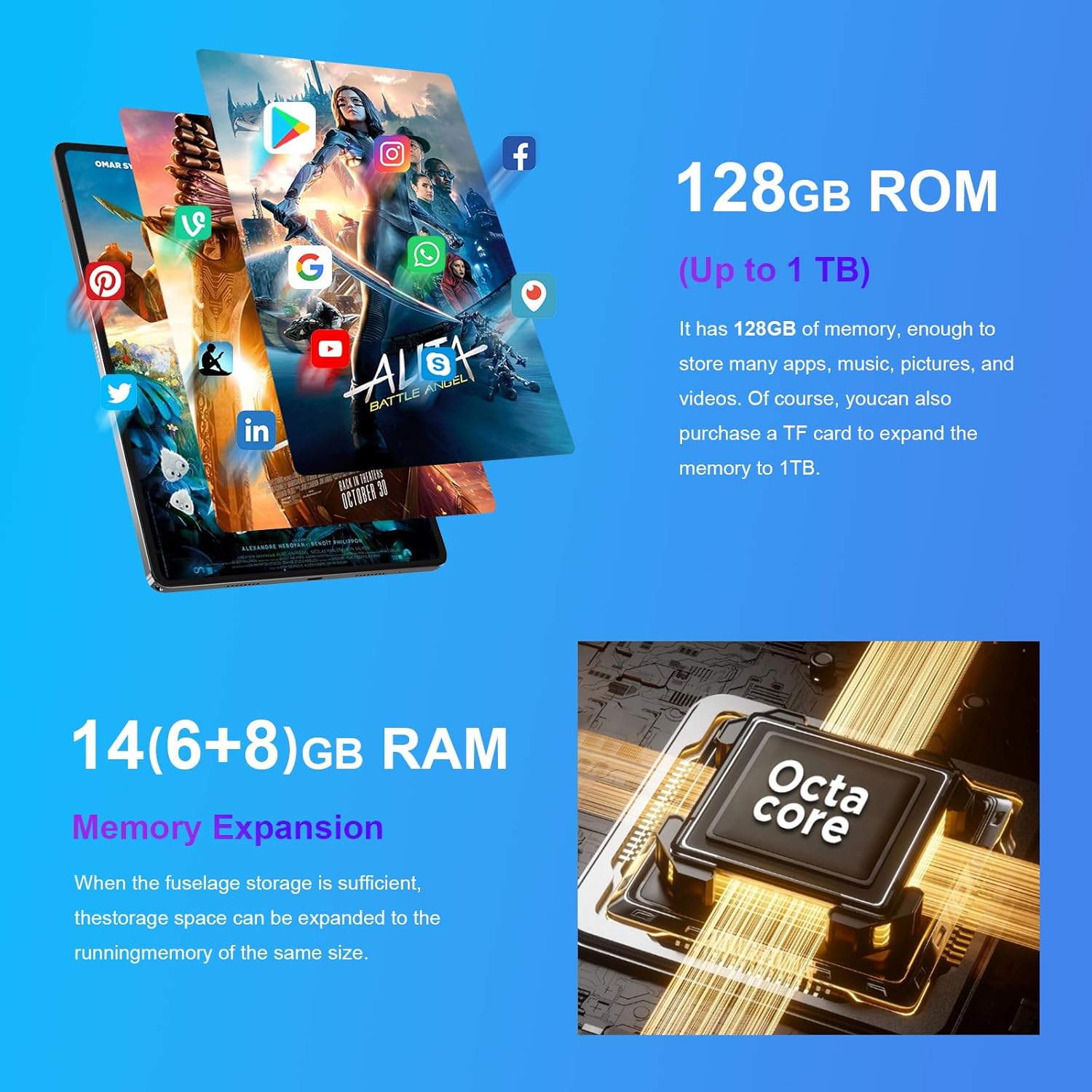
Image: The CWOWDEFU P25L tablet highlighting its 128GB ROM (expandable up to 1TB) and 14GB RAM (6+8GB memory expansion) with an Octa-core processor.
2. Awọn ilana Iṣiṣẹ
2.1 Ipilẹ Lilọ kiri
Tabulẹti naa nlo awọn idari ifọwọkan fun lilọ kiri:
- Fọwọ ba: Yan ohun kan tabi ṣii ohun elo kan.
- Fọwọ ba Mu: Wọle si awọn akojọ aṣayan ọrọ-ọrọ tabi gbe awọn aami.
- Ra: Yi lọ kiri nipasẹ awọn oju-iwe tabi awọn atokọ.
- Fun pọ-si- Sun-un: Sun-un sinu tabi jade lori awọn aworan ati web awọn oju-iwe.
2.2 Nsopọ si Wi-Fi
- Lọ si Eto > Nẹtiwọọki & Intanẹẹti > Wi-Fi.
- Yipada Wi-Fi On.
- Yan nẹtiwọki ti o fẹ lati atokọ ki o tẹ ọrọ igbaniwọle sii ti o ba ṣetan.
2.3 Sisopọ Bluetooth
- Lọ si Eto > Awọn ẹrọ ti a ti sopọ > Bluetooth.
- Yi Bluetooth pada On.
- The tablet will scan for available devices. Select your device from the list to pair.
2.4 Lilo awọn kamẹra
The tablet is equipped with a front 5MP camera and a rear 13MP + 3MP dual camera system. Open the Camera app to take photos or record videos. Tap the screen to focus and press the shutter button to capture.
2.5 Ifihan ati Audio
The 11-inch 2K IPS display (1920x1200) provides clear visuals, complemented by dual stereo speakers for an immersive audio experience.

Image: The CWOWDEFU P25L tablet showcasing its 11-inch 2K display and dual-speaker stereo sound, ideal for media consumption.
- Imọlẹ: Adjust screen brightness from the Quick Settings panel (swipe down from the top) or in Eto > Ifihan.
- Iwọn didun: Use the volume buttons on the side of the tablet or adjust in Eto > Ohun & gbigbọn.
2.6 Àwọn Ẹ̀yà Android 14
Your tablet runs on the latest Android 14 operating system, offering enhanced privacy, security, and multitasking capabilities.
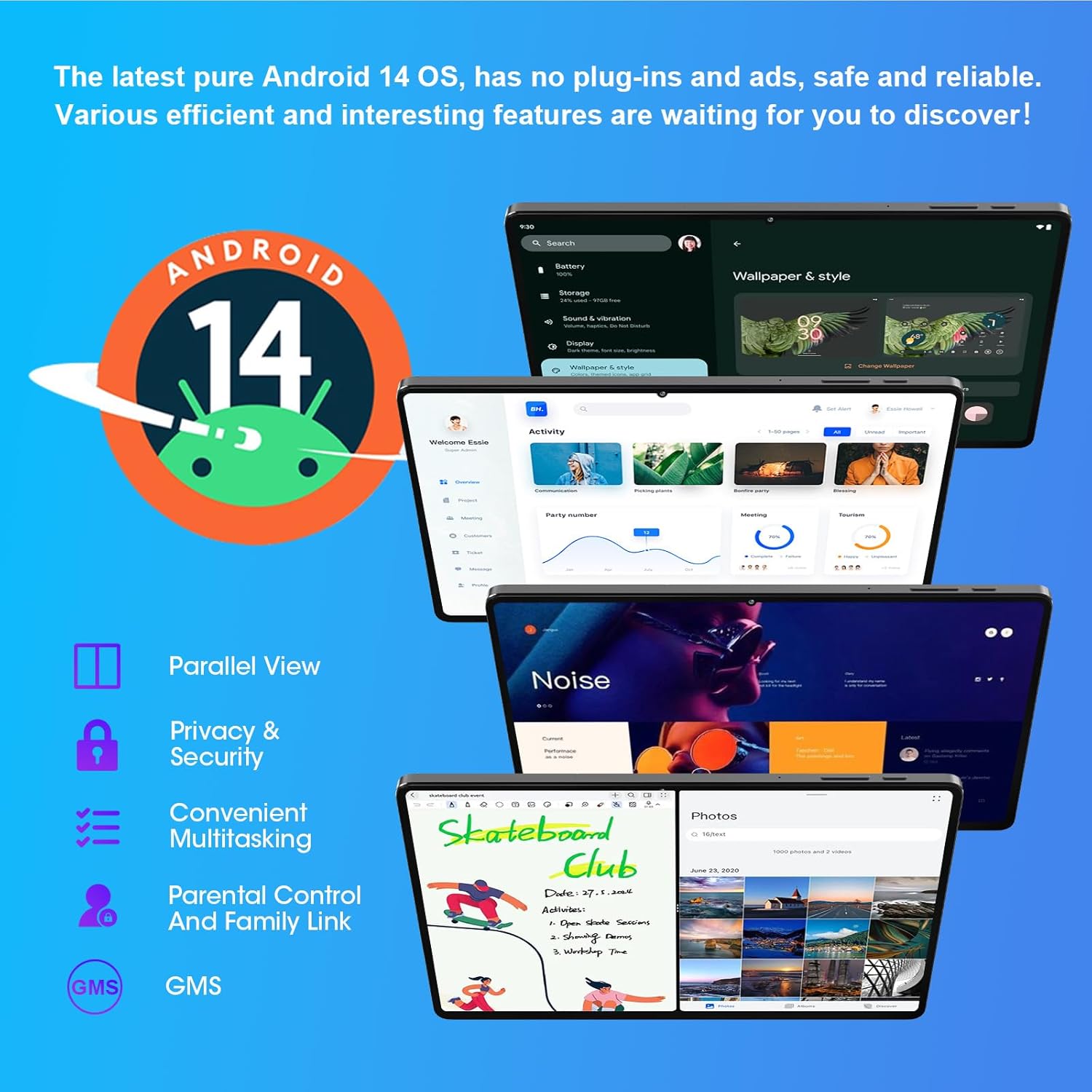
Image: The CWOWDEFU P25L tablet displaying the Android 14 interface, highlighting features such as Parallel View, Privacy & Security, Convenient Multitasking, and Parental Control.
- Ni afiwe View: Utilize multiple apps side-by-side for improved productivity.
- Ìpamọ́ àti Ààbò: Advanced controls to manage app permissions and data access.
- Convenient Multitasking: Seamlessly switch between applications.
- Parental Control and Family Link: Manage device usage for children.
3. Itọju
3.1 Ninu tabulẹti
- Lo asọ ti ko ni lint lati nu iboju ati ara.
- Fun agidi smudges, die-die dampen awọn asọ pẹlu omi tabi a iboju regede.
- Yago fun lilo awọn kẹmika lile, awọn ohun elo abrasive, tabi ọrinrin pupọ.
3.2 Software imudojuiwọn
Máa ṣàyẹ̀wò kí o sì fi àwọn àtúnṣe sọ́fítíwètì rẹ sí i déédéé láti rí i dájú pé tablet rẹ ní àwọn ẹ̀yà tuntun, àwọn àtúnṣe ààbò, àti àwọn àtúnṣe iṣẹ́.
- Lọ si Eto > Eto > Imudojuiwọn eto.
- Tẹle awọn ilana loju iboju lati ṣe igbasilẹ ati fi awọn imudojuiwọn eyikeyi ti o wa sori ẹrọ.
3.3 batiri Itọju
- Yago fun ṣiṣafihan tabulẹti si awọn iwọn otutu to gaju.
- Ma ṣe jẹ ki batiri naa ṣan patapata nigbagbogbo.
- Lo ṣaja ati okun waya atilẹba fun gbigba agbara to dara julọ.
3.4 Ibi Management
To maintain optimal performance, regularly manage your tablet's storage:
- Delete unnecessary apps and files.
- Gbe nla files (photos, videos) to a TF card or cloud storage.
- Clear app cache regularly in Eto > Awọn ohun elo > [Orukọ App] > Ibi ipamọ & kaṣe.
4. Laasigbotitusita
4.1 Tabulẹti Ko Titan
- Rii daju pe tabulẹti ti gba agbara to. Sopọ mọ ṣaja fun o kere 30 iṣẹju.
- Tẹ bọtini agbara ki o si mu fun awọn aaya 10-15 lati fi agbara mu lati tun bẹrẹ.
4.2 Wi-Fi Asopọ oran
- Tun olulana Wi-Fi rẹ bẹrẹ ati tabulẹti.
- Gbagbe nẹtiwọọki inu Eto > Nẹtiwọọki & Intanẹẹti > Wi-Fi, lẹhinna tun sopọ.
- Rii daju pe o wa laarin ifihan Wi-Fi.
4.3 o lọra Performance
- Pa awọn ohun elo ti ko lo ti nṣiṣẹ ni abẹlẹ.
- Clear app caches and free up storage space.
- Tun tabulẹti bẹrẹ.
- If performance issues persist, consider a factory reset (Ikilọ: This will erase all data. Back up important files akọkọ.). Go to Eto > Eto > Tun awọn aṣayan > Pa gbogbo data rẹ (atunṣe ile-iṣẹ).
4.4 Apps Crashing or Not Responding
- Force close the app: Go to Eto > Awọn ohun elo > [Orukọ App] > Duro ipa.
- Clear the app's cache and data: Go to Eto > Awọn ohun elo > [Orukọ App] > Ibi ipamọ & kaṣe > Ko kaṣe kuro ati Ko data kuro.
- Yọọ kuro ki o tun fi ohun elo naa sori ẹrọ.
5. Awọn pato
The CWOWDEFU P25L tablet features a robust design and powerful components for a smooth user experience.

Image: The CWOWDEFU P25L tablet highlighting its simple, sturdy, and stylish 7.2mm thick all-metal body, designed for durability.
| Ẹya ara ẹrọ | Apejuwe |
|---|---|
| Orukọ awoṣe | P25L |
| Eto isesise | Android 14 |
| Ifihan | 11-inch IPS, 1920 x 1200 pixels (2K Resolution) |
| isise | Octa-Core UMS 9230 (UNISOC), 2 GHz |
| GPU | Mali-G52 |
| Àgbo | 14 GB (6 GB installed + 8 GB expandable) |
| Ibi ipamọ inu | 128 GB ROM |
| Expandable Ibi ipamọ | Títí dé 1 TB nípasẹ̀ káàdì TF |
| Batiri | 7000 mAh Litiumu-polima |
| Awọn kamẹra | Front: 5 MP, Rear: 13 MP + 3 MP |
| Asopọmọra | Wi-Fi (802.11a/b/g/n/ac, 2.4G/5G), Bluetooth 5.0, GPS |
| Awọn atọkun | USB Iru-C, 3.5mm Audio Jack |
| Pataki Awọn ẹya ara ẹrọ | Stereo Speakers, USB OTG Support, Expandable Storage |
| Awọn iwọn (L x W x H) | 24.5 x 8.3 x 16.4 cm |
| Iwọn | 920 giramu |
| Àwọ̀ | Fadaka |
6. Atilẹyin ọja ati Support
6.1 atilẹyin ọja Alaye
Your CWOWDEFU P25L tablet comes with a 1-odun atilẹyin ọja lati ọjọ ti o ra. Ni afikun, a 30-ọjọ pada imulo is offered for returns without questions.
6.2 Onibara Support
If you encounter any issues or have questions regarding your tablet, please contact CWOWDEFU customer support. Support is available 24/7 to assist you.
- Refer to the contact information provided on the CWOWDEFU official webojula tabi rẹ ra iwe.