
Ọrọ Iṣaaju
This manual provides essential information for the proper setup, operation, and maintenance of your ONN 24-inch FHD Gaming Monitor, model 100027813. Please read this manual thoroughly before using the product to ensure optimal performance and safety. This monitor is designed to deliver a high-quality gaming experience with its 1080p resolution, 165Hz refresh rate, 1ms response time, and FreeSync technology.
Alaye Aabo
Always observe the following safety precautions to prevent damage to the monitor and ensure user safety:
- Ma ṣe fi atẹle han si ojo tabi ọrinrin lati yago fun ina tabi awọn eewu mọnamọna.
- Maṣe ṣii atẹle casing. Ko si awọn ẹya ti olumulo-iṣẹ ninu. Tọkasi gbogbo iṣẹ si awọn oṣiṣẹ iṣẹ ti o peye.
- Gbe atẹle naa sori iduro, dada alapin lati ṣe idiwọ fun isubu.
- Rii daju pe fentilesonu to dara ni ayika atẹle naa. Ma ṣe dina awọn ṣiṣi atẹgun.
- Lo oluyipada agbara nikan ti a pese pẹlu atẹle naa.
- Yọ monitor kuro ninu ibudo agbara nigba iji manamana tabi nigbati a ko ba lo o fun igba pipẹ.
Package Awọn akoonu
Jẹrisi pe gbogbo awọn ohun kan wa ninu package:
- ONN 24-inch FHD Gaming Monitor
- Iduro Iduro (Ipilẹ ati Ọrun)
- Adapter agbara
- DisplayPort Cable (6 ft)
- HDMI Cable (6 ft)
- Afowoyi Olumulo (iwe-ipamọ yii)

Image: Retail box of the ONN 24-inch Gaming Monitor, highlighting key features like 165Hz, 1ms response time, DisplayPort, HDMI, and Adaptive-Sync.
Ṣeto
1. Nto Iduro
- Fara yọ atẹle naa kuro ki o duro awọn paati lati apoti.
- Attach the stand neck to the stand base. Secure it with the provided screw, if applicable.
- Align the assembled stand with the mounting slot on the back of the monitor. Gently push until it clicks into place or secure with screws as per the design.
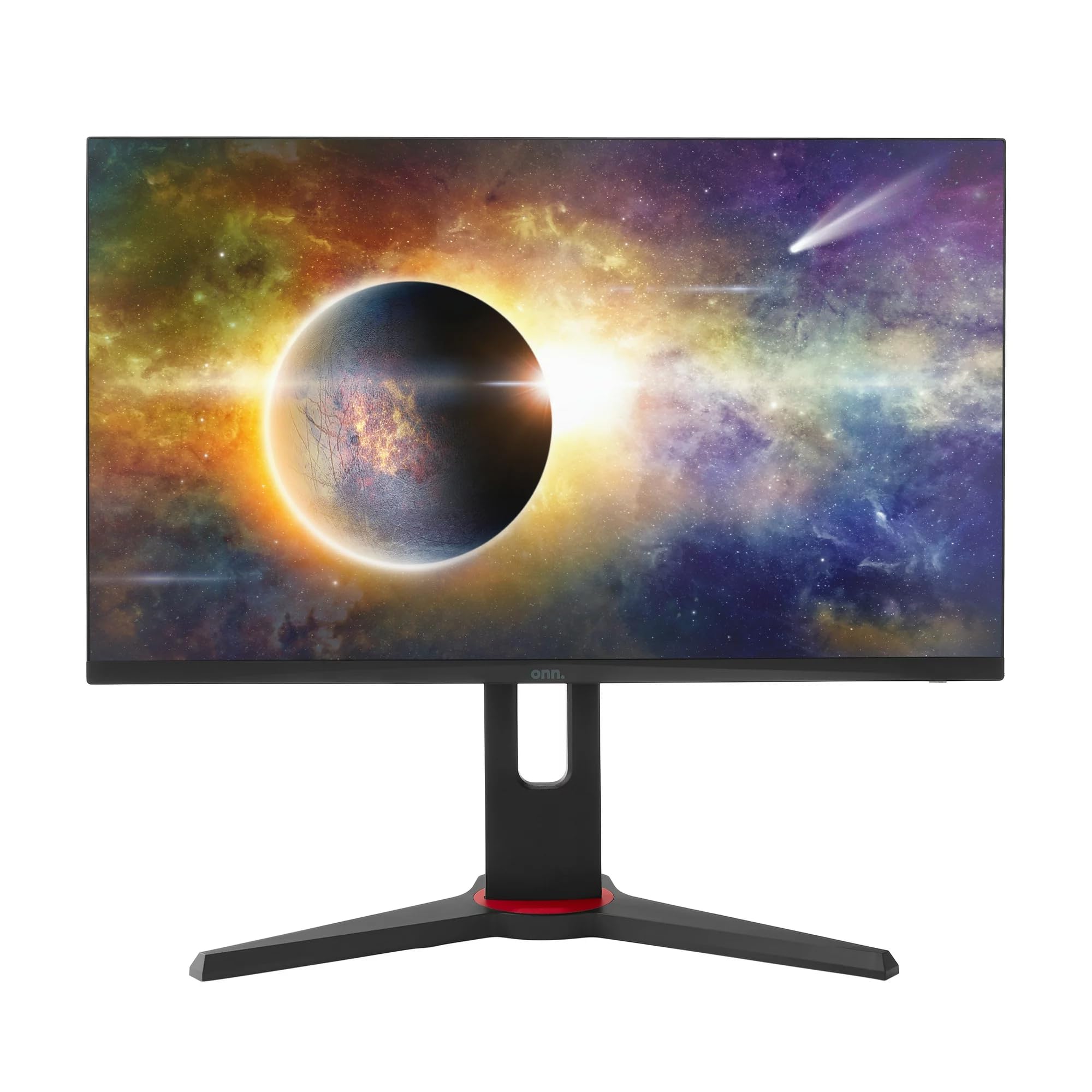
Aworan: Iwaju view of the ONN 24-inch Gaming Monitor, fully assembled with its stand.

Aworan: Ẹyin view of the ONN 24-inch Gaming Monitor, illustrating the stand attachment and cable management area.
2. Nsopọ Cables
Locate the input ports on the back of your monitor:
- Agbara: So ohun ti nmu badọgba agbara pọ si titẹ agbara atẹle ati lẹhinna si iṣan agbara kan.
- Input fidio: Connect one end of the provided DisplayPort or HDMI cable to the corresponding port on your computer's graphics card and the other end to the monitor. The monitor supports 2 HDMI inputs and 1 DisplayPort input.
- Ijade Olohun (Aṣayan): If your monitor has a 3.5mm audio jack, you can connect external speakers or headphones.

Aworan: Isunmọ view of the monitor's rear ports, including HDMI 1, HDMI 2, DisplayPort (DP), and power input.
3. Ibẹrẹ Agbara-On
- Rii daju pe gbogbo awọn kebulu ti sopọ ni aabo.
- Press the power button on the monitor (usually located on the back or bottom right).
- The monitor should display the ONN logo and then search for an input signal.
- If no image appears, ensure your computer is powered on and the correct input source is selected on the monitor (see Operating section).
Ṣiṣẹ
1. Agbara Tan / Paa
Tẹ bọtini agbara lati tan atẹle naa si tan tabi pa. Ina Atọka agbara yoo fi ipo atẹle han (fun apẹẹrẹ, buluu fun titan, amber fun imurasilẹ).
2. Ifihan Lori iboju (OSD) Lilọ kiri Akojọ aṣyn
Your monitor features an OSD menu for adjusting various settings. Typically, buttons on the back or bottom of the monitor control the OSD:
- Bọtini Akojọ: Ṣii akojọ aṣayan OSD.
- Awọn bọtini lilọ kiri (Soke/isalẹ/osi/ọtun): A lo lati lọ kiri nipasẹ awọn aṣayan akojọ aṣayan.
- Yan/Bọtini Tẹ sii: Jẹrisi yiyan tabi tẹ akojọ aṣayan-ipin sii.
- Bọtini Jade: Jade ni ti isiyi akojọ tabi OSD.
3. Siṣàtúnṣe Eto
Key settings you can adjust via the OSD menu include:
- Imọlẹ/Itọtọ: Ṣatunṣe itanna gbogbogbo ati iyatọ laarin ina ati awọn agbegbe dudu.
- Eto awọ: Ṣe atunṣe iwọn otutu awọ, gamma, ati awọn ipele RGB kọọkan.
- Orisun igbewọle: Fi ọwọ́ yan laarin awọn titẹ sii HDMI 1, HDMI 2, tabi DisplayPort.
- Oṣuwọn isọdọtun: Ensure your graphics card and monitor are set to 165Hz for the smoothest experience. This is usually configured in your operating system's display settings.
- Akoko Idahun: Adjust the monitor's response time setting (e.g., 1ms) for reduced motion blur in fast-paced games.
- Imọ-ẹrọ FreeSync: Enable FreeSync in the OSD menu and in your AMD graphics card settings to synchronize the monitor's refresh rate with your GPU's frame rate, eliminating screen tearing and stuttering.
- Awọn ọna aworan: Select from preset modes optimized for different content (e.g., Standard, Game, Movie, Text).

Image: The ONN 24-inch Gaming Monitor displayed in a typical desk setup, connected to a laptop with gaming peripherals.
Itoju
Ninu Monitor
- Yọọ ẹrọ atẹle nigbagbogbo ṣaaju ṣiṣe mimọ.
- Lo asọ rirọ, ti ko ni lint ni sere dampened pẹlu omi tabi ìwọnba, ti kii-abrasive iboju regede.
- Maṣe fun sokiri regede taara sori iboju. Lo akọkọ si asọ.
- Yẹra fun lilo awọn kẹmika lile, awọn paadi abrasive, tabi awọn olomi.
Ibi ipamọ
Tí o bá ń fi monitor pamọ́ fún ìgbà pípẹ́, yọ gbogbo okùn náà kúrò, kó o sínú àpótí ìpamọ́ rẹ̀ (tí ó bá wà), kí o sì tọ́jú rẹ̀ sí ibi tí ó tutù tí ó sì gbẹ, tí kò sí ìmọ́lẹ̀ oòrùn tààrà tàbí ooru tó le koko.
Laasigbotitusita
Ti o ba pade awọn ọran pẹlu atẹle rẹ, tọka si awọn iṣoro ti o wọpọ ati awọn ojutu wọnyi:
| Isoro | Owun to le Solusan |
|---|---|
| Ko si aworan loju iboju |
|
| Image is flickering or distorted |
|
| Kò sí ohùn (tí a bá ń lo àwọn agbọ́hùnsọjú/ohun tí a ti yọ jáde) |
|
| Monitor not reaching 165Hz |
|
Awọn pato
Detailed technical specifications for the ONN 24-inch FHD Gaming Monitor (Model 100027813):
| Ẹya ara ẹrọ | Sipesifikesonu |
|---|---|
| Nọmba awoṣe | 100027813 |
| Iwon iboju | 24 inches |
| Ipinnu | FHD 1080p (1920x1080) |
| Oṣuwọn sọtun | 165 Hz |
| Akoko Idahun | 1 Milise-aaya |
| Ifihan ọna ẹrọ | IPS |
| Amuṣiṣẹpọ Adaptive | FreeSync |
| Apakan Ipin | 16:9 |
| Ipin Itansan | 2000:1 |
| Iboju Iboju | Matte, Anti-glare with low blue light setting |
| Asopọmọra | 2 x HDMI, 1 x DisplayPort |
| Awọn iwọn Ọja (D x W x H) | 61.3 x 11.3 x 37.3 cm |
| Iwọn Nkan | 6.1 kg |
| Àwọ̀ | Dudu |
| Iṣagbesori Iru | Oke tabili |
| Awọn Lilo pato | Entertainment, Gaming |
Atilẹyin ọja
This ONN 24-inch FHD Gaming Monitor is a renewed product. Warranty terms and conditions for renewed products may vary. Please refer to the specific warranty information provided by the seller or retailer at the time of purchase. It is recommended to retain your proof of purchase for any warranty claims.
Atilẹyin
For technical assistance, troubleshooting beyond this manual, or warranty inquiries, please contact the retailer or the Amazon Renewed support channel where the product was purchased. Have your model number (100027813) and proof of purchase ready when contacting support.