
1. Ifihan
The TP-Link Deco BE65 Pro WiFi 7 Mesh System is designed to provide a seamless, high-speed wireless network throughout your home. This 3-pack system utilizes cutting-edge WiFi 7 technology, offering tri-band BE9300Mbps speeds, Multi-Link Operation (MLO), and advanced security features like WPA3. With multiple 5Gbps and 2.5Gbps ports, it ensures robust wired and wireless connectivity for all your devices. This manual will guide you through the setup, operation, maintenance, and troubleshooting of your Deco BE65 Pro system.

Figure 1: A single TP-Link Deco BE65 Pro unit in a home environment.
2. Ohun ti o wa ninu Apoti
Your TP-Link Deco BE65 Pro (3-Pack) package should contain the following items:
- 3 x Deco BE65 Pro Units
- 3 x Power Adapters
- 1 x Okun Ethernet
- 1 x Awọn ọna fifi sori Itọsọna

Figure 2: The product packaging, indicating the contents and model information.
3. Ọja Ipariview
The Deco BE65 Pro units are designed for optimal performance and ease of use. Each unit features multiple high-speed ports and advanced wireless capabilities to create a robust mesh network.
Awọn ẹya pataki:
- Wifi 7 Boṣewa: Experience the latest generation of Wi-Fi with enhanced speed, lower latency, and increased capacity.
- Tri-Band BE9300Mbps: Delivers combined speeds of up to 9300 Mbps across 6 GHz, 5 GHz, and 2.4 GHz bands.
- Isẹ-ọna-ọpọlọpọ (MLO): Simultaneously send and receive data across different bands and channels to boost throughput, reduce latency, and improve reliability.
- High-Speed Ports: Each unit includes two 5Gbps ports and one 2.5Gbps port for ultra-fast wired connections.
- Lilọ kiri lainidi: Move freely throughout your home with a single Wi-Fi name and uninterrupted connectivity.
- TP-Link HomeShield: Provides comprehensive network protection, robust parental controls, and real-time IoT security.
- WPA3 aabo: Enhanced security protocol for a safer network.
- Ibamu gbooro: Backward compatible with all Wi-Fi generations and works with any Internet Service Provider (ISP) and modem.

Olusin 3: Pariview of the Deco BE65 Pro's key WiFi 7 features.
Awọn ibudo ati Awọn Atọka:
Each Deco BE65 Pro unit is equipped with the following ports and indicators:
- Atọka LED: Located on the top of the unit, it displays the Deco's status (e.g., solid white for connected, pulsing blue for setup mode, solid red for no internet).
- WAN/LAN Ports: Two 5Gbps ports and one 2.5Gbps port. These ports automatically detect WAN or LAN connections.
- Ibudo USB: Fun sisopọ awọn ẹrọ ibi ipamọ ita.
- Ibudo Agbara: Fun sisopọ ohun ti nmu badọgba agbara.
- Bọtini atunto: A small button usually located at the bottom or back, used to reset the unit to factory settings.
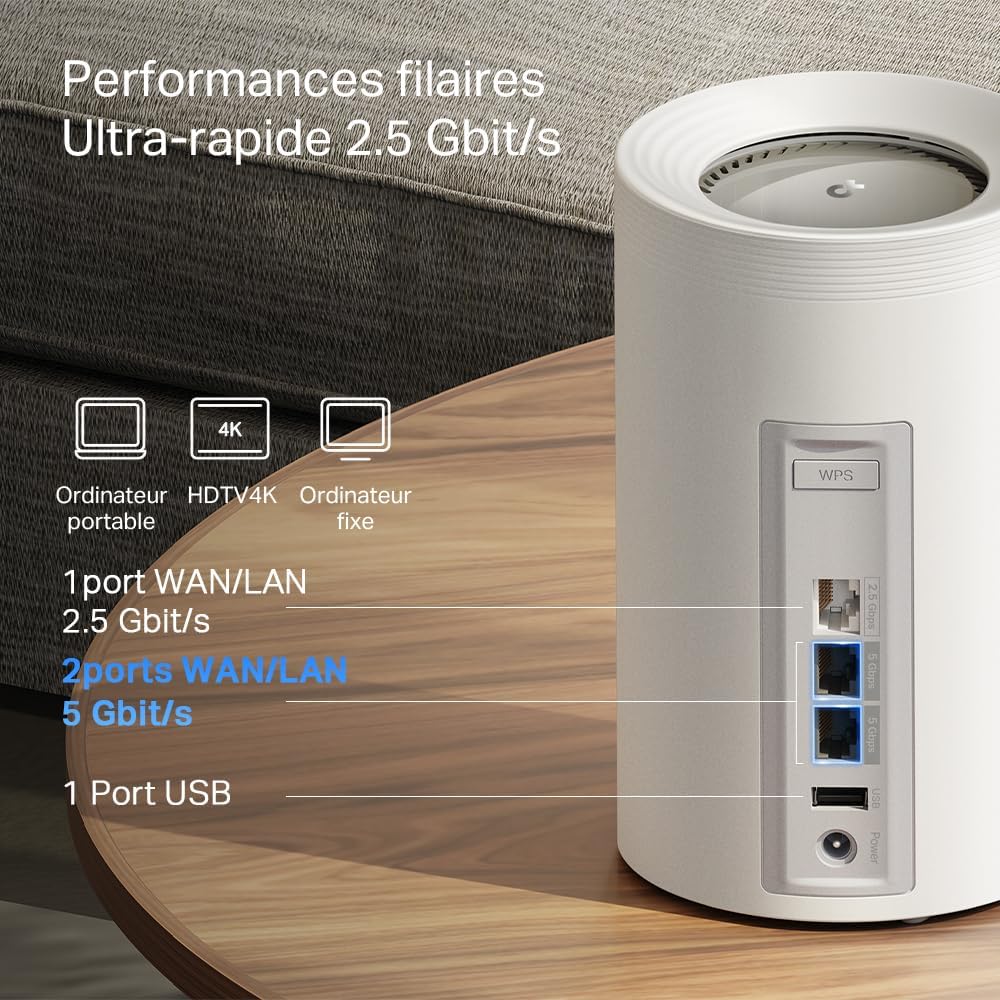
Nọmba 4: Alaye view of the high-speed WAN/LAN and USB ports on a Deco BE65 Pro unit.
Backhaul Solution:
The Deco BE65 Pro system utilizes a robust backhaul solution, combining both wired Ethernet and multiple Wi-Fi bands (6 GHz, 5 GHz, 2.4 GHz) to ensure stable and high-speed communication between Deco units. This multi-gigabit mesh backhaul enhances overall network performance and reliability.

Figure 5: Illustration of the combined wired and wireless backhaul connections between Deco units.
4. Awọn ilana iṣeto
Setting up your TP-Link Deco BE65 Pro Mesh System is a straightforward process using the Deco app. Follow these general steps:
- Ṣe igbasilẹ Ohun elo Deco: Wa fun "TP-Link Deco" in the App Store (iOS) or Google Play Store (Android) and install the app.
- Prepare Your Modem: Power off your modem and remove its battery (if applicable).
- So Ẹrọ Deco Akọkọ pọ:
- Connect one Deco unit to your modem using the provided Ethernet cable. Use any of the WAN/LAN ports on the Deco.
- Agbara lori rẹ modẹmu.
- Plug in the main Deco unit and wait for its LED to pulse blue.
- Set Up via App: Open the Deco app, log in or sign up for a TP-Link ID, and follow the on-screen instructions to set up your main Deco unit.
- Fi Àwọn Ẹ̀yà Deco Afikun kun: Once the main Deco is set up, the app will guide you to add the remaining Deco units. Place them strategically to ensure optimal coverage. Plug in each additional Deco unit and wait for its LED to pulse blue, then follow the app's instructions to add it to your mesh network.
For detailed, step-by-step instructions, refer to the Quick Installation Guide included in your package or the in-app setup wizard.
5. Awọn ilana Iṣiṣẹ
The TP-Link Deco app is your central hub for managing your mesh Wi-Fi network. After successful setup, you can use the app to control various aspects of your network.
Network Management via Deco App:
- Dasibodu: View connected devices, network status, and real-time speed.
- Awọn iṣakoso obi: Ṣeto profiles for family members, filter content, set time limits, and pause internet access.
- Didara Iṣẹ (QoS): Prioritize devices or activities (e.g., gaming, streaming) to ensure optimal performance.
- Nẹtiwọọki alejo: Ṣẹ̀dá nẹ́tíwọ́ọ̀kì Wi-Fi ọ̀tọ̀ fún àwọn àlejò, kí nẹ́tíwọ́ọ̀kì pàtàkì rẹ lè wà ní ààbò.
- Antivirus & IoT Security: Utilize TP-Link HomeShield features for network protection against malicious threats and to secure your smart home devices.
- Eto Wi-Fi: Change your Wi-Fi name (SSID) and password, enable/disable specific bands, and configure advanced settings.
- Lilọ kiri lainidi: The Deco system automatically connects your devices to the strongest Wi-Fi signal as you move around your home, ensuring a smooth and uninterrupted experience.
6. Itọju
Regular maintenance helps ensure the optimal performance and longevity of your Deco BE65 Pro system.
- Awọn imudojuiwọn famuwia: The Deco app will notify you of available firmware updates. It is highly recommended to keep your Deco units updated to benefit from the latest features, security enhancements, and performance improvements. Updates can typically be performed directly through the app.
- Ninu: Gently wipe the exterior of the Deco units with a soft, dry cloth. Do not use liquid cleaners or abrasive materials. Ensure the units are unplugged before cleaning.
- Ibi to dara julọ: For best performance, ensure your Deco units are placed in open areas, away from obstructions like large metal objects, thick walls, and other electronic devices that may cause interference. Maintain a clear line of sight between units where possible.
- Atunbere: Occasionally, rebooting your Deco units and modem can resolve minor network issues and improve performance. This can be done via the Deco app or by unplugging and replugging the power adapters.
7. Laasigbotitusita
If you encounter issues with your Deco BE65 Pro system, try the following troubleshooting steps:
- Ko si Asopọ Ayelujara:
- Ṣayẹwo boya modẹmu rẹ n ṣiṣẹ daradara.
- Ensure the Ethernet cable between the main Deco and the modem is securely connected.
- Reboot your modem and the main Deco unit.
- Check the Deco app for diagnostic tools or error messages.
- Iyara Wi-Fi o lọra:
- Ensure your Deco units are optimally placed and not too far apart.
- Ṣayẹwo fun kikọlu lati awọn ẹrọ itanna miiran.
- Jẹrisi iyara ero intanẹẹti rẹ pẹlu ISP rẹ.
- Use the Deco app to run a network optimization or speed test.
- Deco Unit Not Connecting:
- Ensure the unit is powered on and its LED is pulsing blue for setup.
- Try moving the unit closer to an existing Deco unit.
- Perform a factory reset on the problematic Deco unit (refer to the Reset Button section in Product Overview) and try adding it again via the app.
- Awọn ọrọ App:
- Ensure your Deco app is updated to the latest version.
- Gbiyanju lati tun bẹrẹ ohun elo naa tabi ẹrọ alagbeka rẹ.
If these steps do not resolve your issue, please contact TP-Link support for further assistance.
8. Awọn pato
Below are the technical specifications for the TP-Link Deco BE65 Pro Mesh System:

Figure 6: Illustration of the ultra-fast tri-band Wi-Fi speeds.
| Ẹya ara ẹrọ | Sipesifikesonu |
|---|---|
| Brand | TP-Link |
| Orukọ awoṣe | Deco BE65 Pro |
| Wi-Fi Iran | WiFi 7 |
| Alailowaya Ibaraẹnisọrọ Alailowaya | 802.11be |
| Igbohunsafẹfẹ Band Class | Tri-Band (6 GHz, 5 GHz, 2.4 GHz) |
| Data Gbigbe Oṣuwọn | Up to 9300 Mbps (BE9300) |
| LAN Port bandiwidi | 2 x 5000 Mbps, 1 x 2500 Mbps |
| Nọmba ti Ports | 3 (WAN/LAN auto-sensing) |
| Aabo Ilana | WPA3, WPA2-PSK, WPA-PSK |
| Ọna Iṣakoso | Application (TP-Link Deco App) |
| Awọn ẹrọ ibaramu | Surveillance Camera, Personal Computer, Smartphone, Tablet |
| Niyanju Lilo | Ile |
| Eriali Iru | Fixed (4 antennas per unit) |
| Eto isesise | TP-Link Archer OS |
| Smart Home ibamu | Ni ibamu pẹlu smati ile awọn ẹrọ |
| Router Firewall Security Level | Ga |
| Modem Compatible | Bẹẹni |
| Ibora | Large (with 3 units) |
| Iwọn Nkan | 3.51 Kilograms (total for 3 units) |
| Awọn iwọn Nkan L x W x H | 24.1L x 36W x 11.9H sẹntimita |
| Security Updates Received | Bẹẹni |
9. Atilẹyin ọja ati Support
Alaye Atilẹyin ọja:
The TP-Link Deco BE65 Pro Mesh System comes with a 2-odun atilẹyin ọja. Jọwọ ṣe idaduro ẹri rira rẹ fun awọn iṣeduro atilẹyin ọja.
Oluranlowo lati tun nkan se:
For technical support, product registration, and further information, please visit the official TP-Link website or contact their customer support. You can usually find support resources, FAQs, and contact details on the TP-Link support page for your region.
The TP-Link Deco app also provides in-app support options and access to helpful resources.