
1. Ifihan
This manual provides essential instructions for setting up, operating, and maintaining your SUAAT S10 10-inch Android 14 Tablet. Please read this manual thoroughly before using your device to ensure proper functionality and to maximize its lifespan. The SUAAT S10 tablet features an Octa-Core processor, 22GB RAM, 128GB ROM (expandable to 1TB), 5G+2.4G WiFi, Bluetooth 5.0, an 8000mAh battery, and an 8MP rear camera with a 5MP front camera.
2. Package Awọn akoonu
Daju pe gbogbo awọn ohun ti a ṣe akojọ rẹ si isalẹ wa ninu package ọja rẹ:
- SUAAT S10 tabulẹti
- Keyboard Bluetooth
- Asin Alailowaya
- Ọran Idaabobo
- Screen Protector (Tempered Glass)
- USB Iru-C Ngba agbara USB
- Adapter agbara
- OTG Adapter
- SIM Ejector Pin (for microSD card slot)
- Itọsọna olumulo

Figure 2.1: Included accessories with the SUAAT S10 tablet.
3. Ni ibẹrẹ Oṣo
3.1 Gbigba agbara si tabulẹti
Before first use, fully charge the tablet. Connect the USB Type-C charging cable to the tablet's charging port and the power adapter to a wall outlet. The charging indicator will show the charging status. A full charge typically takes several hours.
3.2 Titan / Pa a
- Lati Fi agbara: Tẹ bọtini Power mọlẹ titi iboju yoo fi tan.
- Lati Paarẹ: Tẹ ki o si mu awọn Power bọtini, ki o si yan "Power pipa" lati awọn aṣayan loju iboju.
- Lati Tun bẹrẹ: Tẹ bọtini agbara ki o si dimu, lẹhinna yan "Tun bẹrẹ" lati awọn aṣayan ti o wa lori iboju.
3.3 Nsopọ si Wi-Fi
- Lọ si Eto > Nẹtiwọọki & Intanẹẹti > Wi-Fi.
- Yipada Wi-Fi On.
- Yan nẹtiwọki Wi-Fi ti o fẹ lati inu atokọ naa.
- Tẹ ọrọ igbaniwọle nẹtiwọki sii ti o ba ṣetan, lẹhinna tẹ ni kia kia Sopọ.
3.4 Pairing Bluetooth Accessories (Keyboard & Mouse)
- Ensure the Bluetooth keyboard and mouse are powered on and in pairing mode (refer to their respective manuals for specific instructions).
- Lórí tablet rẹ, lọ sí Eto > Awọn ẹrọ ti a ti sopọ > Bluetooth.
- Yi Bluetooth pada On.
- Fọwọ ba So ẹrọ titun pọ.
- Select the keyboard or mouse from the list of available devices and follow any on-screen prompts to complete pairing.

Figure 3.1: SUAAT S10 tablet with keyboard and mouse accessories.
4. Ṣiṣẹ tabulẹti
4.1 Ìbánisọ̀rọ̀ Android 14
Your SUAAT S10 tablet runs on Android 14, offering a user-friendly interface. Navigate by tapping, swiping, and pinching the screen. The home screen provides quick access to applications and widgets. Swipe down from the top for notifications and quick settings.

Figure 4.1: Android 14 operating system on SUAAT S10.
4.2 Lilo awọn kamẹra
The tablet is equipped with an 8MP rear camera and a 5MP front camera. Open the Camera application to capture photos and videos. Tap the screen to focus and press the shutter button to take a picture.

Figure 4.2: Camera features and sample awọn aworan.
4.3 Lilo ohun elo media
The 10-inch display with 1920x1200 resolution and Widevine L1 support provides an optimal viewing experience for videos and other media. The 8000mAh battery supports extended usage for video playback, music, and gaming.

Figure 4.3: High-definition display of the SUAAT S10 tablet.
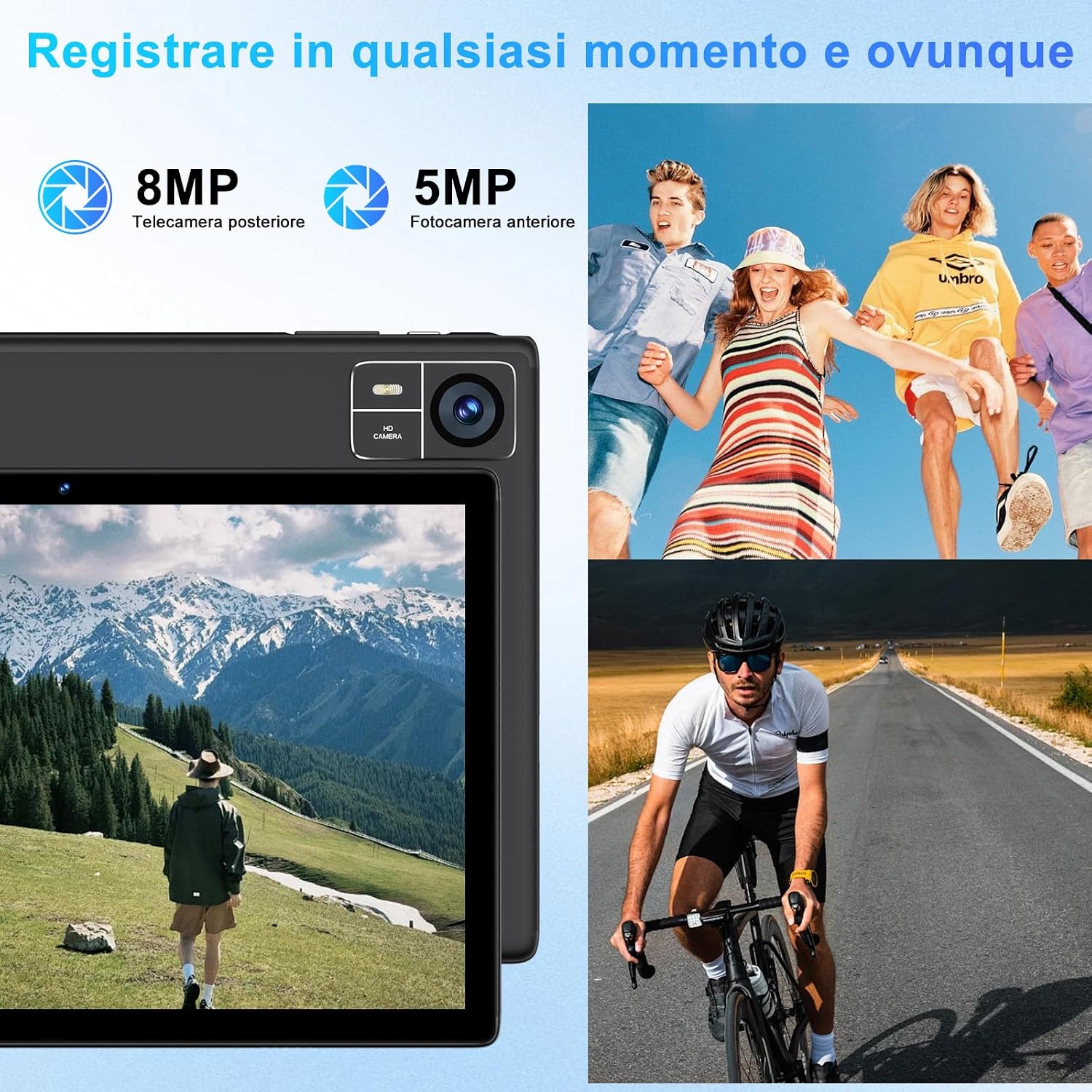
Figure 4.4: 8000mAh battery for extended use.

Figure 4.5: Tablet performance for media and applications.
5. Itọju
5.1 Ninu tabulẹti
Use a soft, lint-free cloth to clean the screen and body of the tablet. Avoid using harsh chemicals or abrasive materials, which can damage the screen coating or finish. For stubborn smudges, slightly dampfi omi tàbí omi ìwẹ̀nùmọ́ pàtó kan sí aṣọ náà.
5.2 batiri Itọju
- Yẹra fún fífi tábìlì náà sí ojú otútù tó le koko (gbóná tàbí òtútù), nítorí èyí lè ba iṣẹ́ bátírì jẹ́.
- Má ṣe fi tábìlì náà sílẹ̀ pátápátá fún ìgbà pípẹ́.
- For optimal battery longevity, avoid constantly charging the tablet to 100% or letting it frequently drop to 0%.
5.3 Software imudojuiwọn
Ṣayẹwo nigbagbogbo fun ati fi awọn imudojuiwọn sọfitiwia sori ẹrọ lati rii daju pe tabulẹti rẹ ni awọn ẹya tuntun, awọn abulẹ aabo, ati awọn ilọsiwaju iṣẹ. Lọ si Eto > Eto > Imudojuiwọn eto.
6. Laasigbotitusita
6.1 Tabulẹti Ko Titan
- Rii daju pe tabulẹti ti gba agbara to. Sopọ mọ ṣaja fun o kere 30 iṣẹju.
- Tẹ mọlẹ bọtini agbara fun awọn aaya 10-15 lati tun fi agbara mu bẹrẹ.
6.2 Wi-Fi Asopọmọra Oran
- Ṣayẹwo boya Wi-Fi ti ṣiṣẹ ni Eto.
- Tun olulana Wi-Fi rẹ bẹrẹ ati tabulẹti.
- Gbagbe nẹtiwọọki inu Eto > Nẹtiwọọki & Intanẹẹti > Wi-Fi, lẹhinna tun sopọ.
6.3 o lọra Performance
- Pa awọn ohun elo abẹlẹ ti ko wulo.
- Clear cache data for frequently used apps in Eto > Awọn ohun elo > [Orukọ App] > Ibi ipamọ & kaṣe.
- Ensure sufficient storage space is available. Delete unused files tabi apps.
- Tun tabulẹti bẹrẹ.
6.4 Bluetooth Accessories Not Connecting
- Ensure the accessories are charged and in pairing mode.
- Check if Bluetooth is enabled on the tablet.
- Unpair and re-pair the accessories.
- Restart both the tablet and the accessories.
7. Awọn pato
| Ẹya ara ẹrọ | Sipesifikesonu |
|---|---|
| Brand | SUAAT |
| Nọmba awoṣe | S10 |
| Eto isesise | Android 14 |
| isise Brand | Unisoc Octa-Core (2.0 GHz) |
| Àgbo | 22GB (Note: This typically includes virtual RAM expansion. Actual physical RAM may be lower.) |
| Ibi ipamọ inu | 128GB |
| Expandable Ibi ipamọ | Títí dé 1TB nípasẹ̀ káàdì TF (microSD) |
| Iwon iboju | 10 inches |
| Ipinnu Ifihan | Àwọn píksẹ́lì 1920x1200 (FHD) |
| Kamẹra ẹhin | 8MP |
| Kamẹra iwaju | 5MP |
| Agbara Batiri | 8000mAh |
| Alailowaya Asopọmọra | 5G+2.4G WiFi (802.11ac, 802.11b, 802.11g, 802.11n), Bluetooth 5.0 |
| Iru Asopọmọra | USB Iru-C |
| Awọn iwọn (L x W x H) | 17 x 12 x 0.8 cm |
| Pataki Awọn ẹya ara ẹrọ | Widevine L1 Support, Includes Keyboard and Mouse |
8. Atilẹyin ọja ati Support
SUAAT is committed to providing professional technical assistance and 24-hour after-sales service. For any issues, questions, or warranty claims, please contact SUAAT customer support through the official channels provided with your purchase or on the SUAAT brand webojula.

Figure 8.1: SUAAT customer support details.