
SUAAT S10
SUAAT S10 10-inch Android 14 Tablet User Manual
Awoṣe: S10
1. Ifihan
This manual provides comprehensive instructions for the setup, operation, maintenance, and troubleshooting of your SUAAT S10 Android 14 Tablet. Please read this manual carefully before using your device to ensure proper functionality and to maximize your user experience.
2. Package Awọn akoonu
Verify that all items listed below are included in your package. If any items are missing or damaged, please contact SUAAT customer support.
- SUAAT S10 tabulẹti
- Tablet Case
- Keyboard Bluetooth
- Asin
- Iru-C si USB Adapter
- Iru-C Data Cable
- European Standard Charger
- OTG Adapter
- Olugbeja iboju
- Ilana Afowoyi (iwe yii)

Àwòrán 2.1: Àwọn Àkóónú Àpò Tí A Fi Sílẹ̀
3. Ọja Ipariview
The SUAAT S10 tablet features a 10.1-inch IPS display, an Octa-Core processor, and runs on Android 14. It is designed for versatile use, from entertainment to productivity.
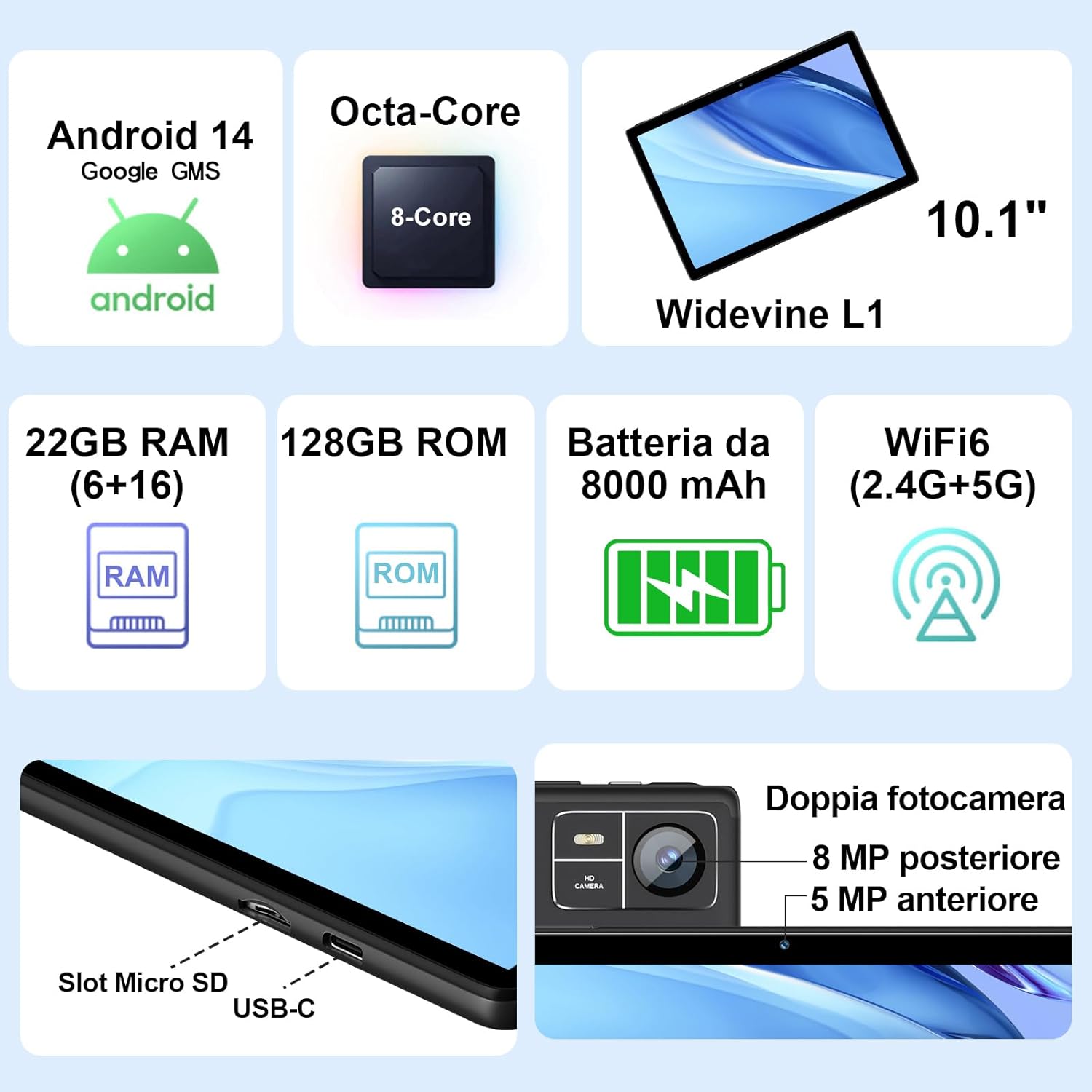
Figure 3.1: Key Features and Ports
3.1 ti ara Awọn ẹya ara ẹrọ
- Ifihan: 10.1-inch IPS screen (1280 x 800 resolution)
- Awọn kamẹra: 5 MP Front Camera, 8 MP Rear Camera
- Awọn ibudo: USB Type-C, MicroSD Card Slot
- Awọn bọtini: Power Button, Volume Up/Down
4. Eto
4.1 Gbigba agbara akọkọ
Before first use, fully charge your tablet using the provided Type-C data cable and European standard charger. The battery indicator on the screen will show charging status.
4.2 Agbara Tan / Pa
- Lati Fi agbara: Press and hold the Power button until the SUAAT logo appears.
- Lati Paarẹ: Tẹ mọlẹ bọtini agbara titi awọn aṣayan agbara yoo han, lẹhinna yan “Agbara kuro”.
- Lati Tun bẹrẹ: Tẹ bọtini agbara ki o si dimu titi awọn aṣayan agbara yoo fi han, lẹhinna yan "Tun bẹrẹ".
4.3 Oṣo oluṣeto akọkọ
Lori agbara akọkọ, tabulẹti yoo ṣe itọsọna fun ọ nipasẹ ilana iṣeto akọkọ:
- Yan ede ti o fẹ.
- Sopọ si nẹtiwọki Wi-Fi kan.
- Sign in with your Google account or create a new one. This is necessary to access the Google Play Store and other Google services.
- Ṣeto titiipa iboju (PIN, apẹrẹ, tabi ọrọ igbaniwọle).
- Review and accept Google services terms.
4.4 Fi kaadi MicroSD sii
The tablet supports MicroSD cards up to 1TB for expanded storage.
- Wa iho kaadi MicroSD ni ẹgbẹ tabulẹti naa.
- Gently insert the MicroSD card into the slot until it clicks into place. Ensure the card is oriented correctly.
- Lati yọọ kuro, tẹ kaadi naa rọra titi yoo fi jade.
4.5 Connecting Accessories (Keyboard and Mouse)
The included Bluetooth keyboard and mouse can be easily paired with your tablet.
- Lọ si Eto > Awọn ẹrọ ti a ti sopọ > Bluetooth lori rẹ tabulẹti.
- Turn on the Bluetooth keyboard and mouse. Put them into pairing mode (refer to their individual manuals if needed).
- On the tablet, tap "Pair new device" and select the keyboard or mouse from the list of available devices.
- Tẹle eyikeyi awọn ilana loju iboju lati pari ilana sisopọ.

Figure 4.1: Tablet with Keyboard and Mouse
5. Ṣiṣẹ tabulẹti
5.1 Àwọn Ẹ̀yà Android 14
Your SUAAT S10 tablet runs on the latest Android 14 operating system, offering enhanced privacy, customizable themes, and improved performance.
- GMS ti ni ifọwọsi: Pre-installed Google Play Store allows easy download of your favorite apps.
- Ìpamọ́ àti Ààbò: Enhanced privacy controls to manage app permissions and data access.
- Isọdi: Personalize themes and app icons.
- Productivity Features: Supports multi-users, multi-windows, and split-screen functionality for efficient multitasking.
- Awọn iṣakoso obi: Tools to manage content and screen time for children.
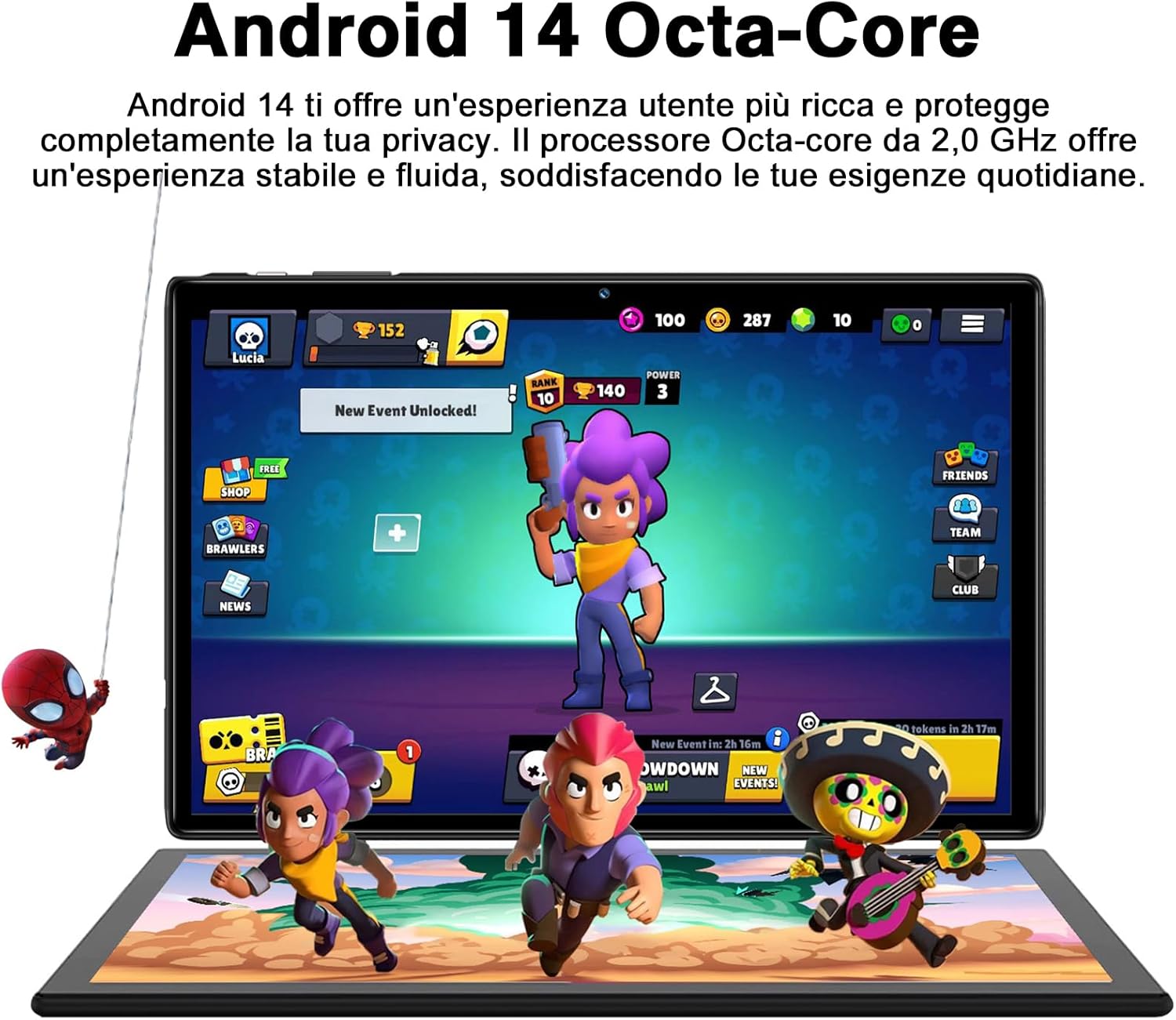
Figure 5.1: Android 14 Interface with Gaming Example
5.2 Ifihan Awọn ẹya ara ẹrọ
The 10.1-inch IPS display provides clear visuals and rich colors.
- Imọ ọna ẹrọ IPS: Nfun jakejado viewing awọn igun ati deede awọ atunse.
- WideVine L1 Support: Enables high-definition video streaming (up to 1280p) from platforms like YouTube and Netflix.

Figure 5.2: Displaying Apps on the IPS Screen
5.3 kamẹra Lilo
The tablet is equipped with a 5 MP front camera and an 8 MP rear camera for photos and video calls.
- Ṣii ohun elo kamẹra lati iboju ile tabi duroa app.
- Yipada laarin awọn kamẹra iwaju ati ẹhin nipa lilo aami kamẹra.
- Fọwọ ba bọtini titiipa lati ya fọto tabi bẹrẹ/da gbigbasilẹ fidio duro.
- Explore various camera modes and editing options within the app.
5.4 Asopọmọra
- Wi-Fi: Supports 2.4GHz and 5GHz Wi-Fi for fast and stable internet connection. Access Wi-Fi settings via Eto > Nẹtiwọọki & Intanẹẹti > Ayelujara.
- Bluetooth 5.0: Connect to Bluetooth headphones, speakers, printers, and other devices. Manage connections via Eto > Awọn ẹrọ ti a ti sopọ > Bluetooth.
- OTG (Lórí Ọ̀nà): Use the included OTG adapter to connect USB flash drives, external hard drives, or other USB peripherals.
- GPS: Integrated GPS for navigation and location-based services.
- Redio FM: Built-in FM receiver for listening to radio broadcasts.
5.5 Wiwọle Awọn ẹya ara ẹrọ
The tablet includes features to assist users with different needs:
- Yan lati Sọ: Nigbati o ba ṣiṣẹ (Eto > Wiwọle > Yan lati Sọ), you can tap text on the screen, and the tablet will read it aloud.
- TalkBack: Provides spoken feedback for all actions and screen elements, allowing navigation without visual input. Supports Braille displays via Bluetooth. Enable via Eto > Wiwọle > TalkBack.
5.6 File Gbigbe
O le ni rọọrun gbe files between your tablet and other devices like computers or mobile phones.
- Nipasẹ USB: Connect the tablet to a computer using the Type-C data cable. On the tablet, select "File transfer" from the USB connection options in the notification panel.
- Nipasẹ Bluetooth: Pair with another Bluetooth-enabled device and use the file sharing option.
6. Itọju
6.1 Ninu
Lati nu tabulẹti rẹ, lo asọ ti ko ni lint. Fun agidi smudges, die-die dampen awọn asọ pẹlu omi tabi a iboju regede. Yago fun lilo awọn kẹmika lile tabi awọn ohun elo abrasive.
6.2 batiri Itọju
The 8000mAh battery provides extended usage. To prolong battery life:
- Yago fun awọn iwọn otutu to gaju.
- Ma ṣe jẹ ki batiri naa ṣan patapata nigbagbogbo.
- Lo ṣaja atilẹba ati okun.
- Pa awọn ohun elo ti ko lo ti nṣiṣẹ ni abẹlẹ.
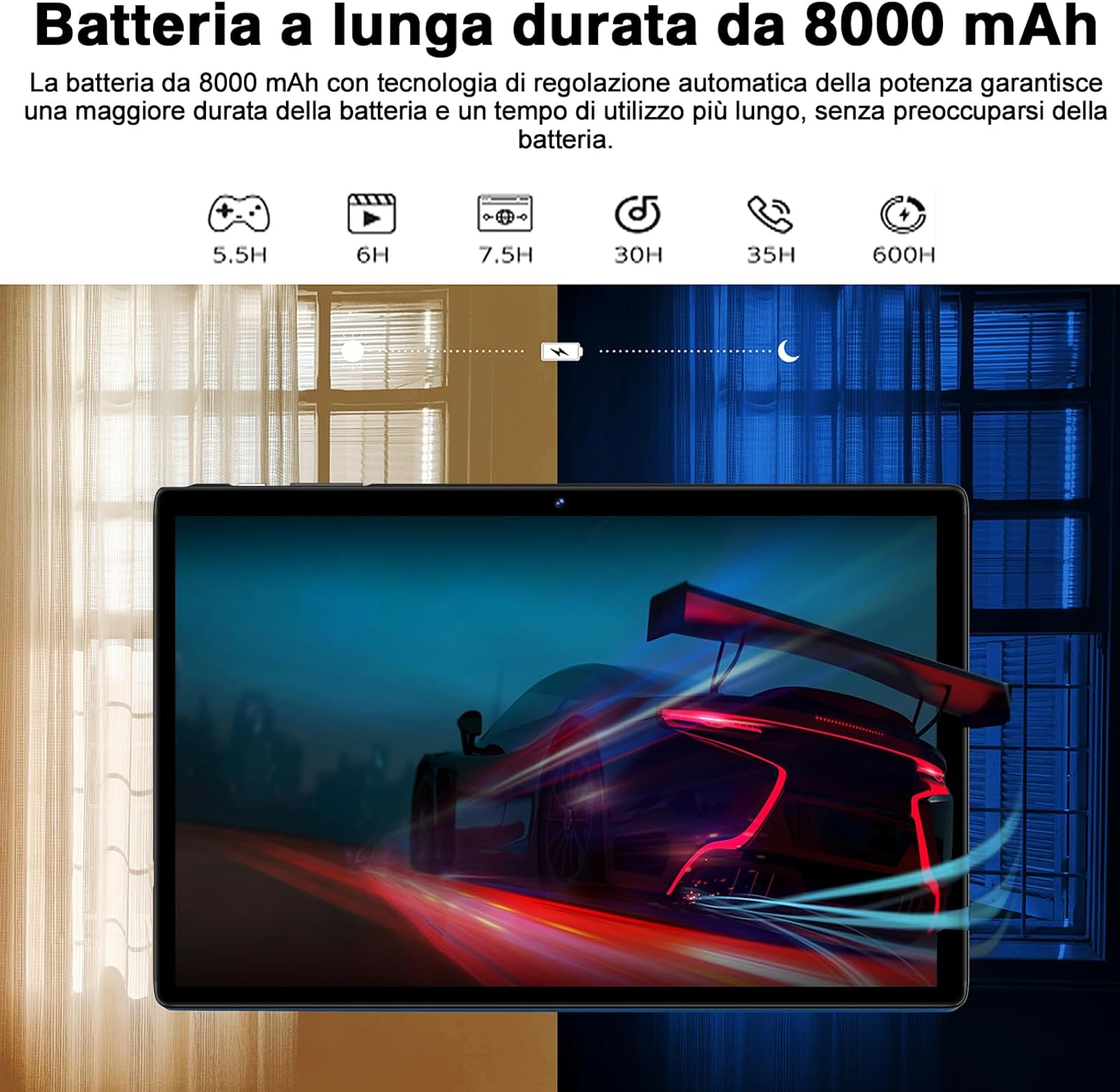
Figure 6.1: 8000mAh Battery Life Overview
6.3 Software imudojuiwọn
Ṣayẹwo nigbagbogbo fun awọn imudojuiwọn eto lati rii daju iṣẹ ti o dara julọ ati aabo. Lọ si Eto > Eto > Imudojuiwọn eto.
7. Laasigbotitusita
| Isoro | Owun to le Fa / Solusan |
|---|---|
| Tabulẹti ko ni tan-an. | Battery might be depleted. Connect the charger and try again after a few minutes. If it still doesn't turn on, press and hold the power button for 10-15 seconds to force a restart. |
| Awọn oran asopọ Wi-Fi. | Ensure Wi-Fi is enabled. Restart your router and the tablet. Forget the network and reconnect. Check if other devices can connect to the same Wi-Fi. |
| Awọn ohun elo n kọlu tabi didi. | Close background apps. Clear the app's cache (Settings > Apps > [App Name] > Storage & cache > Clear cache). Update the app to the latest version. Restart the tablet. |
| O lọra išẹ. | Ti awọn ohun elo ti a ko lo. Pa awọn ibi ipamọ ati igba diẹ kuro. files. Uninstall unnecessary apps. Ensure sufficient storage space. Restart the tablet regularly. |
| Ẹrọ Bluetooth ko so pọ. | Ensure Bluetooth is enabled on both devices. Put the accessory in pairing mode. Make sure devices are within range. Restart both devices. |
8. Awọn pato
| Ẹya ara ẹrọ | Ẹ̀kúnrẹ́rẹ́ |
|---|---|
| Brand | SUAAT |
| Awoṣe | S10 |
| Eto isesise | Android 14 |
| isise | Octa-Core, 2.0 GHz (Unisoc) |
| Àgbo | 22 GB (6GB physical + 16GB expansion) |
| Ibi ipamọ inu (ROM) | 128 GB |
| Expandable Ibi ipamọ | Up to 1 TB via MicroSD card |
| Agbara Batiri | 8000 mAh |
| Ifihan Iru | IPS |
| Iwon iboju | 10.1 inches |
| Ipinnu Ifihan | 1280 x 800 awọn piksẹli |
| Kamẹra iwaju | 5 MP |
| Kamẹra ẹhin | 8 MP |
| Wi-Fi | 2.4 GHz + 5 GHz (802.11ax) |
| Bluetooth | Bluetooth 5.0 |
| Awọn atọkun | Type-C, MicroSD Card Slot |
| Pataki Awọn ẹya ara ẹrọ | GMS Certified, WideVine L1, OTG, FM Receiver, GPS |
| Awọn iwọn (L x W x H) | 24.31 x 0.99 x 16.1 cm |
| Iwọn | 480 giramu |
9. Atilẹyin ọja ati Support
9.1 atilẹyin ọja Alaye
SUAAT offers a 2-year European standard warranty for each tablet PC. This warranty covers manufacturing defects and ensures your product functions as intended under normal use.
9.2 Onibara Support
SUAAT has over 15 years of experience in tablet manufacturing and sales, backed by a professional technical support and assistance team. We are committed to providing excellent pre-sales advice and after-sales service, including product technical support.
If you require any assistance or have questions, please do not hesitate to contact us. We aim to respond within 24 hours and provide satisfactory service.
For support, please refer to the contact information provided on the product packaging or SUAAT's official webojula.
10. Alaye Aabo pataki
- Má ṣe fi tábìlẹ́ẹ̀tì náà sí ojú ọjọ́ tí ó le koko, oòrùn tààrà, tàbí ọ̀rinrin gíga.
- Yago fun sisọ tabi tẹri tabulẹti si ipa ti o lagbara.
- Má ṣe gbìyànjú láti tú tàbí tún tábìlì náà ṣe fúnra rẹ. Èyí yóò sọ àtìlẹ́yìn náà di òfo.
- Use only original or certified compatible chargers and accessories.
- Pa tabulẹti naa mọ kuro ninu omi ati awọn omi miiran.
- Sọ tabulẹti ati batiri rẹ ni ifojusọna ni ibamu si awọn ilana agbegbe.
Ask a question about this manual
Ask about setup, troubleshooting, compatibility, parts, safety, or missing instructions. Manuals+ will review the question and use this page’s manual context to help answer it.