
1. Ifihan
This manual provides detailed instructions for the setup, operation, and maintenance of your BPXX Bluetooth Thermal Shipping Label Printer, Model D463B. This printer is designed for efficient and clear printing of various thermal labels, including 4x6 inch shipping labels, with a resolution of 203 DPI. It supports both Bluetooth connectivity via the 'Ezlabel' mobile application and USB connection to computers.
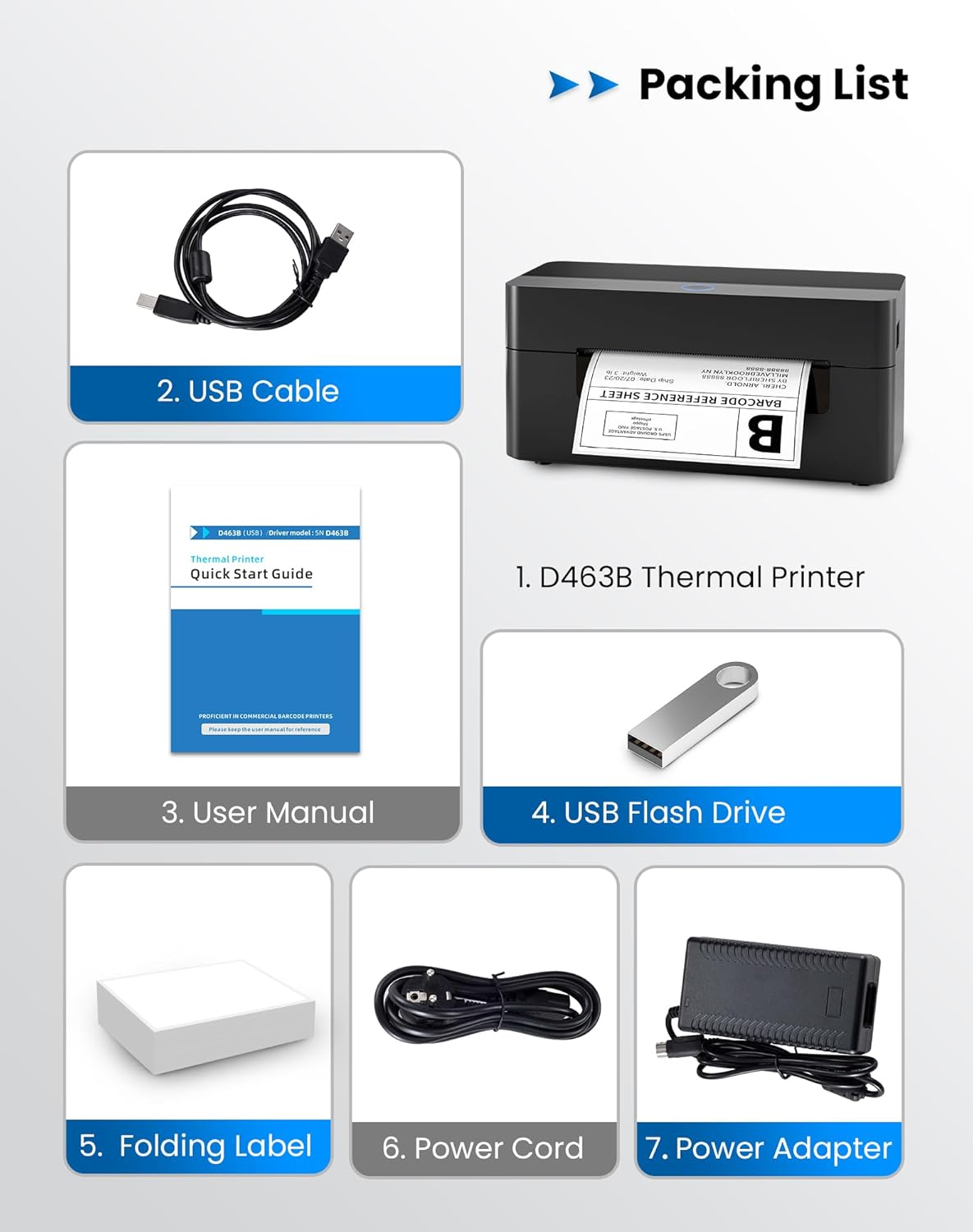
2. Iṣakojọpọ Akojọ
Jọwọ rii daju pe gbogbo awọn nkan ti a ṣe akojọ rẹ si isalẹ wa ninu package rẹ:
- 1 x BPXX D463B Thermal Printer
- 1 x Okun USB
- 1 x Itọsọna olumulo
- 1 x USB Flash Drive (ti o ni awọn awakọ)
- 1 x Folding Label (sample eerun)
- 1 x Okun Agbara
- 1 x Agbara Adapter
3. Eto Itọsọna
3.1 Hardware Asopọ
- Connect the power adapter to the printer's power port and plug the power cord into an electrical outlet.
- Open the printer cover and load the thermal labels. Ensure the labels are facing the correct direction for printing and are properly aligned within the guide rails.
- Pa ideri itẹwe naa ni aabo.

3.2 Software ati Driver sori
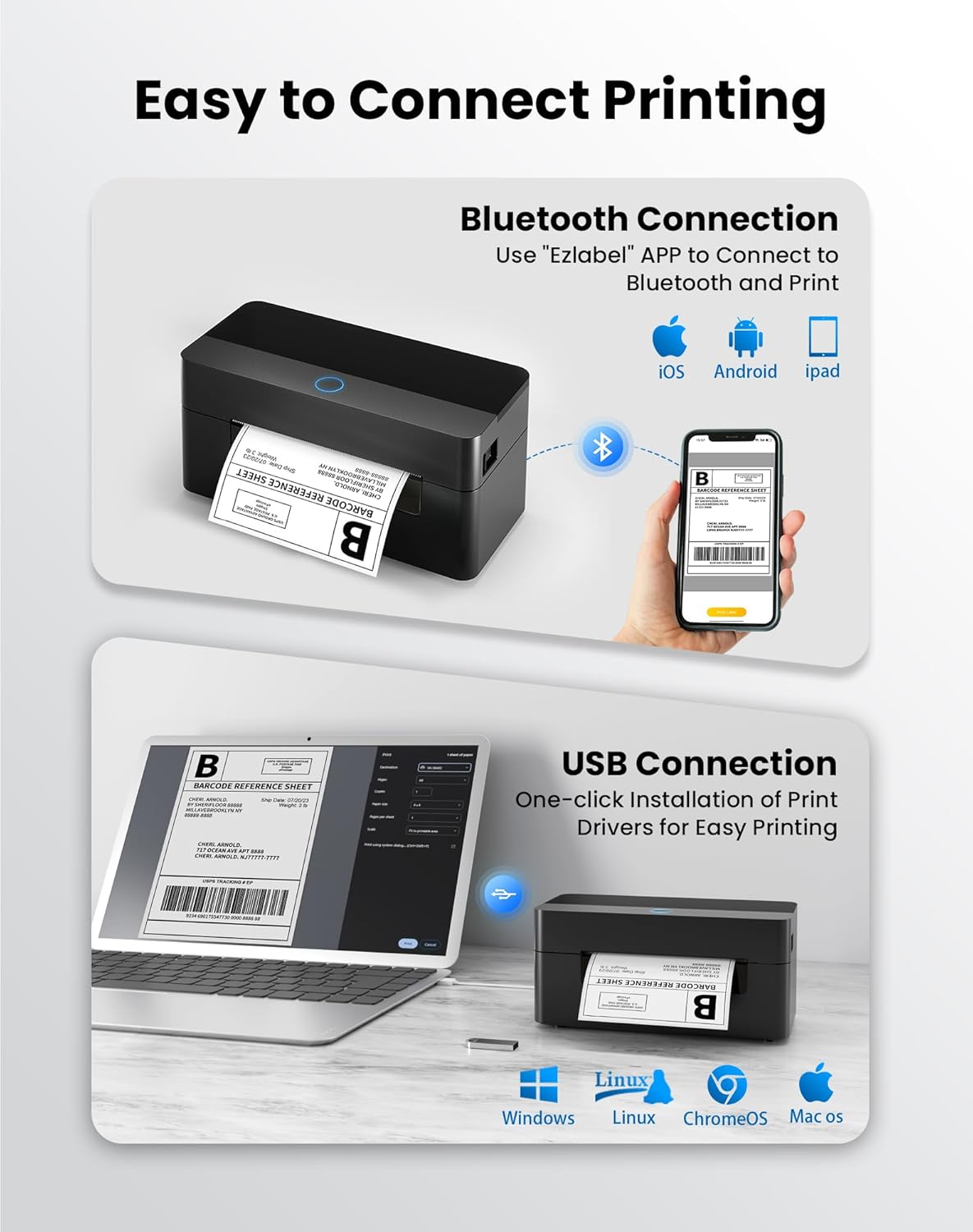
3.2.1 Mobile App (Bluetooth Connection)
For mobile printing, download the 'Ezlabel' application from your device's app store (available for iOS and Android).
- Wa fun 'Ezlabel' in the App Store (iOS) or Google Play Store (Android).
- Ṣe igbasilẹ ati fi sori ẹrọ ohun elo naa.
- Mu Bluetooth ṣiṣẹ lori ẹrọ alagbeka rẹ.
- Open the 'Ezlabel' app and follow the in-app instructions to connect to your BPXX D463B printer via Bluetooth.
3.2.2 Computer Driver (USB Connection)
For computer printing, install the appropriate drivers for your operating system (Windows, Mac OS, Linux, ChromeOS). Drivers are provided on the included USB flash drive or can be downloaded from the official webojula.
- Insert the provided USB flash drive into your computer.
- Locate and run the installer for your operating system.
- Tẹle awọn itọnisọna loju iboju lati pari fifi sori ẹrọ awakọ naa.
- Alternatively, download drivers from: BPXX Driver Download
4. Awọn ilana Iṣiṣẹ
4.1 ikojọpọ Labels
Ensure the thermal labels are loaded correctly for optimal printing. The printer supports thermal labels with widths ranging from 1 to 4.5 inches, including standard 4x6 inch shipping labels.
- Ṣii ideri oke ti itẹwe naa.
- Place the roll of thermal labels into the label compartment, ensuring the printable side faces upwards.
- Feed the first label through the printer's output slot until it is slightly extended.
- Adjust the label guides to fit the width of your labels snugly, without being too tight.
- Pa oke ideri. Itẹwe naa yoo rii iwọn aami laifọwọyi ati iwọntunwọnsi.

4.2 Printing via Bluetooth (Mobile App)
- Ensure the printer is powered on and connected to the 'Ezlabel' app via Bluetooth.
- Open the 'Ezlabel' app on your mobile device.
- Select or create your desired label design. The app includes preset templates for various label sizes.
- Confirm print settings such as label size and quantity.
- Bẹrẹ aṣẹ titẹ lati inu app naa.
4.3 Printing via USB (Computer)
- So itẹwe pọ mọ kọmputa rẹ nipa lilo okun USB ti a pese.
- Rii daju pe awọn awakọ itẹwe ti fi sori ẹrọ daradara.
- Open the document or application from which you wish to print (e.g., a PDF viewer, shipping software).
- Select the BPXX D463B printer from your printer options.
- Adjust print settings as needed (e.g., paper size to 4x6 inches for shipping labels).
- Send the print command.
4.4 Supported Platforms and Print Quality
The BPXX D463B printer is compatible with major shipping carriers and e-commerce platforms, facilitating the printing of shipping labels, return labels, and postage labels.
- Shipping Carriers: FedEx, UPS, USPS, DHL, EasyPost, etc.
- E-commerce Platforms: Amazon, Shopify, Etsy, eBay, Walmart, etc.
The printer utilizes a high-quality thermal print head and advanced algorithms to deliver clear and sharp barcodes and text at 203 DPI resolution. It achieves a high-speed output of 152mm/s, capable of printing approximately 72 4x6 inch shipping labels per minute.


5. Itọju
Itọju deedee n ṣe idaniloju iṣẹ ṣiṣe to dara julọ ati pe o fa igbesi aye ẹrọ itẹwe rẹ pọ si.
- Ninu ori Titẹjade: Use an alcohol swab or a specialized thermal printer cleaning pen to gently wipe the print head. Ensure the printer is off and cooled down before cleaning.
- Ninu Ode: Mu ese ita ti itẹwe pẹlu asọ, damp asọ. Yago fun lilo awọn kẹmika lile tabi awọn ohun elo abrasive.
- Yiyọ eruku kuro: Periodically use compressed air to clear any dust or paper debris from inside the label compartment.
6. Laasigbotitusita
If you encounter issues with your BPXX D463B printer, refer to the following common problems and solutions:
- Itẹwe Ko Dahun:
- Ensure the power cord is securely connected and the printer is turned on.
- For Bluetooth connection, verify that Bluetooth is enabled on your device and the printer is paired within the 'Ezlabel' app.
- For USB connection, check the USB cable connection and ensure drivers are correctly installed. Try a different USB port or cable.
- Poor Print Quality (Faint/Streaky Prints):
- Nu ori titẹjade bi a ti ṣalaye ninu apakan Itọju.
- Rii daju pe o nlo awọn aami gbigbona to gaju.
- Check print density settings in the 'Ezlabel' app or printer preferences on your computer.
- Àwọn Àmì Tí Kò Fúnni Ní Oúnjẹ Tọ́:
- Verify that labels are loaded correctly and aligned with the guide rails.
- Ensure there are no obstructions in the label path.
- Perform a label calibration from the printer settings or app if available.
- Printer Offline Error:
- Restart both the printer and your computer/mobile device.
- Re-establish the Bluetooth or USB connection.
- Check printer status in your operating system's printer settings.
7. Awọn alaye ọja
| Orukọ awoṣe | D463B |
| Brand | BPXX |
| Imọ-ẹrọ titẹ sita | Gbona |
| Asopọmọra Technology | Bluetooth, USB |
| O pọju Print Resolution | 203 x 203 Dots Per Inch (DPI) |
| O pọju Print Speed | 152 mm/s (72 labels per minute) |
| O pọju Media Iwon | 4 x 6 inch |
| Ifi Label Atilẹyin | 1 - 4.5 inches |
| Awọn ẹrọ ibaramu | PC (Windows, Mac OS, Linux, ChromeOS), Smartphones (iOS, Android) |
| Ọna Iṣakoso | App ('Ezlabel'), USB |
| Ọja Mefa | 7.3"D x 3.3"W x 3.3"H |
| Iwọn Nkan | 1.6 iwon |
| Awọn irinše to wa | Printer, USB Cable, User Manual, USB Flash Drive, Sample Labels, Power Cord, Power Adapter |
8. Atilẹyin ọja ati Support
The BPXX D463B Thermal Shipping Label Printer comes with a limited warranty. For specific warranty terms and conditions, please refer to the documentation included with your product or contact BPXX customer support.
For technical assistance, troubleshooting, or any inquiries regarding your product, please contact BPXX customer support through the official webaaye tabi alaye olubasọrọ ti a pese ninu apoti ọja rẹ.