
1. Ifihan
This manual provides comprehensive instructions for the assembly, operation, and maintenance of your SCULPFUN S9 Laser Engraver with Rotary Roller. Designed for precision engraving and cutting, this machine offers advanced features for various materials. Please read this manual thoroughly before use to ensure safe and optimal performance.
2. Ọja Ipariview
Key Awọn ẹya ara ẹrọ
- 5.5W Diode Laser with 90W CO2 Laser Effect: Ultra-fine 0.08mm laser focus for deep cutting.
- Agbara Gígé: Up to 15mm wood and 10mm acrylic.
- Awọn ohun elo fifin: Ceramics, stainless steel, dark stone, wood, acrylic.
- Rotary Roller Included: For engraving cylindrical objects with a diameter range of 6-150mm.
- Idojukọ Yara: Fixed focus lens and sliding rail design for rapid setup.
- Itọkasi giga: Ultra-fine 0.1mm engraving line.
- Apẹrẹ Aabo: Laser filter blocks 98% of UV light, emergency stop switch, A4 steel pad for table protection.
- Ibamu gbooro: Supports LiteFire, GrblController, Benboc, LightBurn, Laser GRBL.
- File Awọn ọna kika: KPG, BMP, NC, G-code, SVG, DXF, PNG.
- Awọn ọna ṣiṣe: Compatible with Windows and Mac.
- Pulọọgi ati Ṣiṣẹ: 100% pre-installed for easy setup.
Awọn aworan ọja

Figure 2.1: SCULPFUN S9 Laser Engraver with included rotary roller and examples of engraved items.

Figure 2.2: The SCULPFUN S9 in operation, demonstrating cylindrical engraving using the rotary roller.

Nọmba 2.3: Alaye view of the S9 laser head, highlighting its 90W CO2 laser effect and beam shaping technology.

Olusin 2.4: Examples of the S9's cutting depth on 15mm wood, 10mm plywood, and 10mm acrylic.
Kini To wa

Figure 2.5: All components included in the SCULPFUN S9 Laser Engraver package.
- 1 x X-axis component
- 2 x X-profiles
- 2 x Y-profiles
- 1 x Control box component
- 3 x Ẹsẹ atilẹyin
- 1 x Laser component
- 1 x 12V 5A power adapter
- 1 x okun agbara
- 1 x okun USB
- 10 x Iso
- 1 x Fẹlẹ
- 1 x Anti-laser goggles
- 1 x 10x10 cm 3mm thick wood chip
- 1 x 10x10 cm wood piece
- 1 x A4 size protective steel pad
- 1 x Mounting kit with screws for steps 1 to 5
- 2 x Beliti
- 1 x M5 T-type hexagonal wrench
- 1 x M4 L-type hexagonal wrench
- 1 x M3 L-type hexagonal wrench
- 1 x 8 to 10 mm wrench
3. Eto
The SCULPFUN S9 Laser Engraver is designed for quick and easy setup, with many components pre-installed. The rotary roller is also 100% pre-assembled for plug-and-play functionality.
Apejọ akọkọ
- Follow the detailed instructions provided in the included manual for assembling the main frame components (X-axis, Y-profiles, support legs).
- Utilize the separated screw kits and included wrenches for a smooth assembly process.
Lesa Module fifi sori
- Carefully attach the laser component to the X-axis.
- Rii daju pe gbogbo awọn asopọ wa ni aabo.
Rotary Roller Connection

Figure 3.1: Steps for connecting the SCULPFUN Rotary Roller, highlighting its pre-installed nature.
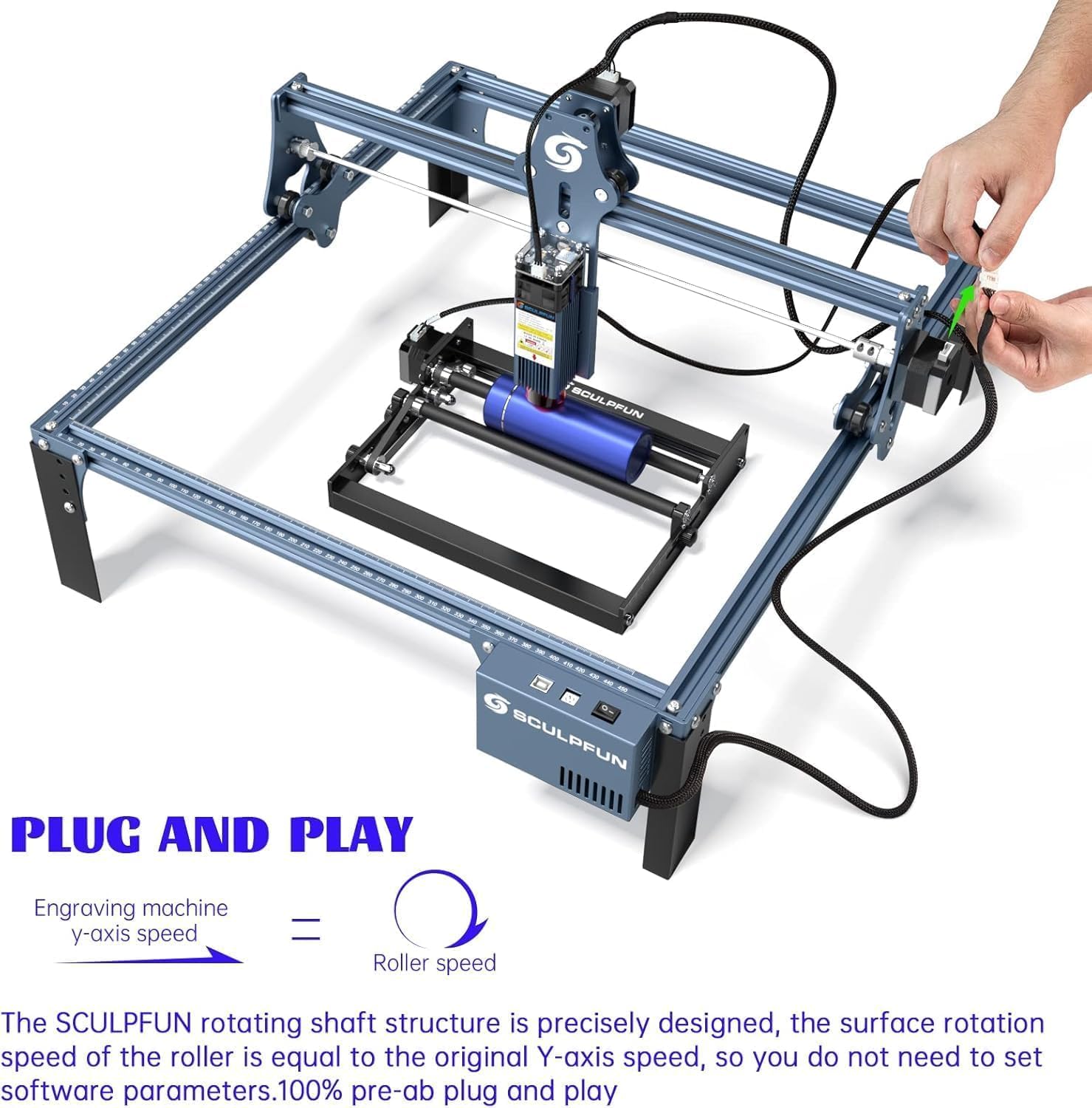
Figure 3.2: The S9 and rotary roller are designed for plug-and-play functionality, simplifying setup.
Connect the rotary roller's adapter cable to the X-axis or Y-axis stepper motor wiring of the laser engraving machine. No additional software settings are required for the rotary roller as its surface rotation speed is precisely designed to match the original Y-axis speed.
Agbara ati Asopọ USB
Connect the power adapter and USB cable to the machine and your computer.
Software fifi sori
Install your preferred engraving software (e.g., LightBurn, Laser GRBL) on your Windows or Mac computer.
4. Awọn ilana Iṣiṣẹ
Igbaradi Ohun elo

Figure 4.1: The rotary roller provides a larger engraving space for various cylindrical objects.

Figure 4.2: The rotary roller features a sliding adjustment for quick and easy distance setting.

olusin 4.3: Key advantages of the SCULPFUN Rotary Roller for cylindrical engraving.
Place the material to be engraved or cut on the working surface. For flat materials, use the protective steel pad to prevent damage to your table. For cylindrical objects, position them securely on the rotary roller.
Atunṣe idojukọ

Figure 4.4: Adjusting the laser focus by sliding the module up or down.
The S9 features a fixed-focus lens. To adjust focus, slide the laser module along its rail and tighten the screws until the laser beam is optimally focused on the material surface. This ensures a precise 0.08mm ultra-fine laser spot.
Software Isẹ

Figure 4.5: The S9 is compatible with popular laser engraving software like Laser GRBL and LightBurn.

Figure 4.6: The S9's engraving area can be expanded for larger projects.

Figure 4.7: A wide range of materials and objects can be engraved, including pens, cups, flowerpots, and rings.
Open your chosen engraving software (e.g., LightBurn, Laser GRBL). Import your design file (KPG, BMP, NC, G-code, SVG, DXF, PNG formats are supported). Adjust engraving parameters such as power, speed, and passes according to the material type and desired effect. For rotary engraving, ensure the software settings are configured for cylindrical objects, though the S9 rotary roller is designed for plug-and-play speed matching.
Awọn iṣọra Aabo

Figure 4.8: The circular protective cover allows for observation while providing eye protection.
- Always wear the provided anti-laser goggles when the machine is operating.
- The laser filter on the S9 can block 98% of UV rays, allowing for observation without goggles, but wearing them is highly recommended for maximum safety.
- Ensure the emergency stop switch is easily accessible during operation.
- Keep pets and children away from the operating machine.
- Operate in a well-ventilated area to dissipate fumes from engraving.
5. Itọju
Regular maintenance ensures the longevity and optimal performance of your SCULPFUN S9 Laser Engraver.
- Ninu: Regularly clean the laser lens and the machine's rails to ensure optimal performance and prevent dust buildup. Use a soft, lint-free cloth.
- Lubrication: Periodically lubricate the moving parts of the X and Y axes to ensure smooth operation.
- Ẹdọfu igbanu: Check the tension of the belts and adjust if necessary to maintain engraving accuracy.
- Laser Module Inspection: Inspect the laser module for any signs of damage or wear. If the laser output appears weak or inconsistent, consult the manufacturer's support.
6. Laasigbotitusita
Abala yii n pese awọn ojutu si awọn ọran ti o wọpọ ti o le ba pade.
- Ẹrọ ti ko ni agbara:
- Check power cable connections to the machine and the outlet.
- Rii daju pe ohun ti nmu badọgba agbara n ṣiṣẹ daradara.
- Laser Not Firing/Weak Output:
- Verify laser module connection.
- Check focus adjustment.
- Ensure laser power settings in software are correct.
- Nu lesa lẹnsi.
- Engraving Inaccuracy/Skipped Steps:
- Ṣàyẹ̀wò ìfúnpọ̀ ìgbànú lórí àwọn àáké X àti Y.
- Ensure all screws and connections are tight.
- Verify material is securely placed and not moving during operation.
- Check software settings for speed and acceleration.
- Awọn oran Isopọ sọfitiwia:
- Rii daju pe okun USB ti sopọ ni aabo.
- Restart the software and the machine.
- Check device manager for proper driver installation.
7. Awọn pato
| Ẹya ara ẹrọ | Sipesifikesonu |
|---|---|
| Olupese | SCULPFUN |
| Awoṣe | S9+roller |
| Agbara Orisun Oriṣi | AC |
| Voltage | 240 Volts |
| Lesa wu Power | 5.5W (90W CO2 effect) |
| Agbegbe Ṣiṣẹ | 410 x 420 mm |
| Lesa Idojukọ | 0.08mm |
| Engraving Line Precision | 0.1mm |
| Cylindrical Engraving Diameter Range | 6-150mm |
| Cylindrical Engraving Length | 0-230mm |
| Package Mefa | 61.6 x 35.2 x 18.5 cm |
| Package iwuwo | 6.08 kg |
| Wa Niwon | Oṣu Kẹjọ Ọjọ 26, Ọdun 2024 |
8. Atilẹyin ọja ati Support
Alaye atilẹyin ọja
The product may be eligible for extended warranty plans (e.g., 12-month or 24-month extended warranty against failures and defects) available at the time of purchase. Please refer to your purchase documentation for specific warranty terms and conditions.
Onibara Support
For technical assistance, troubleshooting, or inquiries, please visit the official SCULPFUN store on Amazon or contact SCULPFUN customer support directly. You can find more information and contact details at: SCULPFUN Amazon Store.
9. Awọn fidio ọja osise
No official product videos with 'Seller' as creator type and specific URLs were provided in the product data to embed in this manual.