
1. Ifihan
This manual provides essential information for the safe operation and maintenance of your SIMREX X800 Drone. Please read it thoroughly before first use to ensure proper functionality and to maximize your flying experience. The SIMREX X800 is a compact and versatile drone designed for both beginners and experienced users, featuring a 1080P camera, altitude hold, and various intelligent flight modes.

2. Ohun ti o wa ninu Apoti
Daju pe gbogbo awọn paati wa ṣaaju ki o to tẹsiwaju pẹlu iṣeto:
- SIMREX X800 Drone (Black)
- Isakoṣo latọna jijin
- Modular Batteries (2x 1000mAh)
- Okun Ngba agbara USB
- Spare Propeller Blades (1 set)
- Phone Holder for Remote Control
- Itọsọna olumulo

3. Eto Itọsọna
3.1. Batiri Ngba agbara
The drone comes with two 1000mAh modular batteries. Ensure both are fully charged before use.
- So okun gbigba agbara USB pọ mọ batiri drone naa.
- So opin keji okun USB sinu adapter agbara USB (ko si ninu rẹ) tabi ibudo USB kọmputa kan.
- The indicator light on the battery will show charging status (refer to battery specific indicators for details).
- Charging typically takes approximately 60-90 minutes per battery.
3.2. Fifi Batiri Drone sori ẹrọ
- Ṣí àwọn apá drone náà.
- Insert the fully charged modular battery into the battery compartment on the drone until it clicks securely into place.
3.3. Latọna Iṣakoso Oṣo
The remote control requires 2 LR44 batteries (included). Install them into the battery compartment on the back of the remote.
- Attach the phone holder to the top of the remote control.
- Place your smartphone securely into the phone holder.
- Download and install the SIMREX drone application (refer to the QR code in the included manual for the app).
- Tan drone náà, lẹ́yìn náà tan iná lórí iṣakoso latọna jijin.
- Connect your smartphone to the drone's Wi-Fi network (usually named 'SIMREX-XXXXXX').
- Open the SIMREX app to establish a connection and view kikọ sii kamẹra.
3.4. Propeller Installation/Check
The drone comes with propellers pre-installed. If replacement is necessary, ensure correct orientation (A and B propellers) as indicated on the drone arms and propellers themselves.
4. Awọn ilana Iṣiṣẹ
Familiarize yourself with the drone's controls and features before attempting flight.
4.1. Basic Flight Preparation
- Ensure the drone is placed on a flat, level surface.
- Perform gyroscope calibration by pushing both joysticks down and to the left/right simultaneously (refer to the specific manual for exact combination).
- Ensure a stable Wi-Fi connection between your phone and the drone for FPV (First Person View) and app control.
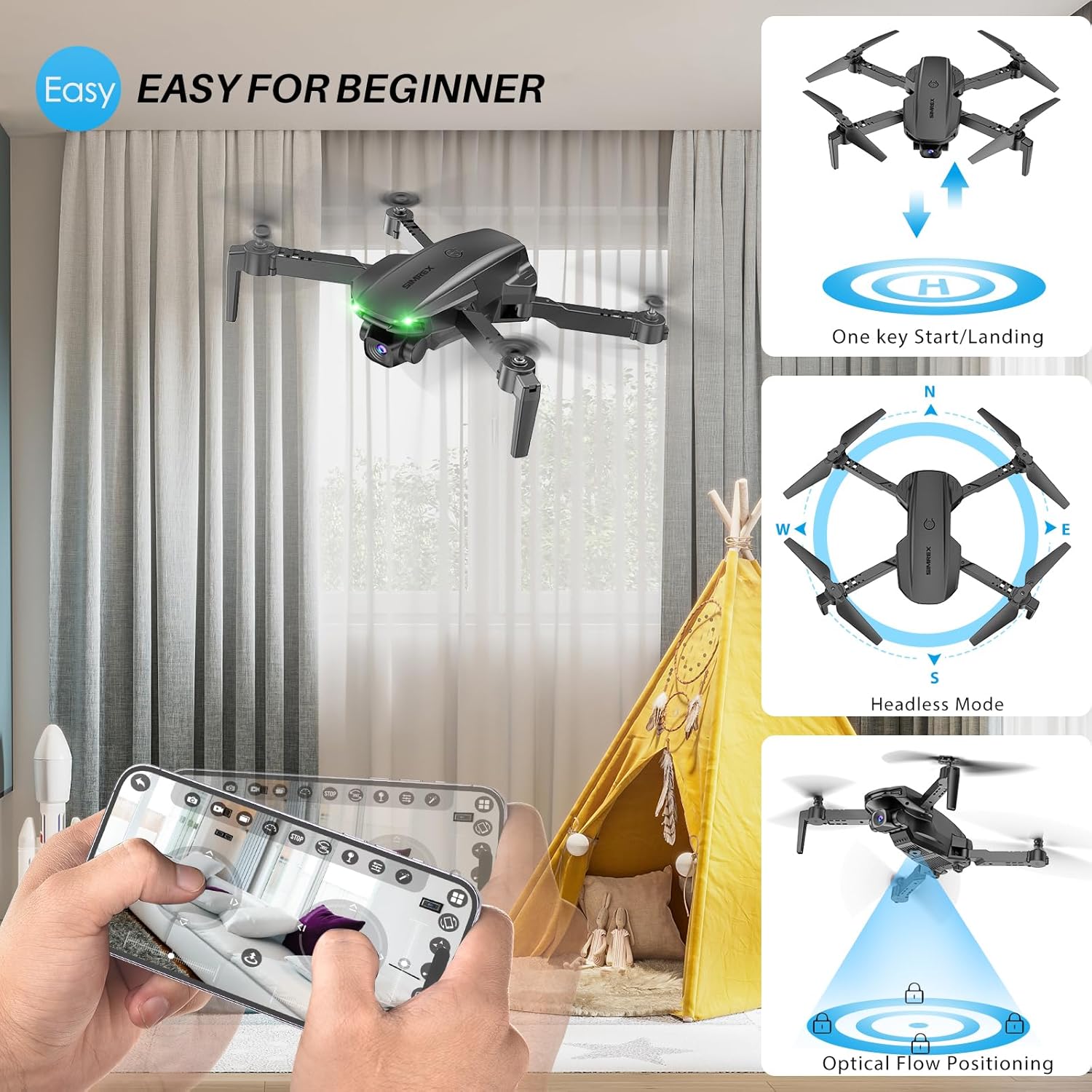
4.2. One Key Start/Landing
This feature simplifies takeoff and landing, making it ideal for beginners.
- Press the One Key Start button on the remote control or in the app. The drone will automatically take off and hover at a stable altitude.
- Press the One Key Landing button. The drone will slowly descend and land automatically.
4.3. Altitude Hold & Optical Flow Positioning
These features contribute to stable flight and precise hovering.
- Idaduro Giga: The drone maintains a fixed height, allowing for stable video and photo capture without constant throttle input.
- Ipo Sisan Opitika: Utilizes a bottom-mounted camera to detect ground patterns, enabling the drone to hover accurately in position, especially useful indoors or in low-wind conditions.

4.4. Ipo Olori
In Headless Mode, the drone's orientation is relative to the pilot, not the drone's front. This simplifies control, as pushing the joystick forward will always move the drone away from you, regardless of which way the drone is facing.
- Activate Headless Mode by pressing the dedicated button on the remote.
- Calibrate Headless Mode before flight for accurate control.
4.5. Waypoint Fly
Plan your flight path directly on your smartphone screen.
- Open the SIMREX app and select the Waypoint Fly function.
- Draw a desired flight path on the map displayed on your phone.
- The drone will automatically follow the designated route.
4.6. 3D Flip
Perform exciting aerial acrobatics with a single button press.
- Ensure sufficient altitude (at least 3 meters) before attempting a 3D flip.
- Press the 3D Flip button and move the right joystick in the desired flip direction (forward, backward, left, or right).
4.7. Titunṣe iyara
The drone offers three speed modes to suit different skill levels and flying conditions.
- Toggle between Low, Medium, and High speeds using the speed switch button on the remote.
- Start with Low speed for learning and indoor flight, gradually increasing as you gain confidence.

4.8. Isẹ kamẹra
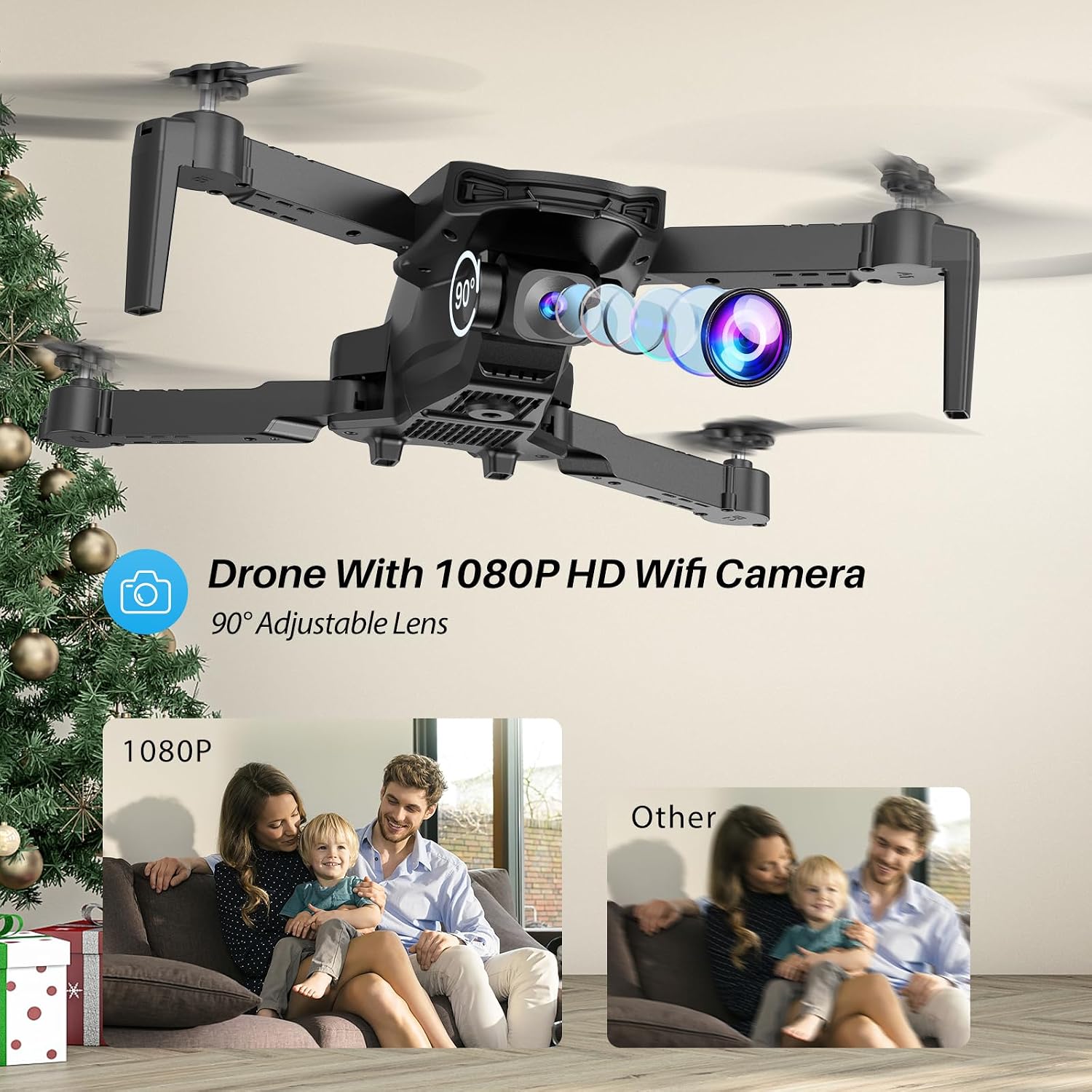
The SIMREX X800 is equipped with a 1080P camera with a 90° adjustable lens.
- View the live camera feed on your smartphone via the SIMREX app.
- Use the app to capture photos and record videos directly to your phone's storage.
- Adjust the camera lens angle manually before flight for optimal viewing.
4.9. Walẹ Iṣakoso
Control the drone's flight motion by tilting your mobile phone.
- Activate Gravity Control within the SIMREX app.
- Tilt your phone forward, backward, left, or right to control the drone's corresponding movement.
4.10. Flight Environment Considerations
- The SIMREX X800 is recommended for inu ile lilo.
- If flying outdoors, operate only in windless conditions to maintain control and prevent loss.
- Always maintain visual line of sight with the drone.
- Avoid flying near obstacles, people, or animals.
5. Itọju
Itọju deedee n ṣe idaniloju gigun ati iṣẹ ṣiṣe to dara julọ ti drone rẹ.
5.1. Ninu
- Lo asọ ti o gbẹ lati nu ara drone ati lẹnsi kamẹra.
- Yẹra fun lilo awọn kẹmika lile tabi awọn nkanmimu.
- Ensure no dust or debris obstructs the optical flow sensor on the bottom of the drone.
5.2. Rirọpo propeller
In case of damage, replace propellers promptly.
- Agbara kuro ni drone.
- Fi pẹ̀lẹ́pẹ̀lẹ́ yọ propeller tó ti bàjẹ́ náà kúrò.
- Install a new propeller, ensuring it matches the 'A' or 'B' marking on the drone arm and the propeller itself. Incorrect installation will prevent flight.
5.3. Itọju batiri
- Ma ṣe gba agbara ju tabi tu awọn batiri sii ju.
- Tọju awọn batiri ni itura, aye gbigbẹ kuro lati orun taara ati awọn iwọn otutu to gaju.
- If not used for an extended period, charge batteries to approximately 50% capacity.
6. Laasigbotitusita
Tọkasi apakan yii fun awọn ojutu si awọn ọran ti o wọpọ.
| Isoro | Owun to le Fa | Ojutu |
|---|---|---|
| Drone ko dahun si latọna jijin. | Not paired; low battery (drone/remote); interference. | Ensure drone and remote are powered on and paired. Charge batteries. Move to an area with less interference. |
| Drone drifts nigba flight. | Gyroscope not calibrated; windy conditions; uneven propeller. | Perform gyroscope calibration. Fly in windless conditions. Check propellers for damage and replace if necessary. |
| No camera feed on phone. | No Wi-Fi connection; app not open; phone settings. | Connect phone to drone's Wi-Fi. Open the SIMREX app. Check phone's Wi-Fi settings. |
| Kukuru flight akoko. | Battery not fully charged; aged battery; aggressive flying. | Ensure batteries are fully charged. Consider replacing old batteries. Fly at lower speeds. |
| Drone crashes unexpectedly. | Out of range; low battery; strong wind; pilot error. | Keep drone within control range. Monitor battery levels. Avoid windy conditions. Practice basic controls. |
7. Awọn pato
| Ẹya ara ẹrọ | Ẹ̀kúnrẹ́rẹ́ |
|---|---|
| Brand | SIMREX |
| Orukọ awoṣe | X800 |
| Àwọ̀ | Dudu |
| Ipinnu Yaworan fidio | 1080p |
| Pataki Awọn ẹya ara ẹrọ | 360 Degree Flip, Adjustable Camera, Foldable Design, Long Battery Life, One Key Rotation (Start/Landing), Altitude Hold, Optical Flow Positioning, Headless Mode, Waypoint Fly, Gravity Control, 3 Speeds |
| Asopọmọra Technology | USB (for charging), Bluetooth (Remote Control) |
| Awọn irinše to wa | Drone, Remote Control, 2x Batteries, USB Charger, Spare Blades, Phone Holder |
| Olorijori Ipele | All (Beginner-friendly) |
| Iwọn Nkan | 0.21 Poun (iwọn 96g) |
| Ohun elo | Ṣiṣu |
| Batiri Cell Tiwqn | Lithium Ion (Drone), LR44 (Remote) |
| Ọja Mefa | 1.9"L x 4.5"W x 1.3"H (ti ṣe pọ) |
| Akoko ofurufu | Titi di iṣẹju 22 (pẹlu awọn batiri mẹta) |
8. Atilẹyin ati Atilẹyin ọja
For any questions, technical assistance, or warranty claims regarding your SIMREX X800 Drone, please contact the seller or manufacturer directly through your purchase platform. Keep your proof of purchase for any warranty-related inquiries.
Optional protection plans are available for purchase separately to extend coverage beyond the standard manufacturer's warranty.