
Ọrọ Iṣaaju
This manual provides instructions for the setup, operation, and maintenance of your RadioShack Wireless Gaming Mouse. Please read this manual thoroughly before using the product to ensure proper function and longevity.
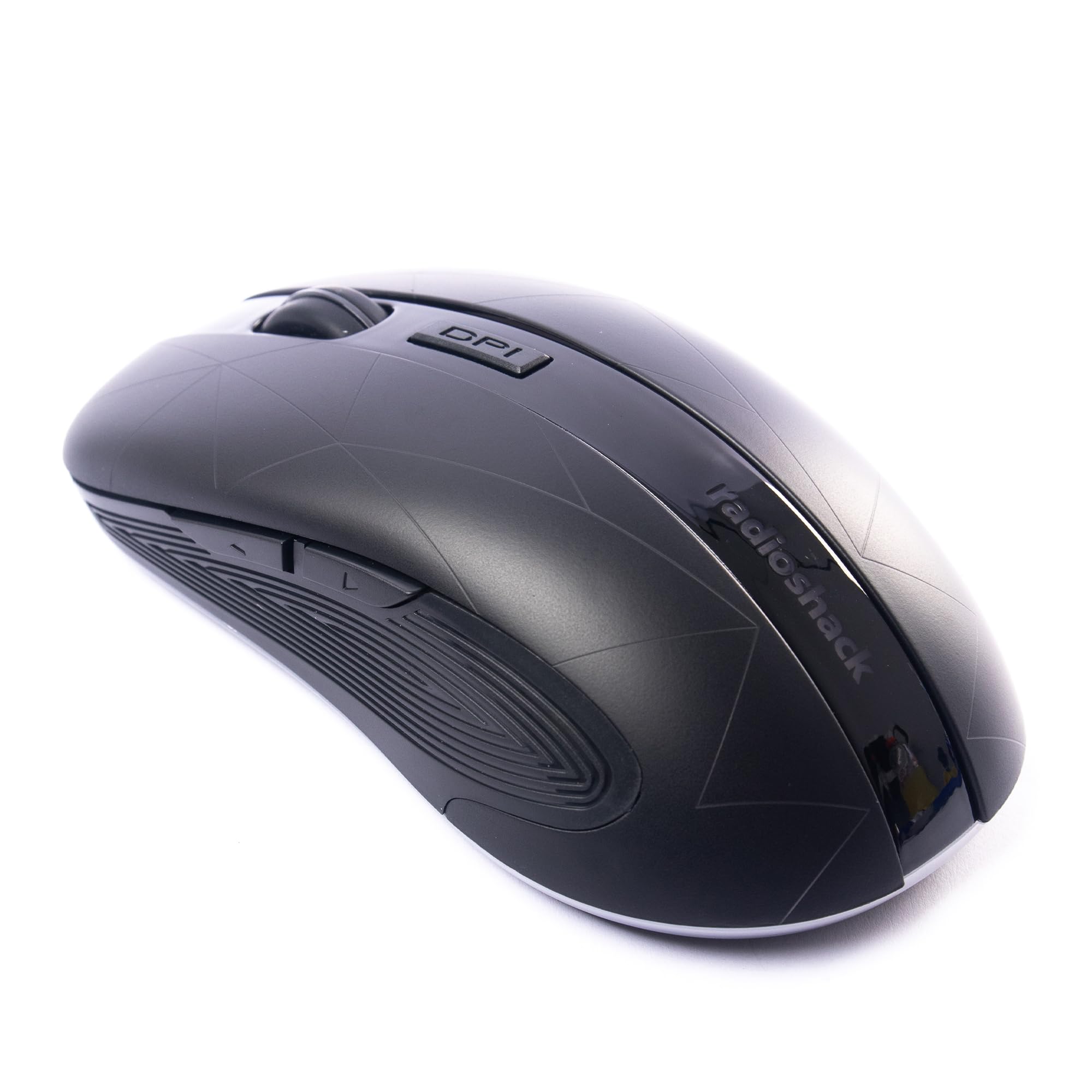
Image: The RadioShack Wireless Gaming Mouse, showcasing apẹrẹ ergonomic rẹ ati ipilẹ bọtini.
Package Awọn akoonu
Jẹrisi pe gbogbo awọn ohun kan wa ninu package:
- 1 x RadioShack Wireless Gaming Mouse
- 1 x USB Nano olugba
- 1 x Okun gbigba agbara

Image: An infographic detailing the contents of the product package, including the wireless gaming mouse.
Ṣeto
- Gba agbara si Asin naa: Before first use, connect the mouse to a USB power source using the provided charging cable. The LED indicator will show charging status.
- Wa olugba Nano USB: The USB nano receiver is typically stored in a compartment on the underside of the mouse for convenience.
- So Olugba naa pọ: Insert the USB nano receiver into an available USB port on your computer (laptop or desktop).
- Agbara Lori Asin: Wa agbara yipada ni apa isalẹ ti Asin ki o rọra si ipo “ON”.
- Fifi sori Awakọ: The mouse is plug-and-play. Your operating system (Windows, Mac, Linux, Chrome OS) should automatically detect and install the necessary drivers.

Image: The wireless gaming mouse shown alongside its compact USB nano receiver, ready for connection.
Awọn ilana Iṣiṣẹ
Ipilẹ Išẹ
The mouse operates like a standard wireless mouse. Move the mouse to control the cursor on your screen. Use the left and right click buttons for primary and secondary actions, respectively. The scroll wheel allows for vertical scrolling.
Ṣíṣe àtúnṣe DPI (Ìfàmọ́ra)
The mouse features an adjustable DPI setting, allowing you to change cursor sensitivity. Press the DPI bọtini located behind the scroll wheel to cycle through available DPI settings (800, 1200, 1600, 2400). Each press will change the sensitivity, indicated by a brief LED flash.

Aworan: A ẹgbẹ view of the mouse, illustrating the location of the DPI button for sensitivity adjustments.
Awọn bọtini eto
This mouse is equipped with 6 programmable buttons, including customizable side buttons. For advanced customization and macro assignments, you may need to download specific software from the RadioShack support website (if available). Refer to the software's instructions for detailed programming steps.

Image: The wireless gaming mouse from an angle, clearly showing the side buttons which can be programmed for various functions.
Gbigba agbara Asin
The mouse uses a built-in rechargeable Lithium Ion battery. When the battery is low, the LED indicator may flash or change color. Connect the provided charging cable to the mouse's charging port and to a USB power source (e.g., computer USB port, USB wall adapter). The LED will indicate charging status and turn off or change color when fully charged.
A full charge typically provides several hours of use, depending on usage patterns.
Itoju
- Ninu: Lo asọ asọ ti o gbẹ lati nu asin naa. Fun idoti alagidi, die-die damp Aṣọ le ṣee lo, ni idaniloju pe ko si ọrinrin ti o wọ inu ẹrọ naa.
- Ibi ipamọ: When not in use for extended periods, turn off the mouse to conserve battery life. Store the USB nano receiver inside the mouse's compartment to prevent loss.
- Yago fun awọn ipo to gaju: Ma ṣe fi asin naa han si awọn iwọn otutu to gaju, oorun taara, tabi ọriniinitutu giga.
Laasigbotitusita
| Isoro | Ojutu |
|---|---|
| Asin ko dahun |
|
| Lag tabi lemọlemọ asopọ |
|
| Ìṣíṣẹ́ kọ́sọ̀ kò tọ́ tàbí kò tọ́ |
|
Awọn pato
- Nọmba awoṣe: 2604789
- Asopọmọra: 2.4 GHz Alailowaya
- Awọn bọtini: 6 (Ṣiṣe eto)
- Awọn Eto DPI: 800, 1200, 1600, 2400 (Ṣíṣe àtúnṣe)
- Ṣiṣawari gbigbe: Opitika
- Batiri: 1 Lithium Ion (Rechargeable, included)
- Ibi iṣẹ: Ti o to awọn mita 10
- Ibamu: Windows, Mac, Linux, Chrome OS
- Awọn iwọn: 4.9" x 2.6" x 1.5"
- Ìwúwo: 6.2 iwon
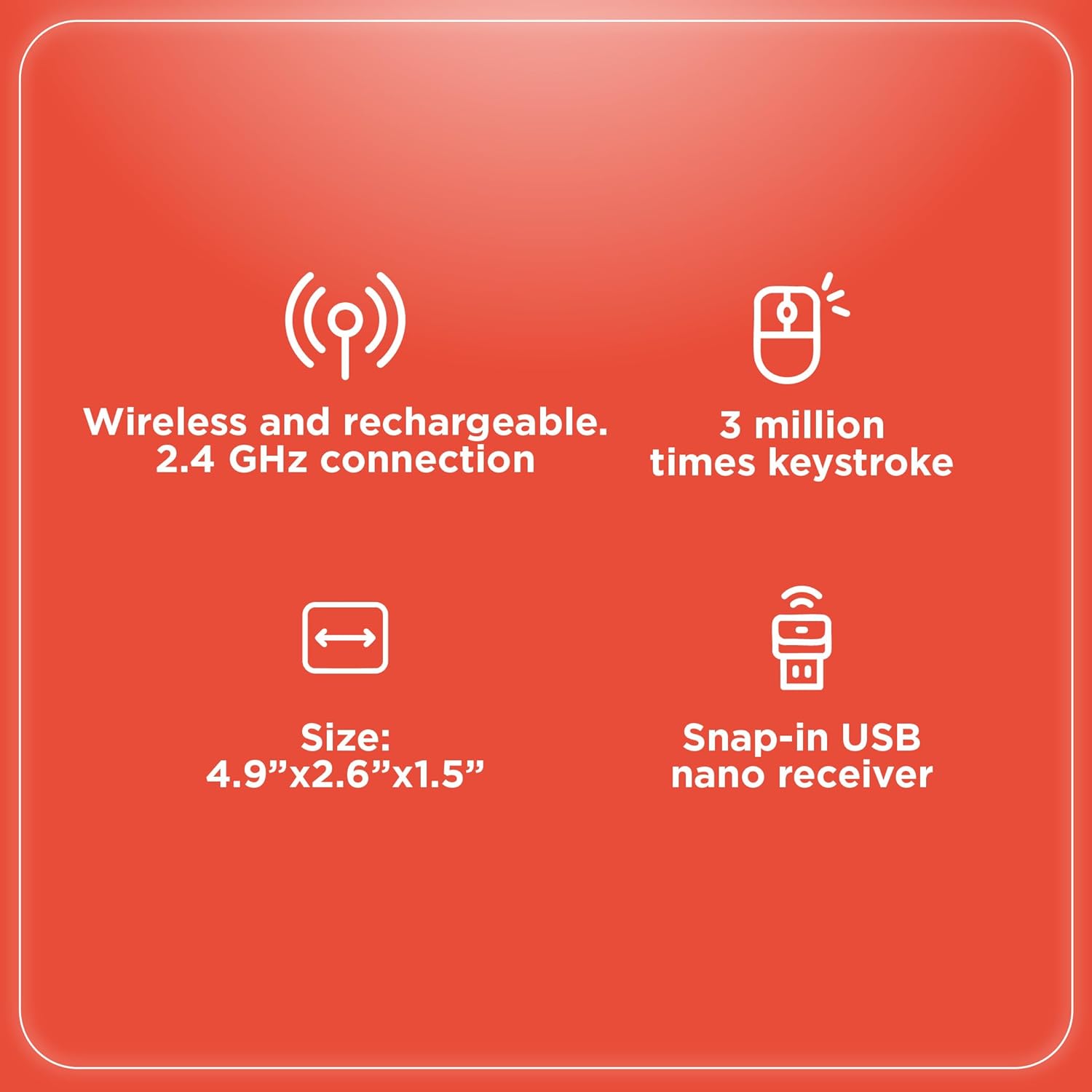
Image: An infographic summarizing key specifications of the wireless gaming mouse, including connectivity, battery, and dimensions.
Atilẹyin ọja ati Support
For warranty information and technical support, please refer to the official RadioShack webojula tabi kan si wọn onibara iṣẹ. Tọju iwe-ẹri rira rẹ bi ẹri rira fun awọn iṣeduro atilẹyin ọja.
Olupese: RadioShack
Ọjọ Akọkọ Wa: Oṣu Kẹjọ Ọjọ 28, Ọdun 2024