
Ọrọ Iṣaaju
The RadioShack Dual-Mode Wireless Bluetooth Mouse offers versatile connectivity and ergonomic comfort for various computing needs. This manual provides instructions for setting up, operating, and maintaining your mouse to ensure optimal performance.

olusin 1: Iwaju-ẹgbẹ view of the RadioShack Dual-Mode Wireless Bluetooth Mouse.
Package Awọn akoonu
- RadioShack Dual-Mode Wireless Bluetooth Mouse
- Olùgbà USB (tí a tọ́jú sínú àsin)
- Okun Ngba agbara USB
- Afowoyi Olumulo (iwe-ipamọ yii)
Ṣeto
1. Gbigba agbara si Asin
The mouse features a built-in rechargeable battery. Before first use, or when the battery is low, connect the mouse to a USB power source using the provided USB charging cable. The charging port is located on the front side of the mouse.

olusin 2: Apa view of the mouse highlighting the USB charging port.

Figure 3: The mouse being charged via a USB connection to a laptop.
2. Nsopọ awọn Asin
The mouse supports dual-mode connectivity: 2.4G Wireless (via USB receiver) and Bluetooth 3.0. You can switch between these modes using the switch on the bottom of the mouse.
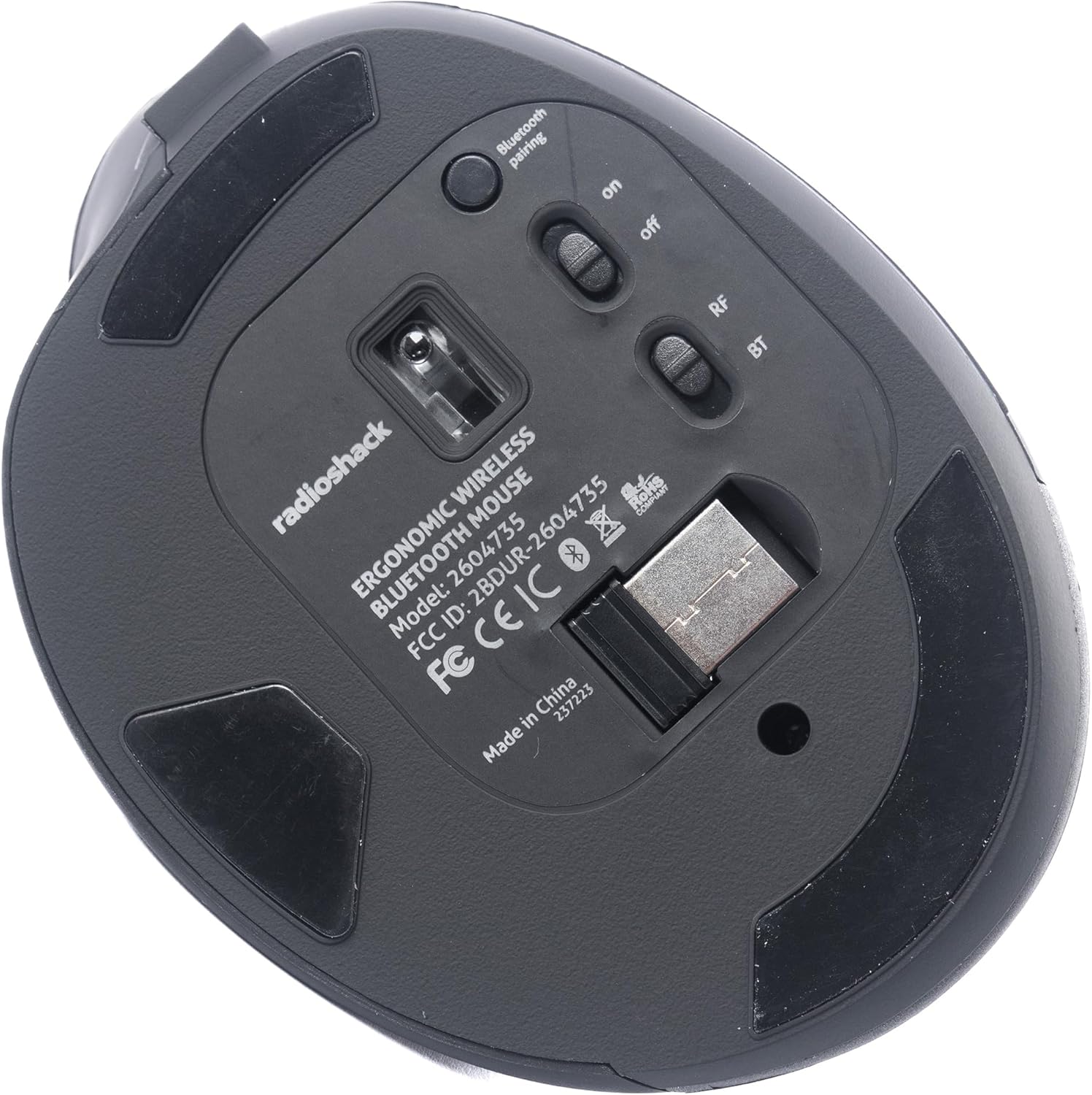
olusin 4: Isalẹ view of the mouse, indicating the power switch, mode switch (RF/BT), and USB receiver compartment.
2.1. 2.4G Wireless Mode (USB Receiver)
- Wa olugba USB ti a fipamọ sinu yara ti o wa ni isalẹ Asin naa.
- Fi olugba USB sii sinu ibudo USB ti o wa lori kọnputa rẹ.
- Slide the mode switch on the bottom of the mouse to the "RF" position.
- Tan asin naa nipa lilo iyipada ON/OFF. Asin naa yẹ ki o sopọ mọ ara rẹ laifọwọsi.
2.2. Ipo Bluetooth
- Gbe iyipada ipo ti o wa ni isalẹ ti asin si ipo "BT".
- Tan-an Asin nipa lilo ON/PA yipada.
- Press and hold the Bluetooth pairing button (usually located near the mode switch) for 3-5 seconds until the indicator light flashes, indicating it is in pairing mode.
- Lori kọmputa tabi ẹrọ rẹ, lọ si awọn eto Bluetooth ki o wa awọn ẹrọ titun.
- Select "RadioShack Mouse" (or similar name) from the list of available devices to pair.
- Nígbà tí a bá so wọ́n pọ̀, ìmọ́lẹ̀ àmì náà yóò dáwọ́ dúró.

Figure 5: The mouse positioned wirelessly next to a laptop, ready for use.
Ṣiṣẹ Asin
Awọn iṣẹ ipilẹ
- Bọtini osi: Iṣẹ titẹ akọkọ.
- Bọtini Ọtun: Iṣẹ́ tẹlé kejì (àkójọ àṣàyàn).
- Yi lọ Kẹkẹ: Scroll up/down, and can also function as a middle click button.
- Awọn bọtini Siwaju/Sẹhin: Located on the side, these buttons allow for quick navigation in web burausa ati file oluwadi.
Yipada Laarin Awọn ọna
To switch between 2.4G Wireless and Bluetooth modes, simply slide the mode switch on the bottom of the mouse to the desired position (RF for 2.4G, BT for Bluetooth).
Apẹrẹ Ergonomic
The mouse is designed with a contoured shape and rubber grips to provide comfortable support for your hand and wrist, reducing strain during extended use.

Figure 6: A hand demonstrating the ergonomic grip on the mouse.
Itoju
Ninu
- Pa asin naa ki o to nu.
- Lo asọ ti o rọ, ti o gbẹ lati nu dada ti Asin naa.
- Fun idoti alagidi, die-die dampen awọn asọ pẹlu omi tabi kan ìwọnba ninu ojutu, ki o si mu ese gbẹ lẹsẹkẹsẹ.
- Yago fun lilo awọn kẹmika lile tabi awọn ohun elo abrasive.
Itọju Batiri
- Gba agbara si asin nigbagbogbo lati ṣetọju ilera batiri.
- Yago fun gbigba agbara si batiri ni kikun nigbagbogbo.
- If storing the mouse for an extended period, charge it to about 50% capacity.
Laasigbotitusita
- Asin ko dahun:
- Rii daju pe asin wa ni titan.
- Ṣayẹwo ipele batiri ati gba agbara ti o ba jẹ dandan.
- For 2.4G mode, ensure the USB receiver is securely plugged into the computer and the mode switch is set to "RF".
- For Bluetooth mode, ensure Bluetooth is enabled on your device, the mouse is in "BT" mode, and it is properly paired. Try re-pairing if necessary.
- Try connecting the mouse to a different USB port or a different device to rule out port or device issues.
- Ìṣíṣẹ́ kọ́sọ̀ kò dúró déédéé tàbí ó lọ́ra:
- Rí i dájú pé sensọ̀ eku náà mọ́ tónítóní, kò sì ní ìdènà kankan.
- Lo awọn Asin lori mimọ kan, ti kii ṣe afihan.
- Ṣayẹwo fun kikọlu lati awọn ẹrọ alailowaya miiran.
- Asin ko gba agbara:
- Ensure the charging cable is securely connected to both the mouse and the power source.
- Try a different USB charging cable or power adapter.
- Rii daju pe orisun agbara n ṣiṣẹ.
Awọn pato
| Ẹya ara ẹrọ | Ẹ̀kúnrẹ́rẹ́ |
|---|---|
| Nọmba awoṣe | 2604735 |
| Asopọmọra Technology | 2.4G Wireless, Bluetooth 3.0 (Dual-Mode) |
| Imọ-ẹrọ Iwari išipopada | Opitika |
| Àwọ̀ | Dudu & Grẹy |
| Orisun agbara | Batiri Litiumu Ion ti o gba agbara (pẹlu) |
| Iwọn Nkan | 9.1 iwon |
| Package Mefa | 8.66 x 6.3 x 2.95 inches |
| Olupese | RadioShack |
Atilẹyin ọja ati Support
For warranty information and customer support, please refer to the official RadioShack website or contact their customer service directly. Details regarding product registration, warranty claims, and technical assistance can typically be found on the manufacturer's support pages.