
1Mii SafeFly Min+
Ìwé Àfọwọ́kọ Olùlò Olùgbéjáde àti Olùgbà Bluetooth SafeFly Min+ 1Mii
Model: SafeFly Min+
1. Ifihan
The 1Mii SafeFly Min+ is a versatile 2-in-1 Bluetooth audio adapter designed to enhance your audio experience. It functions as both a Bluetooth transmitter (TX) and a Bluetooth receiver (RX), allowing you to wirelessly stream audio from non-Bluetooth devices to Bluetooth headphones/speakers, or to connect your Bluetooth-enabled phone/tablet to wired audio systems.
This manual provides detailed instructions for setting up, operating, and maintaining your SafeFly Min+ device. Please read it carefully before use.

Image: The 1Mii SafeFly Min+ device.
2. Package Awọn akoonu
Daju pe gbogbo awọn nkan wa ninu apo rẹ:
- 1Mii SafeFly Min+ Bluetooth Transmitter Receiver
- 3.5mm to 3.5mm Female Adapter
- Dual Prong Airplane Adapter
- Okun Ngba agbara USB
- Itọsọna olumulo

Aworan: Gbogbo awọn ohun to wa ninu package ọja.
3. Ọja Ipariview
Mọ ara rẹ pẹlu awọn ẹya ara ẹrọ ati awọn iṣakoso ti ẹrọ naa:

Image: Labeled diagram of the SafeFly Min+ device and its accessories.
- 3.5mm Audio Asopọ: Integrated audio jack for connecting to source/destination devices.
- Iboju OLED: Displays connection status, volume, and mode.
- Volume Down (<): Din iwọn didun.
- Multi-function Button (OK/Power/Play/Pause/Pairing): Powers on/off, plays/pauses audio, and initiates pairing.
- Volume Up (>): Mu iwọn didun pọ si.
- TX/RX Switching: Slide switch to select Transmitter or Receiver mode.
- Bọtini atunto: Independent button to resolve connection issues.
- Type C Charging Port: Fun gbigba agbara ti abẹnu batiri.
4. Bibẹrẹ
4.1. Ngba agbara ẹrọ
Before first use, fully charge the SafeFly Min+ using the provided USB charging cable. Connect the USB-C end to the device's charging port and the USB-A end to a standard USB power adapter (not included) or a computer's USB port.
- Gbigba agbara ni kikun gba to wakati mẹta.
- The device offers up to 25 hours of playtime on a single charge.
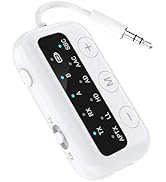
Image: Charging the SafeFly Min+ device.
4.2. Agbara Tan / Paa
- Agbara Tan: Press and hold the Multi-function (OK) button for 3 seconds. The OLED screen will light up.
- Agbara Pa: Press and hold the Multi-function (OK) button for 3 seconds. The OLED screen will turn off.
4.3. Switching Modes (Transmitter TX / Receiver RX)
The SafeFly Min+ features a slide switch on the side to toggle between Transmitter (TX) and Receiver (RX) modes. Ensure the device is in the correct mode for your intended use.

Image: Visual representation of TX and RX modes.
5. Iṣẹ́ Ipò Olùgbéjáde (TX)
In TX mode, the SafeFly Min+ transmits audio from a non-Bluetooth source to your Bluetooth headphones or speakers.
5.1. Nsopọ si ohun Audio Orisun
- Gbe yi pada si awọn TX ipo.
- Connect the 3.5mm audio jack of the SafeFly Min+ to the audio output port of your device (e.g., airplane entertainment system, TV, gym equipment).
- For airplane use, if the audio jack is a dual-prong type, use the included Dual Prong Airplane Adapter.

Image: SafeFly Min+ in use on an airplane.

Image: SafeFly Min+ connected to a TV for wireless audio.
5.2. Pairing with Bluetooth Headphones/Speakers
- Ensure the SafeFly Min+ is in TX mode and powered on. The OLED screen will display "Searching...".
- Fi awọn agbekọri Bluetooth rẹ tabi agbọrọsọ sinu ipo sisọpọ. Tọkasi itọnisọna ẹrọ ohun afetigbọ rẹ fun awọn itọnisọna pato.
- The SafeFly Min+ will automatically search for and connect to nearby Bluetooth devices. The OLED screen will show the connected device's name (e.g., "BT Headphone 1").
- If multiple devices are found, use the < and > buttons to navigate and the OK button to select your desired device.
5.3. Dual Link Functionality
The SafeFly Min+ supports connecting to two Bluetooth headphones/speakers simultaneously.
- After successfully pairing the first device (e.g., "BT Headphone 1"), put your second Bluetooth device into pairing mode.
- Press the Multi-function (OK) button twice quickly on the SafeFly Min+ to initiate pairing for the second device. The OLED screen will show "Searching B...".
- Once connected, the OLED screen will display both connected devices (e.g., "BT Headphone 1" and "BT Headphone 2").
6. Iṣẹ́ Ìgbésẹ̀ Olùgbà (RX)
In RX mode, the SafeFly Min+ receives audio from your Bluetooth-enabled phone/tablet and outputs it to a wired audio system.
6.1. Connecting to a Wired Audio System
- Gbe yi pada si awọn RX ipo.
- Connect the 3.5mm audio jack of the SafeFly Min+ to the AUX input port of your wired audio system (e.g., car stereo, home stereo, wired headphones/speakers).
- If your wired system has a female 3.5mm input, use the included 3.5mm to 3.5mm Female Adapter.

Image: SafeFly Min+ in use with a wired speaker and car stereo.
Video: Demonstrates the 1Mii SafeFly Min+ in Receiver Mode, connecting a phone to a car stereo via the AUX input.
6.2. Pairing with a Bluetooth Device (Phone/Tablet)
- Ensure the SafeFly Min+ is in RX mode and powered on. The OLED screen will display "Searching...".
- On your phone or tablet, enable Bluetooth and search for new devices.
- Select "1Mii SafeFly Min+" from the list of available devices to pair.
- Once connected, the OLED screen will display the name of your paired device (e.g., "A: Phone").
7. Volume Control and Reset Function
7.1. Atunse iwọn didun
- Lo awọn < bọtini lati dinku iwọn didun.
- Lo awọn > bọtini lati mu iwọn didun pọ si.
- The OLED screen will display the current volume level.
7.2. Iṣe atunto
If you encounter connection issues or unexpected behavior, use the independent "RESET" button. Pressing this button will clear all previous pairing records and restart the device, often resolving compatibility or reconnection problems.
8. Awọn pato
| Ẹya ara ẹrọ | Apejuwe |
|---|---|
| Awoṣe | SafeFly Min+ |
| Ẹya Bluetooth | 5.3 |
| Awọn kodẹki ohun | aptX Low Latency, aptX HD, aptX Adaptive (device must also support) |
| Awọn ọna ṣiṣe | Olùgbéjáde (TX), Olùgbà (RX) |
| Dual Link Support | Connects up to two Bluetooth headphones/speakers in TX mode |
| Olohun Interface | 3.5mm AUX iwe Jack |
| Ifihan | OLED iboju |
| Igbesi aye batiri | Titi di akoko idaraya 25 |
| Akoko gbigba agbara | Isunmọ. wakati meji 2 |
| Gbigba agbara Port | USB Iru-C |
| Awọn iwọn (LxWxH) | 1.38 x 0.59 x 1.97 inches |
| Iwọn | 0.705 iwon (20g) |

Image: Dimensions and weight of the SafeFly Min+.
9. Alaye Aabo
To ensure safe operation and prolong the life of your device, please observe the following:
- Use only authorized chargers and batteries.
- Jeki ẹrọ naa kuro ni omi, ọrinrin, ati awọn iwọn otutu to gaju.
- Do not open, disassemble, or attempt to repair the device yourself. This may void the warranty and pose safety risks.
- Yago fun sisọ silẹ tabi tẹriba ẹrọ si awọn ipa to lagbara.
10. Laasigbotitusita
If you encounter issues with your SafeFly Min+, try the following solutions:
- Ẹrọ ko ṣiṣẹ lori: Rí i dájú pé ẹ̀rọ náà ti gba agbára tán pátápátá. So ó pọ̀ mọ́ orísun agbára nípa lílo okùn USB tí a fi ń gba agbára.
- Ko le so pọ pẹlu ẹrọ Bluetooth:
- Ensure the SafeFly Min+ is in the correct mode (TX for transmitting, RX for receiving).
- Make sure your target Bluetooth device (headphones/speaker/phone) is in pairing mode.
- Bring the devices closer together.
- Press the "RESET" button on the SafeFly Min+ to clear previous connections and try pairing again.
- Restart both the SafeFly Min+ and your Bluetooth device.
- Ko si ohun afetigbọ tabi didara ohun ti ko dara:
- Check that the 3.5mm audio cable is securely connected to both the SafeFly Min+ and the audio source/system.
- Adjust the volume on both the SafeFly Min+ and the connected audio device/source.
- Ensure there are no obstructions between the SafeFly Min+ and your Bluetooth headphones/speakers.
- Verify that your Bluetooth headphones/speakers support the aptX codecs if you expect high-quality audio.
- Battery level display inaccuracy: The battery icon may not always reflect precise percentages. It is recommended to charge the device when the indicator shows a low level to avoid unexpected power off.
11. Onibara Support
For further assistance, technical support, or warranty inquiries, please visit the official 1Mii website or contact their customer service directly. Contact information can typically be found on the 1Mii product packaging or their official webojula.