
MageGee LIGHT87
MageGee LIGHT87 Wireless Mechanical Keyboard User Manual
Model: LIGHT87
Itọsọna okeerẹ fun iṣeto, isẹ, ati itọju.
1. Ọja Ipariview
The MageGee LIGHT87 is a versatile 87-key wireless mechanical keyboard designed for gaming and productivity. It features a gasket-mounted structure for a creamy typing sound, hot-swappable switches, vibrant RGB backlighting, and multiple connectivity options including 2.4GHz wireless, Bluetooth 5.0, and USB-C wired mode. It is equipped with an 8000mAh battery and durable side-printed PBT keycaps.

olusin 1: Top-isalẹ view of the MageGee LIGHT87 Wireless Mechanical Keyboard, showcasing its 87-key layout and RGB backlighting.

Olusin 2: Pariview of the MageGee LIGHT87's key features, including 8000mAh battery, PBT keycaps, Win/Mac dual system support, gasket mount, 5 layers of silencing foams, 16.8 million RGB backlight, triple mode connection, custom hot-swappable switches, and 87-key anti-ghosting.
2. Package Awọn akoonu
Ṣaaju ki o to bẹrẹ, jọwọ rii daju pe gbogbo awọn nkan wa ninu package:
- MageGee LIGHT87 Wireless Mechanical Keyboard
- USB-C si okun USB-A
- 2.4GHz USB olugba
- Keycap Puller
- Yipada Puller
- Afowoyi Olumulo (iwe-ipamọ yii)

Figure 3: Contents of the MageGee LIGHT87 keyboard package, including the keyboard, USB cable, keycap puller, switch puller, and user manual.
3. Eto ati Asopọmọra
The MageGee LIGHT87 keyboard offers three connection modes: USB-C wired, 2.4GHz wireless, and Bluetooth 5.0.
3.1 Ngba agbara si Keyboard
Before first use, it is recommended to fully charge the keyboard. Connect the provided USB-C cable to the keyboard's USB-C port and the other end to a USB power source (e.g., computer USB port, wall adapter). The keyboard features an 8000mAh large-capacity battery.

Figure 4: Illustration of the 8000mAh battery capacity, providing approximately 53 hours with RGB backlight on and 400 hours with RGB backlight off.

Figure 5: Detailed battery life estimates: 53 hours with backlight on, 400 hours with backlight off, and 450 hours of sleep standby time.
3.2 Awọn ọna asopọ
The keyboard supports seamless switching between wired, 2.4GHz, and Bluetooth modes.
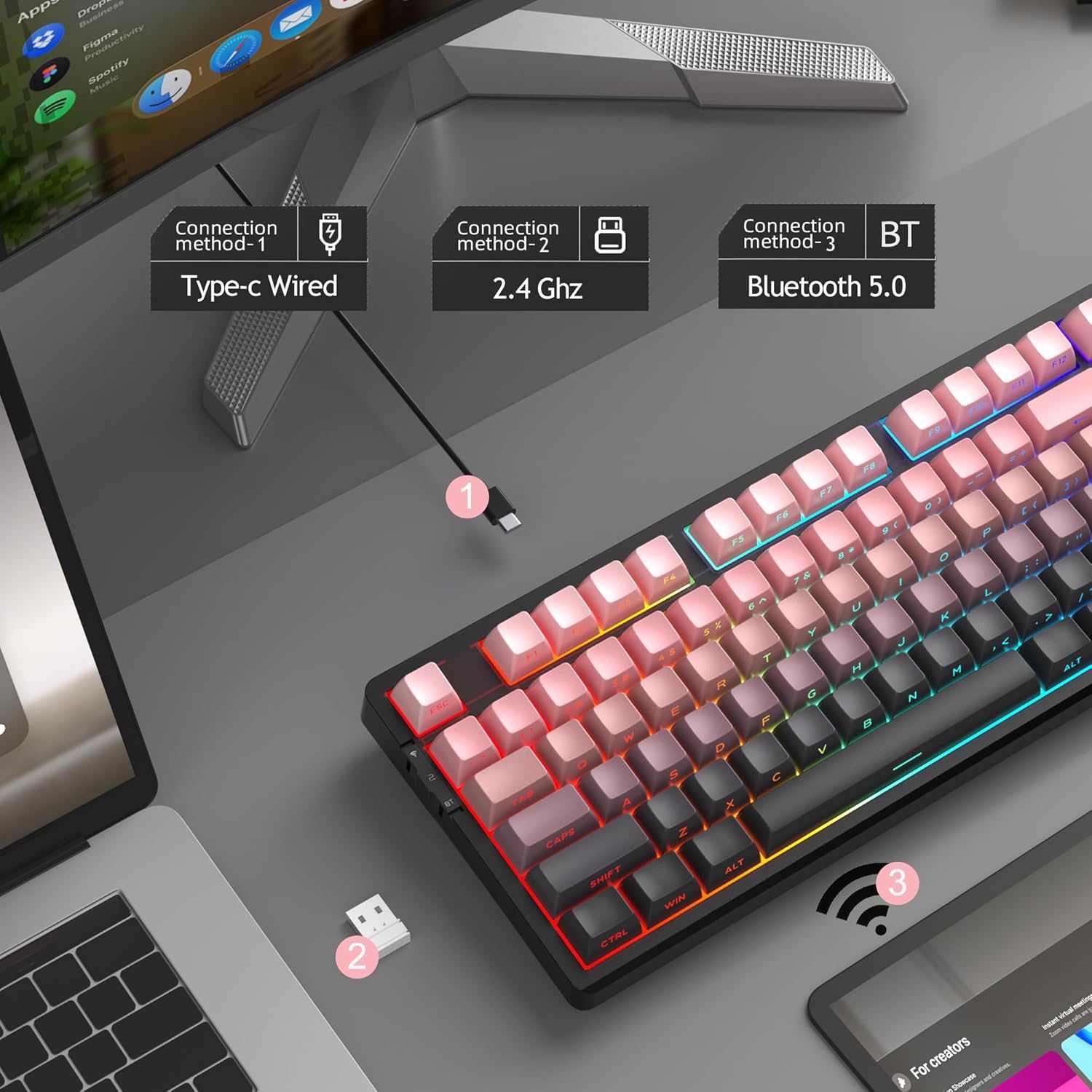
Figure 6: Visual representation of the three connection methods: Type-C Wired, 2.4 GHz Wireless, and Bluetooth 5.0.

Figure 7: Detailed instructions for switching between 2.4GHz, Bluetooth 5.0, and Type-C wired modes using the toggle switch and Fn key combinations.
3.2.1 Ipo Asopọ USB-C
- Connect the USB-C cable to the keyboard and your computer's USB port.
- Toggle the switch on the keyboard to the "2" position (wired mode).
- Awọn bọtini itẹwe yoo jẹ idanimọ laifọwọyi nipasẹ ẹrọ rẹ.
3.2.2 2.4GHz Alailowaya Ipo
- Locate the 2.4GHz USB receiver (usually stored in a compartment on the keyboard).
- Pulọọgi olugba USB sinu ibudo USB ti o wa lori kọnputa rẹ.
- Toggle the switch on the keyboard to the "wifi" icon position (2.4G wireless mode).
- Tẹ fn+4 to activate 2.4GHz mode. The keyboard should connect automatically.
3.2.3 Bluetooth 5.0 Ipo
Awọn bọtini itẹwe le sopọ si awọn ẹrọ Bluetooth mẹta.
- Toggle the switch on the keyboard to the "BT" position (Bluetooth mode).
- Tẹ mọlẹ fn+1, fn+2, tabi fn+3 for 3-5 seconds to enter pairing mode for the desired channel. The indicator light will flash rapidly.
- On your device (PC, laptop, tablet, smartphone), enable Bluetooth and search for "MageGee LIGHT87".
- Yan bọtini itẹwe lati so pọ. Ni kete ti a ti sopọ, ina Atọka yoo da ikosan duro.
- Lati yipada laarin awọn ẹrọ Bluetooth ti a so pọ, tẹ nirọrun fn+1, fn+2, tabi fn+3.
4. Awọn ilana Iṣiṣẹ
4.1 RGB Backlight Iṣakoso
The MageGee LIGHT87 features 16.8 million cool RGB backlight options with various effects.
- Fn + Wọle: Toggle between approximately 20 different backlight modes/effects.
- Fn + ←: Adjust light direction (for certain effects).
- Fn + →: Adjust light color (for static modes or color cycling).
- Fn + ↑: Mu imọlẹ ina ẹhin pọ si.
- Fn + ↓: Dín ìmọ́lẹ̀ ẹ̀yìn kù.
- Fn + =+: Increase backlight speed (for dynamic effects).
- Fn + -_: Decrease backlight speed (for dynamic effects).
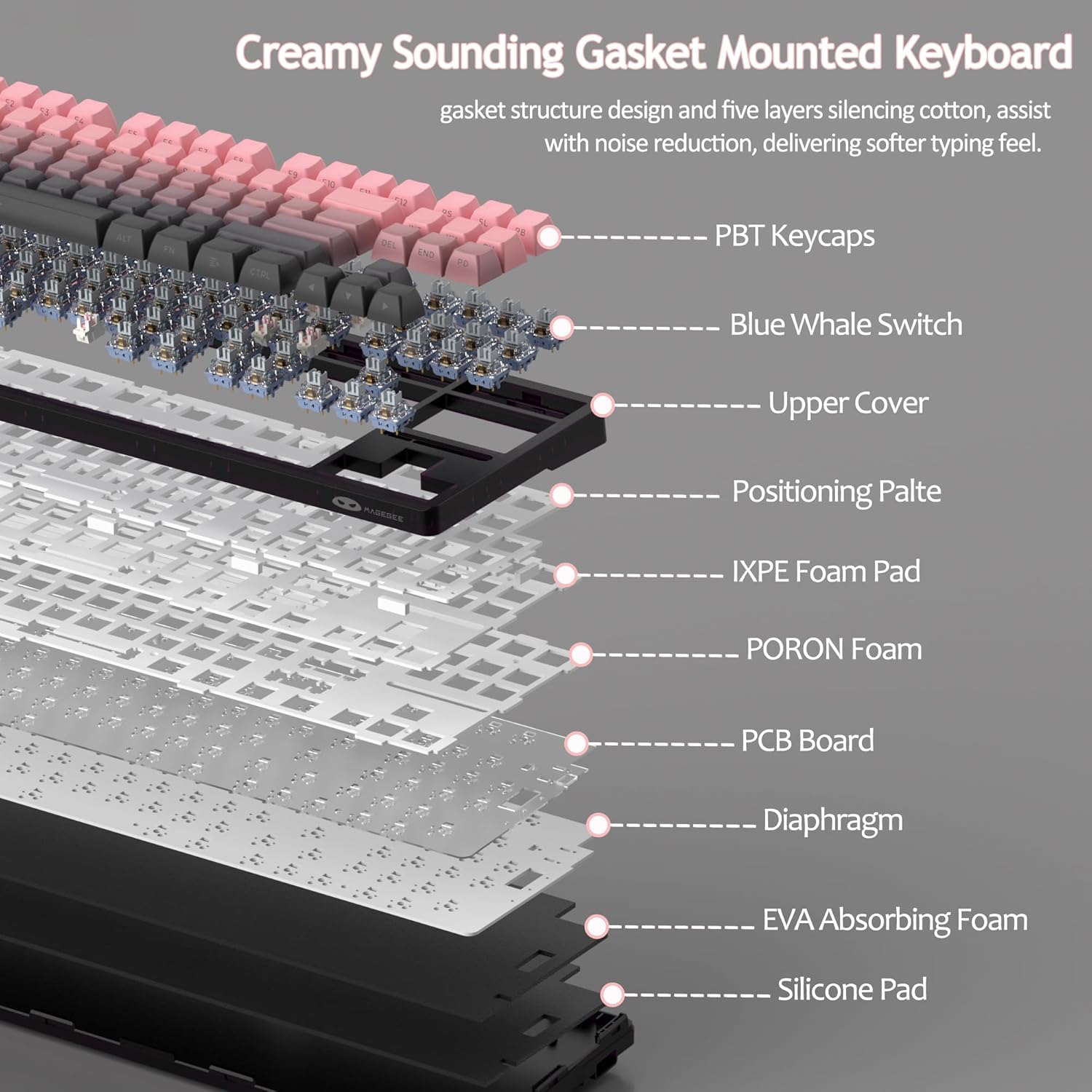
Figure 8: Visual guide to RGB backlight control key combinations.

Figure 9: Table summarizing RGB backlight functions and their corresponding Fn key combinations.
4.2 Gbona-Swappable Yipada
The LIGHT87 keyboard features hot-swappable sockets, allowing you to change switches without soldering. It supports both 3-pin and 5-pin mechanical switches. The keyboard comes pre-installed with quiet linear Blue Whale switches.

Figure 10: Diagram illustrating the hot-swappable switch mechanism, showing compatibility with 3-pin and 5-pin switches and the pre-lubed Blue Whale switch.

Figure 11: Specifications of the Blue Whale Switch, including linear type, conduction stroke, total travel, operating force, material, and lifespan.
To Replace Switches:
- Fi iṣọra yọ bọtini bọtini kuro ni lilo fifa bọtini bọtini ti a pese.
- Lo ohun tí a fi ń fa ìyípadà láti fi rọra di àwọn gíláàsì òkè àti ìsàlẹ̀ ti ìyípadà náà mú.
- Fa yipada naa soke taara lati yọ kuro ninu PCB naa.
- Mö awọn pinni ti awọn titun yipada pẹlu awọn iho lori PCB.
- Press the new switch firmly into place until it clicks. Ensure it is seated properly and not bent.
- Rọpo bọtini bọtini.
4.3 Gasket Structure and Sound Dampipari
The LIGHT87 utilizes a gasket-mounted design, which provides a softer, more flexible typing feel and contributes to a "creamy thock" sound profile. Additionally, it incorporates five layers of sound-absorbing foams to effectively reduce noise and improve typing comfort.

olusin 12: exploded view of the keyboard's internal components, highlighting the gasket structure and various foam layers (IXPE Foam Pad, PORON Foam, EVA Absorbing Foam, Silicone Pad) for sound dampipari.
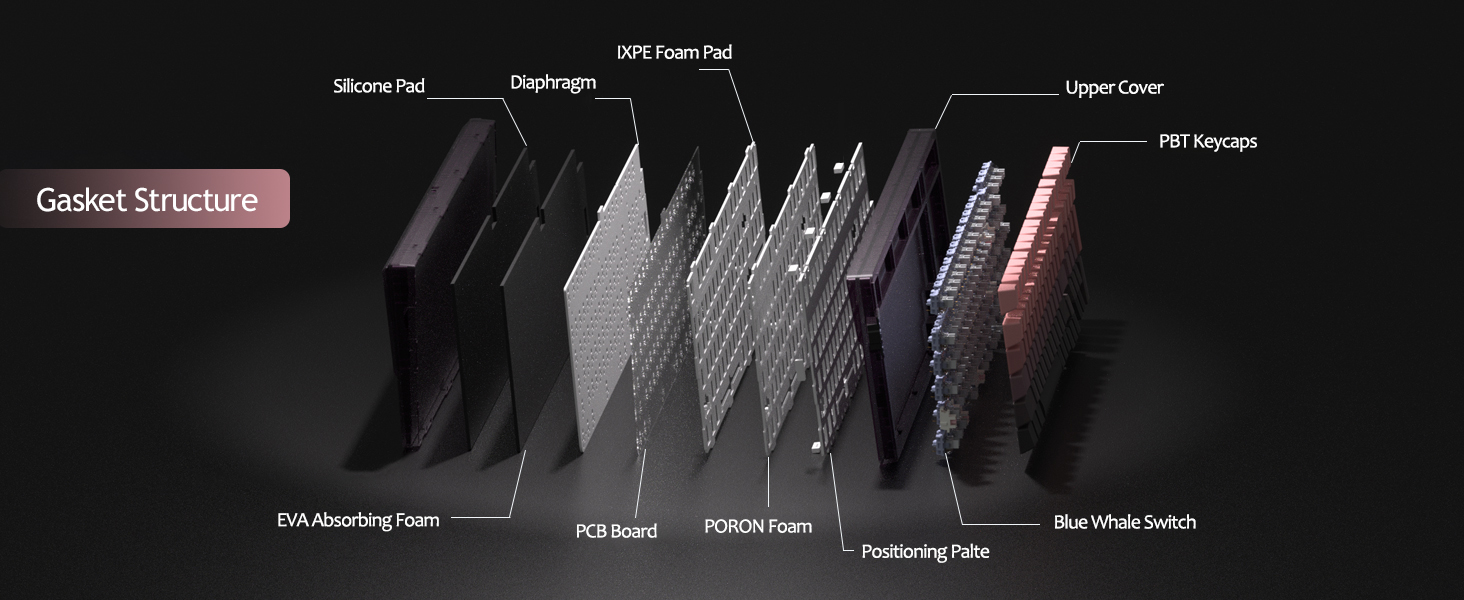
Figure 13: Detailed diagram of the gasket structure, showing how the plate is isolated from the case by gaskets, along with the various foam layers.
Àwọn ìbòrí PBT 4.4
The keyboard is equipped with durable PBT keycaps, known for their resistance to shine and wear over time. The legends are side-printed for a clean top surface aesthetic.
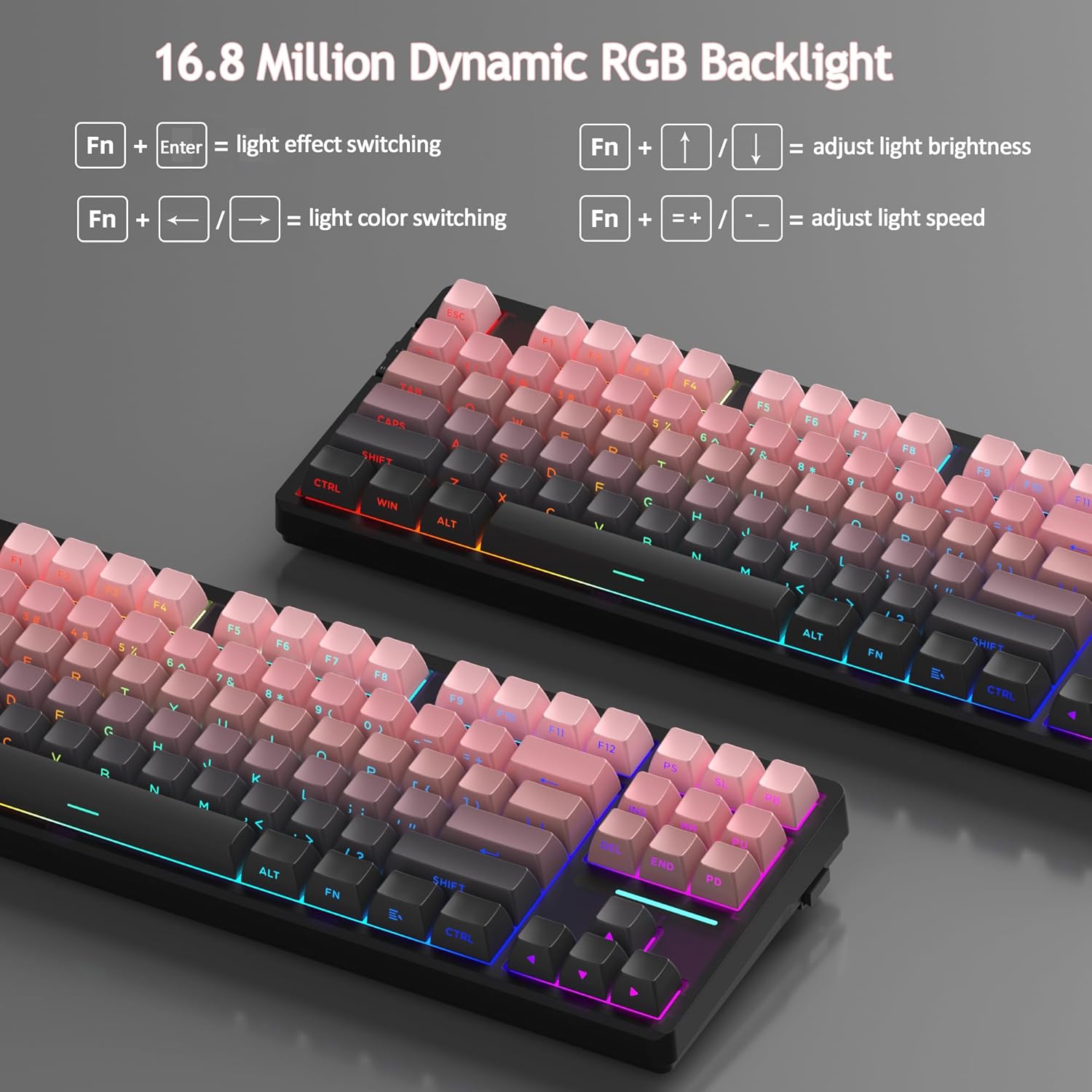
olusin 14: Isunmọ view of the keyboard's side-printed PBT keycaps.
4.5 Layout and Compatibility
The LIGHT87 features a compact 80% (TKL) layout with 87 keys, saving desktop space while retaining essential function and arrow keys. It supports both Windows and Mac operating systems, and all 87 keys feature 100% anti-ghosting for accurate input during intense gaming or typing sessions.
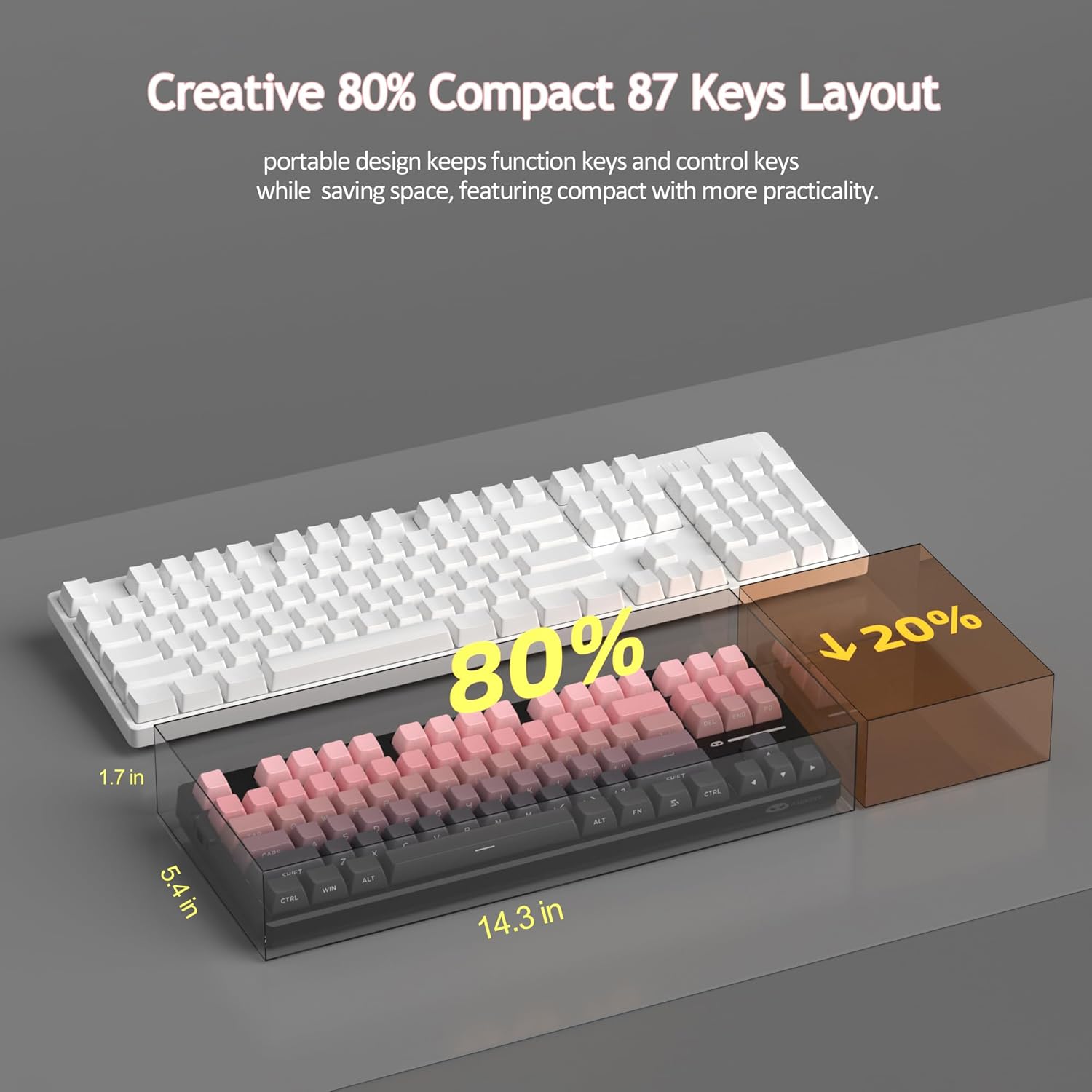
Figure 15: Comparison illustrating the compact 80% layout of the LIGHT87 keyboard compared to a full-size keyboard, highlighting space savings.

Figure 16: The MageGee LIGHT87 keyboard integrated into a desktop setup, demonstrating its use with a computer and monitor.
5. Itọju
5.1 Ninu Keyboard
To maintain the performance and appearance of your keyboard, regular cleaning is recommended.
- Ge asopọ keyboard kuro lati kọnputa rẹ ṣaaju ṣiṣe mimọ.
- Lo búrọ́ọ̀ṣì rírọ̀ tàbí afẹ́fẹ́ tí a fi ìfúnpọ̀ mú láti mú eruku àti ìdọ̀tí kúrò láàárín àwọn ìbòrí kọ́kọ́rọ́ náà.
- For stubborn dirt, you can carefully remove keycaps using the provided keycap puller and clean the surface underneath with a slightly damp, lint-free cloth. Ensure the cloth is not dripping wet.
- Wipe the keycaps and keyboard surface with a dry, soft cloth.
- Má ṣe lo àwọn kẹ́míkà líle, àwọn ohun ìfọmọ́ tí ó máa ń pa ara, tàbí kí o fi bọ́tìnnì sínú omi.

Figure 17: Image showing keycaps being removed from the keyboard, useful for cleaning or switch replacement.
5.2 Siṣàtúnṣe Keyboard igun
The keyboard features adjustable feet to customize your typing angle for ergonomic comfort.

Figure 18: Image demonstrating the adjustable feet on the underside of the keyboard for tilt customization.

olusin 19: Ẹgbẹ profile of the keyboard illustrating its ergonomic keycap profile fún ìtẹ̀wé tó rọrùn.
6. Laasigbotitusita
| Isoro | Owun to le Fa | Ojutu |
|---|---|---|
| Keyboard ko dahun ni ipo ti firanṣẹ. | Loose cable connection, incorrect mode selected, faulty USB port. | Ensure USB-C cable is securely connected. Check if the keyboard switch is set to "2" (wired mode). Try a different USB port on your computer. |
| 2.4GHz wireless not connecting. | USB receiver not plugged in, incorrect mode, low battery. | Ensure the 2.4GHz USB receiver is plugged in. Set the keyboard switch to "wifi" icon and press fn+4. Charge the keyboard. |
| Bluetooth pairing failed or connection unstable. | Incorrect pairing procedure, interference, device Bluetooth issues, low battery. | Ensure keyboard switch is set to "BT". Press and hold Fn + 1/2/3 to re-enter pairing mode. Forget the device on your computer/device and re-pair. Move closer to the device. Charge the keyboard. Restart your device's Bluetooth. |
| Backlight not working or stuck. | Backlight turned off, low battery, software glitch. | Tẹ Fn + ↑ to increase brightness. Charge the keyboard. Try cycling through backlight modes with Fn + Wọle. |
| Certain keys not responding. | Switi ti o ni abawọn tabi ti o bajẹ, idoti labẹ ideri bọtini. | Remove the keycap and check for debris. If hot-swappable, try reseating the switch or replacing it with a known working switch. |
7. Awọn pato
| Ẹya ara ẹrọ | Ẹ̀kúnrẹ́rẹ́ |
|---|---|
| Awoṣe | Imọlẹ87 |
| Brand | MageGee |
| Asopọmọra | Alailowaya 2.4GHz, Bluetooth 5.0, USB-C onirin |
| Ìfilélẹ | 87-key (80% TKL) |
| Yipada | Hot-swappable (3-pin/5-pin compatible), Blue Whale Linear Switches |
| Awọn bọtini itẹwe | Side-printed PBT |
| Imọlẹ ẹhin | 16.8 milionu RGB |
| Agbara Batiri | 8000mAh |
| Igbesi aye batiri (RGB ON) | Isunmọ. wakati meji 53 |
| Igbesi aye batiri (RGB PA) | Isunmọ. wakati meji 400 |
| Awọn ẹrọ ibaramu | PC, Laptop, Tablet, Smartphone, Gaming Console |
| Awọn ọna System Support | Windows, macOS |
| Anti-Ghosting | All 87 keys |
| Awọn iwọn (Apapọ) | 15.91 x 7.17 x 2.6 inches |
| Iwọn Nkan | 2.72 iwon |
8. Atilẹyin ọja ati Support
MageGee products are designed for reliability and performance. For warranty information and customer support, please refer to the official MageGee webojula tabi kan si eniti o ta taara nipasẹ rẹ ra Syeed.
You can visit the official MageGee store on Amazon for more information and product updates: MageGee Amazon Store