
Ọrọ Iṣaaju
This manual provides detailed instructions for the OMOTON Bluetooth Wireless Backlit Keyboard (FR-Layout). Designed for versatility and ease of use, this keyboard offers multi-system compatibility, a comfortable typing experience with large, silent keys, and adjustable backlighting. Please read this manual thoroughly to ensure proper setup and operation of your device.
Ọja Pariview
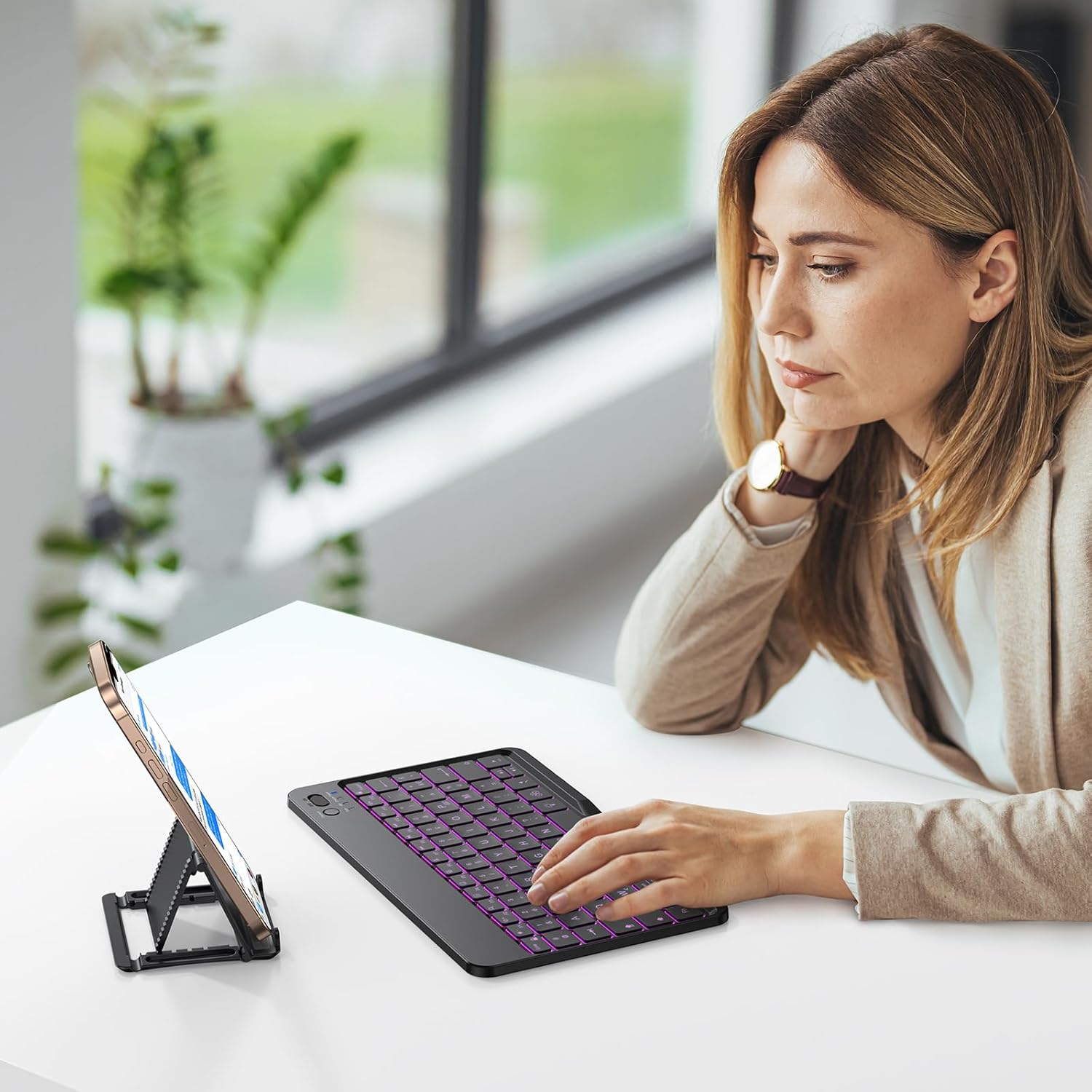
The OMOTON Bluetooth keyboard features a compact design with an integrated phone stand, making it suitable for various mobile setups. Its keys are designed for comfort and efficiency.

Image: OMOTON Bluetooth Wireless Backlit Keyboard with integrated phone stand.
Key Awọn ẹya ara ẹrọ
- Large Keycap Design: Keys are 12% larger than standard, improving typing accuracy and comfort.
- Silent Scissor-Type Key Structure: Provides a quiet and responsive typing experience with a lifespan of 3 million keystrokes.
- 7-Color Adjustable Backlight: Customize your typing environment with 7 backlight colors and 3 brightness levels.
- Awọn bọtini Ọna abuja Multimedia: 12 dedicated shortcut keys for quick access to functions.
- Ultra-Thin and Portable: Lightweight ati iwapọ fun irọrun gbigbe.

Image: Comparison illustrating the OMOTON keyboard's larger keycap design for enhanced usability.
Aworan: Alaye view of the silent scissor-type key mechanism, highlighting its construction.
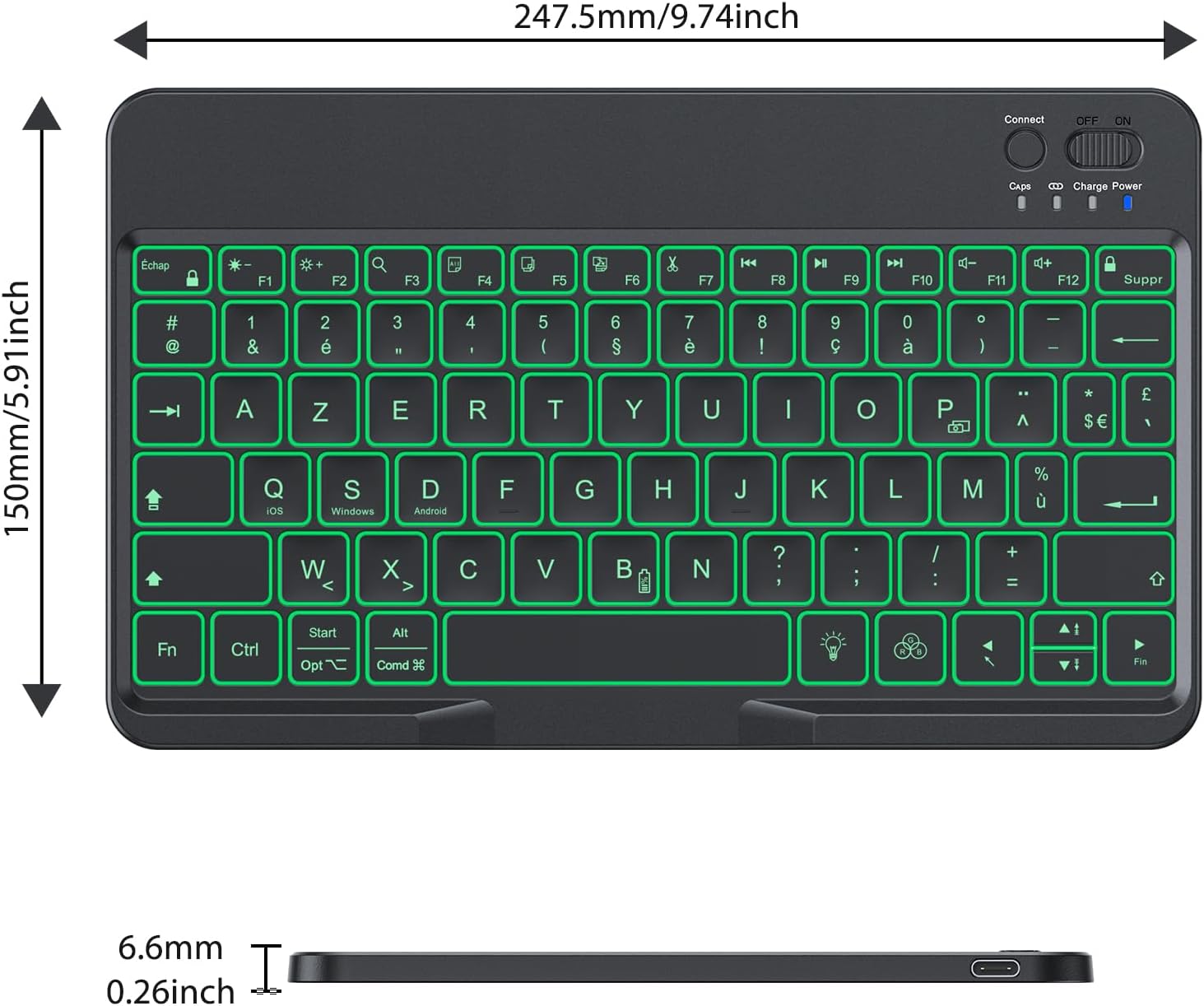
Image: The OMOTON keyboard being stored in a bag, emphasizing its ultra-thin and portable design.
Ṣeto
Ngba agbara si Keyboard
Before first use, fully charge the keyboard. Connect the provided Type-C charging cable to the keyboard's charging port and a USB power source. The charging indicator light will show the charging status.
- Akoko Gbigba agbara: O fẹrẹ to awọn wakati 2-3.
- Working Hours (backlight off): Up to 200 hours.
- Working Hours (backlight on): 3-5 hours.

Image: The OMOTON keyboard connected to a power source for charging, showing estimated charging and working times.
Asopọ Bluetooth
Tẹ̀lé àwọn ìgbésẹ̀ wọ̀nyí láti so keyboard rẹ pọ̀ nípasẹ̀ Bluetooth:
- Turn on the keyboard using the power switch located on the top right.
- Press the 'Connect' button (usually near the power switch) to enter pairing mode. The Bluetooth indicator light will flash.
- On your device (tablet, smartphone, PC), go to Bluetooth settings and enable Bluetooth.
- Wa fun available devices. The keyboard will appear as 'OMOTON Keyboard' or similar.
- Select the keyboard to pair. Your device may prompt you to enter a code displayed on the screen, then press Enter on the keyboard.
- Once paired, the Bluetooth indicator light will stop flashing.
System Compatibility and Switching
The keyboard is compatible with iOS, Android, and Windows operating systems. To optimize key functions for your specific device, switch the keyboard mode:
- For iOS devices: Press fn + A
- For Android devices: Press Fn + D
- For Windows devices: Press Fn + S
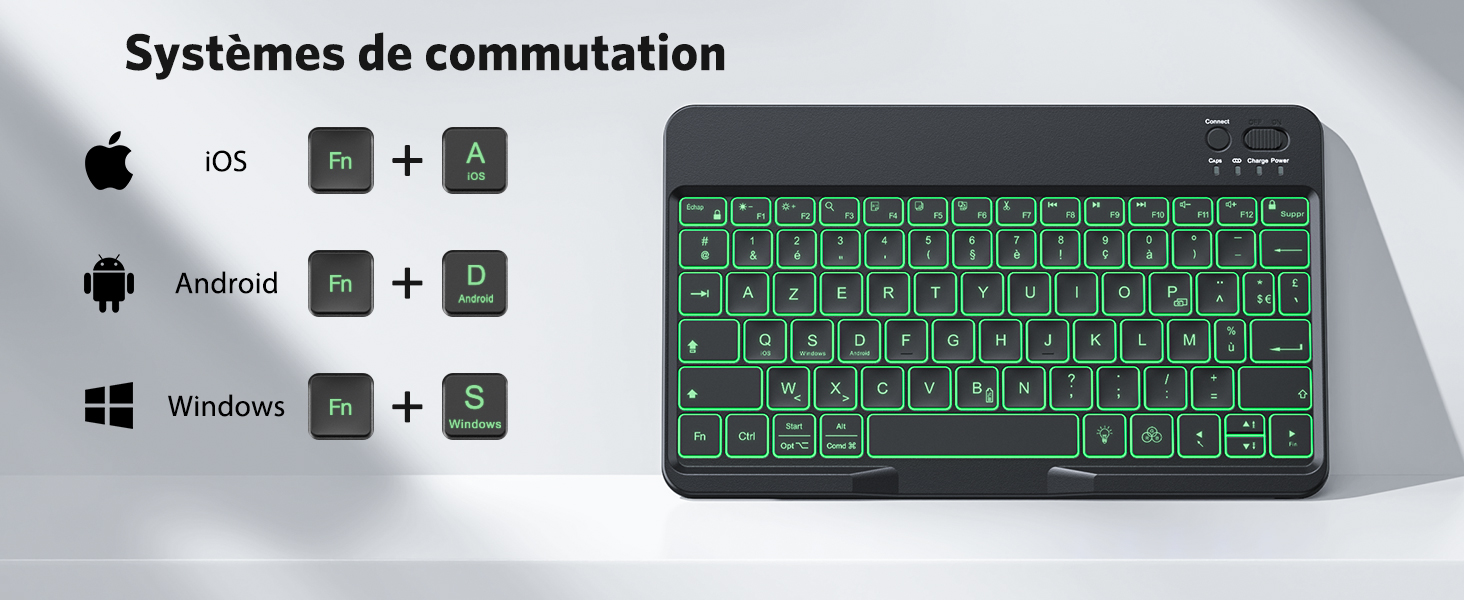
Image: Visual guide for switching keyboard modes between iOS, Android, and Windows using Fn key combinations.

Image: The OMOTON keyboard demonstrating wide compatibility with iOS, Android, and Windows devices.
Awọn ilana Iṣiṣẹ
Backlight Iṣakoso
The keyboard features an adjustable backlight for typing in low-light conditions.
- Tẹ awọn lightbulb icon key once to turn on the backlight.
- Tẹ awọn lightbulb icon key a second time to activate breathing light mode.
- Tẹ awọn lightbulb icon key a third time to turn off the backlight.
To change backlight colors (7 available colors) when the backlight is on, press Fn + lightbulb icon key.
To adjust backlight brightness (3 levels), press Fn + Ọfà Soke (ìlọ́po) tàbí Fn + Ọfà isalẹ (idinku).

Image: The OMOTON keyboard showcasing its 7-color adjustable backlight feature.
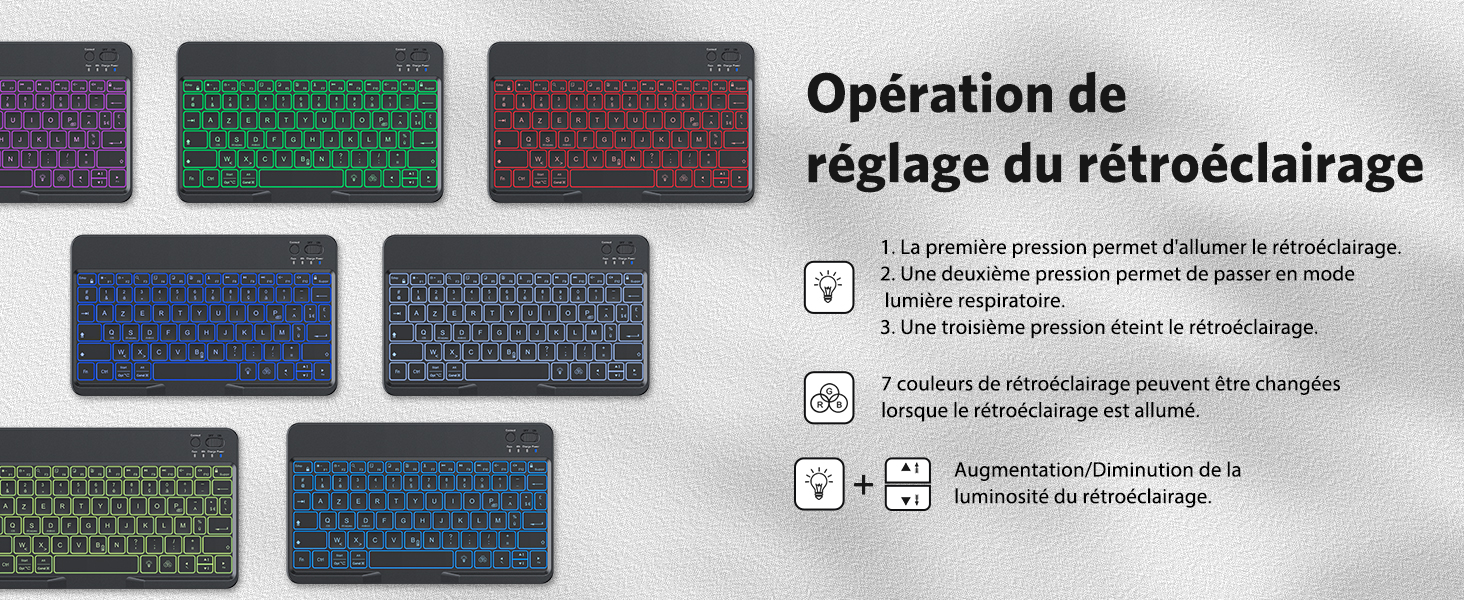
Image: A diagram illustrating the steps to operate and adjust the keyboard's backlight settings.
Awọn bọtini Ọna abuja Multimedia
The top row of keys (F1-F12) provides quick access to multimedia and system functions. These functions are typically accessed by pressing the Fn bọtini ni nigbakannaa pẹlu bọtini iṣẹ ti o fẹ.
- Fn+F1: Ile
- Fn+F2: àwárí
- Fn+F3: Yan Gbogbo
- Fn+F4: Daakọ
- Fn+F5: Lẹẹmọ
- Fn+F6: Ge
- Fn+F7: Ti tẹlẹ Track
- Fn+F8: Ṣiṣẹ / Sinmi
- Fn+F9: Next Track
- Fn+F10: Pa ẹnu mọ́
- Fn+F11: Iwọn didun isalẹ
- Fn+F12: Iwọn didun soke
Itoju ati Itọju
To ensure the longevity and optimal performance of your OMOTON keyboard, follow these maintenance guidelines:
- Ninu: Lo asọ asọ, ti ko ni lint die-die dampened with water or a mild cleaning solution. Avoid harsh chemicals, abrasives, or excessive moisture.
- Ibi ipamọ: Tọju keyboard ni itura, aye gbigbẹ kuro lati orun taara ati awọn iwọn otutu to gaju.
- Mimu: Avoid dropping the keyboard or exposing it to strong impacts. Do not place heavy objects on it.
- Ifihan Olomi: Prevent liquids from entering the keyboard. In case of accidental spills, immediately power off the keyboard and allow it to dry completely before reuse.
Laasigbotitusita
If you encounter issues with your keyboard, refer to the following common problems and solutions:
- Keyboard ko sopọ nipasẹ Bluetooth:
- Rii daju pe o ti gba agbara ati ki o ṣiṣẹ lori keyboard.
- Rii daju pe Bluetooth ti ṣiṣẹ lori ẹrọ rẹ.
- Tẹ bọtini 'Sopọ' lori keyboard lati wọ ipo isopọpọ.
- Forget the keyboard from your device's Bluetooth settings and attempt to re-pair.
- Tun bẹrẹ mejeeji keyboard ati ẹrọ rẹ.
- Keys not responding or incorrect characters:
- Verify that the keyboard is set to the correct operating system mode (Fn+A for iOS, Fn+D for Android, Fn+S for Windows).
- Check your device's language and keyboard layout settings to ensure they match the FR-Layout.
- Rí i dájú pé keyboard ti gba agbára tán pátápátá.
- Imọlẹ ẹhin ko ṣiṣẹ:
- Press the lightbulb icon key to cycle through backlight modes (on, breathing, off).
- Rii daju pe keyboard ni idiyele batiri ti o to.
- Igbesi aye batiri kuru ju ti a reti lọ:
- Using the backlight continuously will significantly reduce battery life. Turn off the backlight when not needed.
- Rii daju pe keyboard ti gba agbara ni kikun ṣaaju lilo.
Imọ ni pato
| Ẹya ara ẹrọ | Sipesifikesonu |
|---|---|
| Brand | OMOTON |
| Nọmba Awoṣe Nkan | FR-Layout |
| Àwọ̀ | Dudu |
| Apejuwe Keyboard | Multifunctional |
| Agbara Orisun Oriṣi | Agbara Batiri |
| Asopọmọra Iru | Bluetooth |
| Ọwọ Iṣalaye | Ambidextrous |
| Ibamu ẹrọ | Kọǹpútà alágbèéká, PC, Foonuiyara, Tabulẹti |
| Pataki Awọn ẹya ara ẹrọ | Portable, Rechargeable, Backlit |
| Ohun elo | Ṣiṣu |
| Niyanju Lilo | Lojoojumọ |
| Asopọmọra Technology | Bluetooth |
| ASIN | B0DFWKHBPK |
| Ọjọ Akọkọ Wa | Oṣu Kẹta Ọjọ 24, Ọdun 2025 |
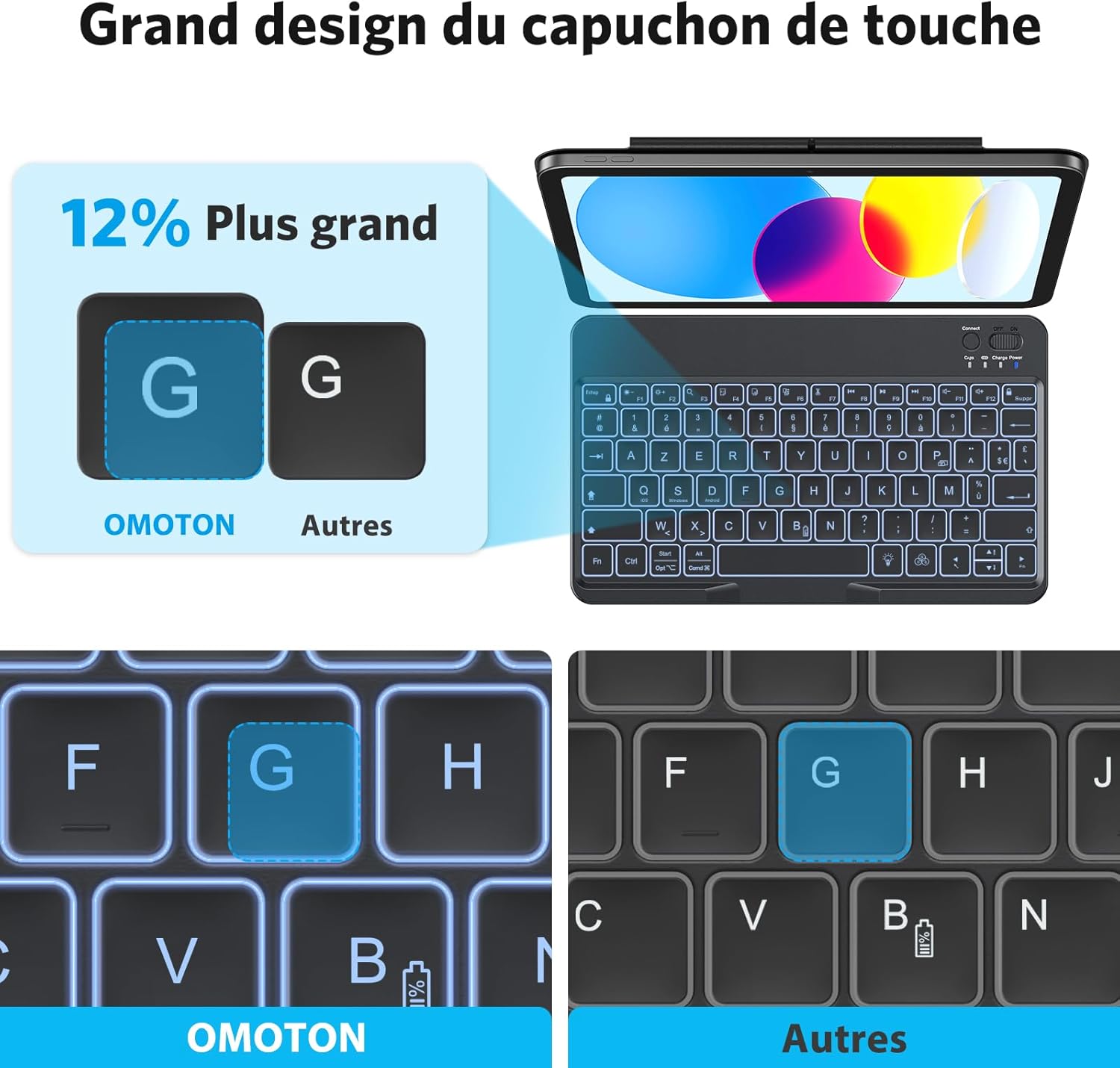
Image: Technical drawing showing the dimensions of the OMOTON Bluetooth Keyboard.
Atilẹyin ọja ati Support
Atilẹyin ọja olupese
This OMOTON product comes with a 1-year manufacturer's warranty from the date of purchase. Please retain your proof of purchase for warranty claims.
Onibara Support
For further assistance, technical support, or warranty inquiries, please refer to the contact information provided with your product packaging or visit the official OMOTON webojula.