
THOMSON 32HF2S34
Ìwé Ìtọ́sọ́nà Olùlò THOMSON 32" HD LED Fire TV
Model: 32HF2S34
Ọrọ Iṣaaju
This manual provides comprehensive instructions for setting up, operating, and maintaining your THOMSON 32" HD LED Fire TV (Model: 32HF2S34). This television combines useful technology with user-friendly features, offering easy access to applications, games, and streaming services through the intuitive Fire TV operating system. It supports Alexa voice control, AirPlay for Apple devices, and includes an integrated Smart Home dashboard. With a built-in Triple Tuner, Dolby Audio, and HDR10 visuals, this TV is designed to enhance your home entertainment experience.
Eto Itọsọna
1. Unboxing ati Package Awọn akoonu
Ni ifarabalẹ yọ gbogbo awọn paati kuro ninu apoti. Rii daju pe gbogbo awọn nkan ti o wa ni isalẹ wa:
- THOMSON 32" HD LED Fire TV
- Isakoṣo latọna jijin
- Okun agbara
- Àwọn ìdúró TV (2) àti àwọn skru
- Afowoyi Olumulo (iwe-ipamọ yii)
Akiyesi: The remote control is included in the box.
2. So awọn TV Imurasilẹ
Place the TV screen face down on a soft, clean surface to prevent scratches. Align each stand with the corresponding screw holes on the bottom of the TV. Secure the stands using the provided screws.

Aworan: Iwaju view of the Thomson 32-inch HD Fire TV.

Aworan: Ẹgbẹ profile of the Thomson 32-inch HD Fire TV.

Aworan: Ẹyin view of the Thomson 32-inch HD Fire TV, highlighting the various input and output ports. These include Audio Out, CI+, Headphones, AV In, USB 2.0, 2x HDMI 1.4, Antenna, LAN, and Satellite connections.
3. Nsopọ Ita Awọn ẹrọ
Connect your external devices such as cable boxes, gaming consoles, or Blu-ray players to the appropriate ports on the back of the TV. The TV features 2 HDMI ports, 1 USB port, AV In, and a CI+ slot.
- HDMI: Fún ohùn àti fídíò tó ga jùlọ.
- USB: Fun sisopọ awọn ẹrọ ipamọ USB.
- AV Ninu: Fun awọn ẹrọ afọwọṣe atijọ.
- CI+: For encrypted cable or satellite channels.
- Eriali/Satẹlaiti: Fún sísopọ̀ àwọn eriali ilẹ̀ ayé tàbí àwọn eriali satẹlaiti.
- Lan: Fun isopọ Ayelujara ti a firanṣẹ.
4. Agbara Titan ati Eto Ibẹrẹ
Plug the power cable into the TV and then into a wall outlet. Press the power button on the remote control or on the TV. Follow the on-screen instructions to complete the initial setup, including language selection, network connection (Wi-Fi or Ethernet), and Fire TV account login.
Ṣiṣẹ TV rẹ
1. Fire TV Operating System
The Thomson Fire TV provides an intuitive interface for accessing a wide range of content. The home screen offers personalized recommendations and quick access to your favorite apps and streaming services.

Image: The Fire TV interface displaying popular streaming applications such as Netflix, Prime Video, Disney+, YouTube, Spotify, and Apple TV.
2. Alexa Voice Control
Your TV comes with Alexa voice control integrated into the remote. Press the Alexa button on your remote and speak commands to control your TV, search for content, get recommendations, or manage smart home devices.

Image: Demonstrates the use of Alexa voice control with the Thomson Fire TV remote. Examples of voice commands include checking the weather, playing music, opening apps like Netflix, and controlling smart home lights.
3. Iṣẹ́ AirPlay
Stream content directly from your Apple devices (iPhone, iPad, Mac) to your Thomson Fire TV using AirPlay. Ensure both devices are connected to the same Wi-Fi network.

Image: Shows content being cast from an iOS device to the Thomson TV via Apple AirPlay.
4. Smart Home Dashboard
Control your connected smart home devices directly from your TV using the integrated Smart Home dashboard. This feature allows you to monitor and manage various smart devices from a single interface.
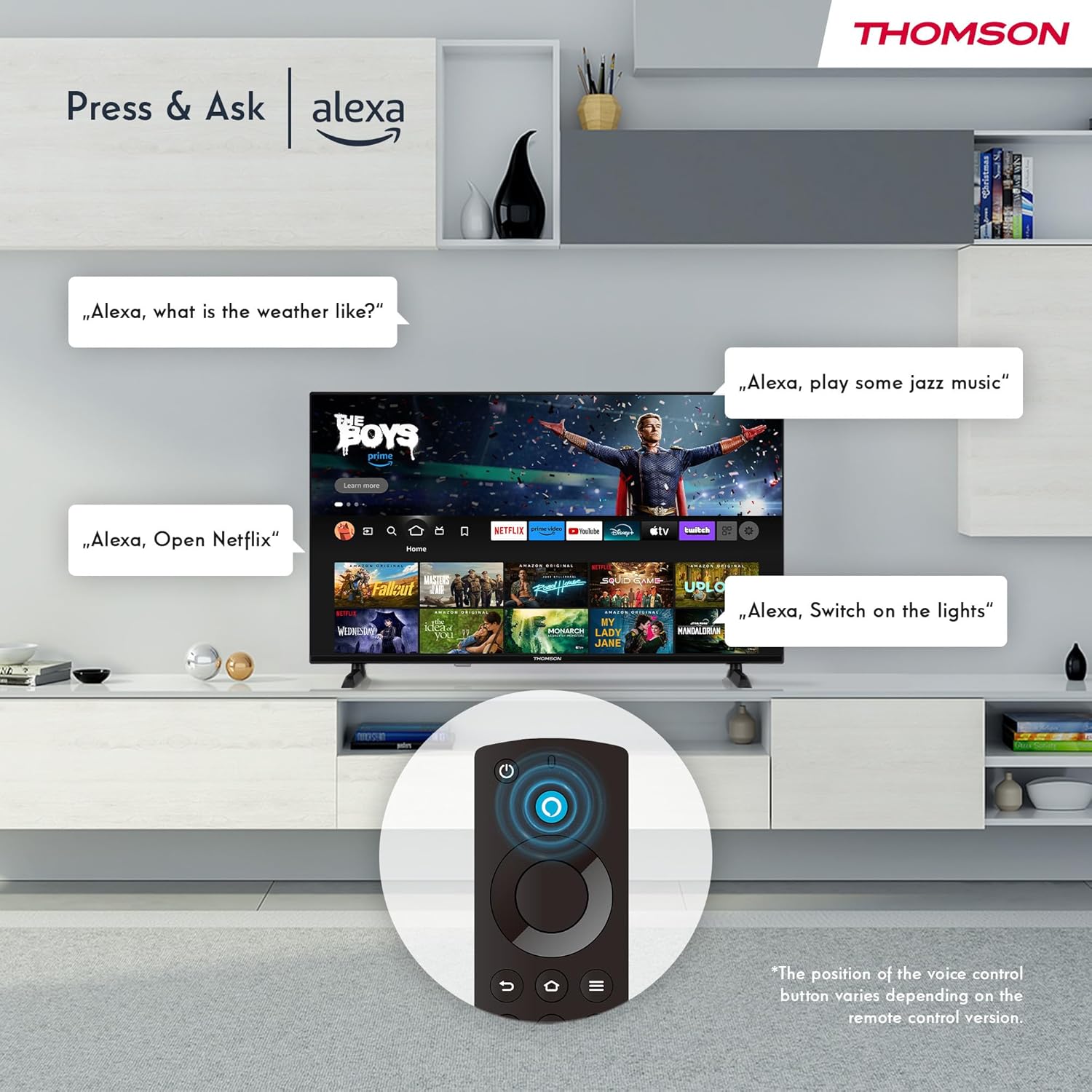
Image: The Smart Home dashboard on the Thomson TV, providing centralized control for various smart devices like cameras, lights, and plugs.
5. Onímọ̀-ẹ̀rọ Oníṣe-pupọfiles
Ṣẹda ọpọ profiles on your Fire TV to receive personalized recommendations and settings for each user in your household.

Image: The Fire TV interface allowing creation of multiple user profiles fún àwọn àbá nípa àkóónú tí a ṣe àdáni.
6. Triple Tuner and CI+
The integrated Triple Tuner allows you to receive signals from various sources:
- DVB-C: Cable tẹlifisiọnu
- DVB-S2: Satellite television
- DVB-T2: Terrestrial (antenna) television
Insert a CI+ card into the CI+ slot to access encrypted channels from your service provider.
7. Audio and Video Enhancements
Experience rich and clear sound with Dolby Audio and Dolby Digital Plus. Enjoy stunning visuals in HD resolution with HDR10 support for enhanced contrast and color.

Image: Visual representation of Dolby Audio technology enhancing the sound experience on the Thomson TV.

Image: A visual comparison demonstrating the superior image quality of HDR10 compared to SDR, highlighting enhanced colors and contrast.
8. Isakoṣo latọna jijin
The Bluetooth remote control provides easy navigation with direct access buttons for popular streaming services like Netflix and Prime Video, as well as the Amazon Silk browser. The Alexa button activates voice commands.
Itoju
Ninu rẹ TV
Lati nu iboju naa, rọra nu rẹ pẹlu asọ ti ko ni lint. Fun awọn ami alagidi, dampen the cloth slightly with water or a screen-cleaning solution. Avoid using harsh chemicals or abrasive materials. For the TV body, use a dry, soft cloth.
Awọn imudojuiwọn Software
Your Fire TV will periodically receive software updates to improve performance and add new features. Ensure your TV is connected to the internet to receive these updates automatically. You can also manually check for updates in the settings menu.
Laasigbotitusita
| Isoro | Owun to le Fa / Solusan |
|---|---|
| Ko si Power/TV yoo ko tan |
|
| Ko si Aworan / Black Iboju |
|
| Ko si Ohun |
|
| Isakoṣo latọna jijin Ko Ṣiṣẹ |
|
| Awọn oran Asopọ nẹtiwọki |
|
Awọn pato
| Ẹya ara ẹrọ | Ẹ̀kúnrẹ́rẹ́ |
|---|---|
| Brand | THỌMSON |
| Nọmba awoṣe | 32HF2S34 |
| Ìwọ̀n Iboju (Ojú Ayé) | 32 inches (80 cm) |
| Ifihan ọna ẹrọ | LED |
| Ipinnu | HD (1366 x 768 Pixels) |
| Oṣuwọn sọtun | 50 Hz |
| Eto isesise | TV ina |
| Iṣakoso ohun | Alexa-itumọ ti |
| Alailowaya Asopọmọra | Wi-Fi, Bluetooth 5.0, AirPlay |
| Ti firanṣẹ Asopọmọra | 2x HDMI 1.4, 1x USB, AV In, CI+, Ethernet (LAN) |
| Tuners | Triple Tuner (DVB-C, DVB-S2, DVB-T2) |
| Ohun Technology | Dolby Audio, Dolby Digital Plus |
| HDR atilẹyin | HDR10 |
| Awọn iwọn (L x W x H) | 71.9 x 45.6 x 15 cm (pẹlu iduro) |
| Iwọn | 4 kg |
| Agbara Agbara Kilasi | E |
Alaye atilẹyin ọja
Your THOMSON 32" HD LED Fire TV (Model: 32HF2S34) is covered by a manufacturer's warranty of ọdun meji 3 from the date of purchase. This warranty covers defects in materials and workmanship under normal use. Please retain your proof of purchase for warranty claims. For detailed terms and conditions, refer to the warranty card included with your product or visit the official THOMSON support webojula.
Atilẹyin
For further assistance, technical support, or service requests, please contact THOMSON customer support through one of the following methods:
- Atilẹyin Ayelujara: Visit the official THOMSON support webAaye fun FAQs, awọn itọnisọna laasigbotitusita, ati awọn igbasilẹ sọfitiwia. www.thomsonconsumer.com/support (Akiyesi: Eyi jẹ aaye ibi URL, please refer to your product's specific support information.)
- Imeeli Atilẹyin: support@thomsonconsumer.com (Note: This is a placeholder email, please refer to your product's specific support information.)
- Atilẹyin foonu: Refer to the contact numbers provided in your product packaging or on the official THOMSON webaaye fun agbegbe rẹ.
When contacting support, please have your TV's model number (32HF2S34) and serial number ready.
Ask a question about this manual
Ask about setup, troubleshooting, compatibility, parts, safety, or missing instructions. Manuals+ will review the question and use this page’s manual context to help answer it.