
1. Ifihan
This manual provides detailed instructions for setting up, operating, and maintaining your THOMSON 40-inch FHD Fire TV. Please read this manual thoroughly before using the television to ensure proper functionality and safety. Keep this manual for future reference.
2. Alaye Aabo
Nigbagbogbo tẹle awọn iṣọra aabo ipilẹ nigba lilo ọja yii lati dinku eewu ina, mọnamọna, ati ipalara.
- Ma ṣe fi TV han si ojo tabi ọrinrin.
- Maṣe ṣe idiwọ awọn ṣiṣi eefin.
- Rii daju pe ilẹ ti o yẹ fun plug agbara.
- Yọ TV kuro lakoko iji manamana tabi nigbati a ko lo fun igba pipẹ.
- Tọkasi gbogbo iṣẹ si awọn oṣiṣẹ iṣẹ ti o peye.
3. Package Awọn akoonu
Daju pe gbogbo awọn ohun kan wa ninu package rẹ:
- THOMSON 40-inch FHD Fire TV
- Iṣakoso latọna jijin (pẹlu awọn batiri)
- Okun agbara
- Iduro TV (awọn ege 2)
- Skru fun TV Imurasilẹ
- Afowoyi Olumulo (iwe-ipamọ yii)

Image: The product box illustrating the TV, remote control, and various features like Fire TV, Alexa, and Dolby Audio.
4. Ọja Ipariview
Familiarize yourself with the components and connections of your THOMSON Fire TV.
4.1 Iwaju View

Image: The front of the TV, showcasing its slim bezel and the Fire TV smart interface with popular streaming applications.
4.2 Ẹgbẹ View ati Awọn iwọn
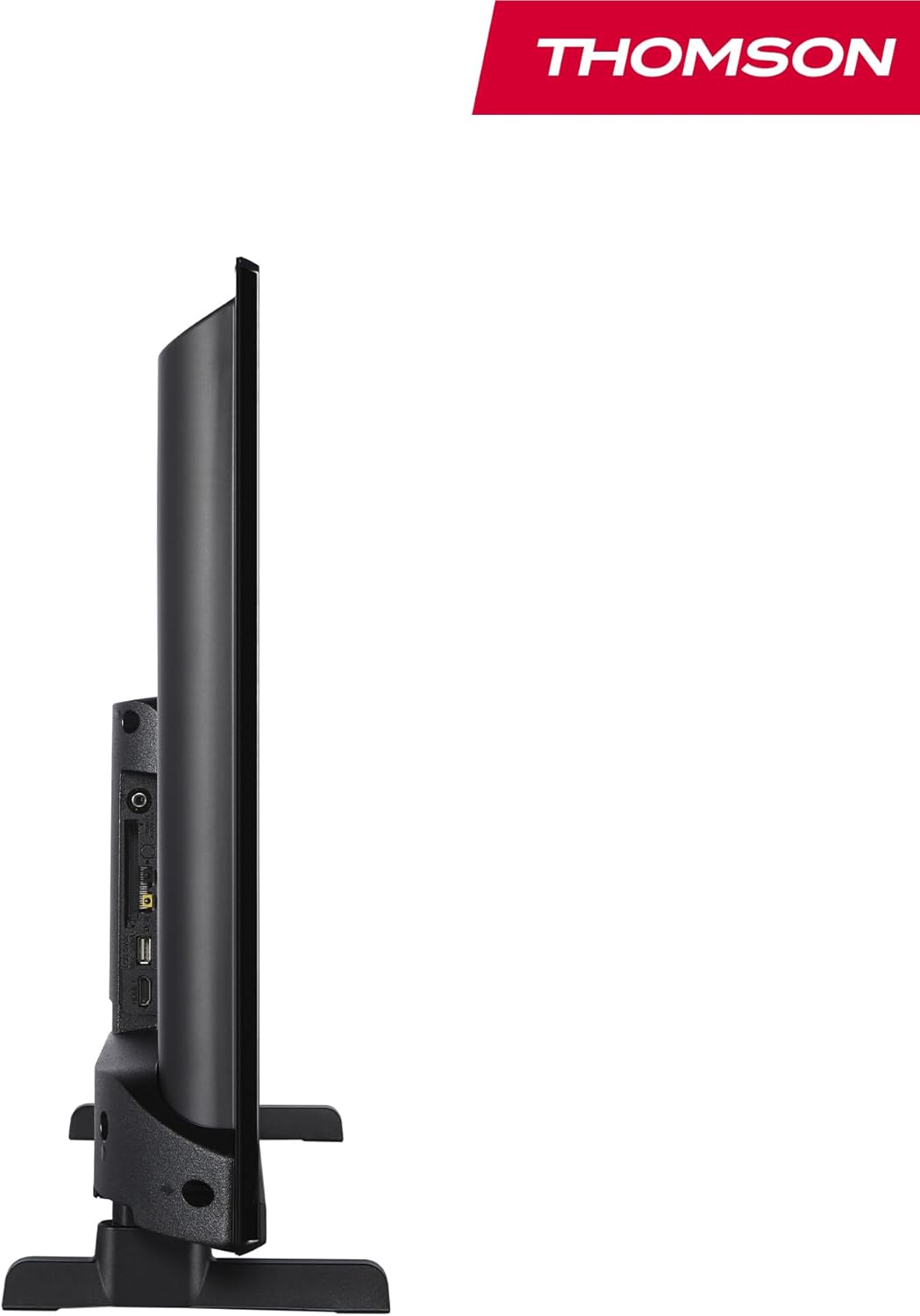
Aworan: A ẹgbẹ view of the television, demonstrating its thin profile.

Image: A diagram illustrating the physical dimensions of the TV, including width, height, and depth with the stand.
4.3 Ẹyìn View ati Ports
The rear panel of your TV features various input and output ports for connecting external devices.

Aworan: A alaye view of the TV's rear panel, highlighting all connectivity ports such as HDMI, USB, Audio Out, CI+, and antenna inputs.
- Ohun Jade: Fun pọ ita iwe awọn ọna šiše.
- CI+: Wọpọ Interface Plus Iho fun awọn ipo wiwọle modulu.
- Agbekọri: Jack 3.5mm fun gbigbọ ikọkọ.
- AV NI: For connecting older devices with composite video and stereo audio.
- USB 2.0: Fun ṣiṣiṣẹsẹhin media lati awọn awakọ USB.
- HDMI 1.4 (x2): High-Definition Multimedia Interface for connecting Blu-ray players, game consoles, etc.
- Eriali: For connecting a terrestrial antenna (DVB-T2).
- Satẹlaiti: For connecting a satellite dish (DVB-S2).
- Lan: Àjọlò ibudo fun ti firanṣẹ nẹtiwọki asopọ.
5. Eto
5.1 So Iduro TV
- Farabalẹ gbe oju TV si isalẹ lori rirọ, dada alapin lati ṣe idiwọ ibajẹ iboju.
- Ṣe deede awọn ege imurasilẹ pẹlu awọn iho ti o baamu ni isalẹ ti TV.
- Ṣe aabo awọn iduro nipa lilo awọn skru ti a pese.
5.2 Agbara-ibẹrẹ ati Asopọ Nẹtiwọọki
- So okun agbara pọ si TV ati iṣan ogiri kan.
- Tẹ bọtini agbara lori TV tabi isakoṣo latọna jijin lati tan-an.
- Follow the on-screen instructions for initial setup, including language selection and network connection (Wi-Fi or Ethernet).
- Log in with your Amazon account to activate Fire TV features.
5.3 Tuner Setup (Triple-Tuner)
Your TV is equipped with a triple-tuner for DVB-C (cable), DVB-S2 (satellite), and DVB-T2 (terrestrial) reception.

Image: The DVB-T2/C/S2 tuner inputs, allowing connection to various broadcast sources.
- Connect your antenna or satellite cable to the appropriate input on the TV.
- Navigate to the TV settings and select 'Channel Scan' or 'Tuner Setup'.
- Choose your broadcast type (Antenna, Cable, or Satellite) and follow the prompts to scan for available channels.
6. Awọn ilana Iṣiṣẹ
6.1 Fire TV Interface
The Fire TV interface provides easy access to your favorite streaming services, apps, and live TV.
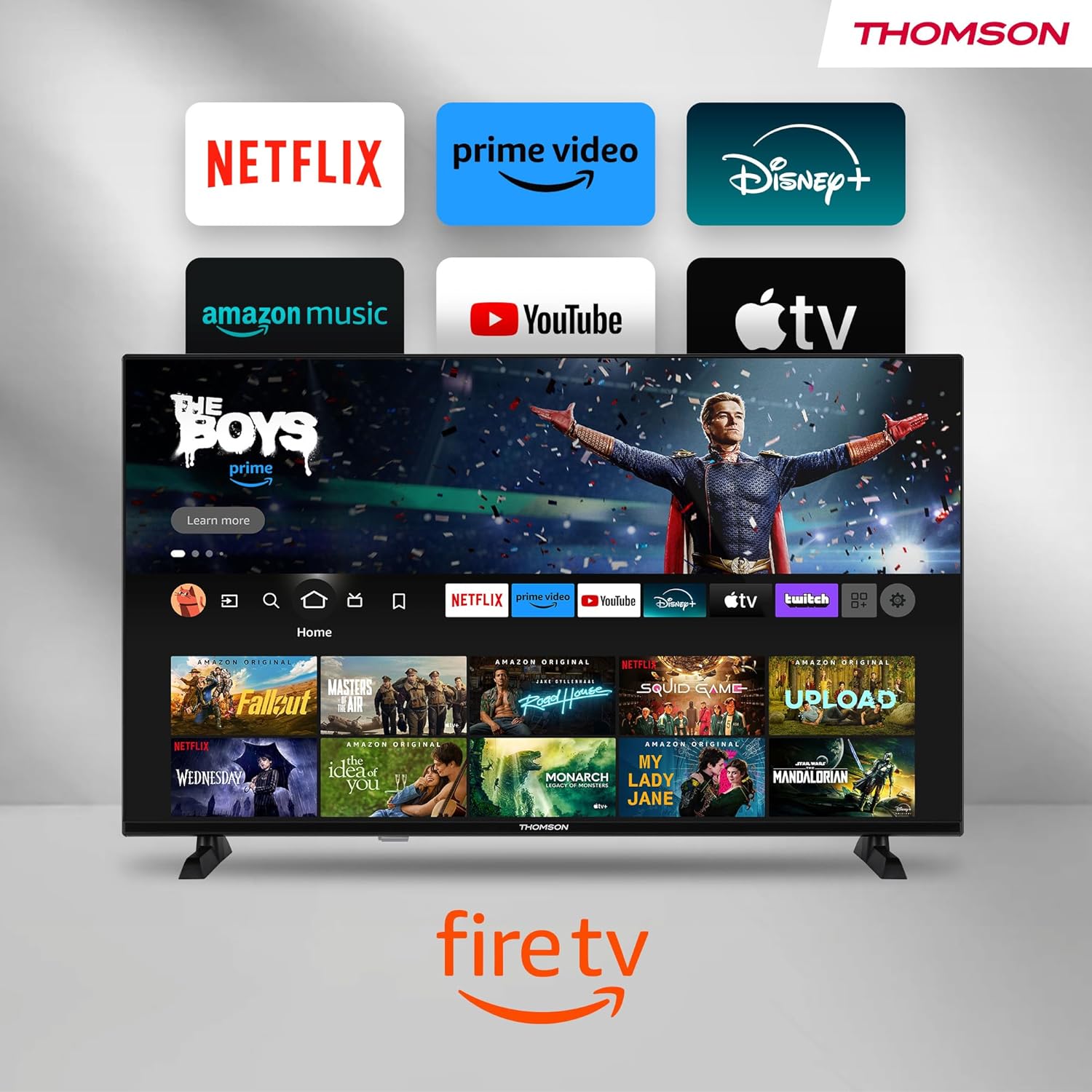
Image: The Fire TV home screen, showing a selection of popular streaming apps and content recommendations.
Navigate using the remote control's directional pad. The home screen provides personalized recommendations and quick access to your installed applications.
6.2 Alexa Iṣakoso ohun
Use the integrated Alexa voice control for hands-free operation.
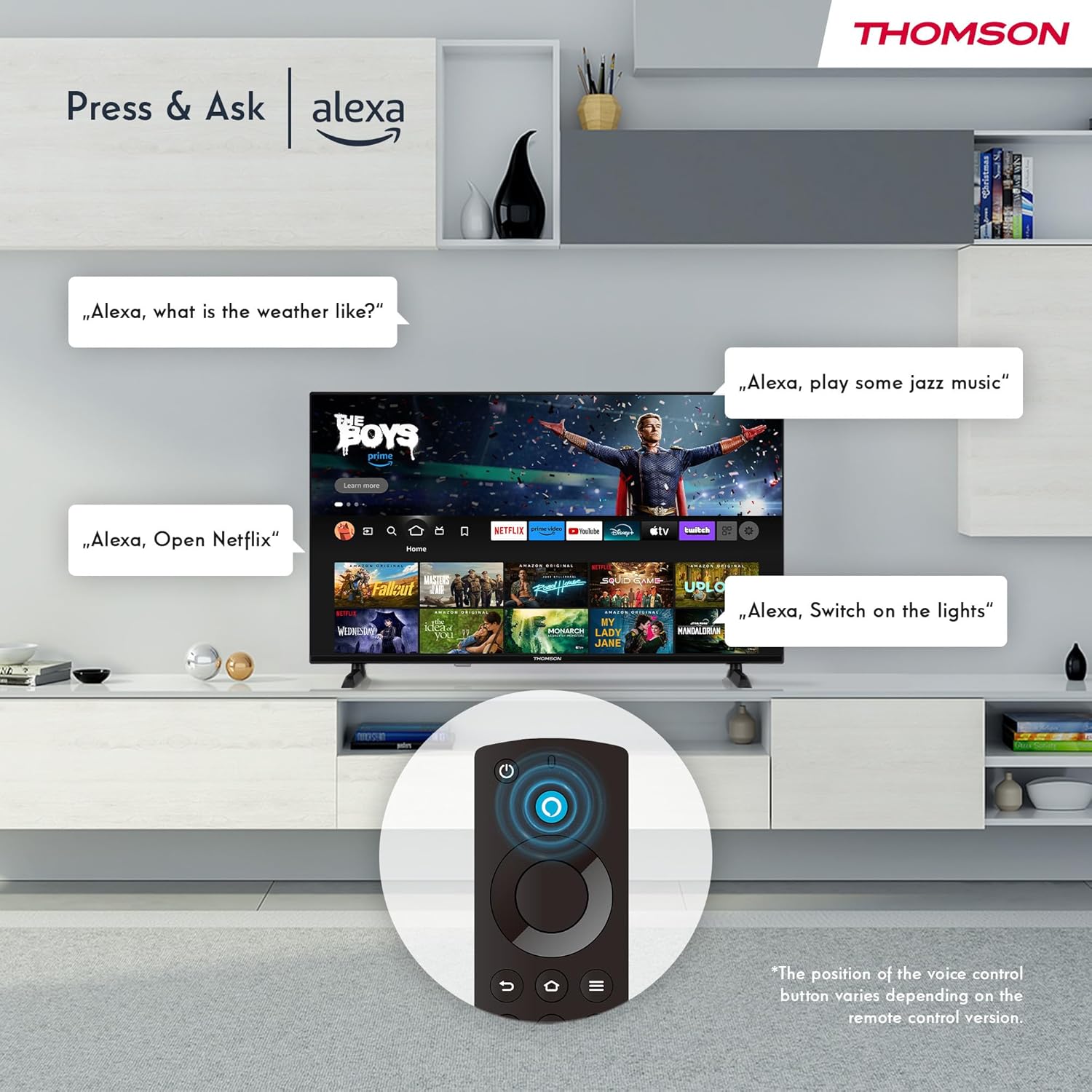
Image: Demonstrating Alexa voice commands for controlling the TV, searching content, and managing smart home devices.
Tẹ bọtini Alexa lori remote rẹ ki o si sọ aṣẹ rẹ. O le beere lọwọ Alexa lati:
- Wa fun àwọn fíìmù tàbí àwọn ètò tẹlifíṣọ̀n.
- Lọlẹ awọn ohun elo.
- Control playback (pause, play, skip).
- Check the weather or news.
- Ṣakoso awọn ẹrọ ile smati ibaramu.
6.3 Smart Home Integration
Manage your connected smart home devices directly from your TV's integrated dashboard.

Image: The Smart Home dashboard, providing a centralized control panel for various smart devices in your home.
Access the Smart Home dashboard to monitor and control devices such as cameras, lights, and plugs.
6.4 AirPlay Functionality
Stream content directly from your Apple devices (iPhone, iPad, Mac) to your THOMSON Fire TV using AirPlay.

Image: A demonstration of Apple AirPlay, showing content being mirrored from an iOS device to the television screen.
Ensure both your Apple device and the TV are connected to the same Wi-Fi network. Select the AirPlay icon on your Apple device and choose your THOMSON TV from the list of available devices.
6.5 Creating User Profiles
Ṣẹda ọpọ olumulo profiles for personalized content recommendations and settings.

Image: The user profile selection screen on Fire TV, allowing different users to have their own personalized viewiriri iriri.
From the Fire TV home screen, navigate to the profile selection to add or switch profiles. Pro kọọkanfile can have its own watch history and app preferences.
6.6 HDR10 àti Dolby Audio
Experience enhanced picture quality with HDR10 and immersive sound with Dolby Audio.

Image: A visual comparison demonstrating the improved contrast and color vibrancy offered by HDR10 technology.

Image: A graphic illustrating the immersive sound experience provided by Dolby Audio.
HDR10 provides a wider range of colors and contrasts, while Dolby Audio delivers rich, clear, and powerful sound.
6.7 Iṣakoso latọna jijin
The ergonomic Bluetooth remote control provides easy navigation and direct access to key features.
- Bọtini Alexa: Tẹ mọlẹ lati mu awọn pipaṣẹ ohun ṣiṣẹ.
- Paadi Lilọ kiri: For moving through menus and selecting items.
- Awọn Bọtini Fidio Netflix/Prime: Wiwọle taara si awọn iṣẹ sisanwọle wọnyi.
- Amazon Silk Button: Wiwọle taara si awọn web kiri ayelujara.
7. Itọju
Lati rii daju igbesi aye gigun ati iṣẹ to dara julọ ti TV rẹ, tẹle awọn itọnisọna itọju wọnyi:
- Ninu iboju: Rọra nu iboju naa pẹlu asọ ti ko ni lint. Fun awọn ami agidi, lo ẹrọ mimọ iboju ti a ṣe apẹrẹ pataki fun awọn TV, ti a lo si asọ, kii ṣe taara si iboju.
- Ninu Igbimọ Ile-igbimọ: Lo aṣọ rírọrùn tí ó gbẹ láti nu àpótí tẹlifíṣọ̀n náà. Má ṣe lo àwọn ohun ìfọmọ́ tàbí àwọn ohun èlò ìfọ́mọ́ra.
- Afẹfẹ: Rii daju pe awọn ṣiṣi atẹgun lori ẹhin TV ko ni idinamọ lati ṣe idiwọ igbona.
- Okun Agbara: Ṣayẹwo okun agbara nigbagbogbo fun eyikeyi ibajẹ. Ti o ba bajẹ, rọpo lẹsẹkẹsẹ.
8. Laasigbotitusita
Ti o ba pade awọn ọran pẹlu TV rẹ, tọka si awọn iṣoro ti o wọpọ ati awọn ojutu wọnyi:
| Isoro | Owun to le Fa / Solusan |
|---|---|
| Ko si agbara | Check if the power cord is securely plugged into the TV and the wall outlet. Ensure the outlet is active. |
| Ko si aworan, ṣugbọn ohun wa | Check input source. Ensure external devices are properly connected and powered on. |
| Ko si ohun, ṣugbọn aworan wa | Check volume level. Ensure Mute is not activated. Check audio cables for external devices. |
| Isakoṣo latọna jijin ko ṣiṣẹ | Check batteries. Ensure there are no obstructions between the remote and the TV. Re-pair the Bluetooth remote if necessary. |
| Ko le sopọ si Wi-Fi | Ensure Wi-Fi is enabled on the TV. Check Wi-Fi password. Restart your router. Move TV closer to router. |
| Awọn ohun elo lọra tabi didi | Restart the TV. Clear app cache or data in settings. Ensure sufficient internet speed. |
Ti iṣoro naa ba wa, jọwọ kan si atilẹyin alabara.
9. Awọn pato
| Ẹya ara ẹrọ | Ẹ̀kúnrẹ́rẹ́ |
|---|---|
| Nọmba awoṣe | 40FF2S34 |
| Iwon iboju | 40.0 inches (100 cm) |
| Ifihan ọna ẹrọ | LED |
| Ipinnu | 1080p (HD ni kikun) |
| Oṣuwọn sọtun | 60 Hz |
| Apakan Ipin | 16:9 |
| Asopọmọra | Wi-Fi, Bluetooth 5.0, 2x HDMI 1.4, USB 2.0, AV IN, Audio Out, CI+, LAN |
| Tuners | DVB-C, DVB-S2, DVB-T2 |
| Pataki Awọn ẹya ara ẹrọ | Fire TV, Alexa Voice Control, AirPlay, HDR10, Dolby Audio, Smart Home Dashboard, User Profiles |
| Awọn iwọn (pẹlu iduro) | 90.2 x 55.4 x 17.5 cm (W x H x D) |
| Iwọn | 9 kg |
| Agbara ṣiṣe Rating | E |
| Awọn irinše to wa | Isakoṣo latọna jijin |
| Awọn ede atilẹyin | Spanish, French, English, Italian, Germanic languages |
10. Atilẹyin ọja ati Support
Your THOMSON Fire TV comes with a manufacturer's warranty. Please refer to the warranty card included in your package for specific terms and conditions.
For technical support, troubleshooting assistance, or warranty claims, please visit the official THOMSON support website or contact their customer service line. Keep your purchase receipt and model number (40FF2S34) handy when contacting support.
Atilẹyin Ayelujara: www.thomsonconsumer.com/support