
Ọrọ Iṣaaju
This manual provides comprehensive instructions for the setup, operation, maintenance, and troubleshooting of your DOOGEE T30Max 4K 12.4 Inch Android 14 Gaming Tablet. Please read this manual carefully before using your device to ensure optimal performance and longevity.
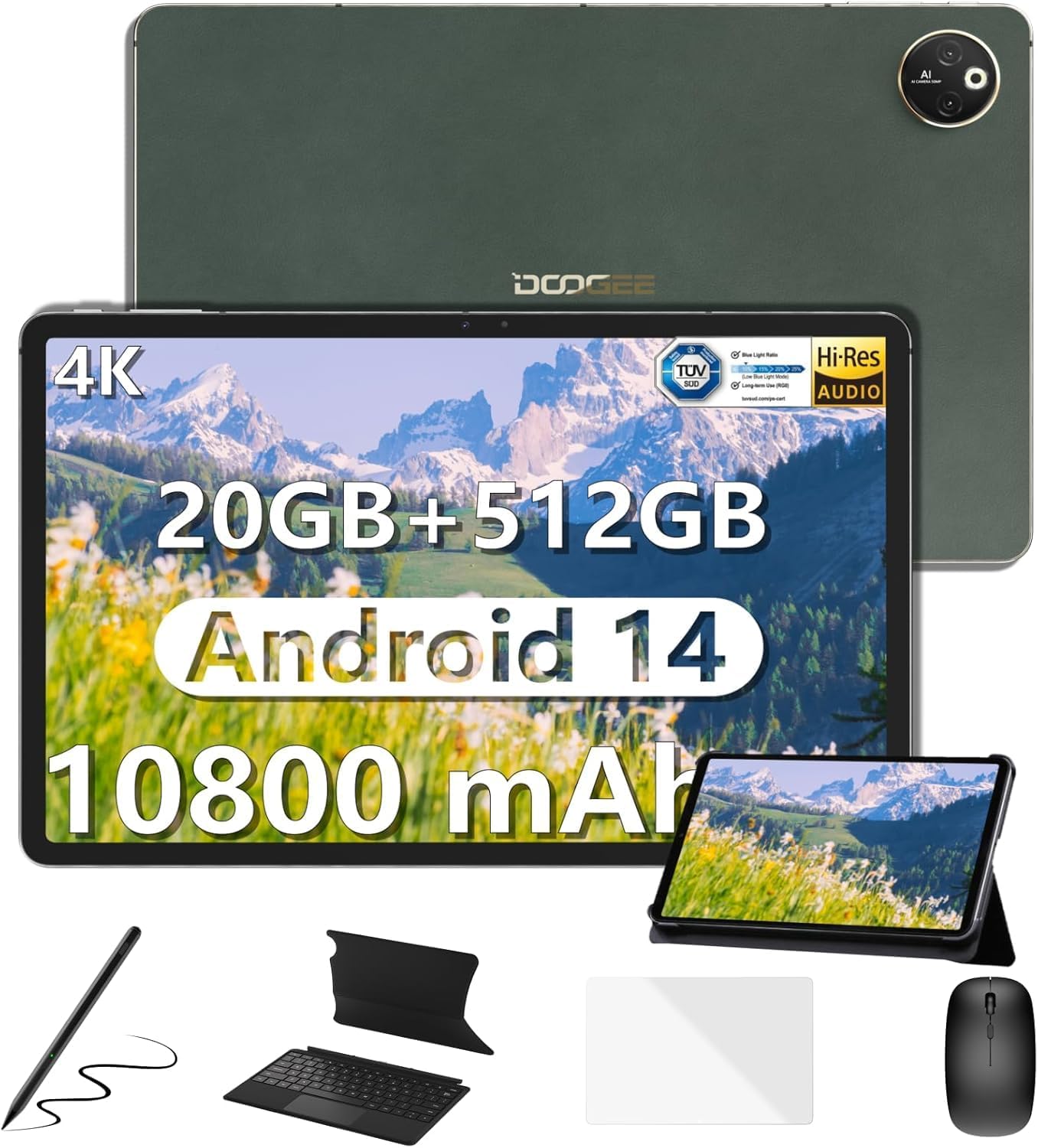
Image: The DOOGEE T30Max tablet displayed with its included accessories: keyboard, mouse, stylus pen, and case.
Ohun ti o wa ninu Apoti
Daju pe gbogbo awọn nkan wa ninu apo rẹ:
- Tabulẹti x1
- Charger and Data line x1
- Card removal needle x1
- Ilana olumulo x1
- Keyboard, Mouse, Stylus Pen and Case x1
Ṣeto
1. Gbigba agbara akọkọ
Before first use, fully charge your DOOGEE T30Max tablet. Connect the provided charger and data line to the tablet's charging port and a power outlet. The tablet supports 33W fast charging.

Image: The DOOGEE T30Max tablet connected to a charger, illustrating its 10800mAh battery and fast charging capability.
2. Agbara lori / Paa
- Lati Fi agbara: Press and hold the Power button until the DOOGEE logo appears.
- Lati Paarẹ: Tẹ ki o si mu awọn Power bọtini, ki o si yan "Power pipa" lati awọn aṣayan loju iboju.
3. SIM Card and Micro SD Installation
The tablet supports dual 4G Nano-SIM cards and Micro SD expansion up to 2TB.
- Wa atẹ kaadi SIM ni ẹgbẹ tabulẹti.
- Insert the provided card removal needle into the small hole next to the tray to eject it.
- Place your Nano-SIM card(s) and/or Micro SD card into the designated slots on the tray. Ensure correct orientation.
- Gently push the tray back into the tablet until it is flush with the device body.

Image: A close-up of the DOOGEE T30Max tablet showing the SIM card tray and indicating support for dual 4G and Wi-Fi connectivity.
4. Àwọn Ẹ̀rọ Ìsopọ̀
Your T30Max comes with a Bluetooth keyboard, mouse, and a capacitive touch pen.
- Bluetooth Keyboard/Mouse: Turn on the keyboard/mouse and enable Bluetooth on your tablet via Settings > Connected devices > Bluetooth. Select the device from the list to pair.
- Stylus Pen: The capacitive touch pen is ready for use upon removal from its packaging. No pairing is required for basic touch functions.
Awọn ilana Iṣiṣẹ
1. Ifihan Awọn ẹya ara ẹrọ
The DOOGEE T30Max features a 12.4-inch IPS screen with a 2560x1600 resolution and DCI-P3 color gamut support for vivid visuals. It also has TÜV certification for low blue light, reducing eye strain.

Image: The tablet's 12.4-inch 4K display, highlighting its anti-blue light feature, 16:10 aspect ratio, 2560x1600 resolution, and 87.5% screen-to-body ratio.
2. Ohun ati Multimedia
Experience high-resolution audio with the tablet's four smart speakers. The T30Max supports Widevine L1, allowing for streaming of 1080P and higher definition media from various video platforms.

Image: The tablet displaying a high-definition video, emphasizing its Widevine DRM L1 support and Hi-Res certified quad speakers.
3. Android 14 Awọn ọna System
The tablet runs on the latest Android 14, offering enhanced privacy controls, multi-screen login, split-screen functionality, and floating windows for improved multitasking.

Image: Screenshots of the Android 14 interface on the tablet, showcasing privacy controls, Google Play Store access, and various app icons.
4. Išẹ ati Ibi ipamọ
Powered by the Helio G99 Octa-Core processor, the T30Max provides smooth performance. It comes with 8GB base RAM (expandable to 20GB) and 512GB ROM, with Micro SD expansion up to 2TB.

Image: An illustration of the Helio G99 Octa-Core processor, highlighting its 2.2GHz ARM Cortex-A76, Mali-G57 MC2 GPU, and 6nm process technology.

Image: The tablet displaying multiple open applications, illustrating its expandable RAM, 512GB storage, and Micro SD expansion capabilities.
5. Awọn iṣẹ kamẹra
The tablet is equipped with a 50MP main camera and a 20MP front camera for capturing photos and video calls.

Image: The tablet's camera interface and examples of photos taken with its 50MP main camera and 20MP front camera.
6. Asopọmọra ati Lilọ kiri
The T30Max supports dual 4G, dual-band 2.4G/5G WiFi, and Bluetooth 5.0 for seamless connectivity. For navigation, it integrates Beidou, Galileo, Glonass, GPS, and AGRS for accurate positioning.
Itoju
1. Itọju batiri
Batiri 10800mAh pese lilo ti o gbooro sii. Lati mu igbesi aye batiri pọ si:
- Use the original charger for optimal charging speed and safety.
- Yago fun awọn iwọn otutu to gaju.
- Fun ibi ipamọ igba pipẹ, gba agbara si tabulẹti si iwọn 50% ki o si pa a.
- The tablet supports OTG reverse charging, allowing it to charge other devices in emergencies.
2. Ninu
Lati nu tabulẹti rẹ:
- Pa ẹrọ naa kuro ṣaaju ṣiṣe mimọ.
- Lo asọ, asọ ti ko ni asọ.
- Fun awọn ami alagidi, die-die dampFi omi tàbí ohun ìfọmọ́ ìbòjú tí a ṣe fún àwọn ẹ̀rọ itanna bò aṣọ náà. Yẹra fún àwọn kẹ́míkà líle.
Laasigbotitusita
| Oro | Owun to le Fa / Solusan |
|---|---|
| Tabulẹti ko ni agbara lori. | Ensure the battery is charged. Connect the charger and wait a few minutes before attempting to power on again. If unresponsive, press and hold the power button for 10-15 seconds for a forced restart. |
| Asopọ Wi-Fi ti ko dara. | Check if Wi-Fi is enabled. Ensure you are within range of the Wi-Fi router. Restart the router and the tablet. Forget the network and reconnect. |
| Awọn ohun elo lọra tabi jamba. | Close unnecessary background applications. Clear app cache (Settings > Apps > [App Name] > Storage > Clear cache). Restart the tablet. Ensure sufficient storage space is available. |
| Screen not displaying 4K resolution. | Ensure the content being viewed is 4K. Check display settings for resolution. For optimal viewing, disable "Battery Saver" and "Adaptive Brightness" in settings. A stable internet connection is crucial for streaming high-resolution content. |
| Accessories (keyboard, mouse) not connecting. | Ensure Bluetooth is enabled on the tablet and the accessory. Make sure the accessory is charged and in pairing mode. Unpair and re-pair the device. |
Awọn pato
| Ẹya ara ẹrọ | Ẹ̀kúnrẹ́rẹ́ |
|---|---|
| Brand | DOOGEE |
| Orukọ awoṣe | T30MAX-V-02 |
| Eto isesise | Android 14 |
| Iwon iboju | 12.4 inches |
| Ipinnu Iboju ti o pọju | 2560 x 1600 awọn piksẹli |
| isise | Helio G99 Octa-Core |
| Àgbo | 8GB LPDDR4X (expandable to 20GB) |
| Flash Memory Size (ROM) | 512 GB |
| Expandable Ibi ipamọ | Up to 2TB Micro SD |
| Agbara Batiri | 10800 mAh |
| Gbigba agbara yara | 33W |
| Kamẹra akọkọ | 50MP |
| Kamẹra iwaju | 20MP |
| Alailowaya Iru | 802.11n, 802.11b, 802.11a, 802.11g, 802.11ac (Dual-band 2.4G/5G WiFi) |
| Cellular Asopọmọra | Dual 4G (Nano-SIM) |
| Bluetooth | Bluetooth 5.0 |
| Lilọ kiri | Beidou, Galileo, Glonass, GPS, AGRS |
| Iwọn Nkan | 687 giramu (isunmọ 1.5 lbs) |
| Ọja Mefa | 11.22 x 7.3 x 0.31 inches (28.5 x 18.5 x 0.79 cm) |
Atilẹyin ọja ati Support
DOOGEE values your experience. Your T30Max tablet comes with:
- 30-Day Money Back Guarantee and Free Return: For initial satisfaction.
- Atilẹyin ọja Lopin Ọdun 2: Covers manufacturing defects.
- 24/7 One-on-One Online Support: For any issues or questions.
If you encounter any issues or have questions while using the product, please do not hesitate to contact DOOGEE customer service. They promise to respond within 24 hours and assist in resolving any issues.
For further assistance, you may visit the official DOOGEE store or support channels.