
1. Ifihan
The Cozyla Digital Calendar+ 2 is a 24-inch wall-mounted touch screen device designed to streamline family organization. It integrates calendar functions, chore management, meal planning, and supports various Google Play applications to create a centralized hub for your household activities.

Image: The Cozyla Digital Calendar+ 2 interface showing a comprehensive family dashboard.
2. Awọn ilana iṣeto
2.1 Unboxing ati Ibẹrẹ ayewo
- Ni ifarabalẹ yọ gbogbo awọn paati kuro ninu apoti.
- Verify that all items listed in the packing slip are present.
- Inspect the device for any visible damage. If damage is found, contact customer support immediately.
2.2 odi iṣagbesori
The Cozyla Digital Calendar+ 2 includes a rotating wall mount for flexible orientation (portrait or landscape).
- Choose a suitable location on a wall, ensuring it is within reach of a power outlet.
- Attach the wall mount bracket to the wall using appropriate hardware (not included, consult a professional if unsure).
- Securely attach the Cozyla Digital Calendar+ 2 to the wall mount, ensuring it clicks into place.
- Connect the power adapter to the device and plug it into a wall outlet.

Image: The Cozyla Digital Calendar+ 2 demonstrating its rotating wall mount feature.

Image: Back of the device with power connection for wall mounting.
2.3 Agbara akọkọ Lori ati Asopọ nẹtiwọki
- Tẹ bọtini agbara lati tan ẹrọ naa.
- Follow the on-screen prompts to select your language and connect to a Wi-Fi network.
- Log in with your Google account to access the Google Play Store and other services.
3. Awọn ilana Iṣiṣẹ
3.1 Family Shared Digital Calendar
The Cozyla Digital Calendar+ 2 integrates with popular calendar services, allowing for shared family scheduling.
- Open the Cozyla+ app or navigate to the calendar widget on your dashboard.
- Sync with external calendars such as Google Calendar, Apple Calendar, and Outlook Calendar.
- Events can be shared, viewed, and edited collaboratively on the screen.
- Assign unique colors to each family member for easy identification of schedules.

Image: Calendar synchronization with multiple platforms.
3.2 Digital Chore Chart & Reward System
Manage household chores and motivate family members with an integrated reward system.
- Access the chore chart application from the dashboard.
- Assign chores to individual family members. Each member can customize their avatar and color.
- Set up a point system for completed chores.
- Family members earn points upon completion, which can be redeemed for rewards configured within the app.
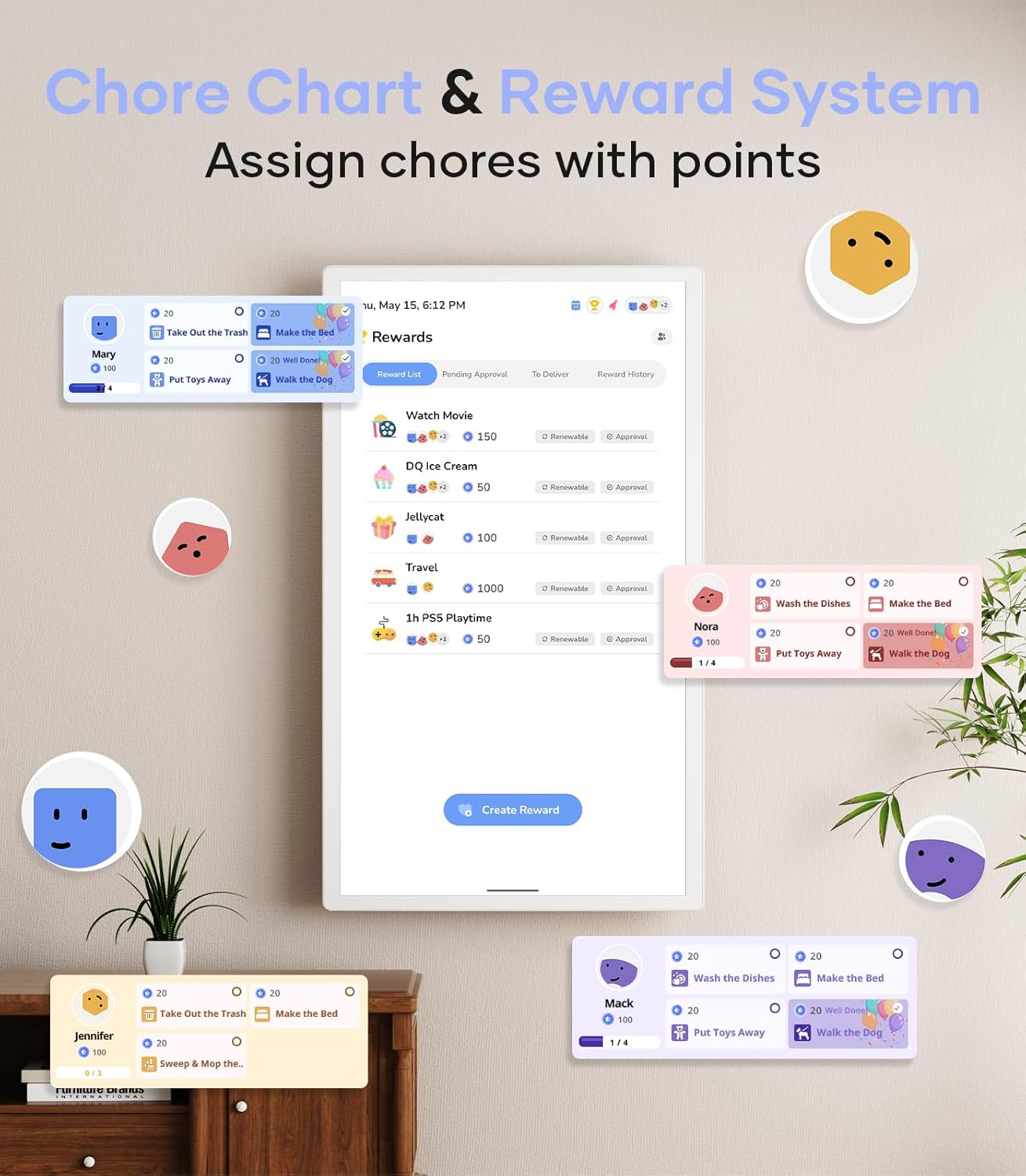
Image: Chore chart and reward system interface.
3.3 Customizable Dashboard
Personalize your display by downloading applications and arranging widgets.
- Access the Google Play Store to download desired applications.
- Drag and drop widgets such as calendar, chore chart, meal planner, to-do lists, media player, and weather updates onto your dashboard.
- Adjust widget sizes and positions to suit your preferences.
3.4 Meal Planning
Organize your weekly meals and generate shopping lists directly from the device.
- Utilize the meal planning feature to schedule meals in advance.
- Upload custom recipes or select from available options.
- The system can automatically generate shopping lists based on your meal plan.
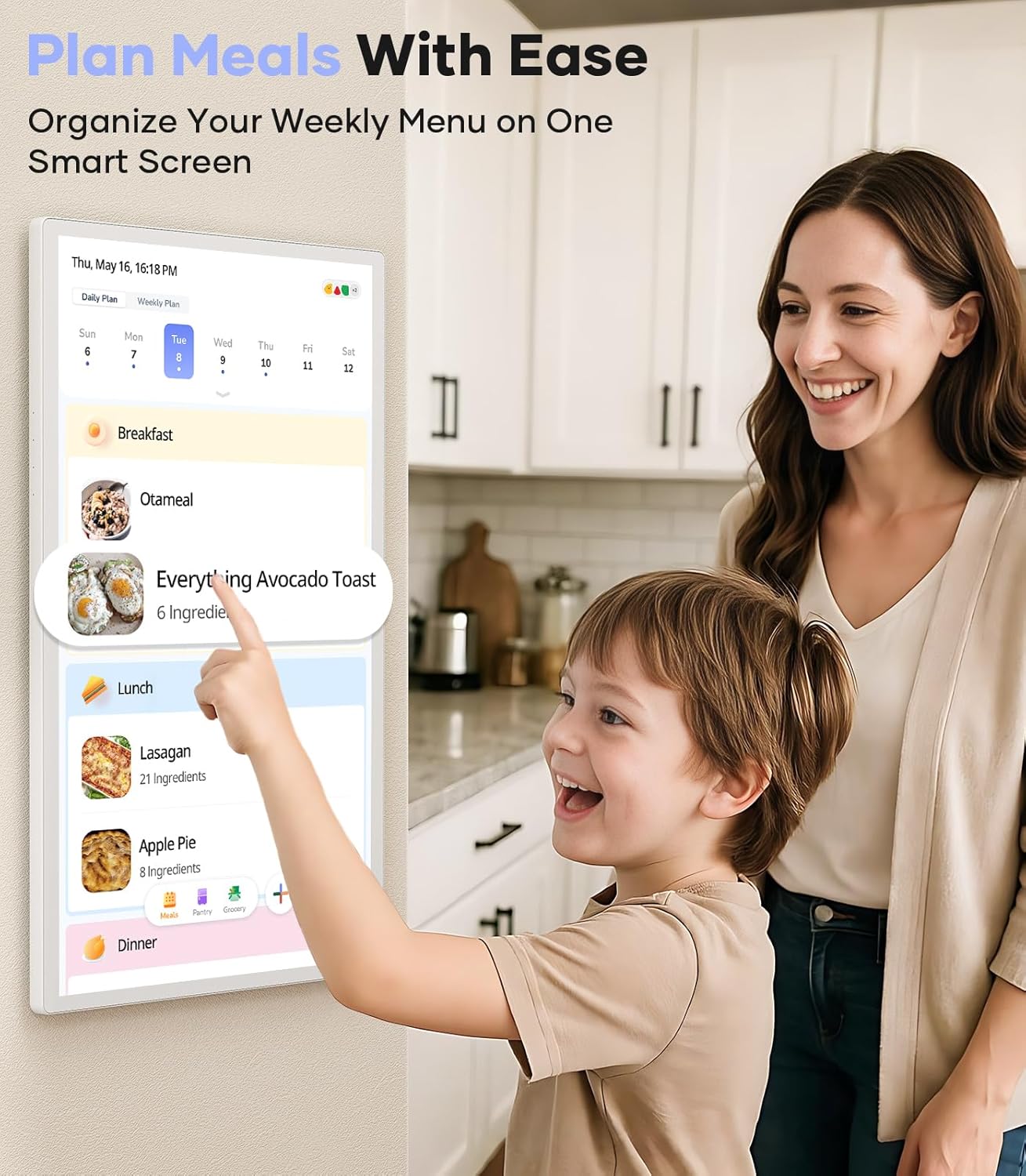
Image: Meal planning interface on the Cozyla Digital Calendar+ 2.
4. Itọju
- Ninu iboju: Use a soft, lint-free cloth specifically designed for electronic screens. Do not use abrasive cleaners or sprays directly on the screen.
- Awọn imudojuiwọn sọfitiwia: Ensure the device is connected to Wi-Fi to receive automatic software updates. Regular updates provide new features and security enhancements.
- Yiyipo Agbara: If the device becomes unresponsive, perform a power cycle by unplugging it from the power source, waiting 10 seconds, and then plugging it back in.
5. Laasigbotitusita
| Isoro | Owun to le Fa | Ojutu |
|---|---|---|
| Ẹrọ naa ko ṣiṣẹ. | Okun agbara ko sopọ tabi oro iṣan agbara. | Ensure the power cable is securely connected to both the device and a working power outlet. Test the outlet with another device. |
| Iboju ko dahun tabi tio tutunini. | Software glitch or temporary system error. | Perform a power cycle: unplug the device, wait 10 seconds, then plug it back in. If the issue persists, contact customer support. |
| Ko le sopọ si Wi-Fi. | Ọrọ aṣina ti ko tọ, ti ko si ni ibiti o ti le de, tabi iṣoro olulana. | Verify the Wi-Fi password. Ensure the device is within range of your router. Restart your router and try connecting again. |
| Calendar not syncing. | Incorrect account settings or network connectivity issues. | Check your internet connection. Verify that your external calendar accounts are correctly linked and authorized within the Cozyla+ app. |
6. Awọn pato
- Brand: Cozyla
- Nọmba awoṣe: CZL-WH-22
- Iwọn iboju: 24 inch
- Àwọ̀: Funfun
- Ìwọ̀n Nkan: 19.61 iwon
- Awọn iwọn idii: 26 x 18 x 5.8 inches
- ASIN: B0DHCJ14ZZ
- Ọjọ Akọkọ Wa: Oṣu Kẹsan Ọjọ 18, Ọdun 2024
7. Atilẹyin ọja ati Support
The Cozyla Digital Calendar+ 2 comes with a 1-odun atilẹyin ọja lati ọjọ ti o ra.
For any questions, issues, or technical assistance, please contact Cozyla customer service. Our support team is available 24/7 to provide assistance.
For more information, visit the official Cozyla store: Cozyla Store on Amazon