
1. Ifihan
This manual provides essential instructions for setting up, operating, and maintaining your CWOWDEFU P16 Android Tablet. Please read this manual thoroughly before using your device to ensure proper function and longevity.
1.1 Kini ni Apoti
- CWOWDEFU Android Tablet P16
- Screen Protector (one pre-applied, one additional)
- Charger/Charge Cable
- SIM-Needle
- Itọsọna olumulo

Image 1.1: The CWOWDEFU P16 Android Tablet, showcasing its design and key features like 4G LTE connectivity, 256GB memory, and a 2K display with Widevine L1 support.
2. Device Ìfilélẹ
Mọ ararẹ pẹlu awọn paati ti ara ti tabulẹti rẹ.

Image 2.1: The tablet supports Dual SIM (2x Nano or 1x Nano + 1x Micro SD) and 4G LTE for communication and connectivity.
The tablet features a sleek, all-metal body with curved edges for comfortable handling. It includes a 10.1-inch Incell screen, a rear camera, and various ports for connectivity.
3. Ni ibẹrẹ Oṣo
3.1 Ngba agbara si Ẹrọ
Before first use, fully charge your tablet. Use the provided charger and USB Type-C cable.
- Connect the USB Type-C cable to the tablet's charging port.
- Pulọọgi ṣaja sinu iṣan agbara kan.
- Atọka batiri loju iboju yoo fi ipo gbigba agbara han.
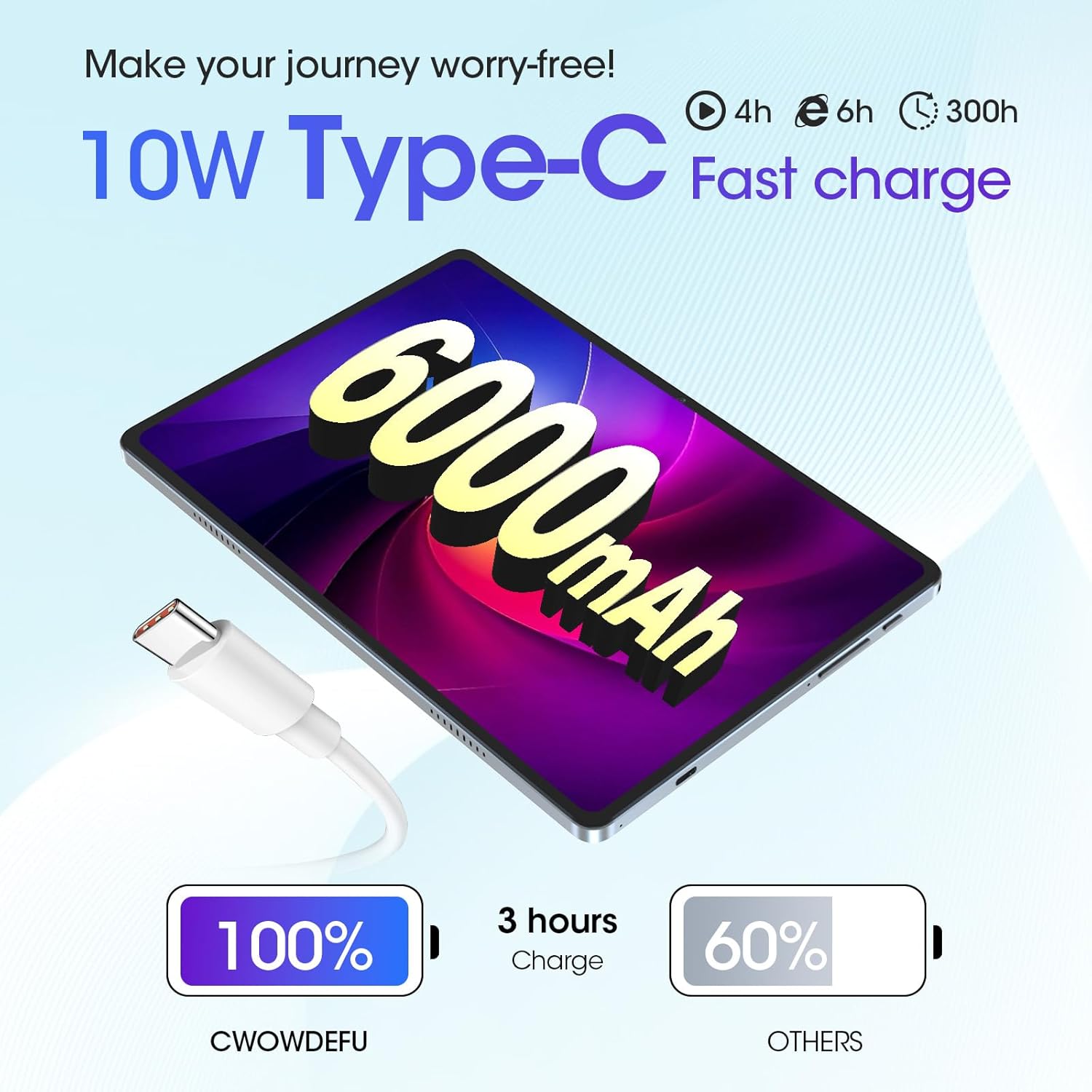
Image 3.1: The tablet features a 6000mAh battery and supports 10W Type-C fast charging.
3.2 Fi sii SIM ati MicroSD Awọn kaadi
Your tablet supports dual SIM cards or one SIM card with a MicroSD card for expanded storage.
- Wa atẹ kaadi SIM/MicroSD ni ẹgbẹ tabulẹti.
- Insert the SIM-needle into the small hole next to the tray to eject it.
- Place your Nano SIM card(s) and/or MicroSD card into the designated slots on the tray. Ensure correct orientation.
- Rọra Titari atẹ naa pada sinu tabulẹti titi ti o fi tẹ sinu aaye.

Image 3.2: The tablet's SIM and MicroSD card tray, illustrating its dual SIM and phone functionality.
3.3 Titan / Pa a
- Lati Fi agbara: Press and hold the Power button until the CWOWDEFU logo appears.
- Lati Paarẹ: Press and hold the Power button until the power options appear, then select "Power off."
- Lati Tun bẹrẹ: Tẹ bọtini agbara ki o si dimu titi awọn aṣayan agbara yoo fi han, lẹhinna yan "Tun bẹrẹ."
3.4 Akọkọ-Aago Oṣo
Upon first power-on, follow the on-screen prompts to configure your tablet:
- Yan ede ti o fẹ.
- Sopọ si nẹtiwọki Wi-Fi kan.
- Wọle pẹlu akọọlẹ Google rẹ tabi ṣẹda tuntun kan.
- Review ati ki o gba awọn ofin ati ipo.
- Ṣeto titiipa iboju (PIN, apẹrẹ, ọrọ igbaniwọle, tabi ID Oju).
4. Ipilẹ isẹ
4.1 Touchscreen Gestures
Navigate your tablet using standard Android touchscreen gestures:
- Fọwọ ba: Yan ohun kan tabi ṣii ohun elo kan.
- Fọwọkan & Mu: Wọle si awọn akojọ aṣayan ọrọ-ọrọ tabi gbe awọn ohun kan.
- Ra: Yi lọ nipasẹ awọn iboju tabi awọn akojọ.
- Fun pọ: Sun-un sinu tabi jade lori awọn aworan ati web awọn oju-iwe.
4.2 Asopọmọra
- 4G LTE: Insert a compatible SIM card to access mobile data and make calls.
- Wi-Fi: Connect to wireless networks via Settings > Network & internet > Wi-Fi. The tablet supports 2.4/5G WiFi.
- Bluetooth: Pair with Bluetooth devices like headphones or speakers via Settings > Connected devices > Bluetooth.
- GPS: Lo awọn iṣẹ ipo fun lilọ kiri ati awọn lw ti o da lori ipo.
4.3 Àwọn Ẹ̀yà Android 14
Your tablet runs on the latest Android 14 operating system, offering enhanced features and security.
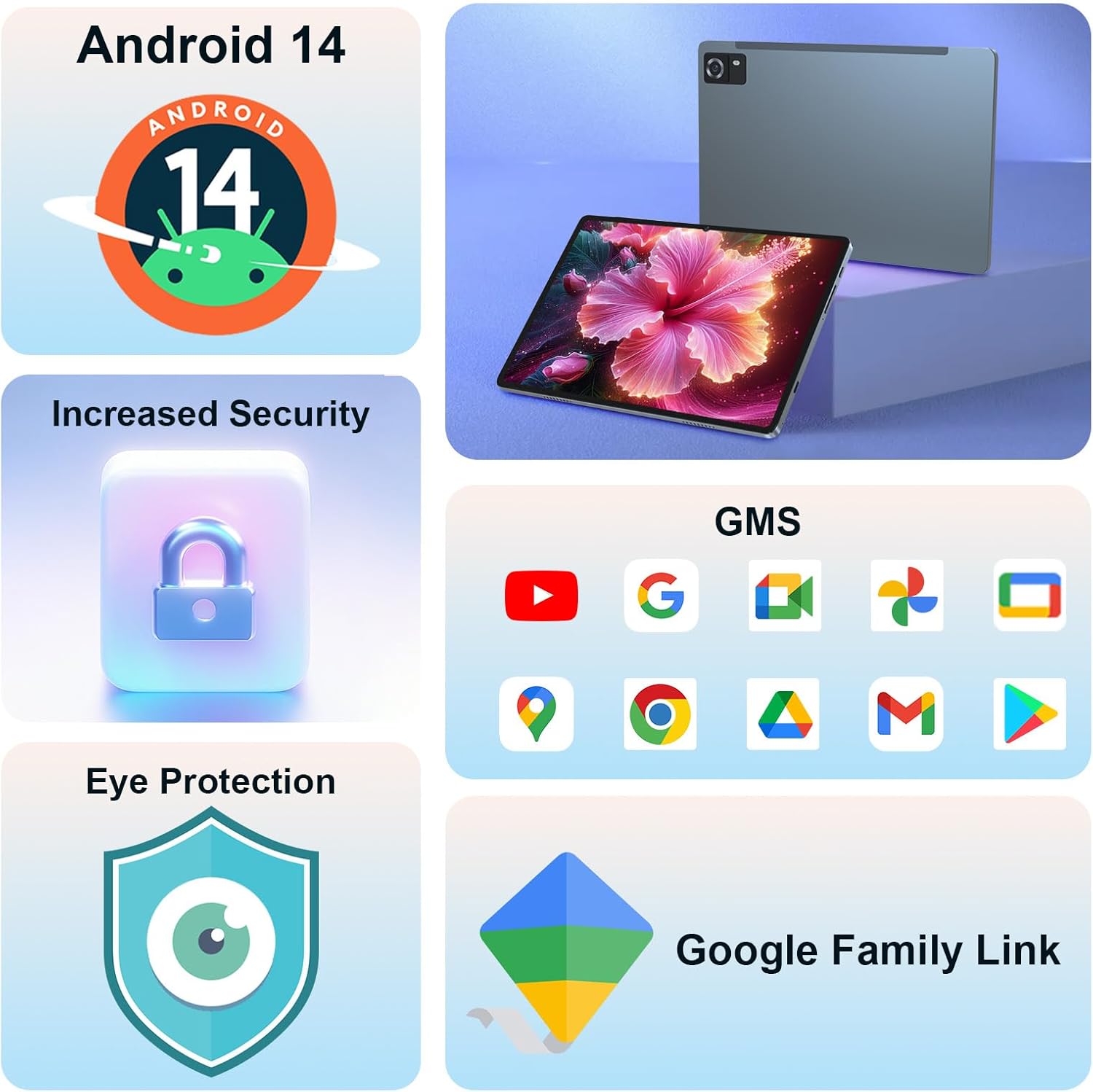
Image 4.1: Android 14 provides increased security, GMS certification for Google services, eye protection features, and Google Family Link for parental controls.
- GMS ti ni ifọwọsi: Access to all Google Mobile Services, including Google Play Store, Gmail, Maps, and YouTube.
- Aabo ti o pọ si: Benefit from the latest Android security updates and privacy controls.
- Google Family Link: Manage your children's app usage, screen time, and device settings if used as a kid's tablet.
- Iboju Pipin: Use two apps simultaneously for improved multitasking.
4.4 Ifihan ati Multimedia
The 10.1-inch Incell screen offers a high resolution for clear visuals.

Image 4.2: The 2K screen (1920*1200) provides a detailed and realistic picture, ideal for multimedia consumption.
- 2K Screen (1920x1200): Enjoy sharp and vibrant images and videos.
- Atilẹyin Widevine L1: Stream high-definition content from supported platforms.
- Awọn Agbọrọsọ Meji: Experience enhanced audio for movies and music.
4.5 Camera and Face ID
The tablet is equipped with a 13MP rear camera and supports Face ID for convenient unlocking.

Image 4.3: The tablet features a 13MP camera and Face ID for secure and quick access.
5. Itọju ati Itọju
Ìtọ́jú tó tọ́ ń jẹ́ kí tablet rẹ pẹ́ títí, ó sì ń ṣiṣẹ́ dáadáa.
- Ninu: Lo asọ ti ko ni lint lati nu iboju ati ara. Yẹra fun awọn kẹmika lile.
- Imudara Batiri: To maximize battery life, avoid extreme temperatures, use the provided charger, and manage background app usage.
- Awọn imudojuiwọn sọfitiwia: Regularly check for and install system updates to ensure security and performance improvements. Go to Settings > System > System update.
- Isakoso Ibi ipamọ: Lokọọkan ko ṣe pataki files and apps to maintain optimal performance. The tablet has 256GB ROM, expandable up to 1TB with a MicroSD card.

Image 5.1: The tablet features 16GB RAM (8GB physical + 8GB virtual) and 256GB ROM, expandable to 1TB, powered by an Octa-core processor.
6. Laasigbotitusita
Abala yii n ṣalaye awọn ọran ti o wọpọ ti o le ba pade pẹlu tabulẹti rẹ.
| Oro | Owun to le Solusan |
|---|---|
| Tablet is slow or freezes | Close unused apps, clear cache, restart the tablet. Ensure sufficient storage space. |
| Batiri n ṣan ni kiakia | Reduce screen brightness, disable unused features (Wi-Fi, Bluetooth, GPS), close background apps. Check for app updates. |
| Cannot connect to Wi-Fi/4G LTE | Ensure Wi-Fi/mobile data is enabled. Restart router/tablet. Check SIM card insertion. Verify network settings. |
| Apps crashing or not responding | Clear app cache/data (Settings > Apps), update the app, or uninstall and reinstall. |
| Awọn ẹrọ ngbona | Avoid using the tablet in direct sunlight or poorly ventilated areas. Close resource-intensive applications. |
7. Awọn pato
Detailed technical specifications for the CWOWDEFU P16 Android Tablet.

Aworan 7.1: Pariview of the tablet's core specifications and features.
| Ẹya ara ẹrọ | Sipesifikesonu |
|---|---|
| Orukọ awoṣe | P16 |
| Eto isesise | Android 14 |
| Iwon iboju | 10.1 inches |
| Ipinnu iboju | 1920 x 1200 Pixels (2K Incell) |
| isise | Unisoc T616 Octa-core (2 GHz) |
| Àgbo | 16 GB (8GB ti ara + 8GB foju) |
| Ibi ipamọ inu (ROM) | 256 GB |
| Expandable Ibi ipamọ | Up to 1 TB via MicroSD card |
| Alailowaya Iru | 802.11g (Wi-Fi 2.4/5G) |
| Cellular Asopọmọra | 4G LTE (Dual SIM dual standby) |
| Batiri | 6000 mAh litiumu polima |
| Gbigba agbara | 10W Iru-C Yara agbara |
| Kamẹra ẹhin | 13 MP |
| Aabo Awọn ẹya ara ẹrọ | ID oju |
| Iwọn Nkan | 1.79 iwon |
| Ọja Mefa | 9.5 x 0.3 x 6.3 inches |
8. Atilẹyin ọja ati Support
CWOWDEFU products come with a 14-day no-questions-asked return policy and a 1-year warranty.
For any questions or assistance with your CWOWDEFU P16 Android Tablet, please contact our customer support team. We are available 24/7 to assist you.
- Iṣẹ onibara: Refer to the contact information provided in your product packaging or visit the official CWOWDEFU webojula.
- Awọn orisun Ayelujara: Check the CWOWDEFU brand store on Amazon for FAQs and additional product information: CWOWDEFU Store