
1. Ifihan
Welcome to the Dghrti TAB30 Tablet user manual. This guide provides essential information to help you set up, operate, maintain, and troubleshoot your new tablet. Please read this manual thoroughly before using your device to ensure proper functionality and to maximize your user experience.

Aworan 1.1: Iwaju ati sẹhin view of the Dghrti TAB30 Tablet, highlighting its metallic casing and camera module.
2. Ohun ti o wa ninu Apoti
Upon unboxing your Dghrti TAB30 Tablet, please verify that all the following items are included:
- Dghrti TAB30 Tablet
- Asin
- Keyboard Bluetooth
- Ọran Idaabobo
- OTG Converter
- Fiimu Olugbeja iboju
- SD Card Pin Ejector Tool
- Ṣaja

Image 2.1: The Dghrti TAB30 Tablet shown with its complete set of accessories, including the keyboard, mouse, and protective case.
3. Ọja Ipariview
3.1 Key Awọn ẹya ara ẹrọ
- Ifihan: 10.1-inch Full HD IPS screen (1920x1200 resolution) for vivid colors and sharp images.
- Iṣe: Unisoc T606 Octa-Core CPU (2.0GHz A75 high-performance core, A55 high-efficiency core) for smooth multitasking.
- Iranti: 22GB RAM (6GB physical + 16GB virtual) and 128GB ROM, expandable up to 1TB via microSD card.
- Batiri: 8000mAh long-lasting battery for extended usage.
- Eto isesise: Latest Android 14 with enhanced privacy protection and smart notification management.
- Awọn kamẹra: 8MP rear camera and 5MP front camera for video calls and capturing moments.
- Asopọmọra: Dual-band 5G WiFi and Bluetooth 5.0 for stable and fast connections.
- Aabo: Face ID for quick and secure access.
- Ohun: Dual stereo speakers for an immersive sound experience.
- Sisanwọle: Widevine L1 support for high-definition streaming on platforms like Netflix, Amazon Prime Video, and YouTube.
3.2 Irinše ati Ports
Familiarize yourself with the physical components of your tablet:
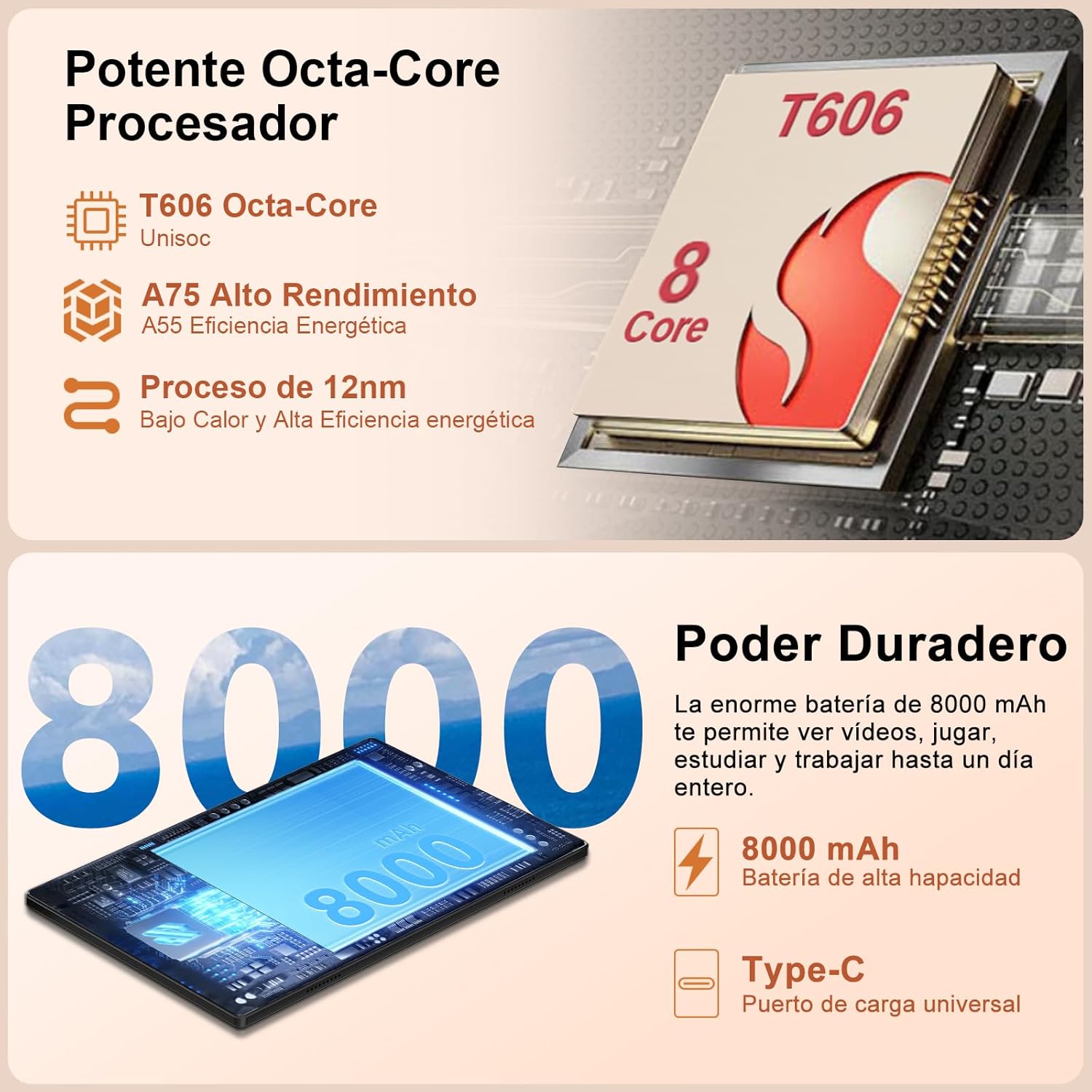
Image 3.1: Illustration of the tablet's internal components, highlighting the T606 Octa-Core processor and the 8000mAh battery capacity.

Image 3.2: Visual representation of key features including Widevine L1 support, 5G WiFi, Bluetooth 5.0, and the tablet's metallic construction.

Image 3.3: Details on the tablet's 8MP rear camera and 5MP front camera, suitable for video calls and photography.
4. Eto
4.1 Gbigba agbara akọkọ
Before first use, fully charge your tablet using the provided charger and USB-C cable. The charging port is typically located on the side or bottom edge of the tablet.
4.2 Agbara Tan / Pa
- Lati Fi agbara: Press and hold the power button until the Dghrti logo appears.
- Lati Paarẹ: Press and hold the power button, then select 'Power Off' from the options on the screen.
4.3 Oṣo oluṣeto akọkọ
Tẹle awọn ilana loju iboju lati pari iṣeto akọkọ, eyiti o pẹlu:
- Yiyan ede rẹ.
- Nsopọ si Wi-Fi nẹtiwọki.
- Ṣíṣeto àkọọ́lẹ̀ Google rẹ.
- Configuring screen lock (PIN, pattern, password, or Face ID).
4.4 Fi kaadi MicroSD sii
To expand storage, locate the SIM/MicroSD card tray on the side of the tablet. Use the provided ejector tool to open the tray, insert the MicroSD card (up to 1TB), and close the tray securely.
4.5 Nsopọ Awọn ẹya ẹrọ
- Bluetooth Keyboard/Mouse: Turn on the keyboard/mouse and enable Bluetooth on your tablet (Settings > Connected devices > Bluetooth). Pair the devices by selecting them from the list of available devices.
- OTG Converter: Use the OTG converter to connect USB devices like flash drives or external hard drives to your tablet's USB-C port.
5. Awọn ilana Iṣiṣẹ
5.1 Àwọn Ẹ̀yà Android 14
Your tablet runs on Android 14, offering enhanced privacy controls, smarter notifications, and more customization options.
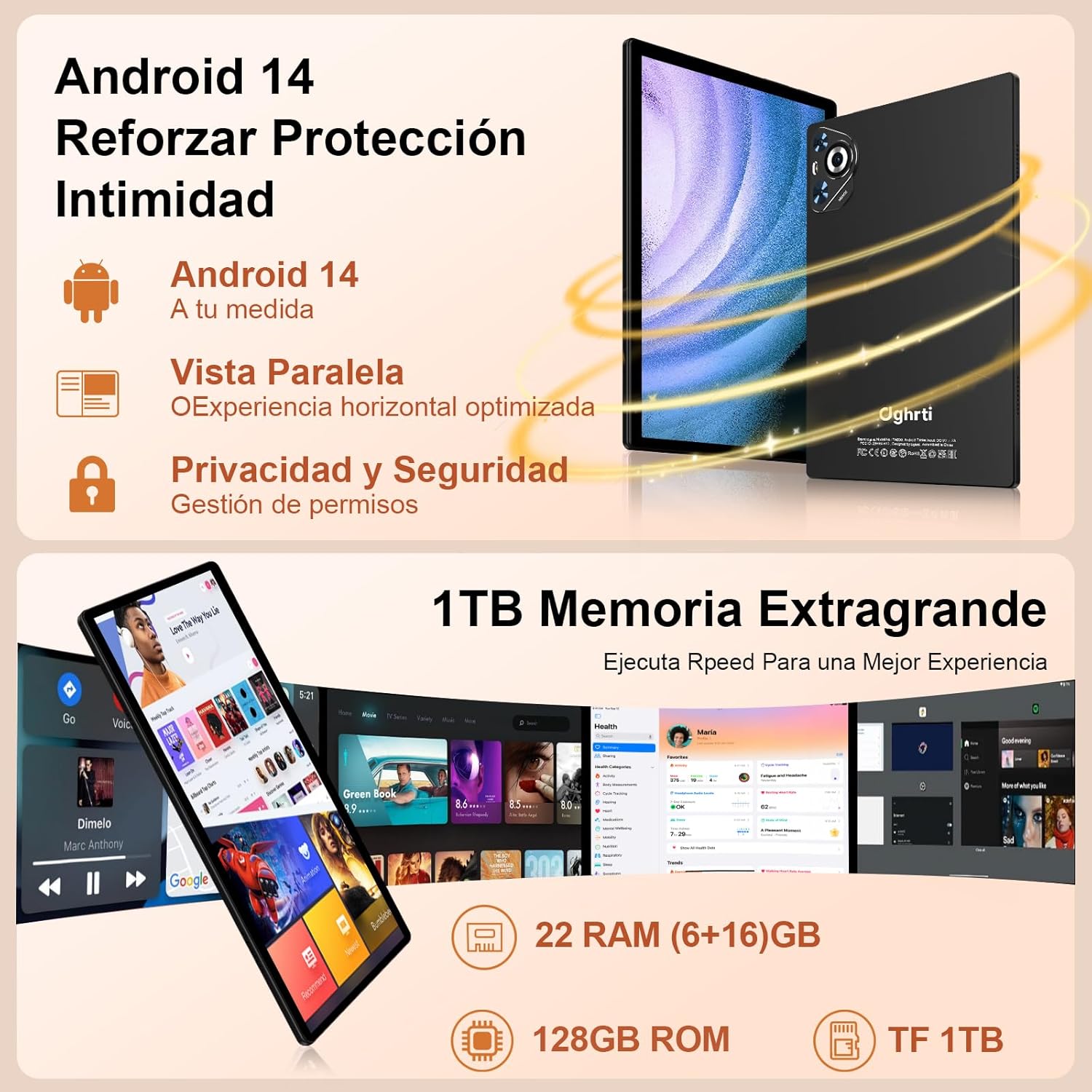
Aworan 5.1: Pariview of Android 14's privacy and security enhancements, including permission management and optimized horizontal view.

Image 5.2: Visual representation of Android 14's new features, including productivity tools, new UI, and system security.
5.2 Lilọ kiri
- Iboju ile: Rọ sókè láti ìsàlẹ̀ láti wọ inú àpótí ìṣàfilọ́lẹ̀ náà.
- Awọn iwifunni: Ra isalẹ lati oke iboju si view awọn iwifunni ati awọn eto iyara.
- Iṣẹ-ṣiṣe pupọ: Ra soke ki o dimu lati isalẹ lati wo awọn ohun elo aipẹ.
5.3 ID oju
To set up Face ID, go to Settings > Security > Face Unlock and follow the on-screen instructions. Ensure good lighting for optimal performance.
5.4 Multi-Window and Split-Screen
The tablet supports multi-window and split-screen functions for enhanced productivity. To activate, open a recent app, tap its icon at the top of the preview, and select 'Split screen' or 'Freeform'.

Aworan 5.3: Examples of the tablet's versatile use, including learning, entertainment, facial unlock, and multi-screen functionality.
5.5 Wi-Fi Screencasting
You can cast your tablet's screen to compatible devices (e.g., smart TVs) using Wi-Fi screencasting. Access this feature from Quick Settings or Settings > Connected devices > Cast.

Image 5.4: The 10-inch IPS display for video viewing and the WiFi screencasting function for transmitting the screen to other devices.
6. Itọju
6.1 Ninu rẹ tabulẹti
Use a soft, lint-free cloth to clean the screen and body of the tablet. Avoid using harsh chemicals or abrasive materials that could damage the surface. For stubborn smudges, slightly dampfi omi tàbí omi ìfọṣọ ìbòjú bò aṣọ náà.
6.2 Software imudojuiwọn
Regularly check for and install software updates to ensure your tablet has the latest features, security patches, and performance improvements. Go to Settings > System > System update to check for updates.
6.3 batiri Itọju
- Yago fun awọn iwọn otutu to gaju, nitori wọn le ba igbesi aye batiri jẹ.
- Do not leave the tablet charging for excessively long periods after it's fully charged.
- Lo ṣaja atilẹba tabi ṣaja ti o baamu ti a fọwọsi nikan.
6.4 Ibi Management
Lokọọkan ko ṣe pataki files, apps, and cache to maintain optimal performance. You can manage storage in Settings > Storage.
7. Laasigbotitusita
If you encounter issues with your Dghrti TAB30 Tablet, refer to the following common solutions:
| Isoro | Owun to le Solusan |
|---|---|
| Tabulẹti ko ni agbara lori | Ensure the battery is charged. Connect the charger and wait a few minutes before attempting to power on again. If unresponsive, perform a forced restart by holding the power button for 10-15 seconds. |
| Awọn ohun elo n kọlu tabi didi | Clear the app's cache (Settings > Apps > [App Name] > Storage > Clear cache). If the problem persists, uninstall and reinstall the app. Ensure sufficient free storage space. |
| Awọn oran asopọ Wi-Fi | Restart your Wi-Fi router and the tablet. Forget the Wi-Fi network (Settings > Network & internet > Internet > [Network Name] > Forget) and reconnect. Ensure you are within range of the Wi-Fi signal. |
| O lọra išẹ | Pa awọn ohun elo ti ko lo ti nṣiṣẹ ni abẹlẹ. Ko kaṣe kuro ati igba diẹ files. Uninstall unnecessary apps. Consider a factory reset as a last resort (back up your data first). |
| Face ID not working | Ensure your face is well-lit and not obstructed. Clean the front camera lens. Re-register your face in Settings > Security > Face Unlock. |
8. Awọn pato
Detailed technical specifications for the Dghrti TAB30 Tablet:
- Orukọ awoṣe: TAB30
- Eto isesise: Android 14
- Olupilẹṣẹ: Unisoc T606 Octa-Core (Iyara CPU 2 GHz)
- Ramu: 22 GB (6GB installed + 16GB virtual)
- Ibi ipamọ inu: 128 GB
- Ibi ipamọ ti o gbooro: Up to 1 TB via MicroSD card
- Ifihan: 10.1-inch LED IPS, 1920x1200 maximum resolution, 1280x800 native resolution, 16:10 aspect ratio
- Batiri: 8000 mAh litiumu polima
- Kamẹra Tẹhin: 8 MP
- Kamẹra iwaju: 5 MP
- Asopọmọra: Dual-band Wi-Fi (802.11a/b/g/n/ac), Bluetooth 5.0, USB-C, 3.5mm Audio
- Awọn ẹya pataki: Face Recognition, Multi-Window, Split-Screen, GPS
- Awọn iwọn: 24.21 x 16.1 x 0.79 cm
- Ìwúwo: 480 g

Aworan 8.1: alaye view of the Unisoc T606 Octa-Core processor, highlighting its A75 and A55 cores and 2.0GHz frequency.

Image 8.2: Information on the tablet's 22GB RAM, 128GB ROM, and support for up to 1TB Micro SD expansion.

Image 8.3: Visual representation of the 8000mAh battery capacity and estimated usage times for various activities.

Image 8.4: The 10.1-inch display, designed for comfortable viewing and reduced eye fatigue.
9. atilẹyin ọja Information
The Dghrti TAB30 Tablet comes with a limited warranty. Please refer to the warranty card included in your product packaging for specific terms, conditions, and duration. Keep your proof of purchase for warranty claims.
10. Alaye atilẹyin
For further assistance, technical support, or service inquiries, please contact Dghrti customer support through the following channels:
- Atilẹyin Ayelujara: Visit the official Dghrti webaaye fun FAQs ati awọn orisun atilẹyin.
- Imeeli Atilẹyin: Tọkasi kaadi atilẹyin ọja rẹ tabi apoti ọja fun adirẹsi imeeli iṣẹ alabara.
When contacting support, please have your tablet's model number (TAB30) and purchase information ready.