
1. Ifihan
This manual provides detailed instructions for the installation, operation, and maintenance of your Sharkoon MK6 RGB Micro ATX PC Case. Please read this manual thoroughly before beginning assembly to ensure proper setup and optimal performance.
The Sharkoon MK6 RGB is a compact Micro ATX PC case designed with a modern glass aesthetic, featuring tempered glass panels on the front and side. It includes three pre-installed addressable RGB PWM fans for efficient cooling and customizable lighting. The case supports BTF motherboards and offers ample space for various components, including large graphics cards and extensive cooling solutions.
2. Eto ati Fi sori ẹrọ paati
Before starting, ensure you have all necessary tools, including a screwdriver set and anti-static wrist strap.
2.1 Nsii ọran naa
Carefully remove the tempered glass side panel by unscrewing the retaining thumbscrews, typically located at the rear of the case. Gently slide the panel off and set it aside on a soft, flat surface to prevent scratches.
2.2 Fifi sori modaboudu
- Install the I/O shield into the designated opening at the rear of the case.
- Align your Micro ATX or BTF motherboard with the standoffs inside the case. Ensure all standoffs match the motherboard's mounting holes.
- Secure the motherboard using the provided screws. Do not overtighten.
2.3 Power Ipese Unit (PSU) fifi sori
The MK6 RGB supports bottom-mount power supplies up to 23.5 cm in length.
- Slide the PSU into its designated compartment at the bottom rear of the case.
- Secure the PSU to the case using screws from the rear panel.
2.4 Ibi ipamọ wakọ sori
The case accommodates up to two 3.5" HDDs or three 2.5" SSDs.
- Awọn HDD 3.5": Locate the drive cage, typically near the PSU shroud. Mount the HDDs using the provided trays or screws.
- 2.5" SSDs: SSDs can be mounted on dedicated brackets behind the motherboard tray or within the drive cage.
2.5 Graphics Card (GPU) fifi sori
The MK6 RGB supports graphics cards up to 41 cm in length and includes a rubberized graphics card holder for support.
- Yọ awọn ideri PCIe pataki ti o yẹ lati ẹhin ọran naa.
- Fi kaadi eya rẹ sinu aaye PCIe ti o yẹ lori modaboudu.
- Secure the graphics card with screws. Adjust the graphics card holder to provide additional support if needed.
2.6 Itutu eto sori
The case comes with three pre-installed 120mm addressable RGB PWM fans. Two fans are inverted on the side for intake, and one is at the rear for exhaust. The case supports up to eight fans in total.
- Àwọn Afẹ́fẹ́ Àfikún: Install additional 120mm or 140mm fans in available mounting positions (top, bottom, side) as required for optimal airflow.
- Liquid Cooling Radiators: The case supports a 360mm radiator and an additional 240mm radiator. Mount radiators to the designated areas (e.g., top, side) using appropriate screws.
2.7 USB Management
Lo àwọn ibi tí a ti gé àwọn okùn ìtọ́sọ́nà àti àwọn ibi tí a ti so mọ́ ẹ̀yìn àtẹ motherboard láti ṣàkóso àwọn okùn. Èyí mú kí afẹ́fẹ́ àti ẹwà wọn sunwọ̀n síi.

olusin 1: Ti abẹnu view of the Sharkoon MK6 RGB PC case, highlighting the pre-installed fans and drive bay locations.

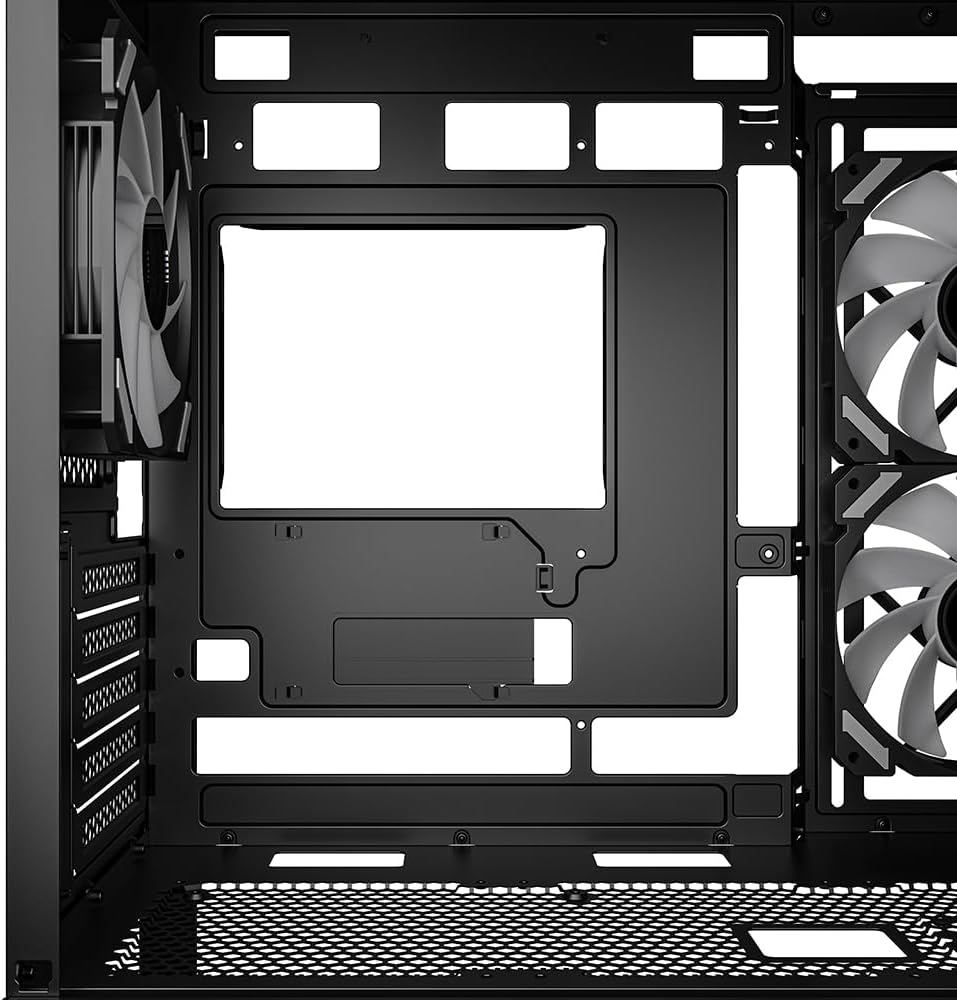
olusin 2: Ti abẹnu view showing the motherboard tray and various cutouts for efficient cable management.

olusin 3: Ti abẹnu view illustrating the available mounting points for liquid cooling radiators.

olusin 4: Ti abẹnu view displaying the adjustable graphics card holder for enhanced GPU support.
3. Awọn ilana Iṣiṣẹ
3.1 Agbara Lori
After all components are installed and cables are connected, close the side panel. Connect your monitor, keyboard, mouse, and power cable to the PC. Press the power button on the front panel to start your system.
3.2 RGB ina Iṣakoso
The MK6 RGB includes an RGB controller that provides connections for up to four LED elements and up to four PWM fans. The pre-installed fans are connected to this controller.
- Àwọn Ìgbékalẹ̀ Àìyípadà: The RGB lighting will typically cycle through default patterns upon startup.
- Iṣakoso sọfitiwia: If connected to a compatible motherboard, RGB lighting can be controlled via the motherboard's RGB synchronization software. Refer to your motherboard manual for specific instructions.
- Iṣakoso Afowoyi: Some cases may feature a dedicated button on the front panel to cycle through RGB modes. Consult the case's quick start guide for this feature.
3.3 Front Panel Connectivity
The front panel features modern TRRS and USB-C ports for broad compatibility with various devices. Connect your peripherals and storage devices as needed.

olusin 5: Iwaju view of the Sharkoon MK6 RGB PC case, showcasing the tempered glass panel and visible RGB fans.
4. Itọju
Itọju deedee n ṣe iranlọwọ lati rii daju pe iṣẹ ṣiṣe to dara julọ ati igba pipẹ ti awọn paati PC rẹ.
4.1 eruku Filter Cleaning
The case features dust filters to prevent dust accumulation. Regularly clean these filters to maintain good airflow.
- Locate and remove the dust filters (e.g., top, bottom, front).
- Clean the filters using compressed air or by rinsing them with water. Ensure they are completely dry before reinstallation.
4.2 Tempered Gilasi Cleaning
Use a soft, lint-free cloth and a non-abrasive glass cleaner to clean the tempered glass panels. Avoid harsh chemicals that could damage the glass or coatings.
4.3 Fan Cleaning
Over time, dust can accumulate on fan blades, reducing cooling efficiency. Use compressed air to gently clean the fan blades. Ensure the system is powered off before cleaning.
olusin 6: Top view of the Sharkoon MK6 RGB PC case, illustrating the removable magnetic dust filter for easy cleaning.
5. Laasigbotitusita
Abala yii n ṣalaye awọn ọran ti o wọpọ ti o le ba pade.
5.1 System Ko Alagbara Lori
- Awọn isopọ Agbara: Verify that the PSU is properly connected to the wall outlet and the power switch on the PSU is in the 'ON' position.
- Awọn asopọ Panel Iwaju: Ensure the power button cable from the front panel is correctly connected to the motherboard's front panel header.
- Awọn eroja inu: Check that all major components (motherboard, CPU, GPU, RAM) are securely seated and connected to the PSU.
5.2 Fans Not Spinning or RGB Not Lighting Up
- Awọn isopọ Olufẹ: Confirm that all fan power cables are securely connected to the motherboard or the RGB controller.
- RGB Controller Power: Ensure the RGB controller itself is receiving power, typically via a SATA power connector from the PSU.
- Software/Button: If using software control, check the software settings. If there's a physical RGB button, try cycling through modes.
5.3 Afẹ́fẹ́ tó dára tàbí gbígbóná ju bó ṣe yẹ lọ
- Awọn Ajọ Eruku: Clean any clogged dust filters.
- Ìtọ́sọ́nà àwọn afẹ́fẹ́: Ensure fans are oriented correctly for optimal airflow (intake at front/side, exhaust at rear/top).
- Iṣakoso USB: Mu iṣakoso okun waya dara si lati dinku awọn idena si ategun afẹfẹ.
6. Awọn pato
| Ẹya ara ẹrọ | Ẹ̀kúnrẹ́rẹ́ |
|---|---|
| Orukọ awoṣe | MK6 RGB |
| Brand | Sharkoon |
| Iru Irú | Ile-iṣọ Mid |
| Modaboudu Ibamu | Micro ATX, BTF |
| Ohun elo | Gilasi ibinu |
| Àwọ̀ | Dudu |
| Awọn iwọn Ọja (LxWxH) | 17.13 x 8.86 x 17.52 inches (43.5 x 22.5 x 44.5 cm) |
| Iwọn Nkan | 13.42 poun (6.1 kg) |
| Ìdádúró Gíga Itutu CPU | Ti o to 17 cm |
| Graphics Card Length Clearance | Ti o to 41 cm |
| Ìparẹ́ Gígùn PSU | Ti o to 23.5 cm |
| Wakọ Bays | 2x 3.5" HDD or 3x 2.5" SSD |
| Awọn onijakidijagan ti a ti fi sii tẹlẹ | 3x 120mm Addressable RGB PWM Fans |
| Max Fan Support | Up to 8 fans |
| Radiator Support | 1x 360mm, 1x 240mm |
| Iwaju Awọn Ibudo I / O | TRRS, USB-C, USB 3.0 (1 port listed in specs) |
| Ọna Itutu | Afẹfẹ |
| Agbara Ipese Iṣagbesori Iru | Isalẹ Oke |
7. atilẹyin ọja Information
For detailed warranty information regarding your Sharkoon MK6 RGB PC Case, please refer to the official Sharkoon website or contact your local retailer. Warranty terms and conditions may vary by region and purchase location.
8. Imọ Support
If you encounter any issues or require technical assistance beyond the scope of this manual, please visit the official Sharkoon support website for FAQs, driver downloads, and contact information. You may also reach out to your point of purchase for support.