
1. Ifihan
This manual provides comprehensive instructions for the safe and efficient use of your Fiteye 32-Inch Portable Touch Screen Monitor, Model FIT-32-1300M. Please read this manual thoroughly before operating the device and retain it for future reference.
The Fiteye portable monitor combines a 32-inch Full HD touch screen with an integrated 13MP camera, Android operating system, and a built-in battery, all mounted on a movable stand with wheels. It is designed for versatile use in various environments.
2. Package Awọn akoonu
Daju pe gbogbo awọn nkan ti a ṣe akojọ rẹ si isalẹ wa ninu package rẹ:
- 1 x Fiteye 32-Inch Touch Screen Monitor
- 1 x òpó
- 1 x Ipilẹ
- 1 x Itọsọna olumulo
- 1 x Ṣaja
- 1 x Okun Agbara
- 1 x Isakoṣo latọna jijin
3. Ọja Ipariview
The Fiteye 32-Inch Portable Touch Screen Monitor offers a range of features for enhanced usability and flexibility.

Nọmba 1: Fiteye 32-Inch Portable Touch Screen Monitor. This image displays the monitor mounted on its wheeled stand, showcasing its overall design and portability.
Awọn ẹya pataki:
- 32-Inch Full HD Touch Screen: Provides a 1920x1080 resolution display with touch functionality.
- Integrated 13MP Camera: Allows for video conferencing and calls without external peripherals.
- Apẹrẹ to gbe: Equipped with a stable base and five silent wheels for easy movement between rooms.
- Batiri ti a ṣe sinu: A 15000mAh battery provides approximately 6-7 hours of usage, eliminating the need for constant power outlets.
- Eto Iṣiṣẹ Android: Supports installation of various applications from the Google Play Store.
- Simẹnti iboju Alailowaya: Supports Apple AirPlay, Miracast, Android DLNA, and Chromecast for mirroring content from mobile devices or laptops.
- Adjustable Screen: Offers 90-degree vertical rotation, 10-20 degree tilt adjustment, and 6 inches of height adjustment.
- Voice Remote Control: Enables convenient operation from a distance.
4. Awọn ilana iṣeto
Follow these steps to assemble and prepare your Fiteye Portable Monitor for first use.
4.1 Apejọ
- Connect Pole to Base: The three hexagonal screws required to connect the pole to the base are pre-inserted at the bottom of the pole. Unscrew them, align the pole with the base, and then re-insert and tighten the screws to secure the pole to the base.
- Attach Monitor to Pole: The four corner screws for attaching the monitor to the pole are pre-inserted on the back of the monitor. Unscrew them, align the monitor with the top of the pole, and then re-insert and tighten the screws to secure the monitor.
Akiyesi: Ensure all screws are securely tightened before moving or operating the device.
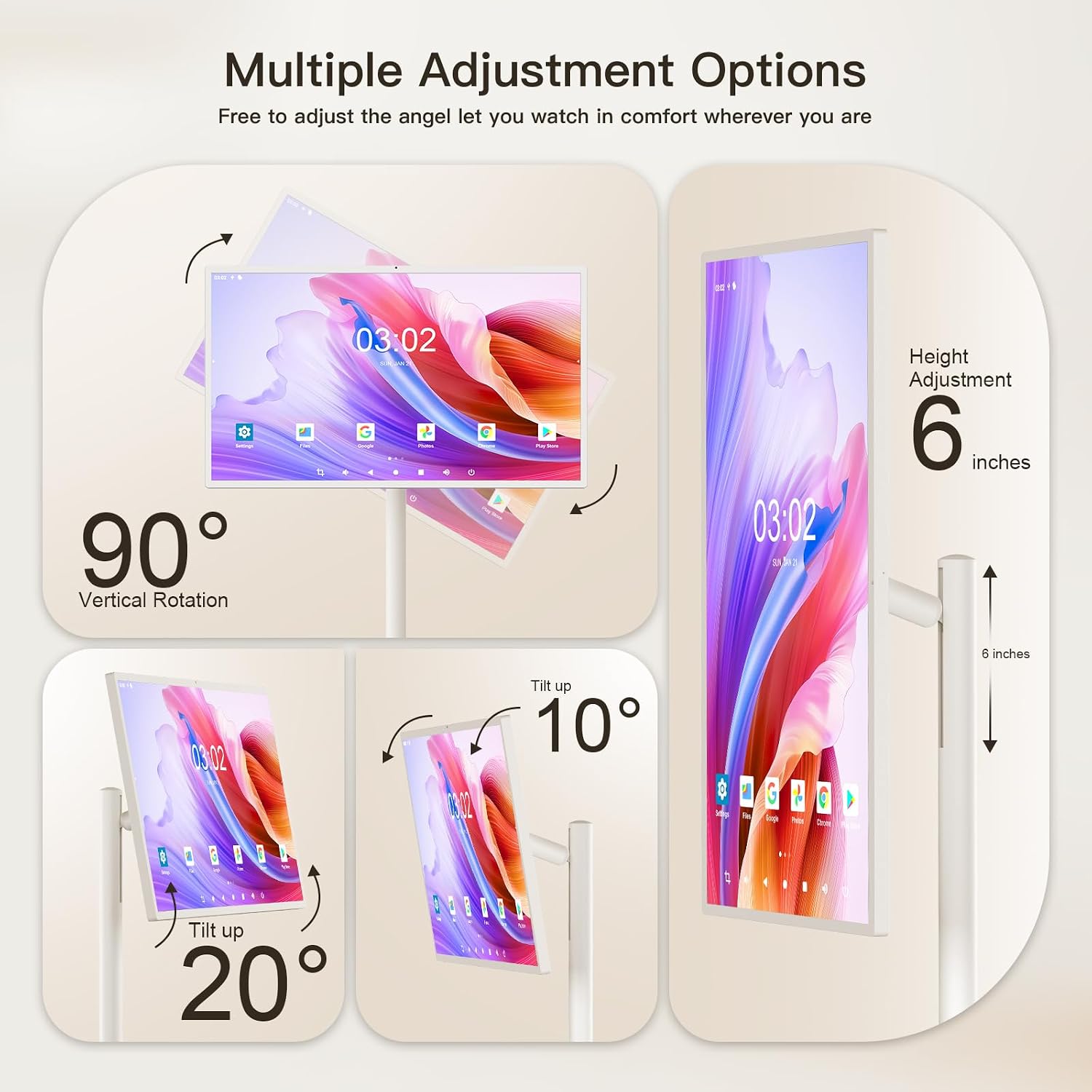
Nọmba 2: Multiple Adjustment Options. This diagram illustrates how the screen can be rotated 90 degrees vertically, tilted up to 20 degrees, and adjusted in height by 6 inches.
4.2 Gbigba agbara akọkọ
Before first use, fully charge the monitor's built-in battery.
- Connect the provided power cable to the charger.
- Pulọọgi ṣaja sinu ọna itanna boṣewa kan.
- Connect the other end of the power cable to the charging port on the monitor.
- Allow the monitor to charge until the battery indicator shows a full charge.
Akiyesi: The monitor features a 15000mAh battery, providing approximately 6-7 hours of usage on a full charge.
5. Awọn ilana Iṣiṣẹ
This section details how to operate your Fiteye Portable Monitor.
5.1 Agbara Tan / Pa
- To power on, press and hold the power button located on the monitor's frame until the screen illuminates.
- To power off, press and hold the power button until a power-off menu appears, then select "Power Off". A short press will put the device into sleep mode.
5.2 Fọwọkan iboju isẹ
The monitor features an Incell touch screen for direct interaction.
- Fọwọ ba: Yan awọn ohun kan tabi ṣii awọn ohun elo.
- Ra: Navigate through menus, scroll pages, or switch between screens.
- Fun pọ-si- Sun-un: Adjust the zoom level in supported applications.
5.3 Latọna Iṣakoso Lilo
The included voice remote control allows for convenient operation from a distance.
- Point the remote control towards the monitor.
- Use the directional pad and selection button to navigate the Android interface.
- Press the microphone button to activate voice commands for search and control.

Nọmba 3: Android Operating System. This image shows the monitor displaying the Android 12 OS home screen with various application icons, along with the remote control used for navigation.
5.4 Android OS Lilọ kiri
The monitor runs on an Android operating system, similar to a large tablet.
- Access the Google Play Store to download and install applications.
- Navigate the home screen, app drawer, and settings using touch or the remote control.
- Utilize the built-in whiteboard application for writing, drawing, and presentations.
5.5 Wireless Screen Casting and Mirroring
Mirror content from your phone, tablet, or laptop to the monitor.
- Ensure both the monitor and your source device are connected to the same Wi-Fi network.
- On the monitor, open the screen casting application (e.g., AirPlay, Miracast, DLNA, Chromecast).
- On your source device, select the screen mirroring or cast option and choose the Fiteye monitor from the list of available devices.
- The monitor also supports wired screen casting via its HDMI interface.

Nọmba 4: Wireless Screen Casting. This image demonstrates how various devices like phones, tablets, and laptops can wirelessly mirror their screens to the Fiteye monitor.
5.6 Screen Adjustment
The monitor offers flexibility in screen positioning:
- Vertical/Horizontal Rotation: The screen can be rotated 90 degrees to switch between portrait and landscape orientations. If the screen does not rotate in one direction, attempt rotation in the opposite direction. Do not force rotation.
- Atunse Giga: The screen height can be adjusted by approximately 6 inches along the pole.
- Atunṣe tẹlọrun: The screen can be tilted up to 20 degrees for optimal viewing awọn igun.
5.7 Ese Kamẹra
The 13MP integrated camera is suitable for video calls and conferencing.
- Access the camera through compatible applications (e.g., video conferencing apps).
- Ensure adequate lighting for optimal camera performance.
6. Itọju
Proper maintenance ensures the longevity and performance of your Fiteye Portable Monitor.
- Ninu iboju: Use a soft, lint-free cloth specifically designed for electronics. For stubborn marks, lightly dampen awọn asọ pẹlu omi tabi a iboju-ninu ojutu. Yago fun awọn kẹmika lile tabi awọn ohun elo abrasive.
- Ninu ara: Wipe the monitor's body and stand with a soft, dry cloth.
- Itọju Batiri: Lati pẹ aye batiri, yago fun gbigba agbara si batiri ni kikun nigbagbogbo. Tọju ẹrọ naa ni itura, aye gbigbẹ ti ko ba lo fun awọn akoko gigun.
- Ibi ipamọ: When not in use, store the monitor in a stable position to prevent accidental tipping.
Iṣọra: Do not spray cleaning liquids directly onto the screen or any part of the device.
7. Laasigbotitusita
This section addresses common issues you might encounter with your Fiteye Portable Monitor.
| Isoro | Owun to le Fa | Ojutu |
|---|---|---|
| Atẹle ko ni agbara lori. | Battery is discharged; Power cable not connected; Power button not pressed correctly. | Ensure the monitor is fully charged. Verify the power cable is securely connected. Press and hold the power button for a few seconds. |
| Iboju ifọwọkan ko dahun. | Software glitch; Screen is dirty; Protective film still on. | Restart the monitor. Clean the screen with a soft, lint-free cloth. Remove any protective films. |
| Cannot connect via wireless screen casting. | Devices not on the same Wi-Fi network; Casting app not open; Network interference. | Ensure both devices are on the same Wi-Fi network. Open the appropriate casting application on the monitor. Try restarting your Wi-Fi router. |
| Screen rotation is stuck. | Physical obstruction; Incorrect rotation attempt. | Ensure there are no obstructions. If it cannot rotate in one direction, try rotating it in the opposite direction. Do not apply excessive force. |
| Isakoṣo latọna jijin ko ṣiṣẹ. | Low battery in remote; Obstruction between remote and monitor; Remote not paired. | Replace remote control batteries. Ensure a clear line of sight. Refer to the remote control pairing instructions (if applicable, not detailed in provided data). |
8. Awọn pato
Detailed technical specifications for the Fiteye 32-Inch Portable Touch Screen Monitor.
| Ẹya ara ẹrọ | Ẹ̀kúnrẹ́rẹ́ |
|---|---|
| Nọmba awoṣe | FIT-32-1300M |
| Iwon iboju | 32 inches |
| Ipinnu iboju | 1920 x 1080 Pixels (Full HD 1080p) |
| Apakan Ipin | 16:9 |
| Iboju Iboju | Didan |
| Eto isesise | Android OS (Version not specified, but implied by 'Android 12 OS' in image) |
| Àgbo | 6GB |
| Ibi ipamọ | 128GB |
| Kamẹra ti a ṣepọ | 13MP |
| Agbara Batiri | 15000mAh (approx. 6-7 hours usage) |
| Awọn iwọn Ọja (LxWxH) | 15.7 x 29 x 54 inches |
| Iwọn Nkan | 56.9 iwon |
| Àwọ̀ | Ipara funfun |
9. Atilẹyin ọja ati Support
Fiteye is committed to providing quality products and customer satisfaction.
If you have any questions or require technical assistance with your Fiteye portable monitor, please contact our customer support team. We offer 24-hour online service and technical support.
Please refer to your purchase documentation or the Fiteye official webAaye fun pato awọn ofin atilẹyin ọja ati alaye olubasọrọ.