
1. Ifihan
This manual provides detailed instructions for the SoloGood FPV Monitor and Spotter V2 FPV Camera AIO Kit. It covers product components, specifications, setup procedures, operational guidelines, maintenance tips, and troubleshooting information to ensure optimal performance and user experience. This kit is designed for use with RC cars, boats, FPV drones, and other compatible remote-controlled vehicles.
2. Package Awọn akoonu
Daju pe gbogbo awọn nkan ti a ṣe akojọ rẹ si isalẹ wa ninu package rẹ:
- FPV Atẹle
- Kamẹra FPV
- FPV Display Screen
- Spotter V2 FPV Camera Transmitter
3. Ọja Ipariview
The SoloGood FPV Monitor and Spotter V2 FPV Camera AIO Kit offers a comprehensive solution for first-person view applications. The monitor features a 4.3-inch IPS screen with 800x480 resolution and 40 channels for 5.8Ghz signal reception. The Spotter V2 FPV Camera is a 700TVL camera with a 170° FOV and adjustable power output (20/100/200mW).

Nọmba 3.1: The SoloGood FPV Monitor and Spotter V2 FPV Camera Kit, showing the monitor with antennas and the compact camera unit.

Nọmba 3.2: Orisirisi views of the SoloGood FPV Monitor, highlighting its compact design and antenna ports.

Nọmba 3.3: Ẹyìn view of the SoloGood FPV Monitor, displaying the brand logo and general casing.
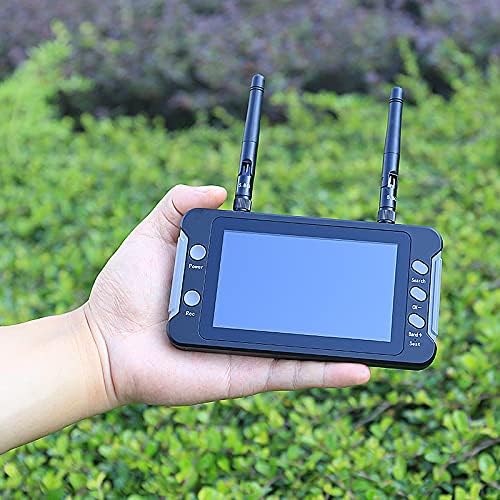
Nọmba 3.4: The SoloGood FPV Monitor held in a hand, illustrating its portable size.

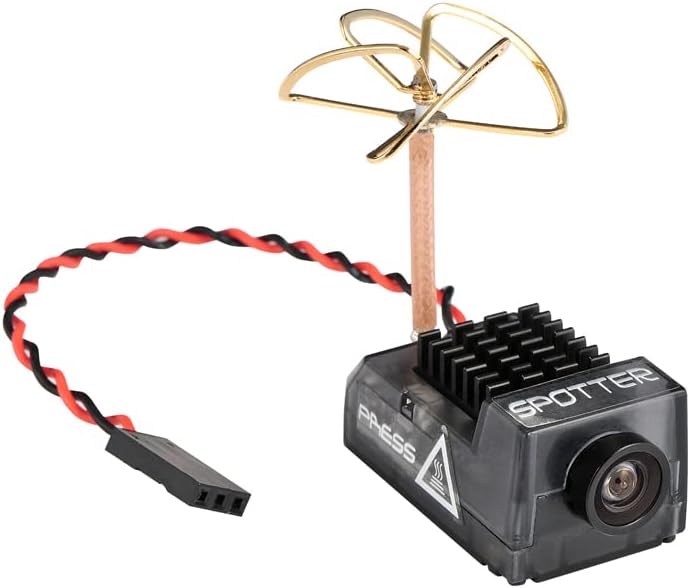
Nọmba 3.5: The Spotter V2 FPV Camera, showing its compact form factor and power/video wiring.

Nọmba 3.6: The SoloGood FPV Monitor displaying a live video feed from the FPV camera, demonstrating its operational capability.
Nọmba 3.7: Iwaju view of the Spotter V2 FPV Camera, highlighting its lens and heat sink.
Awọn fidio ọja
Fidio 3.1: This video demonstrates the SoloGood 4.3-inch FPV Monitor in operation, showing its power-on sequence and receiving a live FPV feed from a drone. It highlights the monitor's automatic channel search function and clear display.
Fidio 3.2: This video provides a guide on how to set up a head-tracking FPV system for an RC car. It illustrates the process of connecting FPV goggles, a camera with a VTX, and a 3-axis gimbal, then activating head tracking for an immersive driving experience.
4. Awọn pato
| Ẹya ara ẹrọ | Ẹ̀kúnrẹ́rẹ́ |
|---|---|
| Brand | SoloGood |
| Orukọ awoṣe | Spotter V2 |
| Pataki Ẹya | FPV Capability |
| Àwọ̀ | Dudu |
| Ipinnu Yaworan fidio | 800x480 |
| Asopọmọra Technology | 5.8Ghz |
| Olorijori Ipele | To ti ni ilọsiwaju |
| Fidio Yaworan kika | MP4 |
| Ohun elo | Ṣiṣu |
| Imọ-ẹrọ Ibaraẹnisọrọ Alailowaya | Igbohunsafẹfẹ Redio |
| Opitika sensọ Technology | CMOS |
| Ifihan fidio Ti o ṣeeṣe | 800x480 |
| Ọna kika Aworan Atilẹyin | JPEG |
5. Awọn ilana iṣeto
- Attach Antennas to Monitor: Carefully screw the two included antennas onto the SMA connectors located on the top of the FPV monitor. Ensure they are finger-tight.
- Power On Monitor: Press and hold the 'Power' button on the monitor until the screen illuminates. The monitor will typically display static or a 'No Signal' message initially.
- Connect FPV Camera: Connect the Spotter V2 FPV Camera to a compatible power source (e.g., your RC vehicle's battery or a dedicated FPV power supply). Ensure correct polarity to prevent damage. The camera will automatically begin transmitting video.
- Wiwa ikanni aladaaṣe: On the FPV monitor, press the 'Search' button. The monitor will automatically scan through available 5.8Ghz channels to find the strongest signal from your Spotter V2 FPV Camera. Once a clear signal is found, the live video feed will appear on the screen.
- Manual Channel Adjustment (Optional): If the automatic search does not yield a clear image, you can manually adjust the channel and band using the 'CH+' and 'Band+' buttons on the monitor. Refer to your camera's specifications for its transmitting frequency.
- Gbigbe Kamẹra: Securely mount the Spotter V2 FPV Camera to your RC vehicle using appropriate mounting hardware (not included). Ensure the camera has a clear line of sight for optimal video transmission.
6. Awọn ilana Iṣiṣẹ
Awọn iṣakoso atẹle:
- Bọtini agbara: Press and hold to turn the monitor ON/OFF. A short press may cycle through display modes or confirm selections in menus.
- Bọtini Atunwo: Press to start or stop video recording to a microSD card (if inserted). A recording indicator will typically appear on the screen.
- Bọtini wiwa: Initiates the automatic channel search function to find the best 5.8Ghz FPV signal.
- Bọtini CH+: Manually cycles through channels within the current band.
- Bọ́tìnì Ìbádọ́gba +: Manually cycles through the available 5.8Ghz frequency bands.
Fidio Gbigbasilẹ:
- Insert a formatted microSD card into the TF Card slot on the monitor.
- Ensure a stable FPV video feed is displayed.
- Press the 'Rec' button once to start recording. A red dot or similar icon will indicate active recording.
- Press the 'Rec' button again to stop recording.
7. Itọju
- Ninu: Use a soft, dry cloth to clean the monitor screen and camera lens. For stubborn smudges, a slightly damp cloth with water can be used, followed by immediate drying. Avoid harsh chemicals.
- Ibi ipamọ: Store the FPV monitor and camera in a cool, dry place away from direct sunlight and extreme temperatures. Protect the camera lens from scratches.
- Itọju Antenna: Handle antennas carefully to avoid bending or breaking. Ensure they are securely attached during use.
- Ayẹwo USB: Regularly inspect all cables for signs of wear, fraying, or damage. Replace damaged cables immediately.
8. Laasigbotitusita
- No Signal/Static on Monitor:
- Ensure the FPV camera is powered on and transmitting.
- Verify that both the monitor and camera antennas are securely connected.
- Perform an automatic channel search on the monitor.
- Fi ọwọ́ rìn kiri àwọn ìpele àti àwọn ikanni láti rí ìgbà tí ó yẹ.
- Check for obstructions between the camera and monitor that might interfere with the signal.
- Poor Video Quality/Interference:
- Ensure the camera and monitor are on the same channel and band.
- Move away from other 5.8Ghz devices or sources of electromagnetic interference.
- Check for physical damage to antennas or cables.
- Rii daju pe lẹnsi kamẹra jẹ mimọ.
- Àtòjọ náà kò tan:
- Ensure the monitor is fully charged or connected to a power source.
- Tẹ mọlẹ bọtini agbara fun awọn aaya pupọ.
- Awọn ọran Gbigbasilẹ:
- Ensure a compatible microSD card is inserted and properly formatted (FAT32 recommended).
- Ṣàyẹ̀wò bóyá káàdì microSD náà ní ààyè tó tó láti fi ṣe é.
- Gbiyanju kaadi microSD ti o yatọ.
9. Atilẹyin ọja ati Support
For warranty information and technical support, please refer to the SoloGood official webojula tabi kan si wọn onibara iṣẹ taara. Tọju iwe-ẹri rira rẹ bi ẹri rira fun eyikeyi awọn ibeere atilẹyin ọja.