
1. Ọja Ipariview
The COUGAR FV150 RGB is a mid-tower gaming case designed for high-performance PC builds. It features a dual-chamber design, separating the main components from cables, storage drives, and the power supply unit (PSU) for a clean aesthetic and improved airflow. The case supports various motherboard form factors and offers extensive cooling options, including pre-installed ARGB fans.
Awọn ẹya pataki:
- Dual-Chamber Design: Pese kan ko o view of your build through glass panels while concealing cables and other components.
- Atilẹyin GPU: Accommodates graphics cards up to 400mm in length, with options for vertical GPU orientation.
- Ibamu modaboudu: Supports Mini-ITX, Micro-ATX, and ATX motherboards.
- Engineered Bottom Fan Bracket: Simplifies fan installation by allowing attachment prior to setup.
- Extensive Fan & Water Cooling Support: Multiple fan mounting points and radiator support up to 360mm.
- Seamless RGB Synchronization: Integrated universal fan hub for easy ARGB lighting control.
- Igbimọ I/O ode oni: Includes 2 x USB Type-A and 1 x USB 3.2 Type-C ports.
- Ibi ipamọ to rọ: Supports combinations of 3.5" HDDs and 2.5" SSDs.
- Awọn Ajọ Eruku Oofa: Located on the top and right side for easy maintenance.

Aworan 1.1: Angled view of the COUGAR FV150 RGB case, highlighting its dual-chamber design and pre-installed ARGB fans.
2. Eto ati fifi sori
Follow these steps for proper installation of your PC components into the COUGAR FV150 RGB case.
2.1 Unpacking ati Ibẹrẹ ayewo
- Fi iṣọra yọọ kuro ninu apoti rẹ.
- Inspect the case for any signs of damage during transit.
- Remove the tempered glass side panel by unscrewing the thumb screws, if present, or by releasing awọn latch siseto.
2.2 Fifi sori modaboudu
- Ensure the correct standoffs are installed for your motherboard form factor (Mini-ITX, Micro-ATX, or ATX).
- Place the I/O shield into the rear opening of the case.
- Carefully align your motherboard with the standoffs and I/O shield, then secure it with screws.
2.3 Power Ipese Unit (PSU) fifi sori
- The FV150 RGB supports bottom-mount PSUs.
- Slide the PSU into its designated compartment in the secondary chamber from the rear of the case.
- Secure the PSU with screws from the exterior rear of the case.
2.4 Ibi ipamọ wakọ sori
- Locate the drive bays in the secondary chamber.
- For 3.5" HDDs, slide the drive into the appropriate tray and secure it.
- For 2.5" SSDs, mount them to the designated brackets or trays.
2.5 Graphics Card (GPU) fifi sori
- Remove the necessary expansion slot covers at the rear of the case.
- Insert your GPU into the PCIe slot on the motherboard and secure it with screws.
- The case supports GPUs up to 400mm. For vertical GPU mounting, a separate riser cable and bracket (not included) are required.
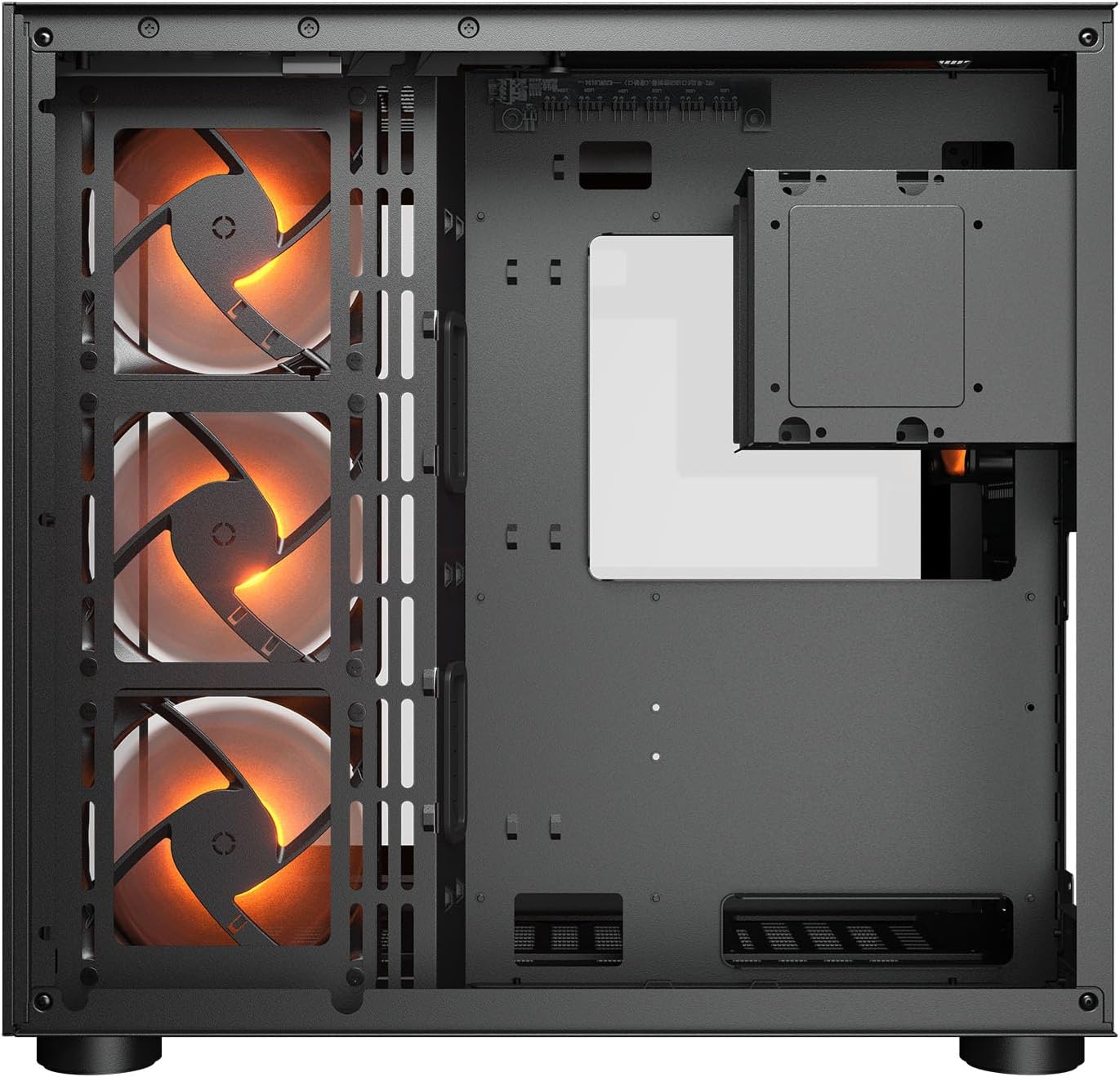
Aworan 2.1: Ti abẹnu view illustrating the main chamber for motherboard and GPU installation, with pre-installed side fans.
2.6 Fan ati Radiator sori
- The case comes with 3 x 120mm ARGB side fans and 1 x 120mm ARGB rear fan pre-installed.
- Additional fans can be installed at the top (3 x 120mm or 2 x 140mm) and bottom (3 x 120mm or 2 x 140mm).
- Utilize the engineered bottom fan bracket for easier installation of bottom fans.
- For water cooling, radiators up to 360mm can be mounted on the top and 240mm on the side.

Image 2.2: Top internal view, showing potential mounting locations for additional cooling fans or radiators.
2.7 USB Management
- Route all power and data cables through the cutouts to the secondary chamber.
- Lo awọn ample space and tie-down points in the secondary chamber to organize cables for optimal airflow and a clean appearance.
2.8 Connecting Front I/O Panel
- Connect the front panel cables (USB 3.2 Type-C, USB Type-A, audio, power, reset, LED) to the corresponding headers on your motherboard.
3. Awọn ilana Iṣiṣẹ
Ni kete ti gbogbo awọn paati ti fi sii ati ti sopọ, o le fi agbara sori ẹrọ rẹ.
3.1 Agbara Lori
- Rii daju pe iyipada PSU wa ni ipo 'ON'.
- Tẹ bọtini agbara ni iwaju panẹli I/O ti apoti naa.
3.2 RGB ina Iṣakoso
- The integrated universal fan hub allows for easy synchronization of ARGB lighting.
- Connect the hub to your motherboard's ARGB header (5V 3-pin) to control lighting effects via motherboard software.
- Alternatively, use the dedicated RGB button on the front I/O panel to cycle through pre-set lighting modes if not connected to a motherboard header.
4. Itọju
Itọju deedee n ṣe iranlọwọ lati rii daju pe iṣẹ ṣiṣe to dara julọ ati igba pipẹ ti awọn paati PC rẹ.
4.1 eruku Filter Cleaning
- The COUGAR FV150 RGB features magnetic dust filters on the top and right side, along with a ventilated bottom cover.
- Fi pẹ̀lẹ́pẹ̀lẹ́ yọ àwọn àlẹ̀mọ́ eruku oofa náà kúrò.
- Clean them using compressed air or by rinsing with water (ensure they are completely dry before reattaching).
- Periodically clean the ventilated bottom cover.
4.2 Gbogbogbo Cleaning
- Lo aṣọ rírọrùn tí ó gbẹ láti nu àwọn ojú ìta àpótí náà.
- For tempered glass panels, use a glass cleaner and a microfiber cloth to avoid streaks.
- Yago fun lilo awọn kẹmika lile tabi awọn ohun elo abrasive ti o le ba ipari jẹ.
5. Laasigbotitusita
Abala yii n pese awọn ojutu fun awọn ọran ti o wọpọ ti o le ba pade.
5.1 System Ko Alagbara Lori
- Check PSU: Ensure the power supply unit is properly connected to the wall outlet and the PSU switch is in the 'ON' position.
- Awọn isopọ Iwaju Panel: Daju pe okun bọtini agbara lati ọran naa ti sopọ ni deede si akọsori iwaju nronu modaboudu.
- Internal Power Cables: Confirm all necessary power cables (24-pin ATX, 8-pin CPU, PCIe for GPU) are securely connected to the motherboard and components.
5.2 Awọn onijakidijagan Ko Yiyi tabi RGB Ko Ṣiṣẹ
- Awọn isopọ Olufẹ: Ensure all fan power cables are securely connected to the fan hub or motherboard headers.
- Àwọn ìsopọ̀ RGB: Verify the ARGB cables are correctly connected to the fan hub and the hub is connected to a 5V 3-pin ARGB header on the motherboard.
- Software/Button: If connected to the motherboard, check your motherboard's RGB control software. If not, try pressing the RGB button on the case's I/O panel to cycle modes.
5.3 USB Ports Not Functioning
- Awọn akọle USB inu: Confirm that the USB 3.0 and USB Type-C cables from the front I/O panel are correctly plugged into the corresponding headers on your motherboard.
- Motherboard Drivers: Ensure you have installed the latest chipset and USB drivers for your motherboard.
6. Awọn pato
Detailed technical specifications for the COUGAR FV150 RGB Gaming Case.

Image 6.1: Case dimensions for planning your setup.
| Ẹya ara ẹrọ | Sipesifikesonu |
|---|---|
| Orukọ ọja | FV150 RGB |
| Case Fọọmù ifosiwewe | Ile-iṣọ Mid |
| Modaboudu Ibamu | Mini-ITX, Micro-ATX, ATX |
| Awọn iwọn (W x H x D) | 300 x 400 x 415 mm (11.8" x 15.7" x 16.3") |
| I/O igbimo | USB 3.2 Gen 2 Type-C x 1, USB-A 3.0 x 2, 4 Pole Headset Audio Jack, RGB Button |
| 3.5" Drive Bay | 2 |
| 2.5" Drive Bay | 1+1 (converted from 3.5" drive bays) |
| Imugboroosi Iho | 7+3 |
| Inaro GPU Support | Bẹẹni |
| Cooling Fan Support (Top) | 3 x 120mm tabi 2 x 140mm |
| Cooling Fan Support (Bottom) | 3 x 120mm tabi 2 x 140mm |
| Cooling Fan Support (Side) | 3 x 120mm |
| Cooling Fan Support (Rear) | 1 x 120mm |
| Pre-installed Fans (Side) | 3 x 120mm ARGB (Reversed) |
| Pre-installed Fans (Rear) | 1 x 120mm ARGB |
| Pre-installed Fan Speed | 1000 (± 10%) RPM |
| Pre-installed Fan Connector | 5V 3 Pin (ARGB) / 3 Pin (Fan) |
| O pọju Nọmba ti egeb | 10 |
| Water Cooling Support (Top) | 360mm / 280mm / 240mm |
| Water Cooling Support (Side) | 240mm / 120mm |
| Water Cooling Support (Rear) | 120mm |
| RGB Hub Sync with M/B | Bẹẹni |
| O pọju. Graphics Kaadi Ipari | 400 mm (15.7 in) |
| O pọju. Sipiyu kula Giga | 180 mm (7.1 in) |
| O pọju. PSU Ipari | 210 mm (8.3 in) |
| Ohun elo | Irin |
| Iwọn Nkan | 6.83 kilo |
7. atilẹyin ọja Information
COUGAR products are manufactured to the highest quality standards. This product is covered by a manufacturer's warranty against defects in materials and workmanship. The specific duration and terms of the warranty may vary by region and retailer. Please retain your proof of purchase for warranty claims.
For detailed warranty information, please refer to the official COUGAR webaaye ayelujara tabi kan si alagbata agbegbe rẹ.
8. Atilẹyin
If you encounter any issues or have questions regarding your COUGAR FV150 RGB Gaming Case that are not covered in this manual, please contact COUGAR customer support.
- Visit the official COUGAR website for FAQs, driver downloads, and support contact information.
- Contact your retailer for assistance with product returns or exchanges.