
Ọrọ Iṣaaju
This manual provides essential information for setting up, operating, maintaining, and troubleshooting your HP 14 inch Laptop. Please read this guide thoroughly to ensure proper use and to maximize the performance and longevity of your device.

Image: An HP 14 inch laptop being used by a person on a kitchen counter, demonstrating its portability and suitability for various environments.
1. Ni ibẹrẹ Oṣo
1.1 Unpacking ati First Power On
Carefully remove the laptop and all accessories from the packaging. Ensure all components are present:
- HP 14 inch Laptop
- Adapter agbara
- Awọn iwe aṣẹ
Connect the power adapter to the laptop's power port and then to a wall outlet. Press the power button to turn on the laptop. Follow the on-screen instructions to complete the initial Windows 11 setup, including language selection, network connection, and user account creation.
1.2 Nsopọ Peripherals
Kọǹpútà alágbèéká rẹ ti ni ipese pẹlu awọn ebute oko oju omi pupọ fun sisopọ awọn ẹrọ ita:

Aworan: Apa view of the HP 14 inch laptop, highlighting the various ports available for connecting peripherals such as USB devices and external displays.
- USB 3.2 Gen 1 Type-C (5Gbps): Fún sísopọ̀ àwọn ẹ̀rọ USB-C òde òní.
- USB 3.2 Gen 1 Type-A (2x, 5Gbps): Fun awọn ẹrọ USB boṣewa bii eku, awọn bọtini itẹwe, ati awọn awakọ ita.
- HDMI v1.4: Fun sisopọ si awọn ifihan ita tabi awọn pirojekito.
- Agbekọri/Mikrofoonu Konbo Jack: For audio input/output devices.
Simply plug the peripheral's cable into the corresponding port on the laptop. Most devices are plug-and-play and will be recognized automatically by Windows 11.
2. Isẹ
2.1 Ipilẹ Lilo
The laptop features a standard keyboard and a responsive touchpad for navigation. Familiarize yourself with the function keys (Fn) for quick access to settings like volume, brightness, and Wi-Fi.
2.2 Connecting to Networks (Wi-Fi)
Your laptop supports Wi-Fi 6 for fast wireless connectivity. To connect to a Wi-Fi network:
- Click the Wi-Fi icon in the taskbar (usually bottom-right).
- Yan nẹtiwọki ti o fẹ lati inu akojọ.
- Tẹ bọtini aabo nẹtiwọki (ọrọ igbaniwọle) ti o ba ṣetan.
- Tẹ "Sopọ".
2.3 Bluetooth Device Pairing
The laptop includes Bluetooth 5.3 for connecting wireless accessories. To pair a Bluetooth device:
- Lọ si Eto > Bluetooth & awọn ẹrọ.
- Rii daju pe Bluetooth ti wa ni titan On.
- Tẹ Fi ẹrọ kun ki o si yan Bluetooth.
- Fi ẹrọ Bluetooth rẹ sinu ipo sisopọ.
- Select your device from the list and follow any on-screen prompts.
2.4 Lilo awọn Webkamẹra
The integrated 720p HD camera is suitable for video calls and conferences. For privacy, your laptop features a physical privacy shutter. Slide the shutter to cover or uncover the camera lens as needed.
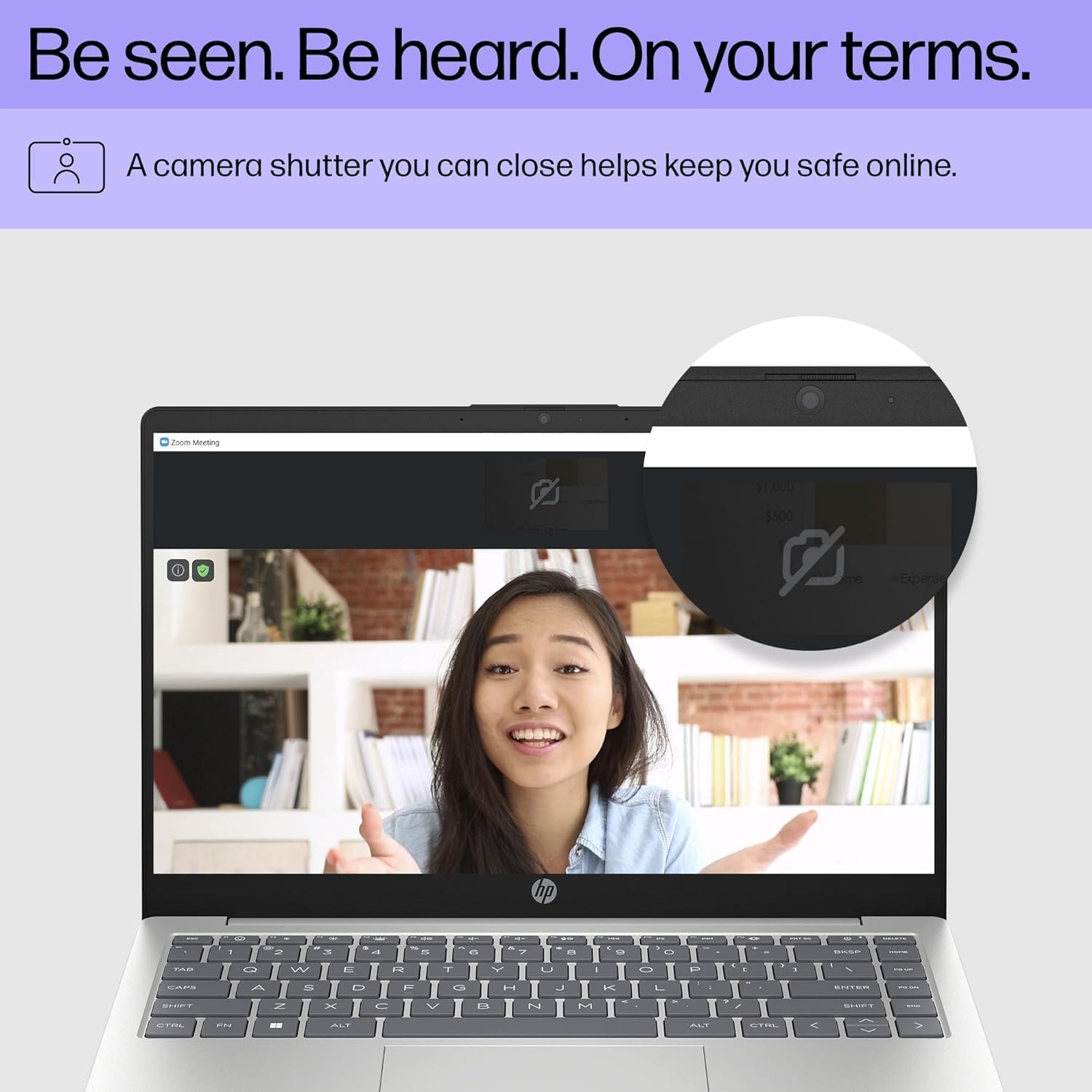
Image: Close-up of the HP laptop's integrated webcam, showing the physical privacy shutter in the open position. This feature allows users to physically block the camera lens for enhanced privacy.
2.5 batiri Management
The laptop is equipped with a 3-cell 41Wh battery, providing up to 8 hours of non-gaming battery life. To optimize battery longevity:
- Yago fun gbigba agbara si batiri ni kikun nigbagbogbo.
- Keep the laptop in a cool, dry environment.
- Ṣatunṣe imọlẹ iboju si ipele itunu.
- Utilize Windows power saving modes when on battery power.

Image: Diagram illustrating the HP laptop's dimensions (14" display, 12.74" W, 8.46" D, 0.70" H) and indicating up to 8 hours of mixed usage battery life. This highlights the laptop's portability and endurance.
3. Itọju
3.1 Ninu rẹ Kọǹpútà alágbèéká
Wíwẹ̀ déédéé ń ran kọ̀ǹpútà alágbèéká rẹ lọ́wọ́ láti rí ìrísí àti iṣẹ́ rẹ̀:
- Iboju: Lo asọ rirọ, ti ko ni lint ni sere dampened pẹlu omi tabi a iboju regede. Yẹra fun awọn kẹmika lile.
- Keyboard ati ẹnjini: Lo asọ asọ. Fun idoti alagidi, die-die dampA le lo aṣọ tí a fi omi ọṣẹ díẹ̀ ṣe, kí omi má baà wọ inú ihò náà.
- Awọn ibudo: Lo afẹfẹ fisinuirindigbindigbin lati rọra nu eruku lati awọn ibudo.
3.2 Software imudojuiwọn
Keep your Windows 11 operating system and drivers updated to ensure optimal performance and security. Windows Update typically handles this automatically, but you can manually check by going to Eto> Imudojuiwọn Windows.
3.3 Ìṣàkóso Ìpamọ́ àti Ìrántí
Your laptop is equipped with a 4TB NVMe M.2 SSD and 64GB DDR4 RAM. While these provide ample capacity, regular management is recommended:
- Lorekore paarẹ ti ko wulo files and applications to free up storage space.
- Lo ibi ipamọ awọsanma fun awọn nla files to reduce local drive usage.
- Windows 11 includes tools like Storage Sense (in Settings > System > Storage) to automate cleanup.
4. Laasigbotitusita wọpọ oran
4.1 Agbara Oran
- Kọǹpútà alágbèéká ko tii: Rii daju pe ohun ti nmu badọgba agbara ti sopọ ni aabo si kọǹpútà alágbèéká mejeeji ati iṣan agbara iṣẹ kan. Gbiyanju iṣan ti o yatọ.
- Batiri ko gba agbara: Verify the power adapter connection. Check for any damage to the adapter or cable.
4.2 ifihan isoro
- Ko si aworan loju iboju: If connected to an external monitor, ensure the correct input source is selected on the monitor. Try pressing Fn + F4 (or the equivalent display toggle key) to switch display outputs.
- Iboju didin: Adjust brightness using the function keys (e.g., Fn + F2/F3) or through Windows display settings.
4.3 Awọn Iṣoro Asopọmọra (Wi-Fi/Bluetooth)
- Ko le sopọ si Wi-Fi: Ensure Wi-Fi is enabled in Windows settings. Restart your router and the laptop. Check if other devices can connect to the network.
- Ẹrọ Bluetooth ko so pọ: Ensure the Bluetooth device is in pairing mode and within range. Restart Bluetooth on the laptop and the device.
Fun alaye diẹ sii nipa laasigbotitusita tabi awọn iṣoro ti o tẹsiwaju, wo atilẹyin HP webojula tabi olubasọrọ onibara iṣẹ.
5. Awọn pato
Detailed technical specifications for your HP 14 inch Laptop (Model EP01):

Image: Infographic detailing key specifications of the HP 14 inch laptop, including 13th Gen Intel Core i7-1355U processor, 16GB DDR4-3200 MHz RAM, 1TB PCIe NVMe M.2 SSD, Intel Iris Xe Graphics, Windows 11 Home, and a Full HD IPS anti-glare display.
| Ẹya ara ẹrọ | Sipesifikesonu |
|---|---|
| Brand | HP |
| Orukọ awoṣe | 14 inch Laptop (EP01) |
| isise | 13th Generation Intel Core i7-1355U (10 Cores, up to 5.0GHz) |
| Awọn aworan | Intel Iris Xe Graphics (Iṣepọ) |
| Iranti (Ramu) | 64GB DDR4 3200 MHz SDRAM (Upgraded from 16GB) |
| Ibi ipamọ | 4TB NVMe M.2 SSD (Upgraded from 1TB) |
| Ifihan | 14" FHD (1920 x 1080) IPS Anti-Glare, 300 nits, 45% NTSC, 60Hz |
| Eto isesise | Windows 11 Ile |
| Asopọmọra | Wi-Fi 6 (2x2), Bluetooth 5.3 |
| Awọn ibudo | 1x USB 3.2 Gen 1 Type-C, 2x USB 3.2 Gen 1 Type-A, 1x HDMI v1.4, 1x Headphone/Microphone Combo Jack |
| Kamẹra | Kamẹra HD 720p pẹlu Shutter Aṣiri |
| Ohun | Awọn agbọrọsọ meji |
| Batiri | 3 Cell 41Wh (Titi di wakati 8 kii ṣe ere) |
| Awọn iwọn (L x W x H) | 12.74 x 8.46 x 0.70 inches |
| Iwọn | 5.13 iwon |
| Àwọ̀ | Silver Adayeba |
| UPC | 194850841057 |
6. Atilẹyin ọja ati Support
6.1 Atilẹyin ọja
Your HP laptop comes with a standard manufacturer's warranty. For specific details regarding coverage, duration, and terms, please refer to the warranty documentation included with your product or visit the official HP support webojula. Atilẹyin ọja ni igbagbogbo bo awọn abawọn ninu awọn ohun elo ati iṣẹ ṣiṣe labẹ lilo deede.
6.2 Onibara Support
For technical assistance, service, or further inquiries, please contact HP Customer Support:
- Atilẹyin Ayelujara: Ṣabẹwo atilẹyin.hp.com fún àwọn awakọ̀, àwọn ìwé ìtọ́ni, àti àwọn ìtọ́sọ́nà lórí ìṣòro.
- Atilẹyin foonu: Refer to the contact information provided in your product's documentation for regional phone numbers.
When contacting support, please have your laptop's serial number and model number (EP01) ready.