
EDDBNi K12E
EDDBNi 10.1-inch Android 14 Tablet User Manual
Model: K12E
Ọrọ Iṣaaju
Welcome to the user manual for your new EDDBNi 10.1-inch Android 14 Tablet. This guide provides essential information on setting up, operating, maintaining, and troubleshooting your device to ensure optimal performance and user experience. Please read this manual thoroughly before using your tablet.
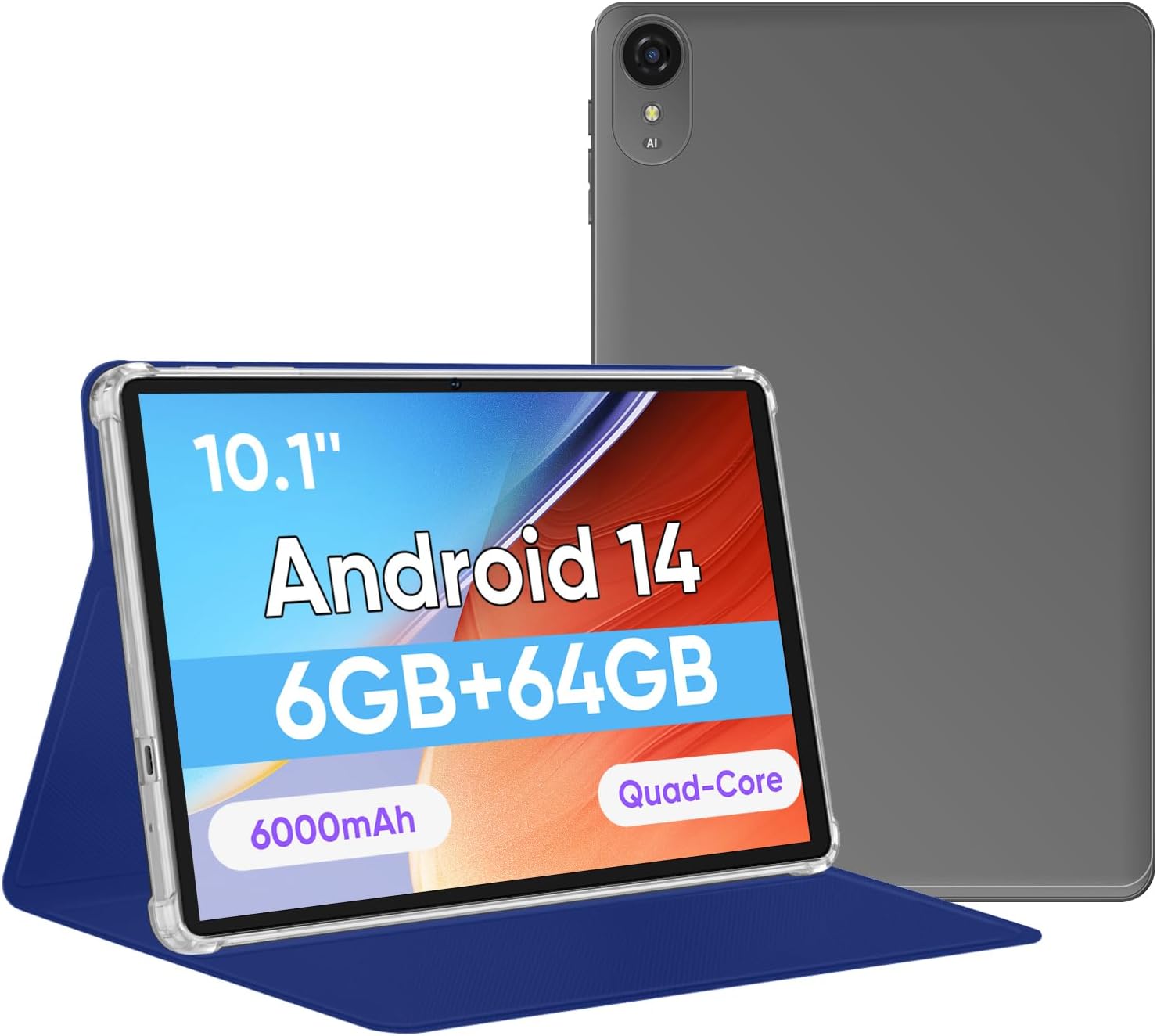
Image: The EDDBNi 10.1-inch Android 14 Tablet, shown with its included blue protective case, highlighting its sleek design and display.
Eto Itọsọna
1. Ohun ti o wa ninu Apoti
Jẹrisi pe gbogbo awọn ohun kan wa ninu package:
- EDDBNi 10.1-inch Android 14 Tablet
- Tablet Leather Case
- Okun gbigba agbara (USB Iru-C)
- Adapter agbara
- Afowoyi Olumulo (iwe-ipamọ yii)
2. Ngba agbara si tabulẹti
Before first use, fully charge your tablet. Connect the USB Type-C cable to the tablet's charging port and the other end to the power adapter. Plug the adapter into a wall outlet. The battery indicator on the screen will show charging status.
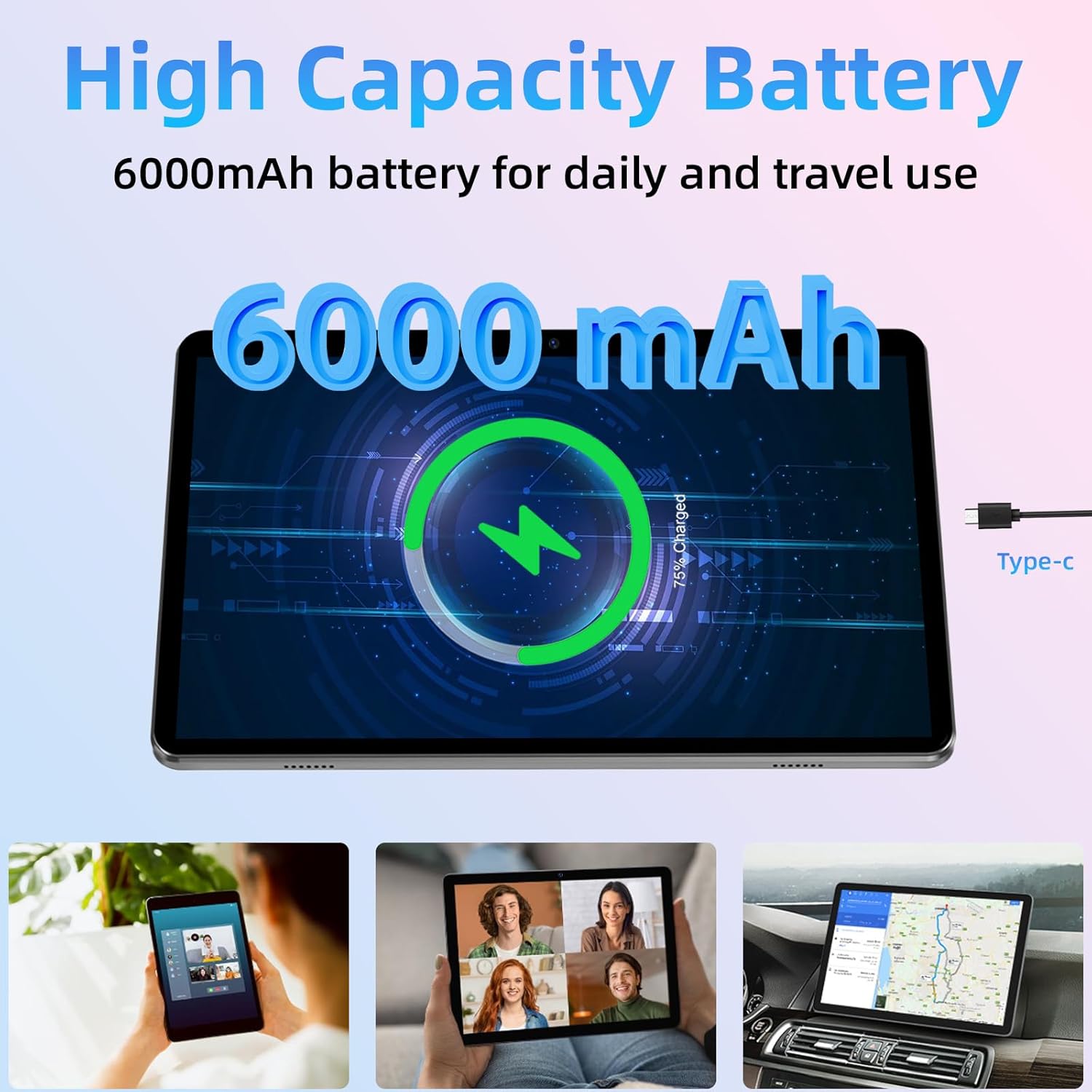
Image: A visual representation of the tablet's 6000mAh battery charging, indicating the Type-C charging port.
3. Agbara Tan / Paa
- Agbara Tan: Press and hold the Power button located on the side of the tablet until the EDDBNi logo appears on the screen.
- Agbara Pa: Press and hold the Power button until a power-off menu appears. Select "Power off" to shut down the device.
- Tun bẹrẹ: From the power-off menu, select "Restart" to reboot the device.
4. Ni ibẹrẹ Oṣo
Lori agbara akọkọ, tabulẹti yoo ṣe itọsọna fun ọ nipasẹ ilana iṣeto akọkọ:
- Yan ede ti o fẹ.
- Connect to a Wi-Fi network. This is crucial for downloading updates and setting up your Google account.
- Sign in with your Google account or create a new one. This is required to access the Google Play Store and other Google services.
- Follow the on-screen prompts to set up date and time, screen lock, and other preferences.
5. Fi Kaadi MicroSD sii (Aṣayan)
Your tablet supports storage expansion up to 1TB using a MicroSD card (sold separately). This allows for ampaaye fun awọn fọto, awọn fidio, ati awọn ohun elo.
- Wa iho kaadi MicroSD ni ẹgbẹ tabulẹti naa.
- Gently insert the MicroSD card into the slot with the gold contacts facing down until it clicks into place.
- To remove, gently push the card inward until it pops out.
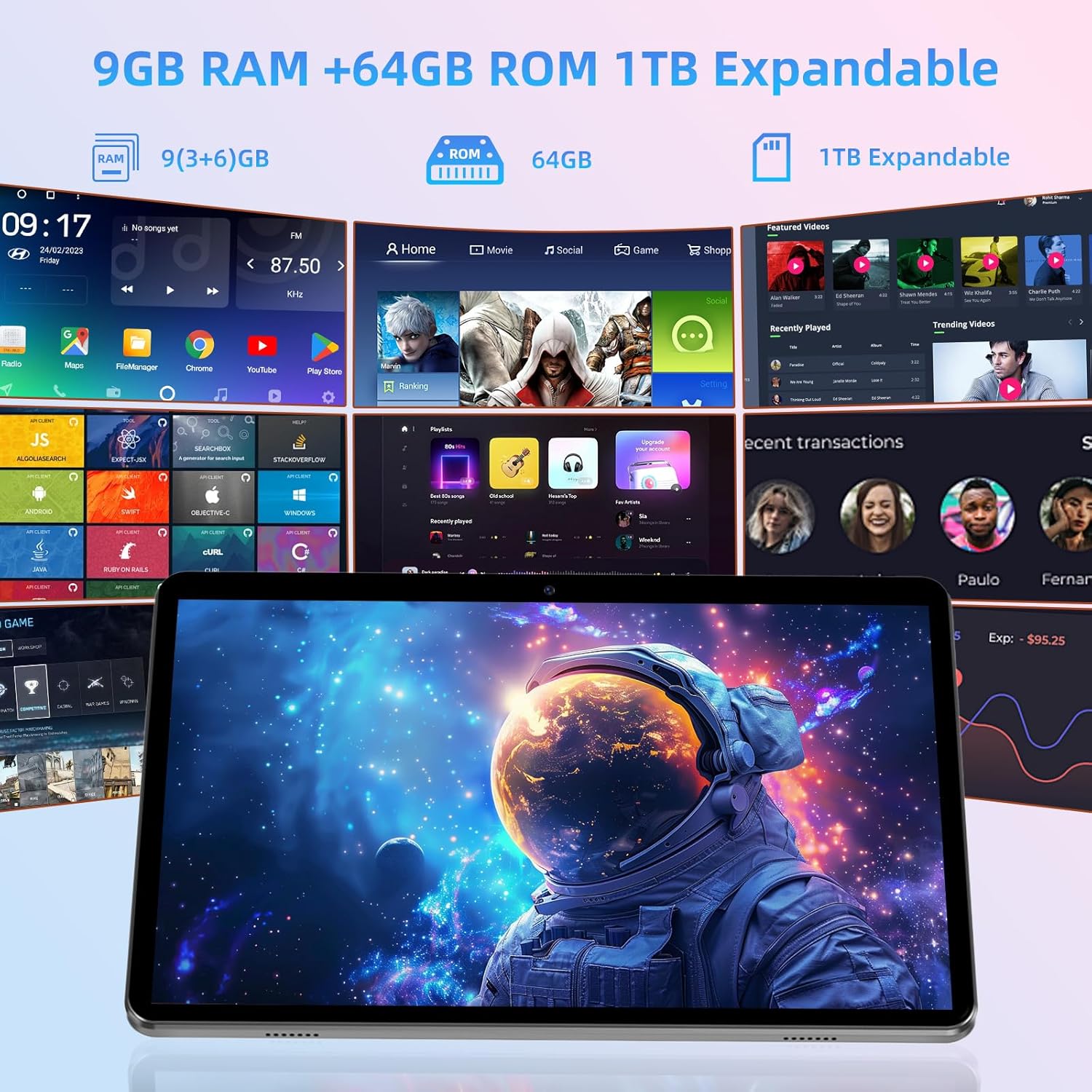
Image: A visual demonstrating the tablet's memory specifications, including 9GB RAM, 64GB ROM, and the option for 1TB expandable storage via a MicroSD card.
Ṣiṣẹ Tabulẹti rẹ
1. Ipilẹ Lilọ kiri
The tablet features a responsive 10.1-inch IPS HD touchscreen for intuitive interaction:
- Fọwọ ba: To open apps, select items, or press buttons.
- Fọwọ ba & Mu: To move icons, open context menus, or activate selection mode.
- Ra: To scroll through pages, lists, or switch between home screens.
- Fun pọ: To zoom in or out on photos, maps, or web awọn oju-iwe.
2. Android 14 Awọn ọna System
Your tablet runs on the latest Android 14 operating system, offering enhanced privacy features, improved app compatibility, and a smooth user experience. Enjoy a diverse selection of original apps and games via the Google Play Store, which is GMS certified.
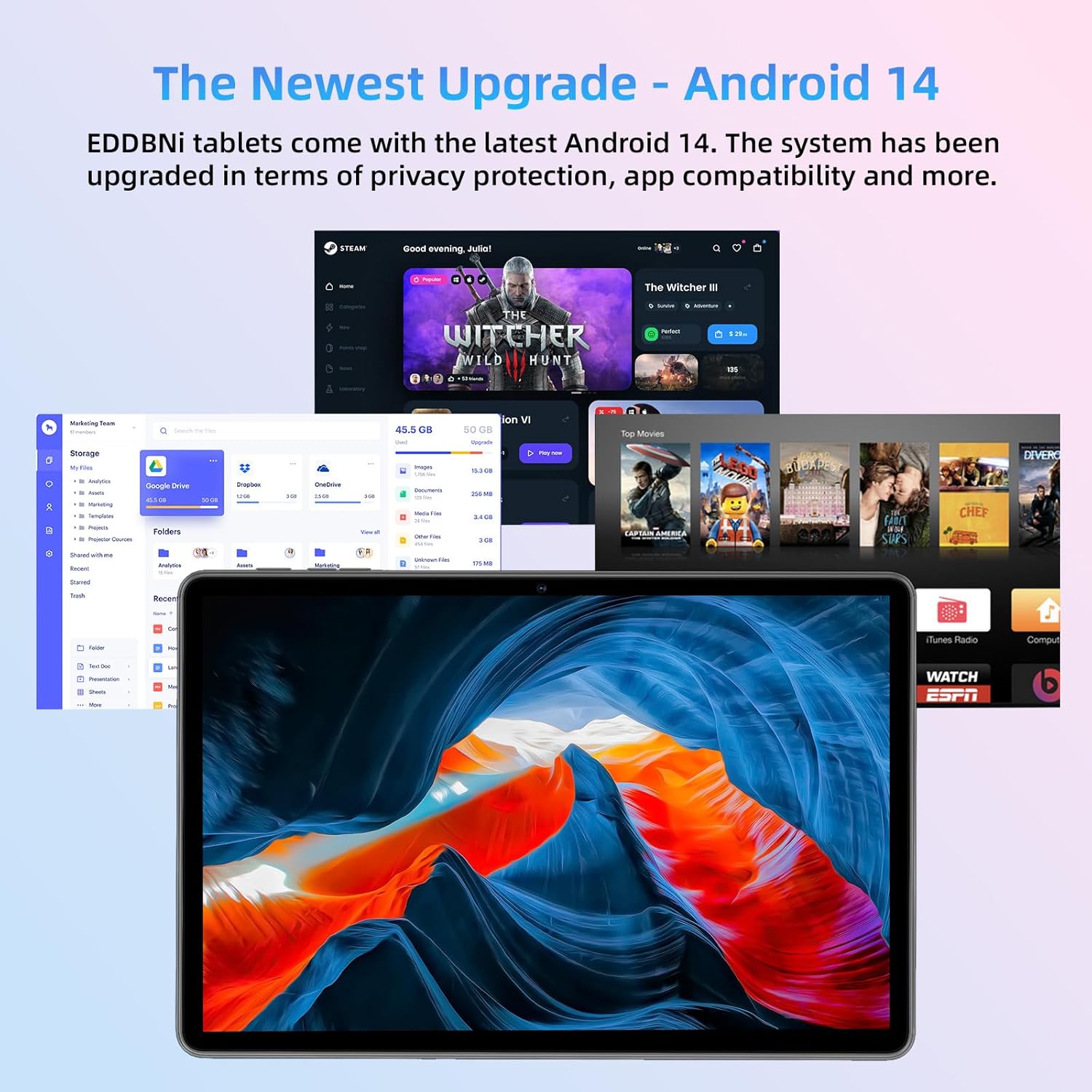
Image: The tablet's display showcasing the Android 14 interface with multiple application icons, emphasizing the latest operating system upgrade.
3. Asopọmọra
- Wi-Fi: Láti sopọ̀ mọ́ nẹ́tíwọ́ọ̀kì Wi-Fi, lọ sí Eto> Nẹtiwọọki & intanẹẹti> Wi-Fi. Select your desired network and enter the password if required. The tablet supports 2.4GHz/5GHz WiFi.
- Bluetooth: To pair with Bluetooth devices (e.g., headphones, speakers), go to Eto> Awọn ẹrọ ti a ti sopọ> Awọn ayanfẹ asomọ> Bluetooth. Turn on Bluetooth and select the device you wish to pair with from the list.
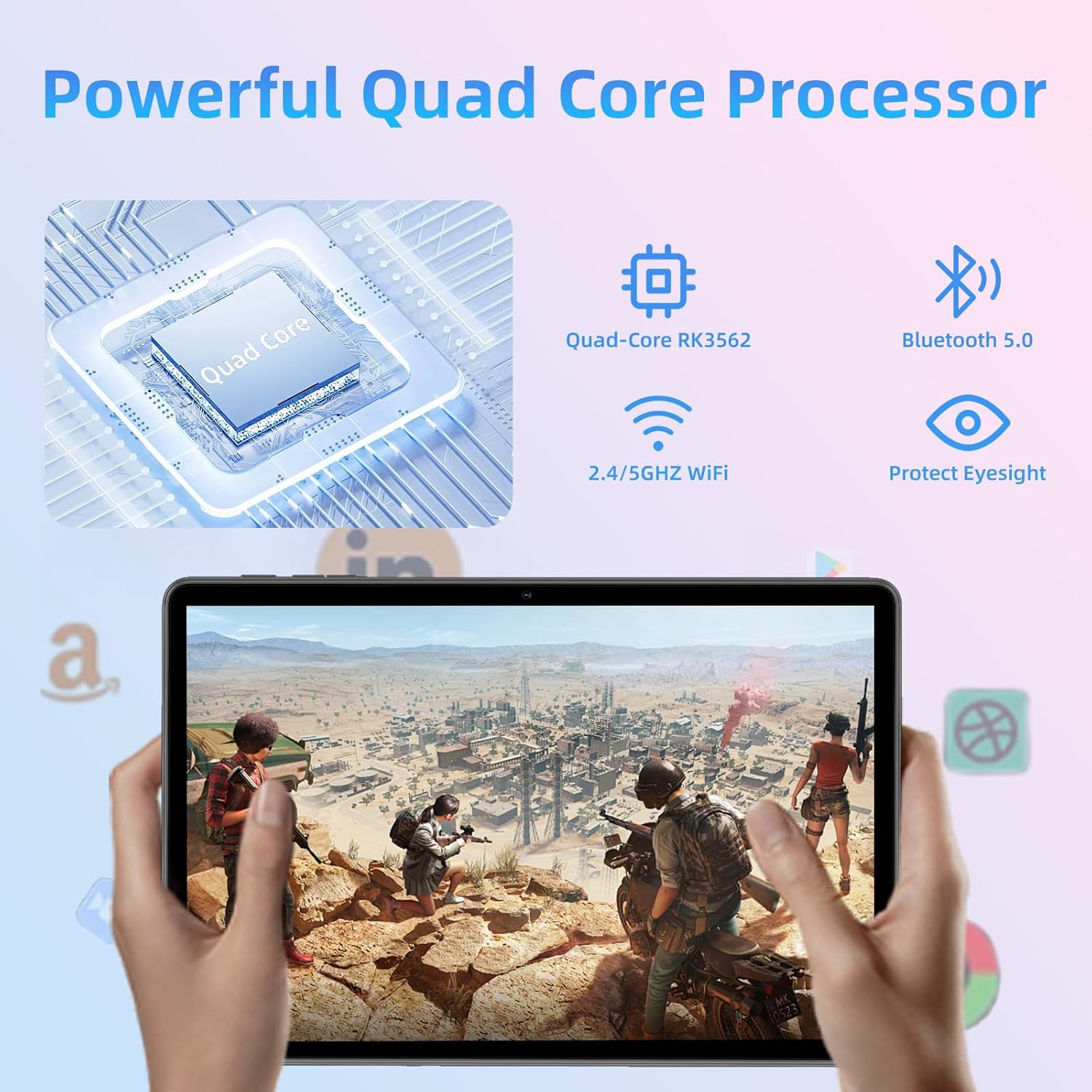
Image: An illustrative diagram highlighting the tablet's core features, including its powerful Quad-Core RK3562 processor, Bluetooth 5.0, and dual-band 2.4/5GHz WiFi connectivity.
4. Lilo awọn kamẹra
The tablet is equipped with a 5.0MP front camera and an 8.0MP rear camera, suitable for video calls, photos, and scanning documents.
- Ṣí àpù "Kamẹ́rà" láti ojú ìbojú ilé tàbí láti inú àpótí àpù rẹ.
- Tẹ aami kamẹra lati yipada laarin awọn kamẹra iwaju ati ẹhin.
- Fọwọ ba bọtini titiipa lati ya fọto tabi bẹrẹ/da gbigbasilẹ fidio duro.
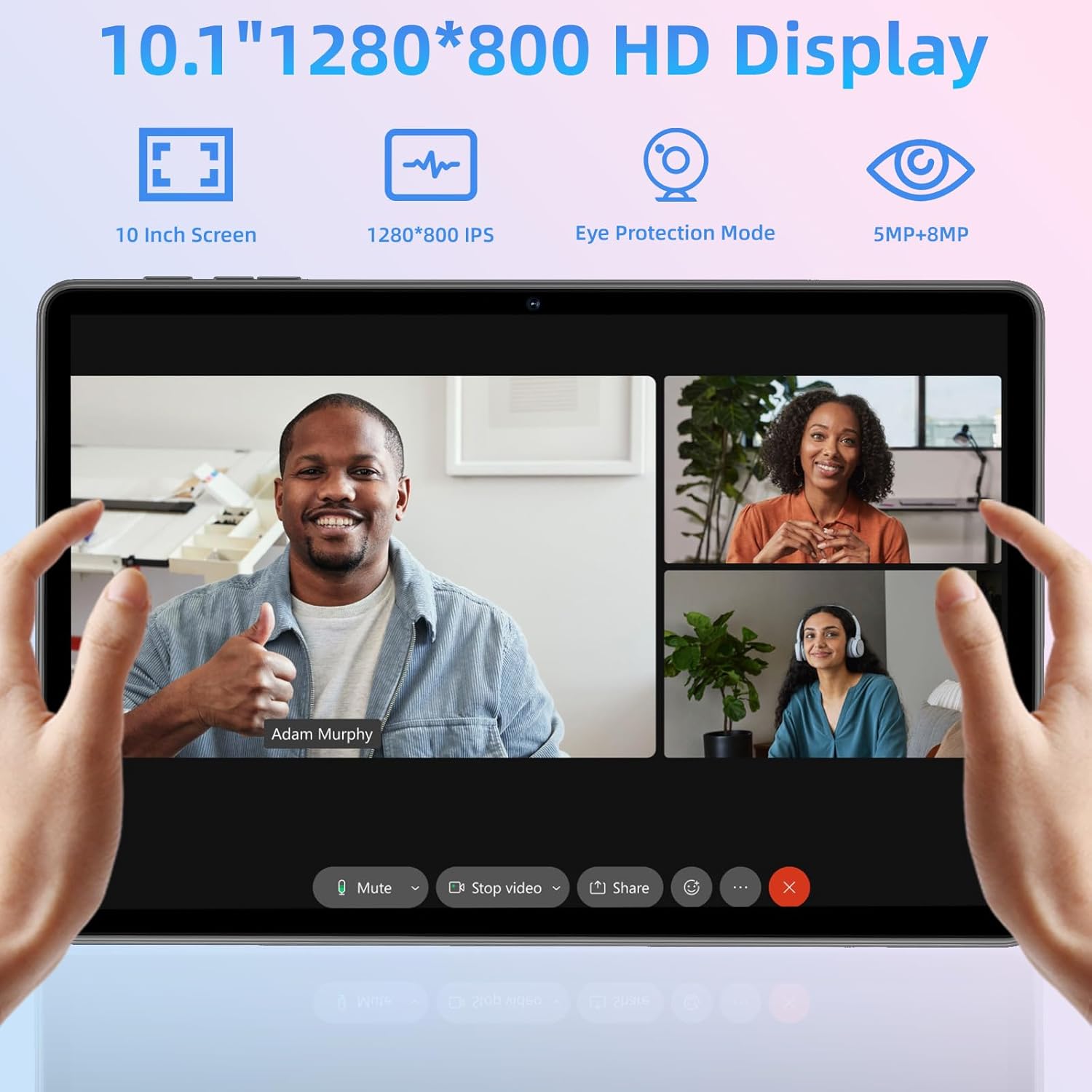
Image: The tablet displaying a video call, demonstrating its 10.1-inch 1280x800 IPS HD screen and the functionality of its dual cameras for communication.
Itoju
1. Nu Táblẹ́ẹ̀tì Rẹ
To keep your tablet clean and in good condition:
- Lo asọ, asọ ti ko ni lint lati nu iboju ati ara.
- Fun agidi smudges, die-die dampen awọn asọ pẹlu omi tabi a iboju regede apẹrẹ fun Electronics.
- Yago fun lilo awọn kẹmika lile, awọn ohun elo abrasive, tabi ọrinrin pupọ.
2. Software imudojuiwọn
Ṣayẹwo nigbagbogbo fun ati fi awọn imudojuiwọn sọfitiwia sori ẹrọ lati rii daju pe tabulẹti rẹ ni awọn ẹya tuntun, awọn abulẹ aabo, ati awọn ilọsiwaju iṣẹ. Lọ si Eto> Eto> Imudojuiwọn eto lati ṣayẹwo fun awọn imudojuiwọn to wa.
3. Itọju batiri
To maximize the lifespan of your 6000mAh lithium battery:
- Yago fun awọn iwọn otutu to gaju.
- Ma ṣe jẹ ki batiri naa ṣan patapata nigbagbogbo.
- Lo ṣaja atilẹba tabi ṣaja ibaramu ti a fọwọsi.
- Fun ibi ipamọ igba pipẹ, gba agbara si tabulẹti si iwọn 50% ki o si pa a.
Laasigbotitusita
If you encounter issues with your tablet, refer to the common solutions below:
| Isoro | Owun to le Solusan |
|---|---|
| Tabulẹti ko ni tan-an | Ensure the battery is charged. Connect to the charger and wait a few minutes before attempting to power on again. If unresponsive, press and hold the power button for 10-15 seconds for a forced restart. |
| Slow performance/Lagging | Close unused applications. Clear cache for frequently used apps. Restart the tablet. Check for available software updates. Consider uninstalling rarely used apps to free up storage. |
| Awọn oran asopọ Wi-Fi | Ensure Wi-Fi is enabled in settings. Restart your Wi-Fi router. Forget the network and reconnect. Check if other devices can connect to the same network. |
| Batiri n ṣan ni kiakia | Reduce screen brightness. Close background apps. Turn off Wi-Fi/Bluetooth when not in use. Limit location services. Check battery usage in settings to identify power-hungry apps. |
| Awọn ohun elo kọlu tabi didi | Force close the app and reopen it. Clear the app's cache and data (Eto> Awọn ohun elo> [Orukọ Ohun elo]> Ibi ipamọ & kaṣe). Reinstall the app. Ensure the tablet's software is up to date. |
Awọn pato
| Ẹya ara ẹrọ | Ẹ̀kúnrẹ́rẹ́ |
|---|---|
| Awoṣe | K12E |
| Eto isesise | Android 14 |
| Ifihan | 10.1-inch IPS HD Touchscreen (1280x800 pixels) |
| isise | Quad-Core ARM Processor |
| Àgbo | 9GB (3GB + 6GB foju) |
| Ibi ipamọ inu | 64GB ROM |
| Expandable Ibi ipamọ | Up to 1TB via MicroSD card (sold separately) |
| Awọn kamẹra | Iwaju: 5.0MP, Ẹhin: 8.0MP |
| Batiri | 6000mAh Lithium Polymer (Up to 8 hours video playback) |
| Asopọmọra | Wi-Fi (802.11g, 2.4GHz/5GHz), Bluetooth |
| Awọn iwọn (LxWxH) | 9.7 x 5.62 x 0.18 inches |
| Iwọn | 2.44 iwon |
Atilẹyin ọja ati Support
EDDBNi offers a 1-odun atilẹyin ọja for this product, providing comprehensive support to ensure your peace of mind. This warranty covers manufacturing defects and issues arising from normal use.
If you have any questions, require technical assistance, or need to claim warranty service, please do not hesitate to contact our customer support team. We are committed to responding promptly and assisting you in resolving any issues you may encounter.
Please refer to the contact information provided with your purchase or visit the official EDDBNi webaaye fun awọn alaye atilẹyin ti ode-ọjọ julọ.
Ask a question about this manual
Ask about setup, troubleshooting, compatibility, parts, safety, or missing instructions. Manuals+ will review the question and use this page’s manual context to help answer it.