
1. Ifihan
This manual provides detailed instructions for the setup, operation, and maintenance of your THOMSON 8-inch Digital Photo Frame (Model: TRDF-8001C). Please read this manual thoroughly before using the device to ensure proper functionality and to maximize your enjoyment of its features. This digital photo frame is designed to display your cherished photos and videos with an 8-inch IPS HD screen, offering a clear and vibrant viewiriri iriri.
2. Ohun ti o wa ninu Apoti
Lẹhin ṣiṣi silẹ, jọwọ rii daju pe gbogbo awọn nkan ti o wa ni isalẹ wa ati ni ipo to dara:
- THOMSON 8-inch Digital Photo Frame
- Isakoṣo latọna jijin
- Adapter agbara
- Iduro Férémù Fọ́tò
- Itọsọna olumulo

Figure 2.1: Contents of the THOMSON Digital Photo Frame package.
3. Eto
3.1 Asopọ agbara
- Connect the power adapter to the DC-IN port on the back of the digital photo frame.
- Pulọọgi ohun ti nmu badọgba agbara sinu iṣan itanna boṣewa.
- The frame will automatically power on.
3.2 Ni ibẹrẹ Oṣo
- Upon first startup, you will be prompted to select your preferred language. Use the navigation buttons on the remote control or the physical buttons on the back of the frame to select and confirm.
- Ṣeto ọjọ ati akoko lọwọlọwọ.
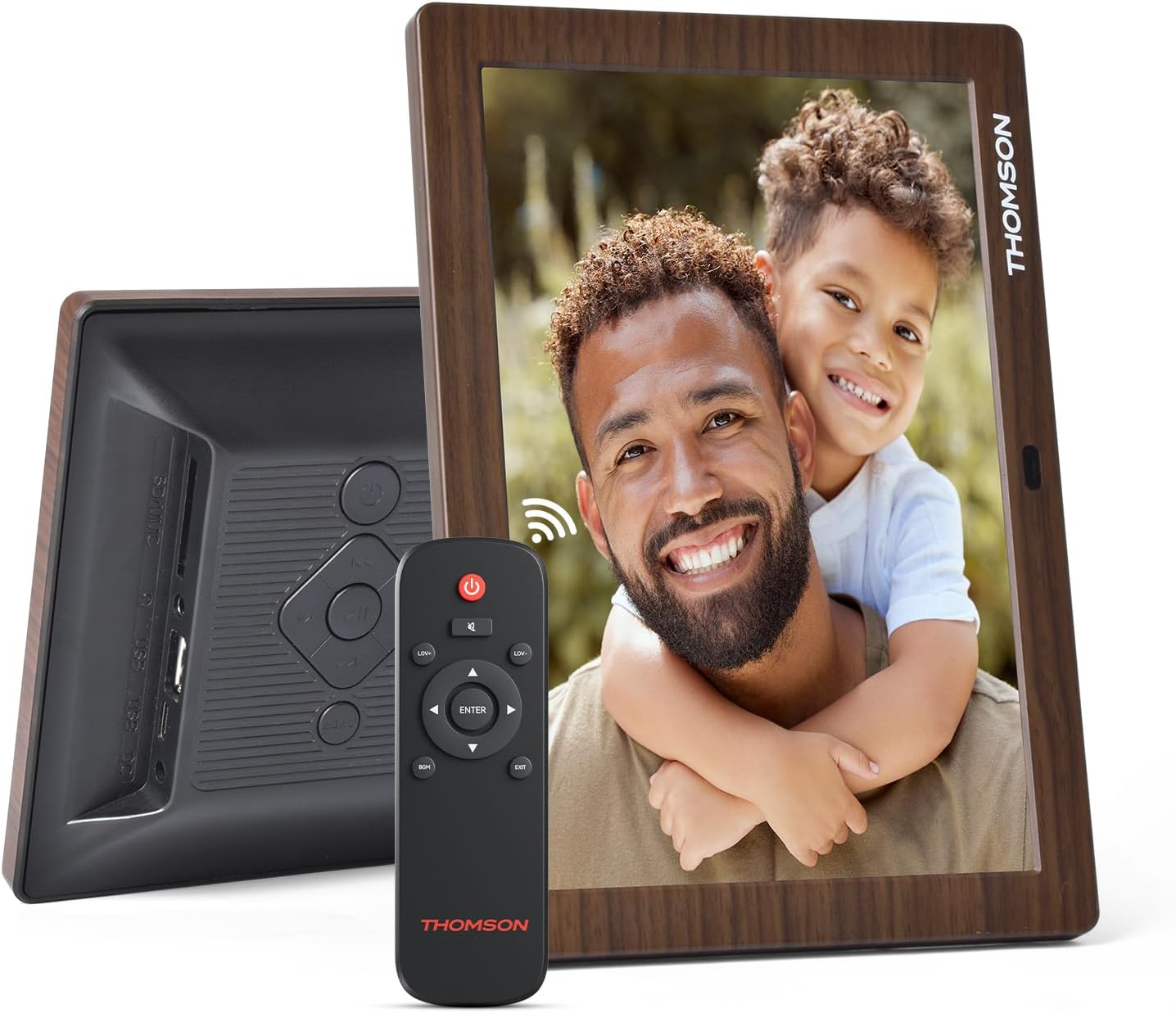
olusin 3.1: Ẹyìn view of the frame with power input and physical controls.
3.3 Fifi sori imurasilẹ
The digital photo frame can be placed on a flat surface using the included stand. Insert the stand into the designated slot on the back of the frame. The frame also supports wall mounting using the integrated mounting holes.
4. Awọn ilana Iṣiṣẹ
4.1 Ifihan Awọn ẹya ara ẹrọ
- Iboju HD IPS 8-inch: Enjoy clear and vibrant images with a 1280x800 resolution from various viewing awọn igun.
- Yiyi Aifọwọyi: The built-in gravity sensor automatically adjusts the photo orientation (landscape or portrait) for optimal viewing.

Figure 4.1: The 8-inch IPS HD screen provides a high-quality display for your memories.
4.2 Media Sisisẹsẹhin
The frame supports playback of photos, music, and videos. You can navigate through your media using the remote control or the physical buttons.
- Photo Slideshow: Configure slideshow intervals and transition effects in the settings.
- Sisisẹsẹhin orin: Mu orin isale ṣiṣẹ nigba ti viewawọn fọto inu.
- Sisisẹsẹhin fidio: Enjoy your favorite video clips directly on the frame.

Figure 4.2: User interface for media selection and playback options.
4.3 Remote Control and Physical Buttons
Control your digital photo frame conveniently using the included remote control or the physical buttons located on the back of the frame.
- Awọn iṣẹ iṣakoso latọna jijin: Power on/off, adjust volume, navigate images, control background music, and access menus.
- Awọn bọtini Ti ara: Provide direct control for essential functions, useful for elderly users.

Figure 4.3: Remote control for convenient operation of the frame.
4.4 Expansion Modes
The frame supports various expansion options for storing your media:
- SD/SDHC/MMC Card: Expand storage up to 32 GB.
- USB-A/Type-C/U-disk: Connect USB drives for additional media.
- Akiyesi: This frame does not have built-in storage. An external memory card or USB drive is required for media storage.

Figure 4.4: Memory expansion slots on the back of the frame.
4.5 Automatic Power On/Off
You can set a customized automatic start and stop time for the frame to conserve energy and manage display times.

Figure 4.5: Setting automatic power on/off times for convenience.
5. Itọju
- Ninu iboju: Use a soft, dry, lint-free cloth to gently wipe the screen. For stubborn marks, slightly dampen awọn asọ pẹlu omi tabi a iboju-ninu ojutu. Yẹra fun awọn kẹmika lile.
- Firemu nu: Wipe the frame with a soft, dry cloth.
- Ibi ipamọ: When not in use for extended periods, disconnect the power adapter and store the frame in a cool, dry place away from direct sunlight.
6. Laasigbotitusita
| Isoro | Owun to le Fa | Ojutu |
|---|---|---|
| Fireemu ko ni agbara lori. | Adaparọ agbara ko sopọ tabi aṣiṣe. | Ensure the power adapter is securely connected to the frame and a working power outlet. Try a different outlet. |
| No images/videos displayed. | No memory card/USB drive inserted or media files are corrupted/unsupported. | Insert a memory card or USB drive with supported media files. Ṣayẹwo file formats (JPEG for photos, MP4 for videos). Ensure the memory card/USB drive is properly inserted. |
| Isakoṣo latọna jijin ko ṣiṣẹ. | Batiri kekere tabi idinamọ. | Replace the remote control battery. Ensure there are no obstructions between the remote and the frame's IR receiver. |
| Images are distorted or incorrect orientation. | Incorrect display settings or disabled auto-rotation. | Check display settings in the menu. Ensure the auto-rotation feature is enabled if desired. |
7. Awọn pato
- Nọmba awoṣe: TRDF-8001C
- Iwọn iboju: 8 inches
- Ipinnu: 1280x800 (WXGA)
- Ipin Ipin: 16:10
- Imọ-ẹrọ Ifihan: IPS HD
- Asopọmọra: DC-4.0, USB-A, Type-C, SD Card, 3.5MM earphone jack
- Imugboroosi Iranti: SD/SDHC/MMC card up to 32GB, U-disk
- Orisun Agbara: Okun Itanna
- Ìbánisọ̀rọ̀ Olùlò: Buttons, Remote Control
- Ohun elo fireemu: Ṣiṣu
- Awọn iwọn ọja: 24.4 x 18 x 2.51 cm
- Iwọn Ọja: 240 giramu
8. Atilẹyin ọja ati Support
For warranty information and customer support, please refer to the documentation included in your product packaging or visit the official Thomson webojula. Tọju iwe-ẹri rira rẹ bi ẹri rira fun eyikeyi awọn ibeere atilẹyin ọja.