
1. Ifihan
This manual provides detailed instructions for the setup, operation, and maintenance of your GIEC G5300 4K Ultra HD Blu Ray Player. Designed for an enhanced home entertainment experience, this player supports true 4K ultra-high-definition picture quality, HDR10, Dolby Vision, BT.2020 color spaces, and Dolby audio decoding for immersive visuals and sound.
2. Alaye Aabo
- Ensure proper ventilation around the player to prevent overheating.
- Maṣe fi ẹrọ naa si ojo tabi ọrinrin lati dinku eewu ti ina tabi ina mọnamọna.
- Avoid placing heavy objects on top of the player.
- Maṣe ṣii casing; tọka gbogbo iṣẹ si oṣiṣẹ ti o peye.
- Keep the player away from direct sunlight, heat sources, and strong magnetic fields.
- Lo oluyipada agbara nikan ti a pese pẹlu ẹyọkan.
3. Package Awọn akoonu
Jọwọ ṣayẹwo pe gbogbo awọn nkan ti a ṣe akojọ rẹ si isalẹ wa ninu package rẹ:
- GIEC G5300 Blu-ray Player (x1)
- Okun HDMI (x1)
- Iṣakoso latọna jijin (x1)
- Itọsọna olumulo (x1)
4. Ọja Ipariview
4.1 Igbimọ iwaju

olusin 4.1: Iwaju view of the GIEC G5300 Blu Ray Player, showing the disc tray, display, USB port, and control buttons (power, play/pause, eject).
- Atẹtẹ Disiki: Insert Blu-ray or DVD discs here.
- Ifihan Ifihan: Shows playback status and time.
- Ibudo USB 3.0: So awọn ẹrọ ibi ipamọ USB pọ fun ṣiṣiṣẹsẹhin media.
- Awọn bọtini Iṣakoso: Power On/Off, Play/Pause, Eject.
4.2 Ru Panel ati awọn isopọ

olusin 4.2: Ẹyìn view of the GIEC G5300 Blu Ray Player, highlighting various input/output ports including LAN, HDMI 2.0, HDMI 1.4, USB 3.0, Coaxial, and Optical outputs.
- Ibudo LAN: For network connection (e.g., firmware updates).
- HDMI 2.0 Output (Video/Audio): Primary HDMI output for 4K video and audio.
- HDMI 1.4 Output (Audio Only): Dedicated HDMI output for audio to an AV receiver.
- Ìbáwọlé USB 3.0: So awọn ẹrọ ibi ipamọ USB pọ fun ṣiṣiṣẹsẹhin media.
- Ijade Coaxial: Digital iwe o wu.
- Ijade Ojú: Digital iwe o wu.
5. Eto
5.1 Latọna jijin Iṣakoso batiri sori
Fi awọn batiri AAA meji sii (kii ṣe pẹlu) sinu isakoṣo latọna jijin, ni idaniloju polarity to pe.
Video 5.1: This video demonstrates how to install batteries into the remote control and connect the Blu-ray player to a TV using an HDMI cable.
5.2 Connecting to a Display Device (TV/Projector)
- Connect one end of the supplied HDMI cable to the HDMI 2.0 Output (Video/Audio) port on the rear of the Blu-ray player.
- Connect the other end of the HDMI cable to an available HDMI input port on your TV or projector.
- For separate audio output, connect another HDMI cable from the HDMI 1.4 Output (Audio Only) port to your AV receiver, or use the Coaxial/Optical outputs.
5.3 Asopọ agbara
- Connect the power cable to the power input on the rear of the Blu-ray player.
- Pulọọgi opin miiran ti okun agbara sinu iṣan ogiri kan.
- Turn on your TV/projector and select the correct HDMI input source corresponding to the port you connected the Blu-ray player to.
- Press the Power button on the Blu-ray player or remote control to turn on the unit.
6. Awọn ilana Iṣiṣẹ
6.1 Disiki Sisisẹsẹhin
- Ensure the player is powered on and connected to your display device.
- Tẹ awọn JADE bọtini lori iwaju nronu tabi isakoṣo latọna jijin lati ṣii disiki atẹ.
- Carefully place a Blu-ray or DVD disc onto the tray with the label side facing up.
- Tẹ awọn JADE button again to close the tray. The player will automatically begin loading and playing the disc.
- Lo isakoṣo latọna jijin fun awọn iṣẹ ṣiṣiṣẹsẹhin bii Ṣiṣẹ, Daduro, Duro, Sare Dari, ati Dapada sẹhin.
6.2 USB Media Sisisẹsẹhin
The GIEC G5300 supports playback of various media files lati USB ipamọ ẹrọ.
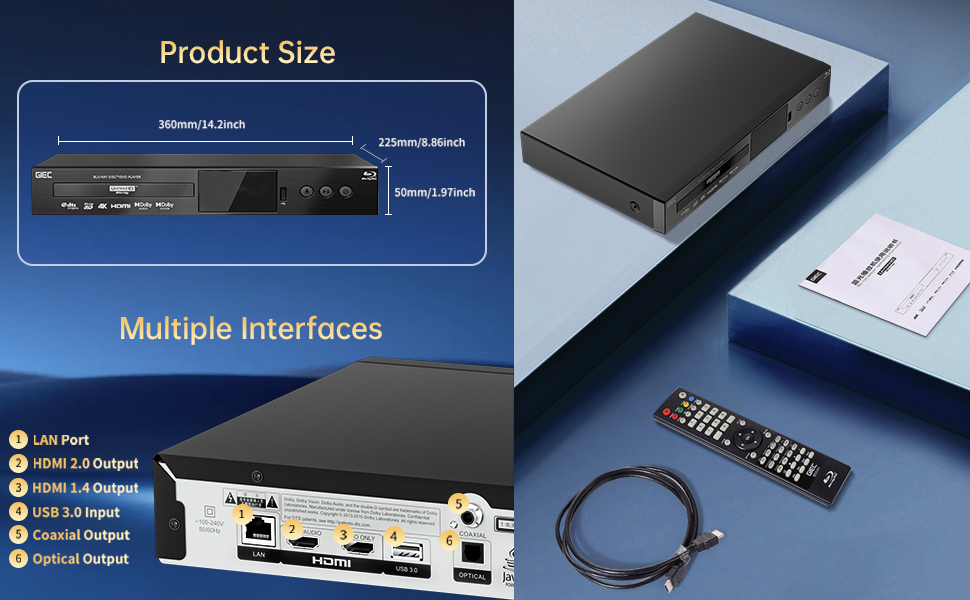
Figure 6.1: Illustration of the multiple disc, video, and audio formats supported by the player.
- Insert your USB storage device into the USB 3.0 Port on the front or rear panel.
- Navigate to the "Video," "Music," or "Photo" section on the player's main menu using the remote control.
- Yan ohun ti o fẹ file from the USB device to begin playback.
Awọn ọna kika atilẹyin:
- Awọn oriṣi Disiki: BD, BD-R, BD-RE, DVD-R/RW, DVD+R/RW, DVD-Video, VCD, CD, CD-R/RW.
- Awọn ọna kika fidio: MPEG-1, MPEG-2, MPEG-4, VC1, H.264, MOV, MKV, AVI, TS.
- Awọn ọna kika ohun: AAC, APE, CUE, FLAC, OGG, MP3, WAV.
7. Awọn ẹya ara ẹrọ
- 4K Ultra HD Playback: Experience movies and shows in stunning 4K resolution with clearer images and richer colors.
- HDR10 atilẹyin: Enjoy a wider range of brightness and contrast, revealing more detail in both dark and bright scenes.
- Dolby Vision: Enhances image quality by dynamically adjusting brightness and expanding dynamic range for more detailed and vivid pictures.
- BT.2020 Color Spaces: Provides a broader color gamut than standard 1080p Blu-ray, resulting in purer, more natural, and realistic colors.
- Dolby Sound & DTS Decoding: Supports Dolby audio decoding and DTS effects for an immersive 5.1 stereo surround sound experience.
- 3D Blu-ray Playback: Compatible with 3D Blu-ray discs for an immersive three-dimensional viewing experience (requires a 3D-compatible TV and glasses).
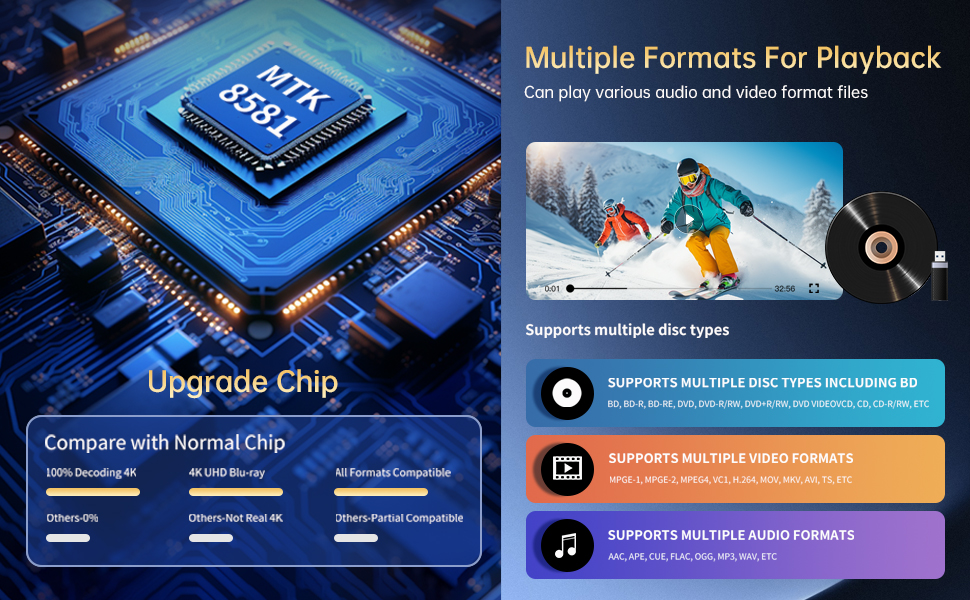
Figure 7.1: Visual comparison illustrating the difference between 8-bit (16.67 million colors) and 10-bit (1.07 billion colors) color depth, highlighting the enhanced detail and delicacy of 10-bit color.

Figure 7.2: The GIEC G5300 Blu Ray Player connected to a TV, showcasing its support for 4K UHD, 3D, HDR, HDR10+, Dolby, and Dolby Vision technologies.
8. Itọju
- Ninu: Lo aṣọ rírọrùn tí ó gbẹ láti nu ìta ohun èlò orin náà. Má ṣe lo àwọn ohun èlò ìfọmọ́ omi tàbí aerosol.
- Itọju Disiki: Mu awọn disiki naa ni eti wọn. Fi aṣọ rirọ, ti ko ni awọ nu awọn disiki naa, ki o si fi nu wọn lati aarin sita.
- Afẹfẹ: Ensure the player's ventilation openings are not blocked to prevent overheating.
9. Laasigbotitusita
If you encounter issues with your Blu-ray player, please refer to the following common solutions:
- Ko si Agbara: Check if the power cable is securely connected to both the player and the power outlet. Ensure the outlet is functional.
- Ko si Aworan/Ohun: Verify that the HDMI cable is correctly connected to both the player and the TV/receiver. Ensure the correct HDMI input is selected on your TV/receiver.
- Disiki Ko Ṣiṣẹ: Check if the disc is clean and free of scratches. Ensure the disc is inserted correctly with the label side up. The player supports Region A Blu-ray discs and all region DVD discs.
- Iṣakoso latọna jijin Ko Ṣiṣẹ: Check the batteries in the remote control and replace them if necessary. Ensure there are no obstructions between the remote and the player.
10. Awọn pato
| Ẹya ara ẹrọ | Ẹ̀kúnrẹ́rẹ́ |
|---|---|
| Orukọ Brand | GIEC |
| Orukọ awoṣe | G5300 |
| Iwọn Nkan | 4.18 iwon (1.9 kilo) |
| Ọja Mefa | 14.2 x 8.9 x 2 inches |
| Àwọ̀ | Dudu |
| Media Iru | Blu-Ray Disiki, DVD |
| Ipinnu | 3840x2160 (4K Ultra HD) |
| Pataki Awọn ẹya ara ẹrọ | Anti-Shock, Compact, Dust Proof, Multi-Format Playback, Surround Sound, HDR10, Dolby Vision, BT.2020 Color Spaces |
| Asopọmọra Iru | HDMI (Dual Outputs), USB 3.0, Coaxial, Optical, LAN |
| Asopọmọra Technology | HDMI |
11. Atilẹyin ọja ati Support
For warranty information or technical support, please refer to the documentation included with your purchase or contact GIEC customer service. Keep your proof of purchase for warranty claims.