
ENUOSUMA CL860L
Portable Wireless CarPlay Screen User Manual
Model: CL860L
Ọrọ Iṣaaju
Thank you for choosing the ENUOSUMA Portable Wireless CarPlay Screen. This device is designed to enhance your driving experience by integrating Apple CarPlay and Android Auto wirelessly, providing navigation, multimedia, and communication features directly on its 9.3-inch HD touchscreen. It also includes a dual dash camera system for comprehensive recording and a backup camera for improved safety. Please read this manual thoroughly before use to ensure proper installation and operation.
Ohun ti o wa ninu Apoti
- Car Play Screen with Dash Cam
- Kamẹra afẹyinti
- 64GB TF kaadi
- Self-adhesive bracket & Suction mount bracket
- 3.5mm iwe USB
Ọja Pariview
The ENUOSUMA Portable Wireless CarPlay Screen features a 9.3-inch HD touchscreen display, an integrated front dash camera, and connectivity options for seamless smartphone integration.
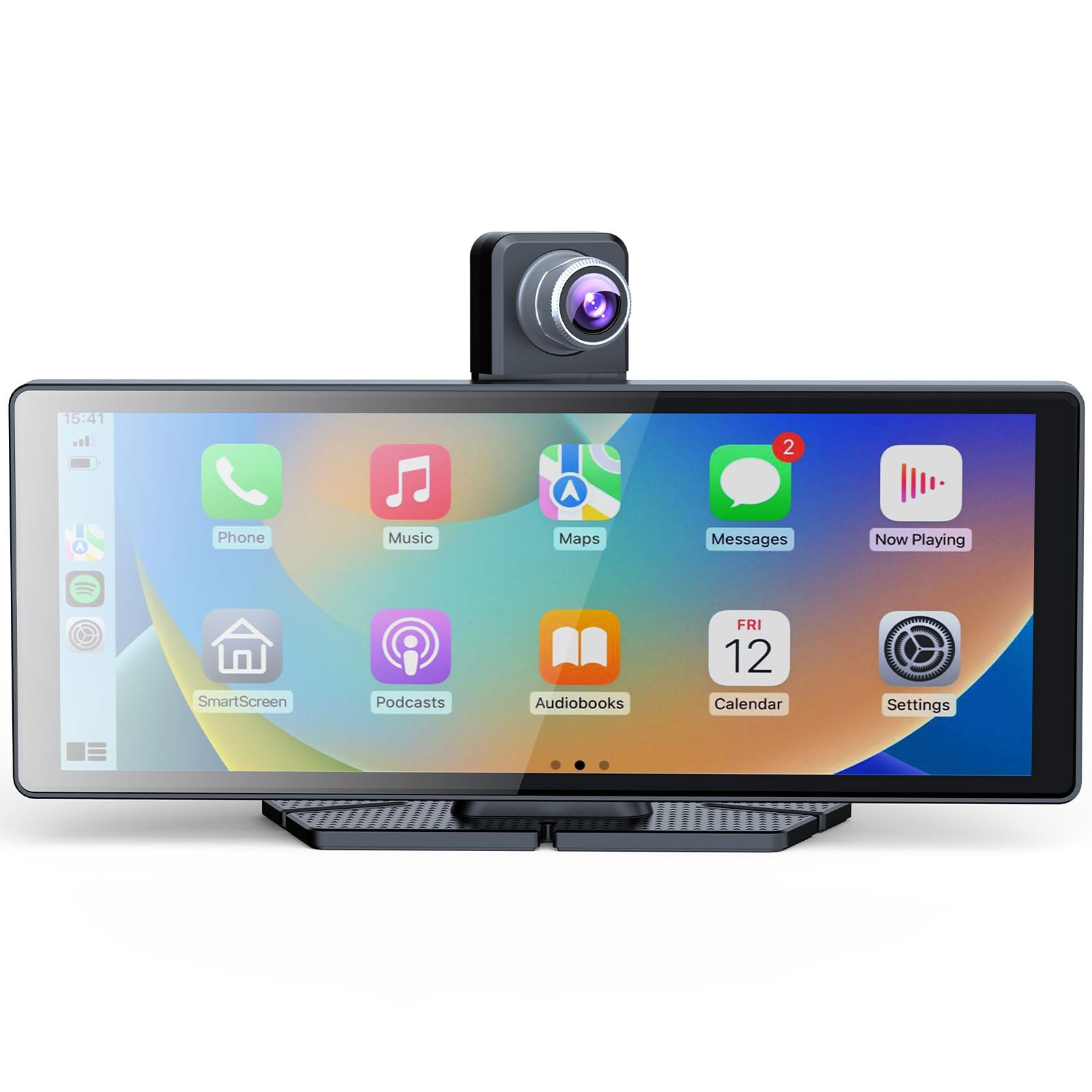
Nọmba 1: ENUOSUMA Portable Wireless CarPlay Screen. This image shows the 9.3-inch display of the ENUOSUMA Portable Wireless CarPlay Screen. The screen features a user-friendly interface with large icons for various functions including phone calls, music playback, navigation (Maps), messaging, and media playback. A dash camera is integrated at the top of the unit, indicating its dual recording capabilities. The interface also shows a 'SmartScreen' icon, suggesting additional features. The date 'FRI 12' is visible on the calendar icon, and the time '15:41' is displayed in the top left corner.
Ṣeto
1. Iṣagbesori Device
Choose between the self-adhesive bracket or the suction mount bracket for secure placement on your dashboard or windshield. Ensure the mounting location does not obstruct your view tabi dabaru pẹlu imuṣiṣẹ apo afẹfẹ.
- Mọ dada iṣagbesori daradara.
- Attach the chosen bracket to the device.
- Securely attach the bracket to the desired location in your vehicle.
2. Asopọ agbara
Connect the power cable from the device to your vehicle's 12V power outlet (cigarette lighter socket).
3. Fifi sori ẹrọ Kamera Afẹyinti
Install the 1080P waterproof backup camera at the rear of your vehicle. Connect its cable to the designated input port on the main unit. Professional installation is recommended for optimal performance and safety.
4. Audio Output Connection
O ni awọn aṣayan pupọ fun iṣẹjade ohun:
- Bluetooth: Pair the CarPlay screen with your car's Bluetooth system for audio playback and calls.
- Atagba FM: Tune the CarPlay screen's FM transmitter to an unused FM frequency, then tune your car's radio to the same frequency.
- AUX: Connect the provided 3.5mm audio cable from the CarPlay screen's AUX output to your car's AUX input.
Awọn ilana Iṣiṣẹ
1. Agbara lori / Paa
The device will automatically power on when your vehicle's ignition is turned on and power off when the ignition is turned off.
2. CarPlay Alailowaya & Android Auto
The device supports effortless wireless connectivity with Apple CarPlay and Android Auto. Once connected, your phone's interface will be mirrored on the screen, allowing access to navigation, music, messages, and more.
- Rii daju pe Bluetooth ati Wi-Fi ti ṣiṣẹ lori foonuiyara rẹ.
- On the CarPlay screen, navigate to the CarPlay/Android Auto icon.
- Follow the on-screen prompts to pair your phone. The device should auto-sync upon subsequent entries into your car.
3. Iṣakoso ohun oye
Utilize Siri (for Apple CarPlay) or Google Assistant (for Android Auto) for hands-free control.
- Activate voice control by saying "Hey Siri" or "Hey Google" (if enabled on your phone) or by pressing the voice command button on the screen (if available).
- Use voice commands to control navigation, send texts, make calls, or play music without taking your hands off the wheel.
4. Real-Time Navigation
Access real-time GPS navigation through your smartphone's apps like Google Maps or Waze directly on the 9.3-inch screen.
- Once CarPlay or Android Auto is active, select your preferred navigation app from the screen.
- Enter your destination using the touchscreen or voice commands.
5. Dual Dash Cam Recording
The device features a 2K front camera and a 1080P waterproof backup camera for comprehensive recording.
- The system automatically begins loop recording when powered on, saving footage to the included 64GB TF card.
- The front camera offers a 140° viewing angle and night vision capabilities.
- Review foo ti o ti gbasilẹtage through the device's interface.
6. Mirror Link Functionality
The Mirror Link feature allows you to mirror your smartphone's screen directly onto the CarPlay unit, providing full access to your phone's content.
- Navigate to the "Mirror Link" option on the device's main menu.
- Follow the on-screen instructions to connect your smartphone via USB or Wi-Fi, depending on your phone's compatibility.
7. Important Tips about Airplay
While Airplay is supported, please note that the latest iOS versions may occasionally affect compatibility. If you encounter issues with Airplay functionality, firmware upgrades may be available to address these concerns. Please contact customer support for assistance with firmware updates.
Itoju
- Clean the screen with a soft, lint-free cloth. Do not use abrasive cleaners or solvents.
- Pa ẹrọ naa mọ kuro ninu iwọn otutu ti o ga julọ ati oorun taara fun igba pipẹ.
- Rí i dájú pé gbogbo àwọn okùn wa ni a so pọ̀ dáadáa, tí wọn kò sì ní bàjẹ́.
- Regularly check the TF card for proper function and ensure sufficient storage space for recordings.
Laasigbotitusita
| Isoro | Owun to le Fa / Solusan |
|---|---|
| Ẹrọ naa ko ṣiṣẹ. | Check power cable connection. Ensure vehicle's 12V outlet is functioning. |
| Kò sí asopọ̀ aláilowaya CarPlay/Android Auto. | Ensure Bluetooth and Wi-Fi are enabled on your phone. Forget previous connections and re-pair. Restart both devices. |
| Ko si igbejade ohun. | Verify audio output method (Bluetooth, FM, AUX) is correctly configured. Check volume levels on both the device and car stereo. |
| Dash Cam ko gba silẹ. | Check if the 64GB TF card is inserted correctly and not full. Format the TF card if necessary (this will erase all data). |
| Airplay issues. | Ensure your iOS device is updated. Check for available firmware upgrades for the CarPlay screen. |
Awọn pato
| Ẹya ara ẹrọ | Ẹ̀kúnrẹ́rẹ́ |
|---|---|
| Iwon iboju | 9.3 inches |
| Ipinnu Kamẹra iwaju | 2K |
| Ipinnu Kamẹra ti o kẹhin | 1080P (Waterproof) |
| Kamẹra iwaju Viewigun igun | 140° |
| Ibi ipamọ | 64GB TF card (included) |
| Asopọmọra | Wireless Apple CarPlay, Wireless Android Auto, Bluetooth, FM Transmitter, AUX, Mirror Link |
| Iṣakoso ohun | Siri, Oluranlọwọ Google |
| Agbara Input | 12V DC (Car Cigarette Lighter) |
| Iwọn Nkan | 2.86 iwon |
| Package Mefa | 11 x 5.7 x 4.72 inches |
Atilẹyin ọja ati Support
The ENUOSUMA Portable Wireless CarPlay Screen comes with a one-month warranty lati ọjọ ti o ra. Atilẹyin ọja yi ni wiwa awọn abawọn iṣelọpọ ati ailagbara labẹ lilo deede.
For technical support, troubleshooting assistance, or warranty claims, please contact ENUOSUMA customer service through the retailer's platform or the official brand website. Please have your purchase details and product model number (CL860L) ready when contacting support.
Ask a question about this manual
Ask about setup, troubleshooting, compatibility, parts, safety, or missing instructions. Manuals+ will review the question and use this page’s manual context to help answer it.