
1. Ifihan
The Tera P150 is a robust Android 12 handheld barcode scanner PDA designed for efficient data collection in various environments such as logistics, warehouses, retail, and construction. It features a high-precision Zebra SE4710 scanning head, a powerful octa-core processor, and advanced wireless connectivity options to streamline operations.
2. Package Awọn akoonu
Jọwọ rii daju pe gbogbo awọn ohun ti a ṣe akojọ rẹ si isalẹ wa ninu package rẹ. Ti awọn ohun kan ba nsọnu tabi bajẹ, jọwọ kan si atilẹyin alabara.
- 1x Tera P150 Android 12 Handheld Barcode Scanner
- 1x okun USB
- 1x Screen Protector
- 1x SIM Atẹ Ejector
- 1x Lanyard
- 1x Itọsọna olumulo (iwe yii)
- 1x SDK (Software Development Kit)
- 1x Rugged Rubber Boot
- Okùn ọwọ́ 1x

Image: Tera P150 Android Barcode Scanner and its included accessories, such as the USB cable, screen protector, hand strap, and rugged rubber boot.
3. Ọja Ipariview
The Tera P150 is designed for ergonomic handling and durability. It features a 5.5-inch full touch screen, a rear-mounted barcode scanner, and various ports and buttons for operation.
Awọn eroja pataki:
- Ifihan 5.5-inch: High-resolution touch screen, responsive even with gloves or wet hands.
- Scaner Barcode: Integrated Zebra SE4710 for 1D, 2D, and QR code scanning.
- Bọtini agbara: Located on the side for turning the device on/off and screen lock.
- Awọn bọtini iwọn didun: Ṣatunṣe awọn ipele ohun.
- Ibudo USB-C: Fun gbigba agbara ati gbigbe data.
- Iho kaadi SIM/SD: For cellular connectivity and expandable storage.
- Hand Strap Attachment Points: For securing the included hand strap.
4. Eto
4.1 Gbigba agbara akọkọ
Before first use, fully charge the Tera P150. Connect the provided USB cable to the device's USB-C port and a compatible power adapter. A full charge typically takes approximately 3 hours for the 5000mAh battery.

Image: The Tera P150 Barcode Scanner displaying its battery status, indicating it is designed for all-day use with a 5000mAh battery, offering over 300 hours standby and 12 hours working time.
4.2 Fi SIM/SD sii Kaadi
- Wa atẹ kaadi SIM/SD ni ẹgbẹ ẹrọ naa.
- Lo ohun èlò ìdènà atẹ SIM tí a pèsè láti ṣí atẹ náà.
- Carefully place your Nano-SIM card(s) and/or microSD card into the designated slots.
- Rọra Titari atẹ naa pada sinu ẹrọ naa titi ti o fi tẹ sinu aaye.
4.3 Titan / Pa a
- Lati Fi agbara: Press and hold the Power button until the Tera logo appears on the screen.
- Lati Paarẹ: Tẹ mọlẹ bọtini agbara titi ti akojọ aṣayan agbara yoo han. Yan "Agbara kuro".
- Lati Tun bẹrẹ: Press and hold the Power button until the power options menu appears. Select "Restart".
4.4 Eto Android akọkọ
Upon first power-on, follow the on-screen prompts to complete the Android 12 setup process. This includes selecting your language, connecting to a Wi-Fi network, and setting up your Google account (optional).
5. Awọn ilana Iṣiṣẹ
5.1 Barcode Scanning
The Tera P150 is equipped with a Zebra SE4710 scanning head for rapid and accurate barcode capture.
- Open the scanning application on your device.
- Point the scanner window at the barcode you wish to scan. Ensure the red aiming line or dot covers the entire barcode.
- Press the dedicated scan button (usually on the side or front of the device).
- A successful scan will typically be indicated by an audible beep and/or a visual confirmation on the screen.

Image: A worker in a warehouse environment using the Tera P150 handheld device, demonstrating the use of its integrated Zebra SE4710 scanner to read barcodes on inventory.
5.2 Ifihan ati Touchscreen
The 5.5-inch full touch screen offers a clear display and responsive interaction. It supports operation even when wearing gloves or with wet hands, enhancing usability in various work conditions.
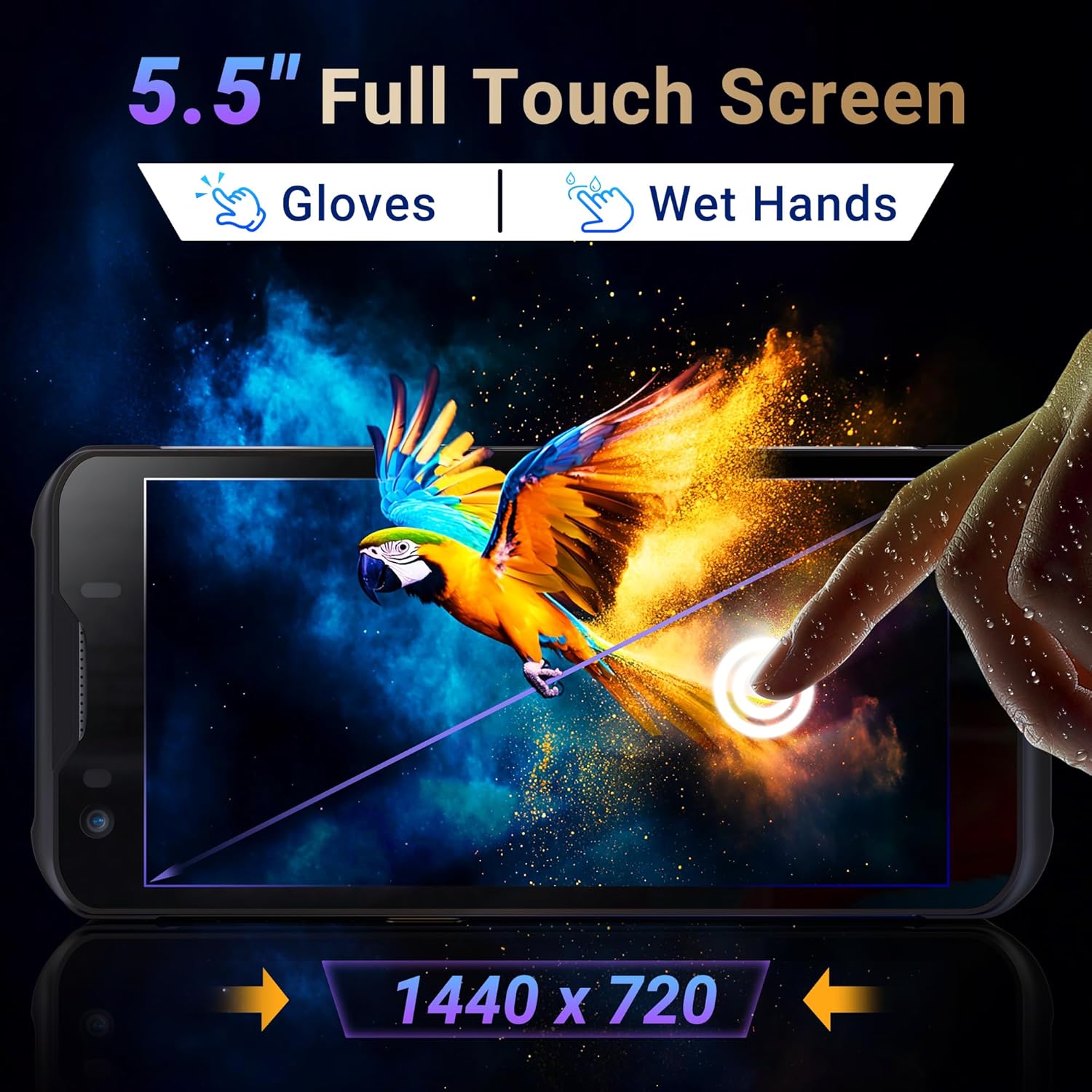
Image: The Tera P150's 5.5-inch full touch screen, highlighting its 1440x720 resolution and compatibility with both gloved and wet-hand operation.
5.3 Asopọmọra
The device supports multiple connectivity options for seamless data transmission.
- Wi-Fi: Go to Settings > Network & internet > Wi-Fi to connect to available wireless networks. Supports dual-band Wi-Fi for stable connections.
- Bluetooth 5.0: Go to Settings > Connected devices > Bluetooth to pair with Bluetooth-enabled accessories. Bluetooth 5.0 offers faster speeds and extended range.
- 4G/3G Cellular: Insert a SIM card (as described in Section 4.2) to enable cellular data and communication.
- GPS: The integrated GPS module allows for location tracking and navigation.
5.4 Performance ati Multitasking
Powered by an MTK 2.0GHz octa-core processor with 4GB RAM and 64GB storage, the Tera P150 ensures smooth operation and efficient multitasking.

Image: The Tera P150 device highlighting its MTK 2.0GHz Octa-core processor and 4GB RAM + 64GB memory, indicating superior processing and performance compared to other devices.

Image: The Tera P150 device showcasing its Android 12 operating system and 4GB RAM + 64GB storage, illustrating its capability for seamless multitasking with multiple applications open.
6. Itọju
6.1 Ninu ẹrọ naa
To maintain optimal performance and appearance, clean the device regularly.
- Lo asọ asọ, ti ko ni lint die-die dampened with water or a mild screen cleaner.
- Avoid using harsh chemicals, abrasive cleaners, or solvents, as these can damage the screen and casing.
- Rí i dájú pé ẹ̀rọ náà ti pa, ó sì ti ge asopọ̀ kúrò láti orísun agbára èyíkéyìí kí o tó sọ ọ́ di mímọ́.
6.2 batiri Itọju
The Tera P150 features a 5000mAh battery designed for extended use. Proper battery care can prolong its lifespan.
- Yẹra fún ooru tó le koko, àti gbígbóná àti òtútù, nítorí wọ́n lè ba iṣẹ́ bátírì jẹ́.
- Do not fully discharge the battery frequently. Charge it before it drops to very low levels.
- Lo awọn ẹya ẹrọ gbigba agbara ti a pese tabi ti a fọwọsi nikan.
6.3 Awọn ẹya ara ẹrọ agbara
The Tera P150 is built with industrial-grade materials, featuring IP67 waterproofing and a 1.5-meter drop rating, making it suitable for harsh working environments.
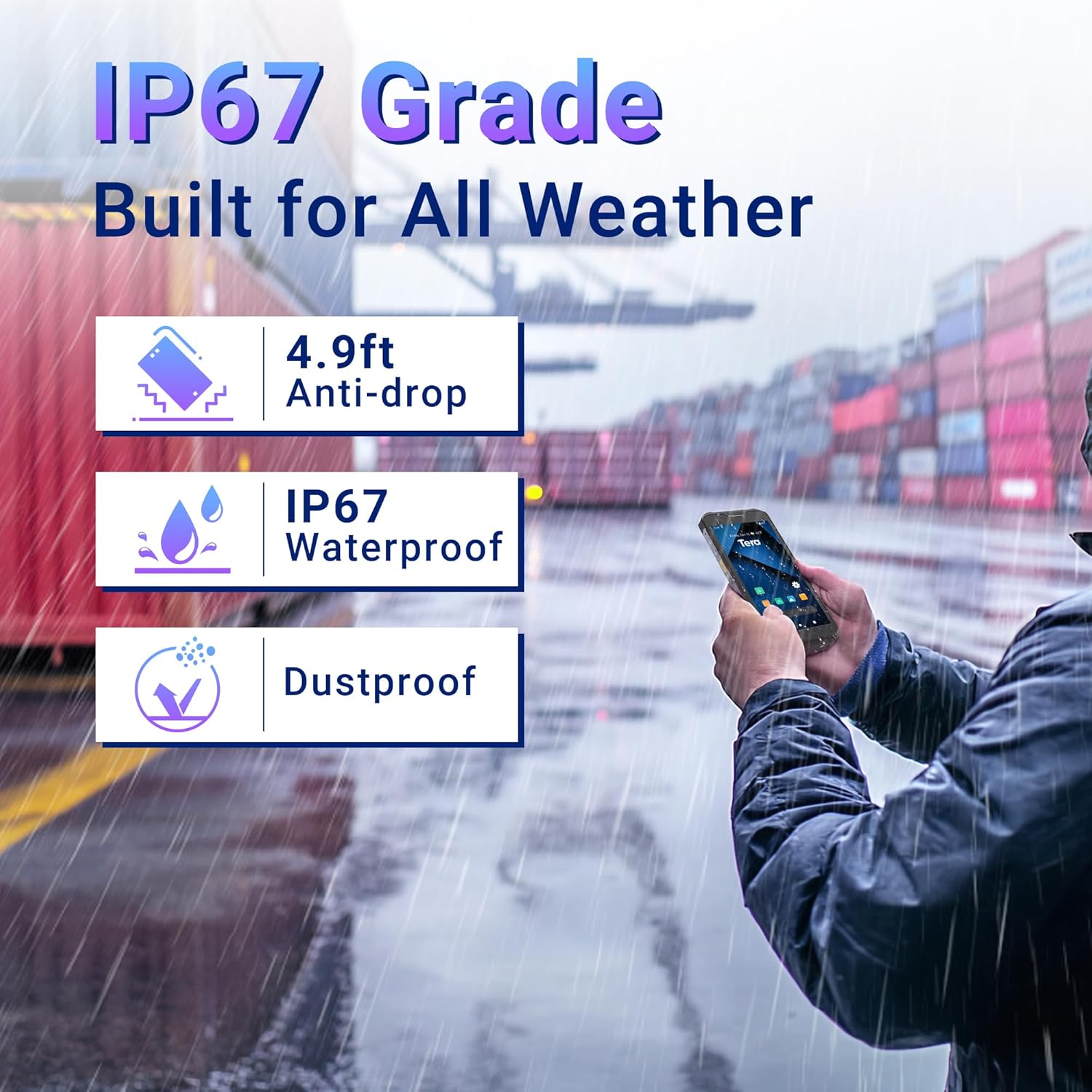
Image: The Tera P150 device highlighting its IP67 grade, 4.9ft anti-drop, IP67 waterproof, and dustproof capabilities, indicating its suitability for all-weather and rugged use.
7. Laasigbotitusita
This section addresses common issues you might encounter with your Tera P150.
| Isoro | Owun to le Fa | Ojutu |
|---|---|---|
| Ẹrọ naa ko ṣiṣẹ | Batiri kekere; Eto naa kuna | Charge the device for at least 30 minutes. If still unresponsive, perform a forced restart by holding the Power button for 10-15 seconds. |
| Barcode scanner not working | Scanning application not open; Barcode damaged/unreadable; Scanner module issue | Ensure the scanning application is active. Try scanning a different, known-good barcode. Clean the scanner window. Restart the device. |
| Ko le sopọ si Wi-Fi | Incorrect password; Out of range; Router issue | Verify Wi-Fi password. Move closer to the Wi-Fi router. Restart the device and the router. |
| Iboju ifọwọkan ko dahun | Temporary software glitch; Screen protector interference | Restart the device. Ensure the screen protector is correctly applied and not interfering. |
8. Awọn pato
Detailed technical specifications for the Tera P150 Android Barcode Scanner PDA.
- Awoṣe: P150
- Eto isesise: Android 12
- Olupilẹṣẹ: MTK 2.0GHz Octa-core
- Ramu: 4GB
- Ibi ipamọ: 64GB
- Ifihan: 5.5-inch Full Touch Screen (1440 x 720 resolution)
- Scaner Barcode: Zebra SE4710 (1D, 2D, QR)
- Batiri: 5000mAh (Standby >300H, Working >12H, Charging >3H)
- Asopọmọra: 4G, 3G, Dual-band Wi-Fi, Bluetooth 5.0, GPS
- Iduroṣinṣin: IP67 Waterproof, 1.5-meter Drop Rating, Industrial-grade materials
- Awọn ẹrọ ibaramu: Android devices (smartphones, tablets), POS systems
- Awọn iwọn ti ile: 20 x 11 x 8 cm
- Ìwúwo: 540 g
9. Atilẹyin ọja ati Support
Tera products are manufactured to high-quality standards. For warranty information, please refer to the warranty card included with your product or visit the official Tera webojula.
For technical support, troubleshooting assistance, or inquiries regarding your Tera P150, please contact Tera customer service:
- Nọmba olubasọrọ: + 1 (626) 438-1404
- Atilẹyin Ayelujara: Refer to the official Tera webaaye fun FAQs ati awọn orisun atilẹyin.