
1. Ifihan
This manual provides detailed instructions for the installation, operation, and maintenance of your Haozee Zigbee Smart Vibration Sensor. This device is designed to detect vibrations and tilts, providing real-time alerts for enhanced home security and automation. Please read this manual thoroughly before using the product to ensure proper functionality and safety.
2. Ọja Ipariview
The Haozee Zigbee Smart Vibration Sensor is a compact and highly sensitive device equipped with a built-in G-sensor chip. It is capable of detecting both vibrations and changes in tilt, making it suitable for various monitoring applications. When connected to a Zigbee gateway, the sensor can send notifications to your mobile phone and integrate with other smart devices for automated scenes.

Image: Haozee Zigbee Smart Vibration Sensor. This image shows the compact, circular design of the sensor, highlighting its minimalist aesthetic.
Awọn ẹya pataki:
- Smart Vibration/Tilt Detection: Detects both vibrations and object tilts with high sensitivity.
- Zigbee Gateway Required: Operates with a Zigbee gateway for pairing and smart scene integration.
- Home Assistant Zigbee2MQTT Support: Compatible with Home Assistant via Zigbee2MQTT for advanced smart home setups.
- Real-time Remote Monitoring: Receive instant smartphone notifications upon detection of movement or tilt.
- Ifamọ ti o le ṣatunṣe: Customize sensitivity levels (low, medium, high) via the mobile application to minimize false alarms.
- Awọn igbasilẹ itan: View a log of past detection events.
- Awọn ohun elo to pọ: Suitable for monitoring doors, windows, drawers, garage doors, and more.
3. Package Awọn akoonu
Jẹrisi pe gbogbo awọn ohun kan wa ninu package:
- Haozee Zigbee Smart Vibration Sensor
- Afowoyi Olumulo (iwe-ipamọ yii)
- 1x CR2450 Battery (pre-installed or included separately)
4. Awọn pato

Image: Diagram showing the dimensions of the sensor (40mm diameter, 13mm thickness) and a table of technical parameters.
| Paramita | Iye |
|---|---|
| Nọmba awoṣe | ZG-Vibration |
| Ibi ti ina elekitiriki ti nwa | DC 3V (batiri CR2450) |
| Alailowaya Iru | Zigbee 3.0 |
| Ijinna gbigbe | 10-30 meters (no obstruction indoors) |
| Awọn iwọn otutu ṣiṣẹ | -10°C si 50°C |
| Imurasilẹ Lọwọlọwọ | ≤10uA |
| Itaniji Lọwọlọwọ | ≤20mA |
| Awọn iwọn | 40mm (Diameter) x 13mm (Thickness) / 1.6 x 1.6 x 0.6 inches |
| Iwọn | 0.634 iwon |
| Iṣagbesori Iru | Door Mount, Wall Mount, Window Mount |
| Ọna Iṣakoso | App |
5. Eto
5.1. Fifi sori batiri
If the battery is not pre-installed, open the sensor casing and insert the CR2450 battery, ensuring correct polarity. If a battery protection tab is present, remove it before use.
5.2. Zigbee Gateway Requirement
This Zigbee vibration sensor requires a Zigbee gateway (hub) to function. Without a gateway, the sensor cannot pair with your smart home system or send notifications. Ensure your Zigbee gateway is powered on and connected to your network.
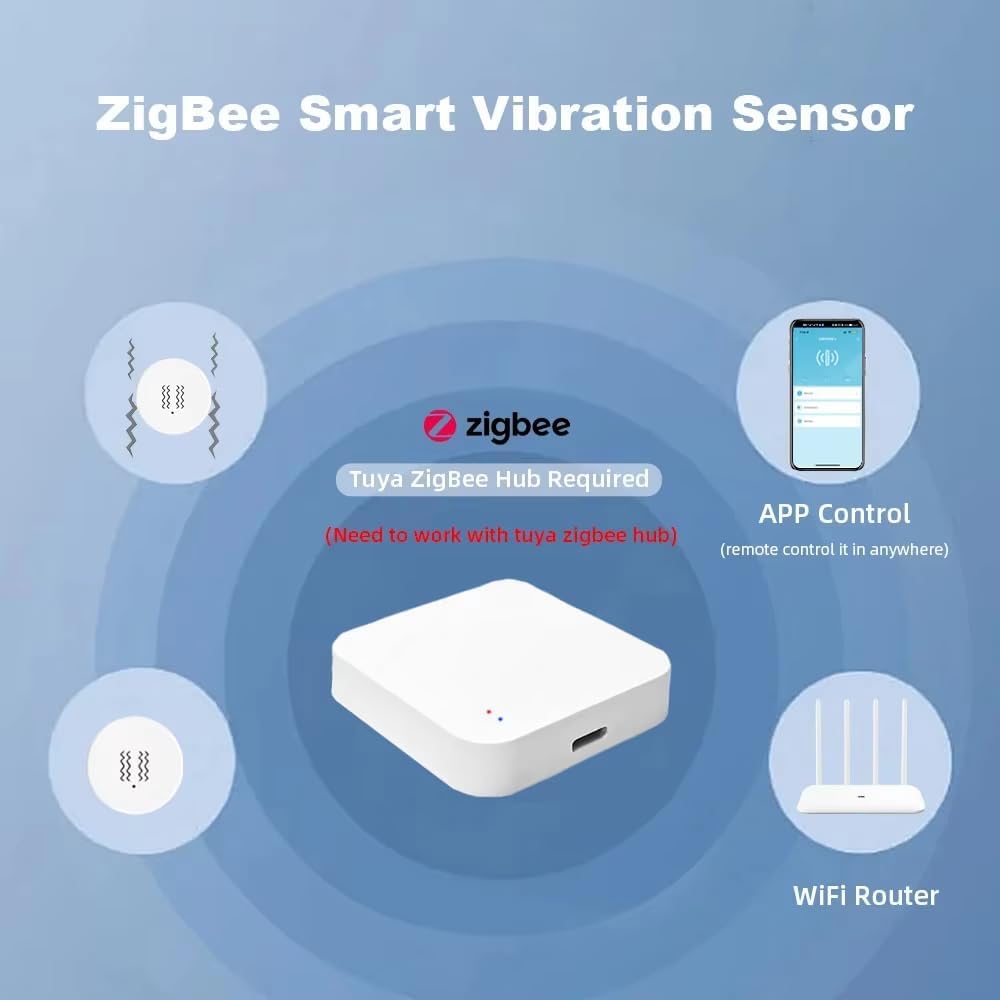
Image: The Zigbee Smart Vibration Sensor shown alongside a Zigbee hub and a smartphone displaying the control app, illustrating the necessary components for operation.
5.3. Pairing with a Zigbee Gateway
- Ensure your Zigbee gateway is in pairing mode. Refer to your gateway's manual for specific instructions on how to enable pairing.
- On the Haozee Zigbee Smart Vibration Sensor, locate the reset pinhole. Use a small pin or paperclip to press and hold the reset button for approximately 5 seconds until the indicator light flashes, indicating it is in pairing mode.
- The sensor should automatically be detected and added to your Zigbee network via the gateway's application.
- Nígbà tí a bá so wọ́n pọ̀, ìmọ́lẹ̀ àmì náà yóò dáwọ́ dúró.
5.4. Iṣagbesori Sensọ
The sensor can be mounted on various surfaces such as doors, windows, or walls using adhesive backing (if provided) or small screws. Choose a location where vibrations or tilts are most likely to occur and where the sensor will not be easily dislodged.
6. Awọn ilana Iṣiṣẹ
6.1. App Isakoṣo latọna jijin
After successful pairing, you can control and monitor the sensor through your Zigbee gateway's dedicated mobile application. The app allows you to view the sensor's status, receive notifications, and adjust settings.
6.2. Adjusting Sensitivity
The sensor's sensitivity can be adjusted to suit your specific needs. Access the sensor settings within your mobile application. You can typically choose between low, medium, and high sensitivity levels. Adjusting this setting helps to reduce false alarms while maintaining effective detection.
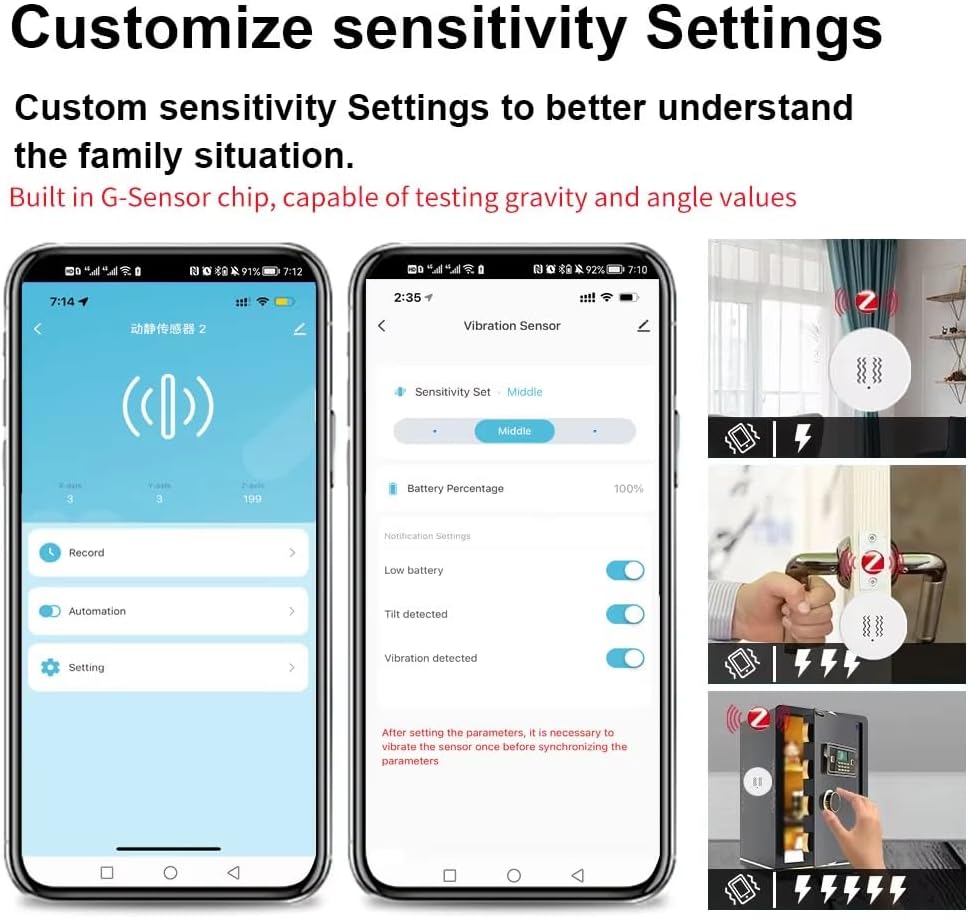
Image: A smartphone screen displaying the sensor's settings in the app, including options for sensitivity adjustment (low, middle, high) and toggles for tilt and vibration detection.
6.3. Real-time Monitoring and Alerts
The built-in G-sensor chip continuously monitors for gravity and angle changes. When a vibration or tilt is detected, the sensor will send an immediate notification to your smartphone via the connected Zigbee gateway. This allows for real-time awareness of activity.
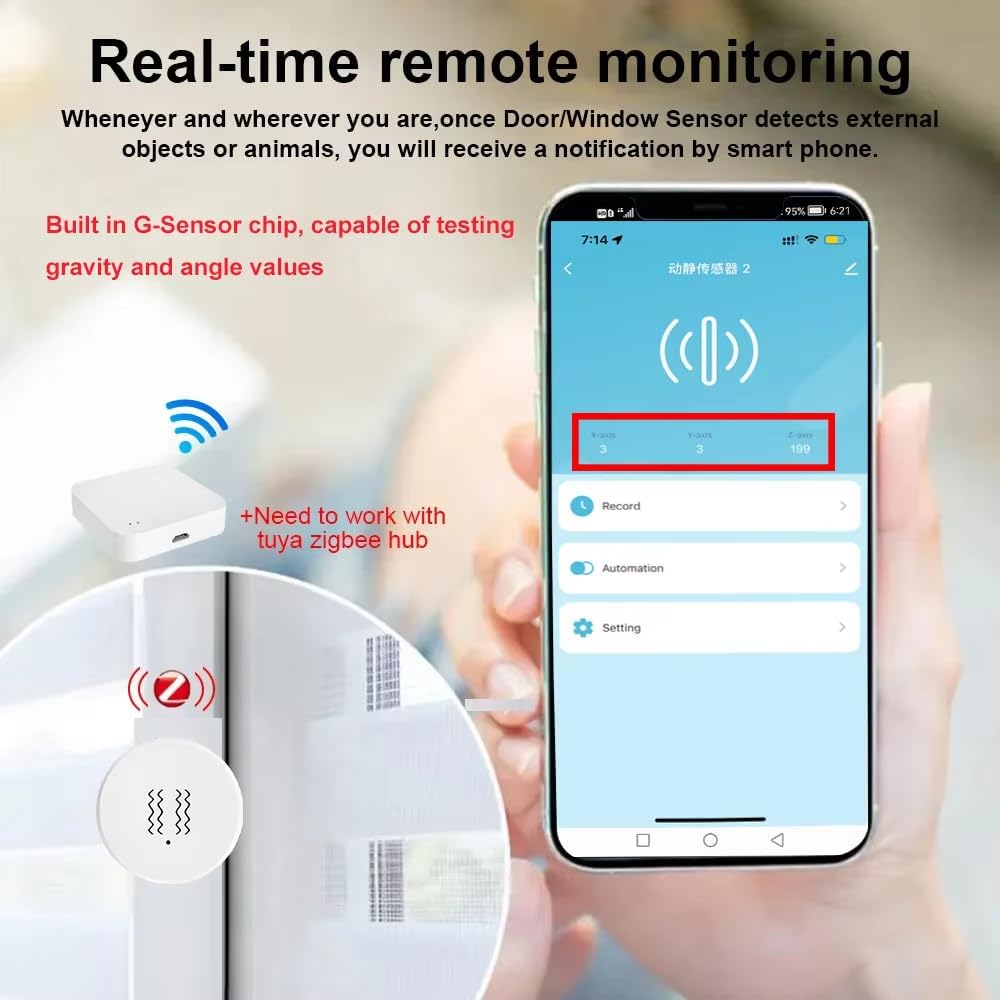
Image: A smartphone displaying a notification from the sensor, indicating real-time remote monitoring. The sensor is shown near a window, suggesting its application for detecting external objects or animals.
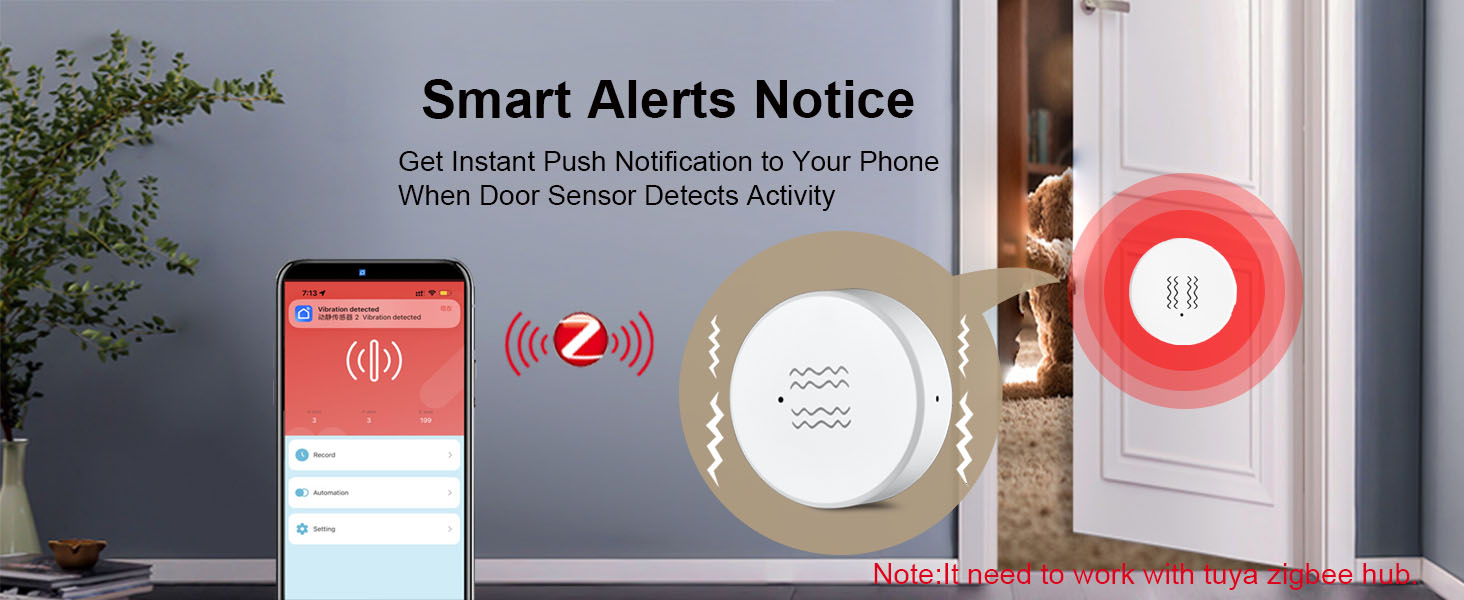
Image: A banner illustrating a 'Smart Alerts Notice' with a cat peeking through a door, and a smartphone displaying a 'Vibration detected' notification, emphasizing instant push notifications.
6.4. ViewAwọn igbasilẹ itan
The mobile application provides access to a history log of all detected events. This allows you to review past vibrations or tilts, including timestamps, to track activity over time.
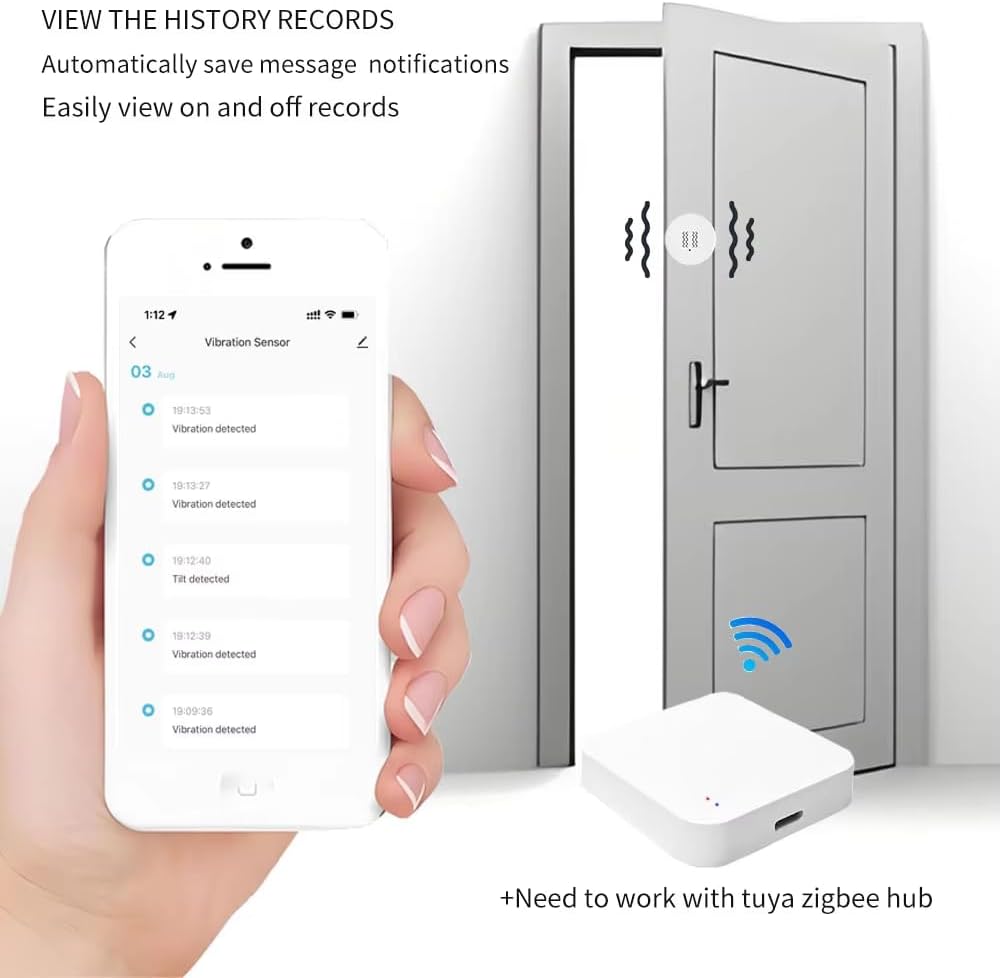
Image: A smartphone screen showing a list of historical events from the vibration sensor, such as 'Vibration detected' and 'Tilt detected', with corresponding timestamps.
6.5. Home Assistant and Zigbee2MQTT Integration
The sensor supports integration with Home Assistant via Zigbee2MQTT. This allows for advanced automation and control within your existing Home Assistant setup. Once paired with your Zigbee network, the sensor's entities (vibration, tilt, 3-axis data, sensitivity) will be available for use in automations.

Image: A banner indicating 'Home Assistant Support' for the sensor, highlighting its compatibility with advanced smart home systems.
6.6. Ìsopọ̀ Ọgbọ́n Àwòrán
The sensor can be linked with other smart devices through your Zigbee gateway to create automated scenes. For example, a detected vibration on a door could trigger smart lighting to turn on.

Image: A diagram illustrating 'Linkage equipments', showing how a gateway, vibration sensor, and smart switch can work together to automate lighting when a door is opened.
7. Awọn ohun elo
The versatility of the Haozee Zigbee Smart Vibration Sensor allows for its use in various scenarios:
- Aabo Ile: Monitor doors, windows, and safes for unauthorized entry or tampsisun.
- Appliance Monitoring: Detect when appliances like washing machines or dryers complete their cycles.
- Drawer/Cabinet Monitoring: Receive alerts if sensitive drawers or cabinets are opened.
- Mailbox Monitoring: Know when your mailbox has been accessed.
- Abojuto Ọsin: Detect activity from pets in restricted areas.
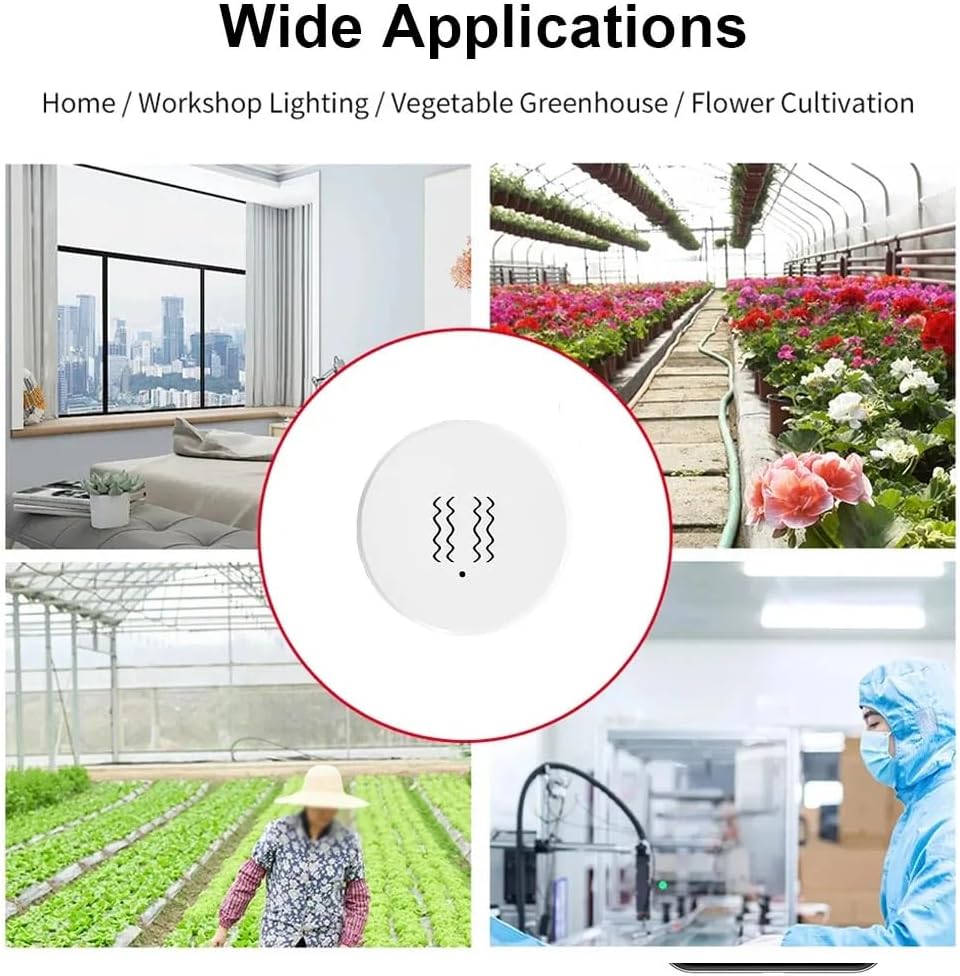
Image: A collage demonstrating wide applications of the sensor, including use in a bedroom, greenhouse, and industrial settings, highlighting its adaptability.
8. Itọju
8.1. Batiri Rirọpo
The sensor is powered by a CR2450 lithium battery. When the battery level is low, you may receive a notification via the mobile application. To replace the battery:
- Gently twist or pry open the sensor casing láti wọ inú yàrá ìpamọ́ batiri náà.
- Yọ batiri CR2450 atijọ kuro.
- Insert a new CR2450 battery, ensuring the positive (+) side faces up.
- Pa sensọ casing ni aabo.
Note: Dispose of used batteries responsibly according to local regulations.
8.2. Ninu
Wipe the sensor with a soft, dry cloth. Do not use liquid cleaners or abrasive materials, as these can damage the device.
9. Laasigbotitusita
- Sensọ ko so pọ:
- Ensure the Zigbee gateway is in pairing mode.
- Verify the sensor's battery is installed correctly and has sufficient charge.
- Press and hold the reset button on the sensor until the indicator light flashes.
- Ensure the sensor is within range of the Zigbee gateway.
- No notifications received:
- Check if the sensor is successfully paired with the gateway.
- Verify notification settings in your mobile application.
- Ensure your smartphone has an active internet connection and notifications are enabled for the app.
- Check the sensor's battery level.
- False alarms or missed detections:
- Adjust the sensor's sensitivity level in the mobile application (low, medium, high).
- Ensure the sensor is securely mounted and not subject to unintended movements.
- For vibration detection, ensure the sensor is placed on a surface that transmits vibrations effectively.
- Slow or inconsistent reporting:
- Ensure the Zigbee network has good coverage and minimal interference.
- Consider adding Zigbee repeater devices if the sensor is far from the gateway.
- Check for any firmware updates for your Zigbee gateway or the sensor itself.
10. Atilẹyin ọja ati Support
Fun alaye atilẹyin ọja ati atilẹyin imọ-ẹrọ, jọwọ tọka si osise olupese webojula tabi kan si wọn onibara iṣẹ taara. Tọju iwe-ẹri rira rẹ bi ẹri rira.