
Ọrọ Iṣaaju
This comprehensive user manual is designed to help you unlock the full potential of your Google Pixel 9, Pixel 9 Pro, or Pixel 9 Pro XL smartphone. Whether you are new to the Pixel ecosystem or upgrading to the latest series, this guide provides detailed, step-by-step instructions and comprehensive illustrations to navigate Android 14 and master your device's advanced features.
The manual covers everything from initial setup to advanced camera functions, battery optimization, security settings, powerful AI tools, gaming enhancements, and smart home integration. It is written in clear, user-friendly language, making complex functions easy to understand for all users, from beginners to seniors.
Afowoyi Pariview

Front cover of the user manual, featuring the Google Pixel 9, 9 Pro, and 9 Pro XL smartphones.
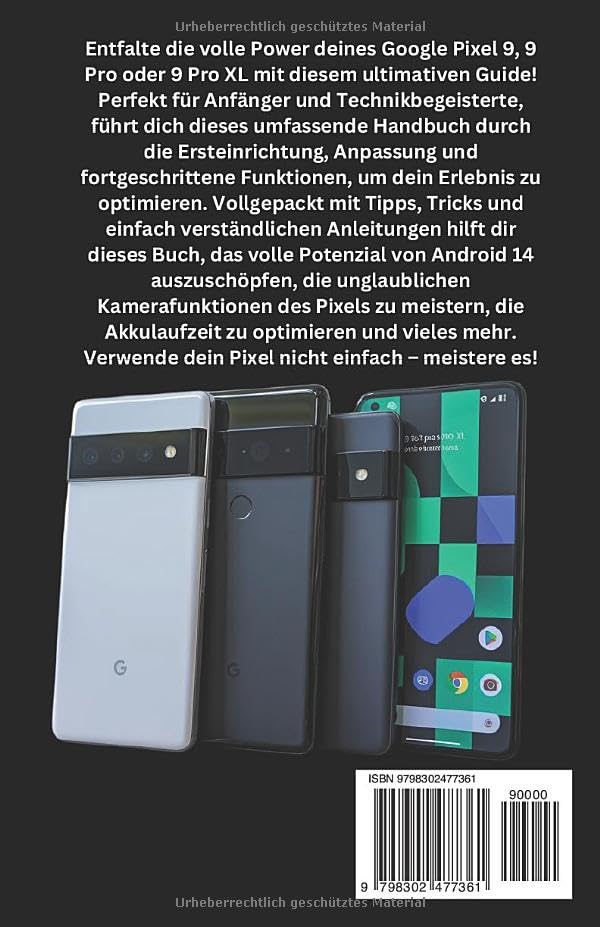
Back cover of the user manual, showing the ISBN-13: 979-8302477361.
1. Ni ibẹrẹ Oṣo ati iṣeto ni
This section guides you through the essential steps to set up your new Google Pixel 9 series device. From powering on for the first time to connecting to Wi-Fi and transferring data, these instructions ensure a smooth start.
1.1 First-Time Power On
- Gba agbara si Ẹrọ Rẹ: Before starting, ensure your Pixel device has sufficient charge. Connect the provided USB-C cable to the charging port and a compatible power adapter.
- Agbara Tan: Press and hold the power button (typically on the right side of the device) until the Google logo appears.
- Yan Ede: Tẹle awọn itọsọna loju iboju lati yan ede ti o fẹ.
1.2 Nsopọ si Wi-Fi
A stable internet connection is crucial for setup and updates.
- From the setup screen, tap on "Bẹ̀rẹ̀" or "Let's go".
- Select your Wi-Fi network from the list. If prompted, enter the network password.
- Fọwọ ba "Connect".
1.3 Google Account Oṣo
Your Google account is essential for accessing apps, services, and backups.
- Sign in with an existing Google account or create a new one.
- Review and accept the Google Terms of Service and Privacy Policy.
2. Operating Your Google Pixel 9 Series
This section details the core functionalities and advanced features of your Pixel device, helping you navigate Android 14 and utilize its capabilities effectively.
2.1 Lílọ kiri lórí Android 14
- Iboju ile: Customize your home screen with widgets and app shortcuts.
- Awọn iwifunni: Swipe down from the top to access notifications and quick settings.
- Drawer App: Ra soke lati isalẹ iboju ile si view gbogbo awọn ohun elo ti a fi sori ẹrọ.
2.2 kamẹra Awọn iṣẹ
The Pixel 9 series boasts advanced camera capabilities. Explore modes like:
- Super Res Sun-un: Enhance digital zoom for clearer distant shots.
- Ipo Alẹ: Capture vibrant photos in low-light conditions.
- Ipo Aworan: Create professional-looking photos with blurred backgrounds.
2.3 Google Assistant & Gemini AI
Utilize voice commands and intelligent AI features:
- Activate Google Assistant by saying "Hey Google" or long-pressing the power button.
- Leverage Gemini AI for smart routines, content summaries, and more.
2.4 Aabo ati Asiri
Protect your data with built-in security features:
- Ti idanimọ oju: Set up facial unlock for quick and secure access.
- Apanirun Itanna ọwọ: Register your fingerprints for biometric authentication.
- Dasibodu Aṣiri: Monitor app permissions and data access.
- Family Link & Parental Controls: Manage screen time and content for family members.
2.5 Ìrírí eré
Optimize your gaming with Game Mode:
- Access Game Mode settings to enhance performance and minimize distractions during gameplay.
2.6 Smart Home Integration
Connect your Pixel to your smart home ecosystem:
- Control Google Nest devices and other compatible smart home products directly from your Pixel.
3. Maintenance and Battery Optimization
Proper maintenance ensures the longevity and optimal performance of your Google Pixel device. This section focuses on maximizing battery life.
3.1 Battery Saving Techniques
- Batiri Ayipada: Mu Batiri Adaptive ṣiṣẹ ni awọn eto lati kọ ẹkọ awọn ilana lilo rẹ ati mu agbara lilo app dara si.
- Akori Dudu: Use Dark Theme to reduce power consumption on OLED screens.
- Imọlẹ iboju: Adjust screen brightness to a comfortable level or enable Adaptive Brightness.
- Ohun elo abẹlẹ: Limit background activity for apps that consume significant power.
- Awọn iṣẹ agbegbe: Turn off location services when not in use or set them to "While using the app" for specific applications.
4. Laasigbotitusita wọpọ oran
This section provides general guidance for resolving common issues you might encounter with your Google Pixel 9 series device. For more detailed troubleshooting, refer to the comprehensive manual or Google's official support resources.
4.1 ẹrọ Ko fesi
- Fi agbara mu Tun bẹrẹ: Press and hold the power button for about 30 seconds until the device restarts.
4.2 Awọn iṣoro Asopọmọra (Wi-Fi/Bluetooth)
- Yipada si Tan/Pa: Try turning Wi-Fi or Bluetooth off and then on again from Quick Settings.
- Gbagbe Nẹ́tíwọ́ọ̀kì: For Wi-Fi issues, forget the network and reconnect.
- Tun olulana bẹrẹ: If other devices are affected, restart your Wi-Fi router.
4.3 Ìfọ́ tàbí Dídì Ohun èlò
- Force Stop App: Go to Settings > Apps > See all apps, select the problematic app, and tap "Force stop".
- Ko kaṣe kuro: In the app's settings, go to Storage & cache and tap "Clear cache".
- Ohun elo imudojuiwọn: Rí i dájú pé àpù náà ti ní àtúnṣe sí àtúnṣe tuntun láti Google Play Store.
5. Awọn alaye ọja
The following table outlines key specifications for the Google Pixel 9, 9 Pro & 9 Pro XL User Manual (Paperback edition).
| Ẹya ara ẹrọ | Ẹ̀kúnrẹ́rẹ́ |
|---|---|
| ASIN | B0DPLCFBMJ |
| Olutẹwe | Ti a tẹjade ni ominira |
| Ọjọ Atẹjade | Oṣu kejila ọjọ 4, ọdun 2024 |
| Ede | Jẹmánì |
| Print Ipari | 335 oju-iwe |
| ISBN-13 | 979-8302477361 |
| Iwọn Nkan | 13.8 iwon |
| Awọn iwọn | 5.5 x 0.76 x 8.5 inches |
6. Atilẹyin ọja ati Support
This user manual provides comprehensive instructions for operating your Google Pixel 9 series device. Please note that this manual itself does not include warranty information for the Google Pixel smartphones. For details regarding the warranty of your Google Pixel device, please refer to the official documentation provided with your smartphone or visit the official Google support webojula.
For further assistance or technical support related to your Google Pixel 9, 9 Pro, or 9 Pro XL, please visit the official Google Support page or contact Google customer service directly.
Disclaimer: This manual is a guide for the Google Pixel 9 series and is not an official Google publication. All product names, logos, and brands are property of their respective owners.