
1. Ifihan
This manual provides essential information for the proper installation, operation, and maintenance of your GAMEON Pro Series 27-inch Fast IPS Gaming Monitor (Model: GOAE27QHD165IPS). Please read this manual thoroughly before using the product to ensure optimal performance and safety. Keep this manual for future reference.

Aworan 1.1: Iwaju view of the GAMEON Pro Series 27-inch Fast IPS Gaming Monitor, showcasing awọn oniwe-tẹẹrẹ bezels ati duro.
The GAMEON Pro Series 27-inch Fast IPS Gaming Monitor features a QHD 2K (2560x1440p) resolution, a 165Hz refresh rate, and a 0.5ms MPRT response time. It supports Adaptive-Sync and Variable Refresh Rate (VRR) technologies for smooth, tear-free gameplay. Connectivity options include dual HDMI 2.1 ports and dual DisplayPort 1.4 ports, along with an audio-out jack and integrated speakers. This monitor is compatible with various gaming consoles and PCs, including PS5.
2. Package Awọn akoonu
Jọwọ ṣayẹwo awọn akoonu package lori unboxing. Ti awọn ohun kan ba nsọnu tabi bajẹ, kan si alagbata rẹ.
- GAMEON Pro Series 27-inch Fast IPS Gaming Monitor
- Iduro Iduro (Ipilẹ ati Ọrun)
- Power Adapter ati Power Cable
- Okun HDMI
- Okun DisplayPort
- Itọsọna olumulo
3. Eto
3.1 Apejọ atẹle
- Fi ìṣọ́ra yọ àwòkọ́ náà kúrò nínú àpò rẹ̀, kí ó lè dáàbò bo ìbòjú náà.
- So ọrun imurasilẹ si nronu atẹle. Rii daju pe o tẹ ni aabo sinu aaye tabi ti wa ni ṣinṣin pẹlu awọn skru ti o ba pese.
- So ipilẹ iduro si ọrun imurasilẹ ki o mu dabaru ni isalẹ ti ipilẹ.
- Gbe atẹle ti o pejọ sori iduro, dada alapin.
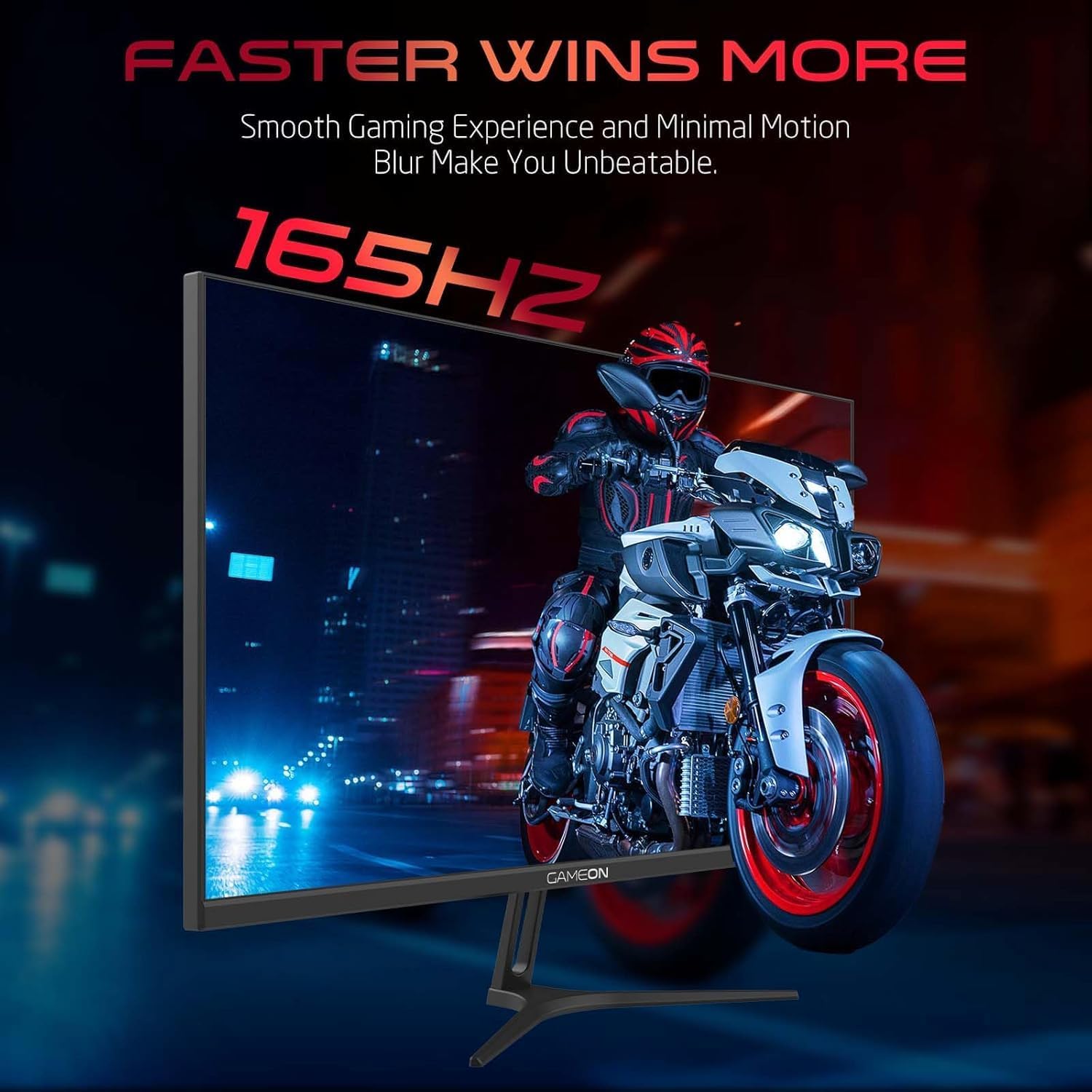
Image 3.1: Illustration of the monitor with its stand, ready for assembly.
3.2 Nsopọ si Awọn ẹrọ
The monitor offers multiple input options. Choose the appropriate cable for your device (PC, gaming console, etc.).

Aworan 3.2: Ẹyin view of the monitor, highlighting the input ports and VESA mounting points.

Image 3.3: Detailed diagram illustrating the various input/output ports and their corresponding devices.
- HDMI Asopọ: Connect one end of the HDMI cable to the HDMI output port of your device (PC, PS5, Xbox, TV box) and the other end to one of the HDMI 2.1 ports on the monitor.
- Isopọ PortPort: Connect one end of the DisplayPort cable to the DisplayPort output of your PC and the other end to one of the DisplayPort 1.4 ports on the monitor.
- Ijade ohun: For external audio, connect headphones or external speakers to the 3.5mm audio-out jack on the monitor.
3.3 Asopọ agbara
- Connect the power adapter to the DC IN port on the monitor.
- Plug the power cable into the power adapter, then plug the other end of the power cable into a power outlet.
4. Awọn ilana Iṣiṣẹ
4.1 Agbara Tan / Pa
Tẹ bọtini agbara ti o wa lori iboju naa lati tan tabi pa a. Ina ifihan agbara yoo tan nigbati iboju naa ba wa ni titan.
4.2 Lori-iboju Ifihan (OSD) Akojọ aṣyn
The monitor features a menu button (often a joystick or a series of buttons) usually located on the back or bottom right of the monitor. Use this to navigate the OSD menu and adjust settings.
- Press the menu button to open the OSD menu.
- Lo awọn idari lilọ kiri lati lọ nipasẹ awọn aṣayan akojọ aṣayan.
- Press the menu button again (or a designated 'Enter' button) to select an option.
- Use the navigation controls to adjust values or select sub-menus.
- Select 'Exit' or press the menu button repeatedly to close the OSD menu.
4.3 Wọpọ OSD Eto
- Eto aworan: Ṣàtúnṣe ìmọ́lẹ̀, ìyàtọ̀, dídán, gamma, àti ìgbóná awọ.
- Eto awọ: Fine-tune RGB values, hue, and saturation.
- Orisun igbewọle: Manually select between HDMI 1, HDMI 2, DisplayPort 1, or DisplayPort 2.
- Ohun: Ṣàtúnṣe iwọn didun fún àwọn agbọ́hùnsọ tàbí àwọn agbekọri tí a so pọ̀.
- Awọn ẹya ara ẹrọ ere: Enable/disable Adaptive-Sync/FreeSync, adjust overdrive settings, and activate crosshair overlays if available.
4.4 PS5 120Hz Setup Guide
To enable 120Hz output on your PlayStation 5 with this monitor, follow these steps:

Image 4.1: Visual guide for configuring 120Hz refresh rate on a PlayStation 5 console.
- Enable 120Hz from PS5 Settings:
- Lọ si Eto > Screen and Video > Ijade fidio.
- Ṣeto Enable 120Hz Output si Laifọwọyi.
- Ṣeto Ipinnu si 1080p or Laifọwọyi. (Note: While the monitor supports 1440p, some PS5 games may require 1080p for 120Hz output.)
- Enable Performance Mode for Gamers:
- Lọ si Eto > Save Data and Game App Settings > Awọn atunto ere.
- Ṣeto Ipo išẹ bi aiyipada.
- Check In-Game Settings:
- Go to the specific game's Awọn ere Awọn Eto > Awọn Eto Fidio ki o si yan 120fps or Ipo išẹ.
5. Itọju
5.1 Ninu iboju
- Pa atẹle naa kuro ki o yọ okun agbara kuro.
- Lo asọ rirọ, ti ko ni lint ni sere dampened pẹlu omi tabi a specialized iboju regede.
- Wipe the screen gently. Do not press hard or use abrasive materials.
- Avoid using alcohol, ammonia, or benzene-based cleaners, as they may damage the screen surface.
5.2 Ṣiṣe mimọ Casing
- Lo asọ ti o rọ, ti o gbẹ lati nu atẹle naa casing.
- Fun awọn abawọn alagidi, fẹẹrẹ dampen awọn asọ pẹlu omi ati ki o kan ìwọnba detergent, ki o si mu ese gbẹ.
6. Laasigbotitusita
Tí o bá ní ìṣòro pẹ̀lú àtòjọ rẹ, wo ìtọ́sọ́nà àtúnṣe yìí:
| Isoro | Owun to le Fa | Ojutu |
|---|---|---|
| Ko si aworan loju iboju | Kò sí agbára; Orísun ìtẹ̀síwájú tí kò tọ́; Okùn fídíò aláìlágbára | Ensure power cable is securely connected and power outlet is active. Press power button. Check OSD menu to select correct input source (HDMI/DP). Reconnect video cable firmly. |
| Aworan jẹ blur tabi daru | Incorrect resolution; Video cable issue | Set display resolution to 2560x1440p in your device's display settings. Try a different video cable. |
| Ko si ohun | Volume too low; Incorrect audio output selected; Loose audio cable | Adjust monitor volume via OSD. Ensure monitor is selected as the audio output device on your PC/console. Check external audio cable connection if using headphones/speakers. |
| Iboju iboju | Refresh rate mismatch; Adaptive-Sync/VRR issue | Ensure your device's refresh rate is set to 165Hz. If flickering persists with Adaptive-Sync/VRR enabled, try disabling it in the OSD or your graphics card settings. |
| Monitor not detected by PC/console | Video cable issue; Driver issue | Try a different video cable or port. Update your graphics card drivers. Restart your PC/console. |
7. Awọn pato
Below are the technical specifications for the GAMEON Pro Series 27-inch Fast IPS Gaming Monitor (GOAE27QHD165IPS):
| Ẹya ara ẹrọ | Sipesifikesonu |
|---|---|
| Iwọn Ifihan | 27 inches |
| Panel Iru | Yara IPS |
| Ipinnu | QHD 2K (2560x1440p) |
| Oṣuwọn sọtun | 165Hz |
| Akoko Idahun | 0.5ms MPRT |
| Ipin Itansan | 1000:1 |
| Imọlẹ | 280 (±30) nits typical |
| Viewing Awọn igun | Gbooro viewing angles (IPS technology) |
| Adaptive Sync Technology | Adaptive-Sync, FreeSync, VRR Compatible |
| Asopọmọra | 2x HDMI 2.1, 2x DisplayPort 1.4, 1x Audio Out (3.5mm) |
| Ohun | Built-in 4Ω2W speakers |
| VESA Oke ibamu | 100x100mm |
| Agbara Input | Ita DC 12V 4A ohun ti nmu badọgba |
| Max Power Lilo | 48W |
| Awọn iwọn ọja (pẹlu iduro) | 16.2 x 61.4 x 45.3 cm |
| Iwọn Ọja | 5.84 kg |
| Nọmba awoṣe | GOAE27QHD165IPS |
8. Atilẹyin ọja ati Support
The GAMEON Pro Series 27-inch Fast IPS Gaming Monitor comes with a 2-odun atilẹyin ọja lati ọjọ ti o ra. Atilẹyin ọja yi ni wiwa awọn abawọn iṣelọpọ labẹ lilo deede. Jọwọ ṣe idaduro ẹri rira rẹ fun awọn iṣeduro atilẹyin ọja.
For technical support, warranty inquiries, or service requests, please contact GAMEON customer service through their official website or the retailer where the product was purchased. Provide your monitor's model number (GOAE27QHD165IPS) and a detailed description of the issue to expedite assistance.