
1. Ifihan
Thank you for choosing the MageGee MK-Box 60% Mechanical Gaming Keyboard. This compact 68-key keyboard is designed for both gaming and office use, offering a space-saving layout without compromising essential functionality. Featuring responsive red mechanical switches and customizable LED backlighting, the MK-Box provides a comfortable and efficient typing experience. This manual will guide you through the setup, operation, and maintenance of your new keyboard.
2. Ọja Ipariview
Awọn ẹya pataki:
- Mini Portable 60% Ipilẹ Iwapọ: The MK-Box features 68 keys, including separate arrow keys and Fn function keys, optimizing desk space while retaining necessary functions.
- Àwọn Ìyípadà Pupa Mẹ́kínẹ́kì: Characterized by a linear and smoother feel with minimal resistance, these switches offer fast action without a tactile bump, making typing and gaming effortless.
- Classic Charming Blue LED Backlit: Customize your experience with approximately 16 illuminated LED light effects. Adjust backlight modes, speed, and brightness using simple key combinations.
- Kíkún Àìlódì-Ẹ̀mí-Ọkàn: Gbogbo awọn bọtini 68 ko ni ija kankan, ni idaniloju pe gbogbo bọtini ni a forukọsilẹ ni deede lakoko awọn akoko ere lile.
- Apẹrẹ Ergonomic: Features ergonomic suspension double-color injection keycaps, double kickstand feet for adjustable typing angles, and a detachable USB cable for convenience and durability.
- Ibamu gbooro: Compatible with Windows (2000, XP, ME, Vista, 7, 8), Linux, and Mac operating systems. Plug and play, no drivers or software required.
Kini o wa ninu apoti:
- MageGee MK-Box Mechanical Keyboard x 1
- Detachable USB-C to USB-A Cable x 1
- Extra Keycaps (e.g., 16 purple keycaps, red WASD keys) x 1 set
- Tita bọtini bọtini x 1
- Ilana olumulo x 1
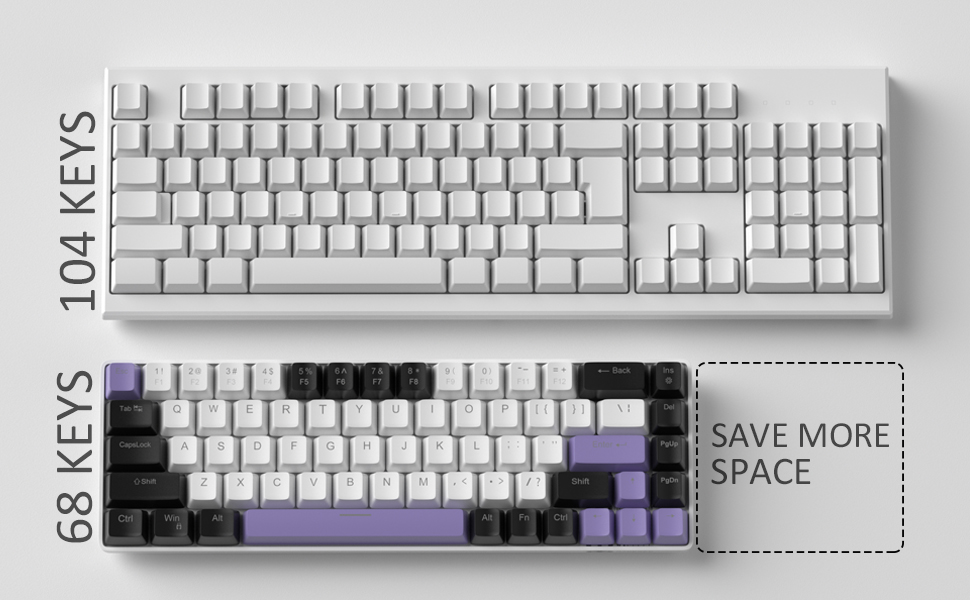
Image: Contents of the MageGee MK-Box packaging, including the keyboard, detachable USB-C cable, extra keycaps, keycap puller, and user manual.
3. Eto
- So Keyboard pọ: Locate the detachable USB-C cable. Plug the USB-C end into the port on the left side of the keyboard and the USB-A end into an available USB port on your computer (Laptop, PC, Mac).
Image: Close-up of the detachable USB-C port on the side of the MageGee MK-Box keyboard, with the cable being inserted.
- Adjust Typing Angle: Flip the keyboard over to reveal the double kickstand feet. Gently pull out the feet to adjust the keyboard to your preferred typing angle for ergonomic comfort. There are two levels of adjustment.
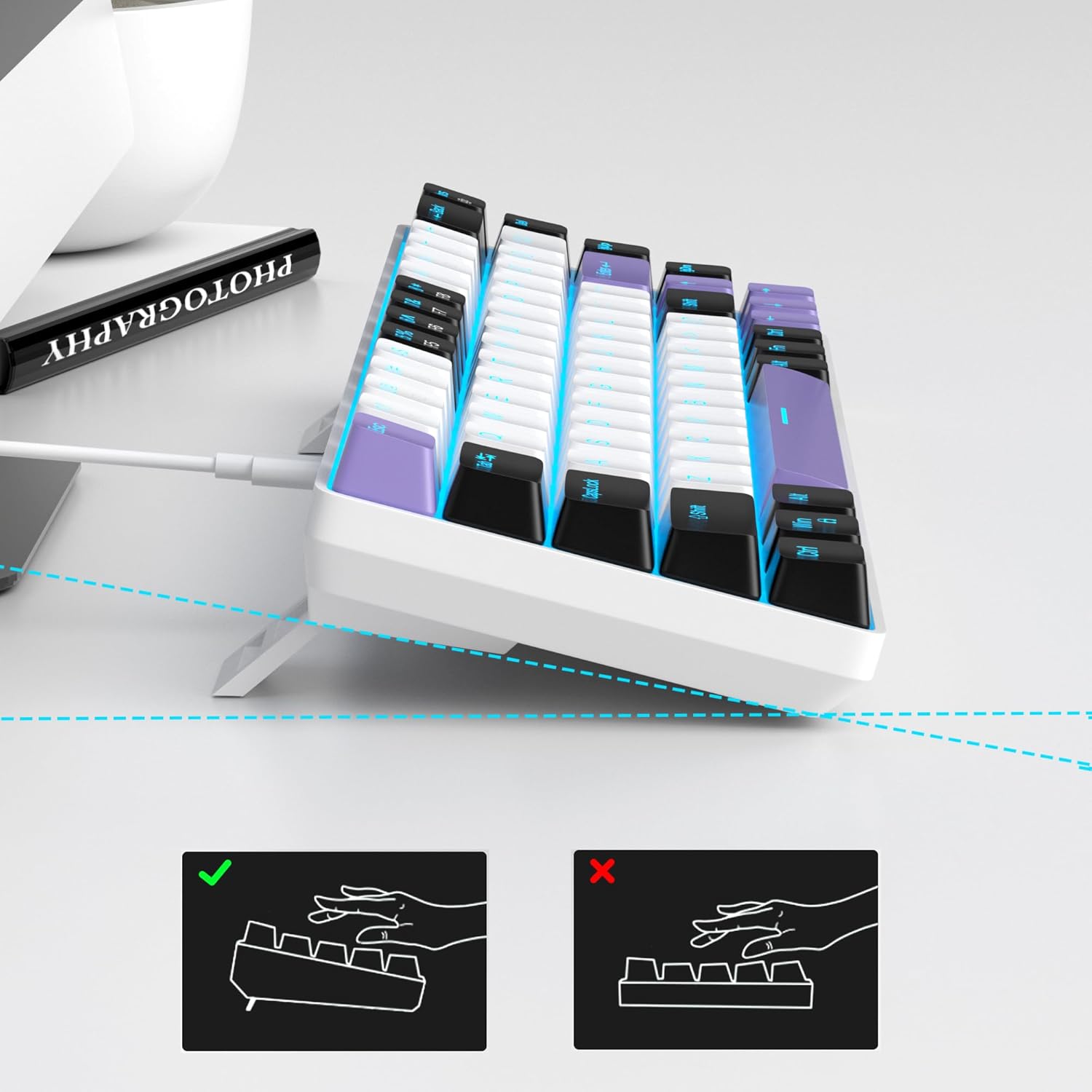
Image: The MageGee MK-Box keyboard shown from a side angle with its adjustable feet extended, illustrating the ergonomic tilt for comfortable typing.
- Idanimọ eto: Your computer should automatically recognize the keyboard. No additional drivers or software installation is required.
4. Awọn ilana Iṣiṣẹ
Awọn iṣẹ bọtini ipilẹ:
- The keyboard features a standard QWERTY layout with 68 keys.
- Dedicated arrow keys are located on the bottom right.
- Function keys (F1-F12) are accessed via the Fn key in combination with the number row keys.
Iṣakoso ina Back:
The MageGee MK-Box features a classic blue LED backlight with multiple modes and adjustable settings.
- Yi Ipò Atẹyin pada: Tẹ Fn + Ins to cycle through approximately 16 different backlight effects.
- Ṣatunṣe Iyara Backlight: Tẹ Fn + ← (Ọfà Òsì) to decrease speed or Fn + → (Ọfà Ọ̀tún) lati mu iyara.
- Ṣatunṣe Imọlẹ Afẹyinti: Tẹ Fn + ↓ (Ọfà Ìsàlẹ̀) to decrease brightness or Fn + ↑ (Ọfà òkè) lati mu imọlẹ pọ si.

Image: A diagram illustrating the key combinations for controlling the backlight effects, speed, and brightness on the MageGee MK-Box keyboard.
5. Itọju
- Ninu: Use a soft, dry cloth to wipe down the keyboard surface. For deeper cleaning, you can use a can of compressed air to remove dust and debris from between the keycaps.
- Yiyọkuro bọtini bọtini: To clean under the keycaps or replace them with the provided extra keycaps, use the included keycap puller. Gently attach the puller to a keycap and pull straight up. When reattaching, align the keycap with the switch stem and press down firmly until it clicks into place.
- Itọju USB: Okun USB-C ti o yọkuro yẹ ki o mu pẹlu iṣọra. Yago fun didasilẹ didasilẹ tabi fifaju pupọ lati yago fun ibajẹ.

Image: A close-up of the keycap puller tool, used for safely removing and replacing keycaps on the mechanical keyboard.
6. Laasigbotitusita
- Keyboard Ko Dahun:
- Rii daju pe okun USB ti sopọ ni aabo si keyboard mejeeji ati kọnputa rẹ.
- Gbiyanju lati so bọtini itẹwe sinu ibudo USB ti o yatọ lori kọnputa rẹ.
- Ṣe idanwo keyboard lori kọnputa miiran lati ṣe akoso ọrọ kan pato-kọmputa kan.
- Ìmọ́lẹ̀ ẹ̀yìn kò ṣiṣẹ́/Kò tọ́:
- Rii daju pe keyboard ti sopọ daradara ati gbigba agbara.
- Tẹ Fn + Ins to cycle through backlight modes, as it might be set to an 'off' mode.
- Ṣatunṣe imọlẹ nipa lilo Fn + ↑/↓.
- Keys Not Registering (Ghosting):
- The MK-Box features full anti-ghosting. If you experience issues, ensure no debris is lodged under the keycaps.
- Try reconnecting the keyboard or restarting your computer.
7. Awọn pato
| Ẹya ara ẹrọ | Ẹ̀kúnrẹ́rẹ́ |
|---|---|
| Brand | MageGee |
| Orukọ awoṣe | MK-Box |
| Apejuwe Keyboard | Ẹ̀rọ |
| Nọmba ti Awọn bọtini | 68 |
| Yipada Iru | Linear (Red Switch) |
| Asopọmọra Technology | USB (Ti firanṣẹ) |
| Awọn ẹrọ ibaramu | Kọǹpútà alágbèéká, PC |
| Ìdílé Ẹ̀rọ Iṣiṣẹ́ Tó Báramu | Windows, Lainos, Mac |
| Pataki Ẹya | 60% Mechanical Design, LED Backlit, Anti-Ghosting |
| Ifilelẹ bọtini itẹwe | QWERTY |
| Ohun elo | Ṣiṣu |
| Omi Resistance Ipele | Ko Omi Resistant |
8. Atilẹyin ọja ati Support
MageGee products are designed for durability and performance. For any product-related inquiries, technical support, or warranty claims, please refer to the contact information provided on the product packaging or visit the official MageGee webAaye ayelujara. Jọwọ pa ẹri rira rẹ mọ fun iṣẹ atilẹyin ọja.