
MageGee V550
MageGee V550 Wireless Gaming Keyboard and Mouse User Manual
Awoṣe: V550
Ọrọ Iṣaaju
Thank you for choosing the MageGee V550 Wireless Gaming Keyboard and Mouse Combo. This manual provides detailed instructions on how to set up, operate, and maintain your new device. Please read this manual thoroughly before use to ensure optimal performance and longevity of your product.
Ohun ti o wa ninu Apoti
Nigbati o ba ṣii package, jọwọ rii daju pe gbogbo awọn nkan wọnyi wa pẹlu:
- Keyboard Alailowaya
- Asin Alailowaya
- Olugba USB
- USB Iru-C Ngba agbara USB
- Afowoyi Olumulo (iwe-ipamọ yii)
Ọja Pariview
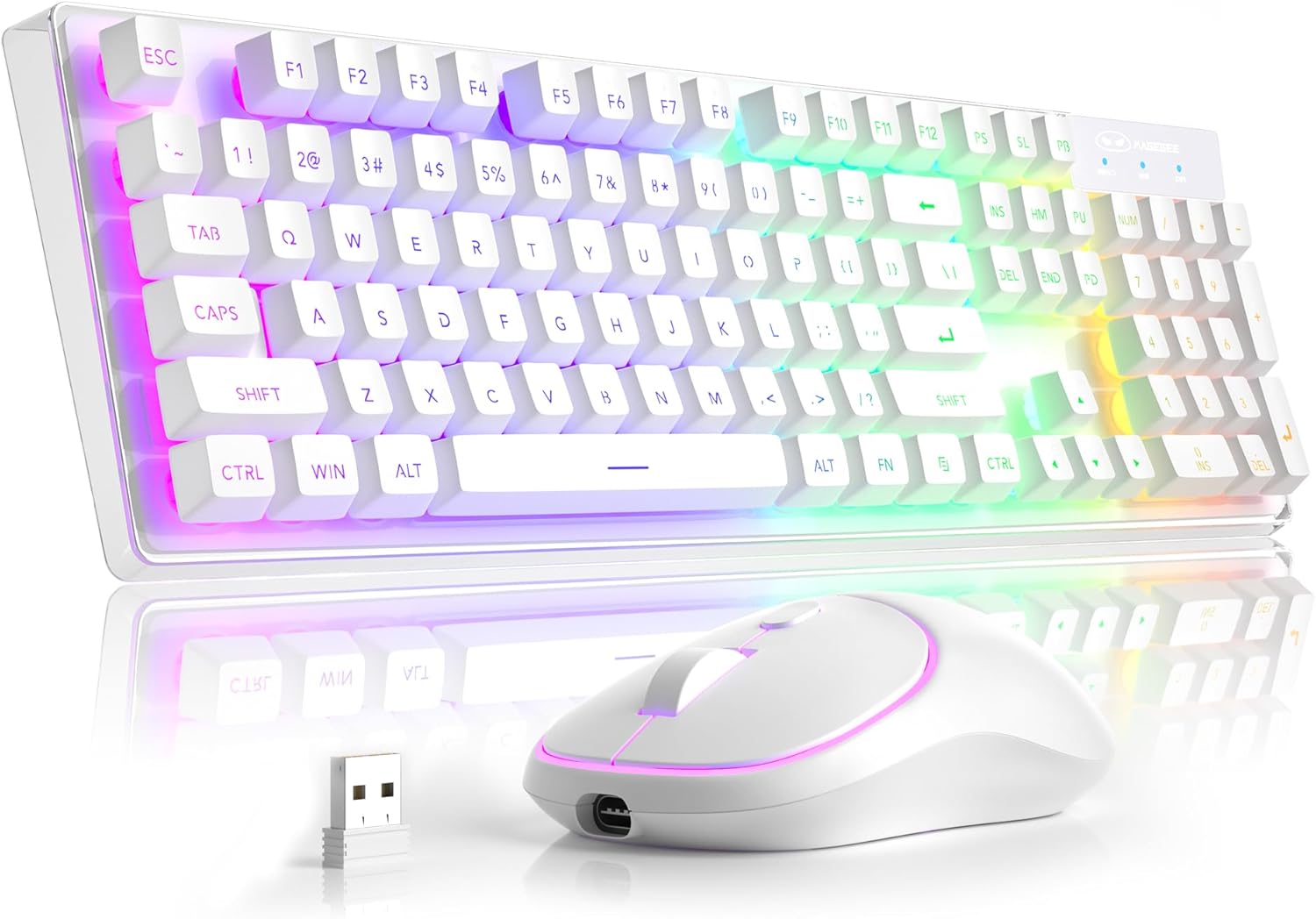
Awọn nkan pataki: The MageGee V550 combo includes a full-sized wireless keyboard and a wireless mouse, both designed for gaming and general computer use. The keyboard features a transparent base and RGB backlighting, while the mouse is compact and includes an RGB light strip.

Olugba USB ẹyọkan: Both the keyboard and mouse connect wirelessly via a single 2.4G USB receiver. This receiver is conveniently stored in a slot on the bottom of the mouse for safekeeping and portability.

Transparent Housing: The keyboard features a unique transparent base, allowing the RGB backlighting to illuminate not only around the keys but also through the entire keyboard structure, enhancing its visual appeal.

Ìmọ́lẹ̀ ẹ̀yìn RGB oníyípadà: The keyboard offers multiple lighting settings, including 5 light modes, 7 solid color backlights, and 1 rainbow backlight. Brightness and speed are adjustable, and the backlight can be turned off as needed. The keys are shine-through for visibility in low-light conditions.

Wireless RGB Mouse: The accompanying mouse is lightweight and features a silent click design. It offers three adjustable tracking speed levels (1000-1200-1600 DPI) to suit various user preferences and tasks. An RGB light strip adds to its aesthetic.

USB-C Gbigba agbara: Both the keyboard and mouse are rechargeable via the included USB Type-C cable, eliminating the need for frequent battery replacements. This design promotes convenience and environmental responsibility.

Awọn iwọn ọja: The keyboard measures approximately 17.13 inches in length, 5.4 inches in width, and 1.34 inches in height. The mouse measures approximately 4.45 inches in length, 2.56 inches in width, and 1.42 inches in height.

Bottom Features: The bottom of both the keyboard and mouse feature on/off switches and anti-slip pads. The mouse also houses the USB receiver slot and its charging port. The keyboard has indicators for Win Lock, Num Lock, and Caps Lock.
Awọn ilana iṣeto
- Wa olugba USB: The 2.4G USB receiver is stored in a dedicated slot on the bottom of the wireless mouse. Gently remove it.
- So Olugba naa pọ: Plug the USB receiver into an available USB port on your computer (PC, Laptop, Desktop, or Notebook).
- Agbara Lori Awọn ẹrọ: Locate the power switches on the bottom of both the keyboard and the mouse. Turn both switches to the "ON" position.
- Asopọmọra Aifọwọyi: The keyboard and mouse should automatically connect to your computer. No additional drivers are required.
- Jẹrisi Asopọmọra: Test the keyboard by typing and the mouse by moving the cursor to ensure they are functioning correctly.
Awọn ilana Iṣiṣẹ
Awọn iṣẹ Keyboard
- Ìfilélẹ Ìtóbi Ni kikun: The keyboard features a standard 104-key layout, including a number pad.
- Awọn ọna abuja Multimedia: Access 12 multimedia shortcuts for quick control of media playback, volume, and more. Refer to the key legends for specific functions.
- Anti-Ghosting: The keyboard supports 19-key anti-ghosting, ensuring accurate input during fast typing or gaming.
- Iṣẹ́ Títìpa Win: Tẹ FN + F12 to lock the Windows key, preventing accidental presses during gaming.
- WASD and Arrow Key Exchange: Tẹ FN + W to exchange the functions of the WASD keys with the arrow keys.
Awọn iṣẹ Asin
- Tracking Speed Adjustment: The mouse offers 3 tracking speed levels: 1000, 1200, and 1600 DPI. Press the DPI button (usually located near the scroll wheel) to cycle through these settings.
- Apẹrẹ Tẹ Idẹkun: The mouse buttons are designed for quiet operation, minimizing disturbance.
RGB Backlight Control (Keyboard)
The keyboard's dynamic RGB backlight offers various customization options:
- Awọn ọna Imọlẹ: Cycle through 5 different light modes.
- Awọn awọ ti o lagbara: Choose from 7 solid color backlights.
- Imọlẹhin Rainbow: Activate a vibrant rainbow lighting effect.
- Awọn ipele Imọlẹ: Adjust between 3 brightness levels to suit your environment.
- Light Speeds: Modify the speed of dynamic lighting effects (4 speeds available).
- Pa ina Back: The backlight can be turned off completely at any time.
Specific key combinations for backlight control are typically marked on the keyboard itself, often involving the FN key combined with other function keys (e.g., FN + Scroll Lock, FN + Page Up/Down). Please refer to your keyboard's keycap legends for precise controls.
Gbigba agbara ati Nfi agbara pamọ
- Gbigba agbara: Use the included USB Type-C cable to charge both the keyboard and the mouse. Connect the cable to the charging port on each device and a USB power source (e.g., computer USB port, wall adapter).
- Awọn Atọka Batiri: The devices will typically have an indicator light to show charging status and when fully charged.
- Ipo Orun Aifọwọyi: To conserve battery life, both the keyboard and mouse feature an auto-sleep mode. If inactive for a period, they will enter a low-power state.
- Waking Up Devices: To wake up the keyboard or mouse from auto-sleep mode, simply click any key or button. This action will not register as an input on your computer screen.
- Separate Power Switches: Each device has its own power switch. Turning off one device will not affect the other. It is recommended to turn off the devices when not in use for extended periods to maximize battery life.
Laasigbotitusita
| Isoro | Owun to le Fa | Ojutu |
|---|---|---|
| Keyboard/Asin ko dahun |
|
|
| Imọlẹ ẹhin ko ṣiṣẹ tabi baibai |
|
|
| Mouse cursor erratic or slow |
|
|
| Aye batiri kukuru |
|
|
Awọn pato
| Ẹya ara ẹrọ | Ẹ̀kúnrẹ́rẹ́ |
|---|---|
| Nọmba awoṣe | V550 |
| Brand | MageGee |
| Asopọmọra Technology | 2.4G Alailowaya |
| Ifilelẹ bọtini itẹwe | Full-sized 104-key |
| Keyboard Backlight | Dynamic RGB (5 modes, 7 solid colors, 1 rainbow, 3 brightness, 4 speeds) |
| Asin DPI Awọn ipele | 1000-1200-1600 DPI |
| Gbigba agbara Port | USB Iru-C |
| Awọn ẹrọ ibaramu | Laptop, Personal Computer (PC, Desktop, Notebook) |
| Awọn iwọn Keyboard (L x W x H) | 17.13 x 5.4 x 1.34 inches |
| Awọn iwọn Asin (L x W x H) | 4.45 x 2.56 x 1.42 inches |
| Iwọn Nkan | 2.18 poun (konbo) |
| Pataki Awọn ẹya ara ẹrọ | Backlit, Ergonomic, Rechargeable, Transparent Base, Silent Click Mouse, Auto-Sleep Mode |
Atilẹyin ọja ati Support
MageGee products are designed for reliability and performance. For warranty information or technical support, please refer to the contact details provided with your purchase or visit the official MageGee webojula. Jọwọ ṣe idaduro ẹri rira rẹ fun awọn iṣeduro atilẹyin ọja.
For further assistance, you may contact MageGee Direct, the seller, through the Amazon platform or their official support channels.