
Ọrọ Iṣaaju
This manual provides essential information for the proper setup, operation, maintenance, and troubleshooting of your KTC H27T27 27-inch WQHD IPS Flat Monitor. Please read this manual thoroughly before using the product to ensure optimal performance and safety.
The KTC H27T27 monitor features a 27-inch WQHD (2560x1440) IPS panel with a 100Hz refresh rate, designed to deliver clear and detailed images with smooth motion. It includes FreeSync technology for enhanced visual fluidity during dynamic content. The IPS panel ensures vivid colors and wide viewing awọn igun.

Figure 1: KTC H27T27 27-inch WQHD IPS Flat Monitor Front View
Ṣeto
1. Unpacking
Carefully remove all components from the packaging. Ensure all items listed in the packing list are present and undamaged. Retain the original packaging for future transport or service needs.
2. Iduro Apejọ
- Gbe atẹle naa si isalẹ lori rirọ, dada ti o mọ lati ṣe idiwọ awọn nkan.
- So ipilẹ iduro si ọrun imurasilẹ nipa lilo awọn skru ti a pese.
- Mu iduro ti o pejọ pọ pẹlu Iho iṣagbesori lori ẹhin atẹle naa ki o ni aabo ni iduroṣinṣin.
3. Fífi VESA sori ẹrọ (Àṣàyàn)
The monitor supports VESA 100x100mm mounting. If using a VESA mount, remove the stand and attach the VESA compatible bracket to the monitor's rear panel using appropriate screws.
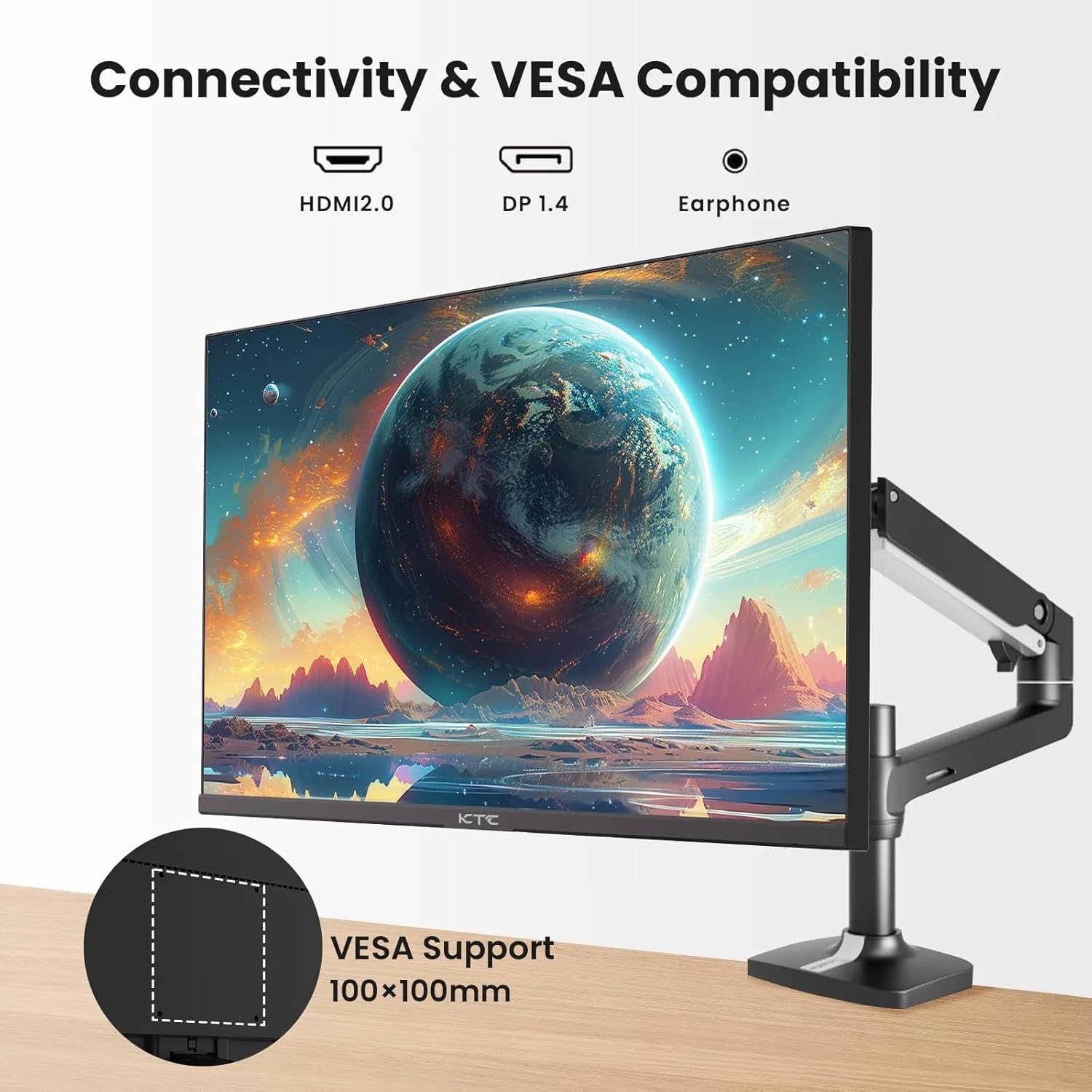
Figure 2: VESA Compatibility and Connectivity Ports
4. Nsopọ Cables
Connect the necessary cables to the monitor and your computer or other devices. Ensure all connections are secure.
- Cable Agbara: Connect the power adapter to the monitor's DC input port, then plug the power cable into a power outlet.
- Cable Fidio: Connect either an HDMI cable (HDMI 2.0) or a DisplayPort cable (DP 1.4) from your computer's graphics card to the corresponding input port on the monitor.
- Ijade ohun: If desired, connect headphones or external speakers to the 3.5mm audio output jack.

Figure 3: Monitor Input Ports
5. Ibẹrẹ Agbara-On
Press the power button on the monitor. The power indicator light will illuminate. If no image appears, ensure your computer is powered on and the correct input source is selected on the monitor.
Ṣiṣẹ
1. Agbara Tan / Paa
Press the power button located on the monitor to turn it on or off. The power indicator will show the monitor's status.
2. On-iboju Ifihan (OSD) Akojọ aṣyn
Àkójọ OSD yìí fún ọ láyè láti ṣàtúnṣe onírúurú ètò àtòjọ. Lo àwọn bọ́tìnì ìṣàkóso (tí ó sábà máa ń wà ní ẹ̀yìn tàbí ìsàlẹ̀ àtòjọ) láti lọ kiri nínú àkójọ náà.
- Tẹ bọtini kan lati mu akojọ aṣayan OSD ṣiṣẹ.
- Use the navigation buttons to move through menu options.
- Tẹ bọtini yiyan lati tẹ akojọ aṣayan kekere kan sii tabi jẹrisi eto kan.
- Press an exit button to close the OSD menu.
3. Siṣàtúnṣe Eto
Awọn eto adijositabulu ti o wọpọ pẹlu:
- Imọlẹ/Itọtọ: Ṣatunṣe itanna gbogbogbo ati iyatọ laarin ina ati awọn agbegbe dudu.
- Eto awọ: Ṣe àtúnṣe iwọn otutu awọ, gamma, ati awọn iye RGB kọọkan.
- Orisun igbewọle: Fi ọwọ́ yan laarin awọn titẹ sii HDMI 1, HDMI 2, tabi DisplayPort.
- Ipo aworan: Select predefined display modes (e.g., Standard, Game, Movie).
4. Sọ oṣuwọn
The KTC H27T27 supports a 100Hz refresh rate, providing smoother motion compared to standard 60Hz displays. Ensure your graphics card and operating system are configured to output at 100Hz for the best experience.

Figure 4: 100Hz Refresh Rate Benefit
5. FreeSync Technology
This monitor is compatible with AMD FreeSync technology, which synchronizes the monitor's refresh rate with your graphics card's frame rate. This helps eliminate screen tearing and stuttering for a smoother gaming and video experience. Ensure FreeSync is enabled in both the monitor's OSD menu and your graphics card's control panel.
Figure 5: FreeSync Technology in Action
Itoju
1. Ninu iboju
- Pa atẹle naa ki o yọọ okun agbara.
- Rọra nu iboju naa pẹlu asọ ti ko ni lint.
- Fun awọn ami alagidi, fẹẹrẹ dampen asọ pẹlu omi tabi a specialized iboju regede (ma ṣe fun sokiri taara si iboju).
- Yago fun lilo awọn afọmọ abrasive, ọti-lile, tabi awọn ojutu ti o da lori amonia, nitori iwọnyi le ba oju iboju jẹ.
2. Gbogbogbo Itọju
- Jẹ́ kí àwòkọ́ náà jìnnà sí oòrùn tààrà, ooru tó pọ̀ jù, àti ọ̀rinrin.
- Rii daju pe fentilesonu to peye ni ayika atẹle lati ṣe idiwọ igbona.
- Yago fun gbigbe awọn nkan ti o wuwo sori atẹle tabi awọn kebulu rẹ.
Laasigbotitusita
Ti o ba pade awọn ọran pẹlu atẹle rẹ, tọka si awọn iṣoro ti o wọpọ ati awọn ojutu wọnyi:
- Ko si Agbara:
- Ensure the power cable is securely connected to both the monitor and the power outlet.
- Rii daju pe iṣan agbara jẹ iṣẹ-ṣiṣe. - Ko si ifihan agbara:
- Check that the video cable (HDMI or DisplayPort) is securely connected to both the monitor and your computer.
- Ensure your computer is powered on and not in sleep mode.
- Select the correct input source via the monitor's OSD menu. - Yiyi tabi Aworan Daru:
- Check the video cable for damage or loose connections.
- Adjust the refresh rate settings on your computer.
- Disable or enable FreeSync in the OSD menu and graphics card settings to test. - Awọn awọ ti ko tọ:
- Reset color settings to factory defaults in the OSD menu.
- Adjust color temperature or individual RGB values.
Ti iṣoro naa ba wa lẹhin igbiyanju awọn iṣeduro wọnyi, jọwọ kan si atilẹyin alabara.
Awọn pato
| Ẹya ara ẹrọ | Sipesifikesonu |
|---|---|
| Brand | CTC |
| Nọmba awoṣe | H27T27 |
| Iwon iboju | 27 inches |
| Ipinnu | 2560 x 1440 (WQHD) |
| Oṣuwọn sọtun | 100 Hz |
| Ifihan Iru | IPS |
| Akoko Idahun | 7 Milise-aaya |
| Amuṣiṣẹpọ Adaptive | FreeSync |
| Asopọmọra | 2x HDMI 2.0, 1x DisplayPort 1.4, 1x 3.5mm Audio Out |
| Apakan Ipin | 1.78:1 |
| Iboju Iboju | Matte |
| Awọn iwọn Nkan (D x W x H) | 1.85"D x 24.25"W x 14.33"H |
| Iwọn Nkan | 4 kilo |
Atilẹyin ọja ati Support
Alaye atilẹyin ọja
This KTC monitor is covered by a manufacturer's warranty. Please refer to the warranty card included in your product packaging for specific terms, conditions, and duration of coverage. Keep your purchase receipt as proof of purchase for warranty claims.
Onibara Support
For technical assistance, warranty service, or any product-related inquiries, please contact KTC customer support. Contact details can typically be found on the official KTC webojula tabi lori kaadi atilẹyin ọja.
When contacting support, please have your monitor's model number (H27T27) and serial number ready.