
Symcode MJ-X1
Symcode 2D Bluetooth Barcode Scanner User Manual
Model: MJ-X1

Aworan: Iwaju ati sẹhin view of the Symcode 2D Bluetooth Barcode Scanner, highlighting its compact design and display screen.
1. Ifihan
This manual provides comprehensive instructions for the Symcode 2D Bluetooth Barcode Scanner, Model MJ-X1. This portable device is designed for efficient and versatile barcode scanning, supporting both 1D and 2D barcodes. It features multiple connection options, an intelligent display screen, and a convenient clip-on design, making it suitable for various inventory and point-of-sale applications.
2. Key Awọn ẹya ara ẹrọ
- Intelligent LCD Screen: 1.5-inch display showing scanning time, connection status (Bluetooth, 2.4GHz wireless, USB wired), battery level, barcode data, and total scan count.
- Asopọmọra Wapọ: Supports Bluetooth, 2.4G Wireless, and USB Wired connections for broad compatibility with various devices.
- Advanced 2D Decoding: Capable of scanning most 1D and 2D barcodes from paper and screens, including damaged or low-contrast codes.
- Apẹrẹ to gbe: Features a convenient clip-on and magnetic suction design for easy attachment to clothing, belts, or metal surfaces.
- Igbesi aye batiri gigun: Built-in 2000mAh battery provides extended standby time (up to 30 days) and 5-7 days of frequent use.
- Multiple Configuration Options: Adjustable settings for time stamp, instant/storage upload modes, sound/vibration control, and custom prefix/suffix digits via the screen menu.
- Three Scanning Modes: Key Trigger, Auto-sensing, and Continuous Scanning modes for different operational needs.

Image: Demonstrates the scanner's clip-on and magnetic features, showing it attached to a pocket, belt, and a metal shelf, emphasizing its portability and versatile attachment options.
3. Package Awọn akoonu
Please verify that all items listed below are included in your package. If any items are missing or damaged, please contact Symcode customer support.
- 1 x Symcode 2D Bluetooth Barcode Scanner (MJ-X1)
- 1 x USB Cable (1.6m/5.2ft)
- 1 x 2.4GHz Dongle Alailowaya
- 1 x Sling
- 1 x Itọsọna olumulo
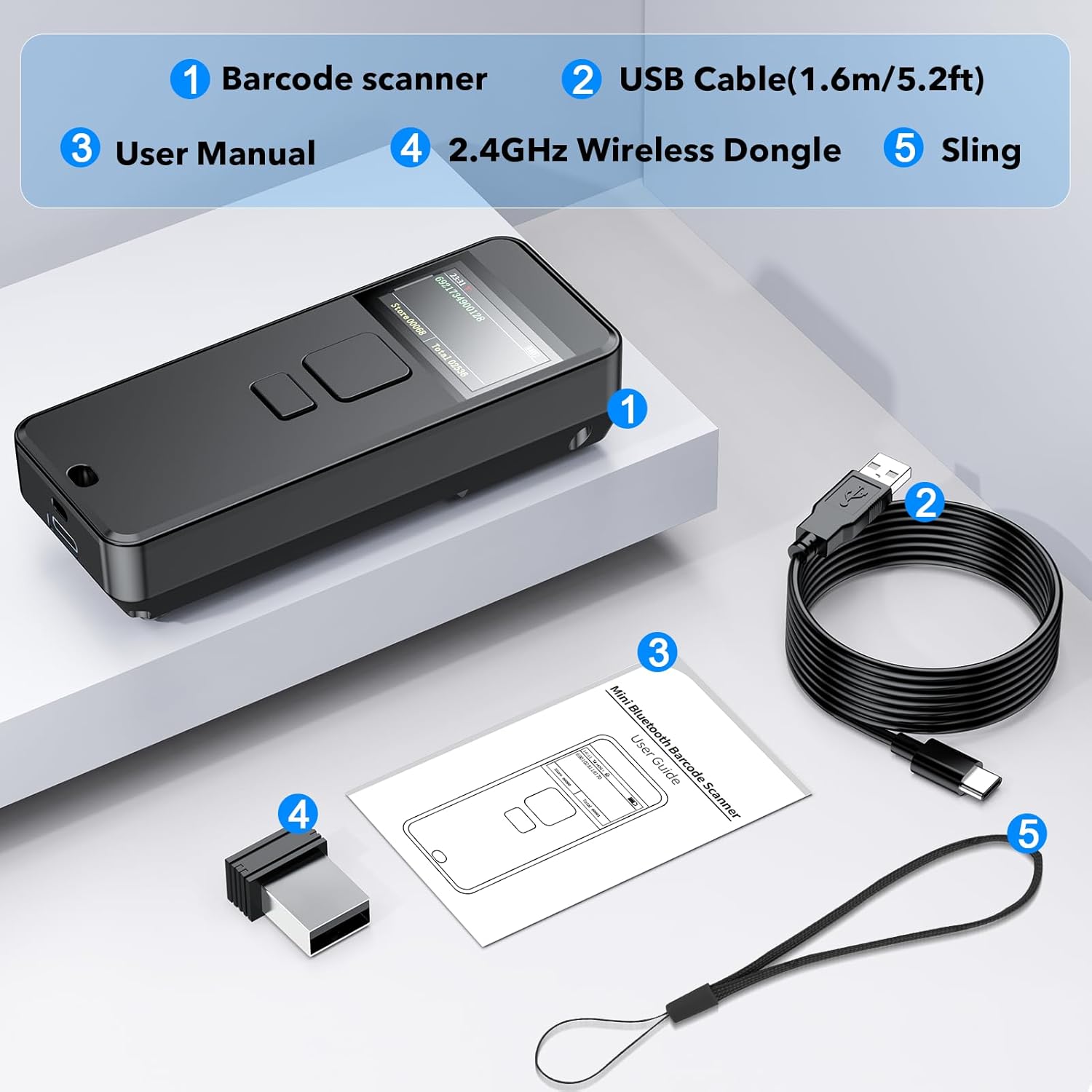
Image: Visual representation of the package contents, including the barcode scanner, USB cable, 2.4GHz wireless dongle, sling, and user manual.
4. Eto
4.1 Gbigba agbara akọkọ
Before first use, fully charge the scanner using the provided USB-C cable. Connect the USB-C end to the scanner and the USB-A end to a power adapter or computer USB port. The battery indicator on the screen will show charging status.
4.2 Yọ Fíìmù Ààbò kúrò
A protective film is applied to the display screen to prevent scratches during shipping. Gently peel off this film from the corner before using the scanner for optimal screen clarity.

Image: Illustrates the process of removing the protective film from the scanner's display screen, showing "before" and "after" views.
4.3 Awọn ọna asopọ
The Symcode MJ-X1 offers three connection methods: Bluetooth, 2.4G Wireless, and USB Wired. You can switch between these modes directly through the scanner's menu.
- Asopọ Bluetooth:
Ideal for connecting to smartphones, tablets, and Bluetooth-enabled computers. Scan the Bluetooth pairing barcode (found in the full user manual) or select Bluetooth mode from the scanner's menu. Then, search for "Symcode Scanner" on your device's Bluetooth settings and pair.
Ibiti: Approximately 15m/49ft in barrier environments, up to 50m/164ft in barrier-free environments.
- 2.4G Asopọ Alailowaya:
Use the provided 2.4GHz wireless dongle for computers without Bluetooth. Plug the dongle into a USB port on your computer. The scanner will automatically connect to the dongle when in 2.4G wireless mode.
Ibiti: Approximately 30m/98ft in barrier environments, up to 150m/492ft in barrier-free environments.
- Asopọ okun USB:
Connect the scanner directly to your computer using the USB-C cable. This mode provides faster data transfer and simultaneous charging. The scanner will function as a USB-HID keyboard device.

Image: Compares the effective range of 2.4GHz wireless and Bluetooth connections for the scanner in both barrier and barrier-free environments.
5. Awọn ilana Iṣiṣẹ
5.1 Agbara Tan / Pa
Press and hold the power button (usually located on the side or front) to turn the scanner on or off. The LCD screen will illuminate upon power-on.
5.2 Àwọn Ìgbésẹ̀ Ṣíṣàyẹ̀wò
The scanner supports three primary scanning modes, selectable via the device's menu or by scanning specific configuration barcodes from the full manual.
- Ipo okunfa bọtini: Press the scan button to activate the scanner and read a barcode.
- Ipo Ṣiṣayẹwo Tesiwaju: The scanner continuously emits a scan beam, reading barcodes as they pass through the beam without needing to press the button for each scan.
- Ipo Ìmọ̀lára Àìfọwọ́sí: The scanner activates its beam only when it detects a barcode in its field of view, then reads it automatically.

Image: Illustrates the three scanning modes: Key Trigger, Continuous Scanning, and Automatic Sensing, showing how the scanner interacts with barcodes in each mode.
5.3 Display Screen Information
The 1.5-inch LCD screen provides real-time information:
- Scanning Time: Han akoko lọwọlọwọ.
- Ọna asopọ: Indicates whether the scanner is connected via Bluetooth, 2.4GHz wireless, or USB wired.
- Ipele Agbara Batiri: Ṣe afihan idiyele batiri ti o ku.
- Barcodes Data: Displays the last scanned barcode content.
- Stored Data Amount: Shows the quantity of barcodes stored in memory (in storage mode).
- Total Scanning Amount: Displays the cumulative number of scans.
Akiyesi: To display goods names and prices, specific data upload to the scanner via a dedicated tool may be required. Contact Symcode support for details.
5.4 Data Upload Modes
Scanner naa ṣe atilẹyin fun awọn ipo gbigbe data meji:
- Ipo Ikojọpọ lẹsẹkẹsẹ: Barcodes are transmitted immediately to the connected device after scanning.
- Ipo Ipamọ: Barcodes are stored in the scanner's internal memory and can be uploaded later as a batch.
5.5 Ṣíṣe àtúnṣe àti Ètò
The scanner allows for various configurations through its screen menu or by scanning specific setup barcodes provided in the comprehensive user manual. These include:
- Turning sound and vibration on/off.
- Adding custom prefix/suffix digits to scanned data.
- Hiding specific characters from scanned data.
- Adding keyboard keys (e.g., TAB, CR&LF) to the scanning output.
- Setting time stamps for scanned data.

Image: Depicts various practical applications of the Symcode barcode scanner, including retail point-of-sale, warehouse inventory management, and pharmacy use.
6. Itọju
6.1 Ninu
To maintain optimal performance, keep the scanner's scanning window clean. Use a soft, lint-free cloth lightly dampened with water or a mild, non-abrasive cleaner. Do not use harsh chemicals or abrasive materials, as they can damage the device.
6.2 batiri Itọju
The scanner is equipped with a built-in rechargeable Lithium Polymer battery.
- Yago fun ṣiṣafihan batiri si awọn iwọn otutu pupọ (gbona tabi tutu).
- Charge the device regularly, even if not in frequent use, to prolong battery life.
- Tí a kò bá lo ẹ̀rọ náà fún ìgbà pípẹ́, gba agbára rẹ̀ sí ìwọ̀n 50% kí o tó tọ́jú rẹ̀.
7. Laasigbotitusita
If you encounter issues with your Symcode barcode scanner, please refer to the following common problems and solutions:
| Isoro | Owun to le Fa / Solusan |
|---|---|
| Scanner ko ni agbara lori. | Battery is depleted. Charge the scanner fully. |
| Cannot connect via Bluetooth/2.4G Wireless. |
|
| Scanner ko ka barcodes. |
|
| Awọn data ti a ṣayẹwo jẹ aṣiṣe tabi pe. |
|
| Cannot configure prefix/suffix or other advanced settings. |
|
For further assistance, please refer to the complete user manual or contact Symcode customer support.
8. Awọn pato
| Ẹya ara ẹrọ | Ẹ̀kúnrẹ́rẹ́ |
|---|---|
| Nọmba awoṣe | MJ-X1 |
| Awọn iwọn | 5.35 x 4.25 x 2.13 inches |
| Iwọn Nkan | 5 iwon |
| Asopọmọra Technology | Bluetooth, Alailowaya 2.4G, Firanṣẹ USB |
| Orisun agbara | Agbara Batiri |
| Batiri Iru | 1 Batiri litiumu polima (pẹlu) |
| Agbara Batiri | 2000mAh |
| Awọn ẹrọ ibaramu | Ojú-iṣẹ, Kọǹpútà alágbèéká, Foonuiyara, Tabulẹti |
| Olupese | symcode |
| Awọn koodu Barcodes atilẹyin | 1D: ISBN/UPC/EAN, UPC/EAN With Supplementals, Code39, Interleaved 2 of 5, Code93, Code 128, Codabar. 2D: QR, Data Matrix, PDF417. |
9. Atilẹyin ọja ati Support
9.1 atilẹyin ọja Alaye
Symcode products typically come with a standard manufacturer's warranty covering defects in materials and workmanship. Please refer to the warranty card included with your product or visit the official Symcode website for specific warranty terms and conditions. Keep your purchase receipt as proof of purchase for warranty claims.
9.2 Onibara Support
For technical assistance, troubleshooting, or any inquiries regarding your Symcode 2D Bluetooth Barcode Scanner, please contact Symcode customer support.
- Atilẹyin Ayelujara: Visit the official Symcode website for FAQs, drivers, and digital manuals.
- Imeeli Atilẹyin: Tọkasi apoti ọja rẹ tabi osise naa webojula fun awọn onibara iṣẹ adirẹsi imeeli.
- Atilẹyin Olutaja Amazon: You can also contact the seller "Symcode" directly through your Amazon order history for product-specific inquiries.
Ask a question about this manual
Ask about setup, troubleshooting, compatibility, parts, safety, or missing instructions. Manuals+ will review the question and use this page’s manual context to help answer it.