
1. Ifihan
O ṣeun fun riraasing the Sharp 4T-C65FL6EX 65-inch 4K Frameless Smart TV. This manual provides essential information for the safe and efficient use of your new television. Please read these instructions thoroughly before operating the TV and retain them for future reference.
Alaye Aabo pataki
Always follow basic safety precautions when using this product to reduce the risk of fire, electric shock, and injury. Do not expose the TV to rain or moisture. Do not open the cabinet; refer all servicing to qualified personnel. Ensure proper ventilation and avoid placing the TV near heat sources.
2. Ọja Ipariview
The Sharp 4T-C65FL6EX is a 65-inch 4K UHD Smart LED TV designed to deliver an immersive viewing experience. It features a frameless design, Google TV operating system, and a built-in digital receiver.
Key Awọn ẹya ara ẹrọ
- 65-inch 4K UHD Display: Enjoy stunning visuals with a resolution of 3840 x 2160 pixels.
- Apẹrẹ Ailopin: Maximizes screen space for an expansive view.
- Google TV Operating System: Access a wide range of apps, movies, and shows.
- Built-in Digital Receiver: Supports DVB-S/S2/T/T2/C broadcast types.
- Dolby Atmos & DTS Studio Sound: Delivers rich, immersive audio.
- Dolby Vision & HDR10: Enhanced contrast and color for compatible content.
- Chromecast ti a dapọ: Ni irọrun sọ akoonu lati awọn ẹrọ alagbeka rẹ.
- Far-field Voice Control & Google Assistant: Ṣakoso TV rẹ pẹlu awọn pipaṣẹ ohun.
- Asopọmọra: Wi-Fi, Bluetooth v5.1, 3 HDMI 2.0 ports, 2 USB ports, LAN.
Package Awọn akoonu
- Sharp 4T-C65FL6EX 65-inch 4K Smart TV
- Isakoṣo latọna jijin
- Okun agbara
- Iduro TV (awọn ege 2)
- Skru fun Imurasilẹ fifi sori
- Afowoyi Olumulo (iwe-ipamọ yii)

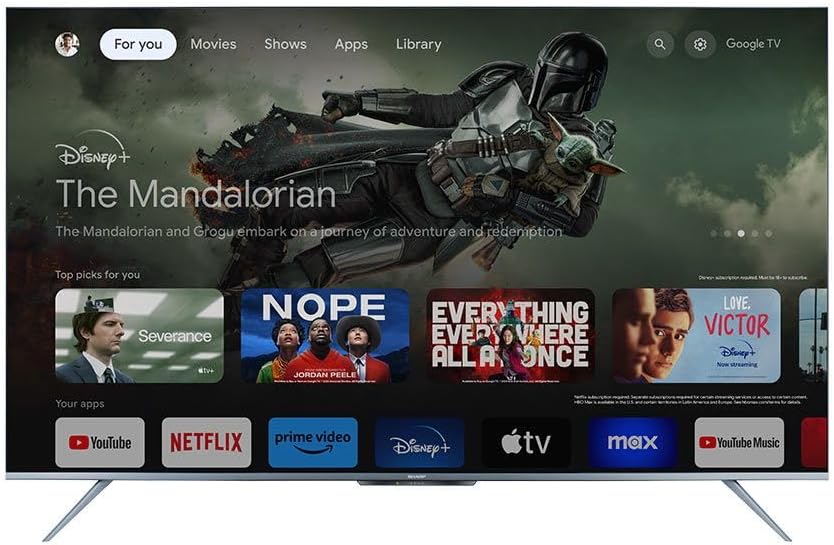
olusin 2.1: Iwaju view of the Sharp 4T-C65FL6EX Smart TV.
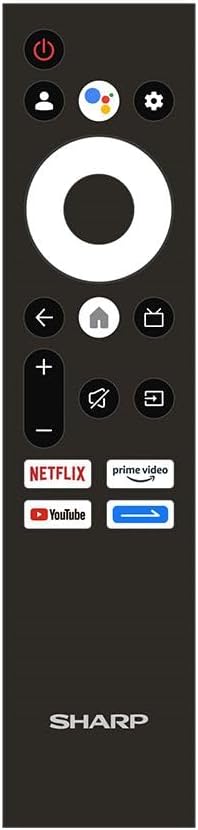
Figure 2.2: The included remote control for the Sharp Smart TV.
3. Eto
3.1 Ṣiṣii ati Gbe
- Carefully remove the TV from its packaging. It is recommended to have two people for this.
- Place the TV on a stable, flat surface or prepare for wall mounting. Ensure adequate space around the TV for ventilation.
3.2 Duro fifi sori
Ti o ko ba gbe TV sori ogiri, so iduro to wa:
- Lay the TV screen-down on a soft, clean cloth to prevent scratches.
- Mö kọọkan imurasilẹ nkan pẹlu awọn ti o baamu Iho lori isalẹ ti awọn TV.
- Ṣe aabo awọn iduro nipa lilo awọn skru ti a pese. Rii daju pe wọn ti di ṣinṣin.
3.3 Iṣagbesori odi (aṣayan)
This TV is compatible with VESA standard wall mounts. Consult a professional for wall mounting to ensure proper installation and safety. Remove the stand before wall mounting.
3.4 Awọn ẹrọ Nsopọ
So awọn ẹrọ ita rẹ pọ mọ TV nipa lilo awọn ibudo ti o yẹ:
- HDMI: For Blu-ray players, game consoles, cable/satellite boxes. The TV has 3 HDMI 2.0 ports.
- USB: For USB drives to play media (video, photos, music). The TV has 2 USB ports.
- Antenna/Satellite (RF Input): Connect your antenna or satellite dish cable to the RF input for digital broadcasting.
- Lan: Fun asopọ intanẹẹti ti a firanṣẹ.
olusin 3.1: Ẹyìn view of the TV illustrating various input/output ports.
3.5 Agbara Lori ati Eto Akoko-akọkọ
- So okun agbara pọ mọ TV ati lẹhinna si iṣan agbara kan.
- Tẹ bọtini agbara lori isakoṣo latọna jijin tabi lori TV.
- Follow the on-screen instructions to complete the initial setup, which includes selecting language, connecting to Wi-Fi, and signing in with your Google account.
4. Awọn ilana Iṣiṣẹ
4.1 Latọna Iṣakoso Awọn iṣẹ
Iṣakoso latọna jijin naa fun ọ laaye lati lo awọn ẹya ara ẹrọ TV naa. Awọn bọtini bọtini ni:
- Bọtini agbara: Tan TV si tan tabi paa.
- Bọtini Iranlọwọ Google: Mu iṣakoso ohun ṣiṣẹ.
- Paadi Lilọ kiri (Ayika): Moves through menus and selects items.
- Bọtini Ile: Pada si iboju ile Google TV.
- Bọtini Pada: Pada si iboju ti tẹlẹ.
- Iwọn didun Soke/Isalẹ: Ṣe atunṣe iwọn didun.
- Bọtini Mute: Pa tabi mu ohun naa mu.
- Bọtini titẹ sii: Yan awọn orisun titẹ sii (HDMI, AV, ati bẹbẹ lọ).
- Awọn bọtini Ọna abuja App: Wiwọle taara si Netflix, Fidio Prime, YouTube.
4.2 Google TV Interface
The Google TV interface organizes your content from various streaming services and apps into one personalized screen. You can browse recommendations, access your library, and discover new content.
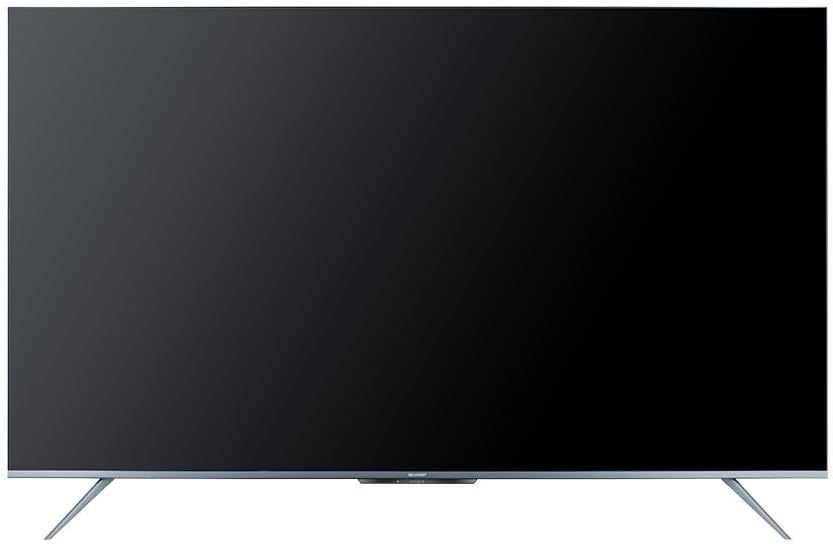
Figure 4.1: The Google TV home screen interface.
4.3 Using Smart Features
- Awọn ohun elo ṣiṣanwọle: Navigate to the 'Apps' section or use the dedicated remote buttons to launch Netflix, Prime Video, YouTube, and other installed applications.
- Iwadi ohun: Press the Google Assistant button on your remote and speak into the microphone to search for content, control playback, or ask questions.
- Chromecast ti a ṣe sinu: Use the Chromecast feature to cast videos, photos, and music from your compatible smartphone, tablet, or computer directly to the TV.
- Web Aṣàwákiri: Wọle si intanẹẹti nipa lilo ẹrọ ti a ṣe sinu rẹ web kiri ayelujara.
- Google Play itaja: Download and install additional apps and games from the Google Play Store.
4.4 Aṣayan Orisun Input
Láti yípadà láàrin àwọn ẹ̀rọ tí a sopọ̀ mọ́ra (fún àpẹẹrẹ, HDMI 1, HDMI 2, TV tuner), tẹ Iṣawọle bọtini lori iṣakoso latọna jijin rẹ ki o yan orisun ti o fẹ lati inu akojọ aṣayan iboju.
5. Itọju
5.1 Ninu TV
- Iboju: Fi aṣọ rírọ̀ tí kò ní àwọ̀ rẹ́rẹ́ nu ibojú náà. Fún àwọn àmì líle, lo ojutu ìfọmọ́ ibojú tí a ṣe pàtó fún àwọn tẹlifíṣọ̀n, tí a fi sí orí aṣọ náà, kìí ṣe taara sí ibojú náà.
- Igbimọ: Wipe the TV cabinet with a soft, dry cloth. Do not use abrasive cleaners, waxes, or solvents.
- Yọọ TV kuro nigbagbogbo lati iṣan agbara ṣaaju ṣiṣe mimọ.
5.2 Software imudojuiwọn
Your Sharp Smart TV may receive software updates periodically to improve performance and add new features. Ensure your TV is connected to the internet to receive these updates. You can usually check for updates in the TV's settings menu.
6. Laasigbotitusita
Ṣaaju ki o to kan si atilẹyin alabara, gbiyanju awọn ojutu wọnyi fun awọn iṣoro ti o wọpọ:
| Isoro | Owun to le Solusan |
|---|---|
| Ko si agbara | Check if the power cable is securely connected to the TV and the power outlet. Ensure the outlet is working. Try pressing the power button on the TV itself. |
| Ko si aworan, ṣugbọn ohun wa | Ensure the correct input source is selected. Check HDMI or other video cables for secure connections. |
| Ko si ohun, ṣugbọn aworan wa | Check the volume level and ensure the TV is not muted. Verify audio cable connections if using external speakers. Check audio output settings in the TV menu. |
| Isakoṣo latọna jijin ko ṣiṣẹ | Rọpo awọn batiri ni isakoṣo latọna jijin. Rii daju pe ko si awọn idena laarin isakoṣo latọna jijin ati sensọ IR ti TV. |
| Ko le sopọ si Wi-Fi | Rí i dájú pé ráútà Wi-Fi rẹ wà nílẹ̀, ó sì ń ṣiṣẹ́. Tún fi ọ̀rọ̀ ìpamọ́ Wi-Fi náà sí i dáadáa. Gbìyànjú láti tún ráútà rẹ àti ráútà TV náà bẹ̀rẹ̀. |
| Àwọn ẹ̀yà ọlọ́gbọ́n kò lọ́ra tàbí wọn kò dáhùn | Restart the TV. Ensure a stable internet connection. Close unused applications running in the background. |
7. Awọn pato
| Ẹya ara ẹrọ | Ẹ̀kúnrẹ́rẹ́ |
|---|---|
| Nọmba awoṣe | 4T-C65FL6EX |
| Iwon iboju | 65 inches |
| Ifihan ọna ẹrọ | LED |
| Ipinnu | 3840 x 2160 (4K UHD) |
| Apakan Ipin | 16:9 |
| Viewigun igun | 178 iwọn |
| Oṣuwọn sọtun | 60 Hz |
| Eto isesise | Google TV |
| Ti abẹnu Memory | 32 GB |
| Broadcast Iru | Digital (DVB-S/S2/T/T2/C) |
| Ohun Technology | Dolby Atmos, DTS Studio Ohun |
| Ìmọ̀-ẹ̀rọ Fídíò | HLG, Dolby Vision, HDR10 |
| Asopọmọra | Wi-Fi, Bluetooth v5.1 |
| Awọn ibudo HDMI | 3 (HDMI 2.0) |
| Awọn ibudo USB | 2 |
| Lan Port | 1 |
| Audio wu Power | 12 Wattis x 2 |
| Lilo Agbara (Ṣiṣe) | 200 Wattis |
| Lilo Agbara (Iduroṣinṣin) | <0.5 Wattis |
| Awọn iwọn (B x H x D) laisi iduro | 1447.7 x 837 x 81.3 mm |
| Awọn iwọn (B x H x D) pẹlu Iduro | 1447.7 x 922.6 x 280.2 mm |
| Apapọ iwuwo | 17.9 kg |
| Ilu isenbale | Egipti |
8. Atilẹyin ọja ati Support
8.1 Atilẹyin ọja
This Sharp 4T-C65FL6EX Smart TV comes with a Atilẹyin ọja ọfẹ ni kikun ọdun mẹta. Please retain your proof of purchase for warranty claims. The warranty covers manufacturing defects and malfunctions under normal use conditions. It typically does not cover damage caused by misuse, accidents, unauthorized repairs, or natural disasters.
8.2 Onibara Support
For technical assistance, service requests, or further inquiries regarding your Sharp TV, please contact Sharp customer support. Refer to the warranty card or Sharp's official webAaye fun awọn alaye olubasọrọ kan pato si agbegbe rẹ.