
1. Ifihan
This manual provides detailed instructions for the installation, operation, and maintenance of your darkFlash L280M MATX Gaming PC Case. Please read this manual thoroughly before beginning assembly to ensure proper setup and safe usage. The darkFlash L280M is a Micro-ATX case featuring a three-sided glass design, a curved full view panel, and a digital display for real-time system monitoring.
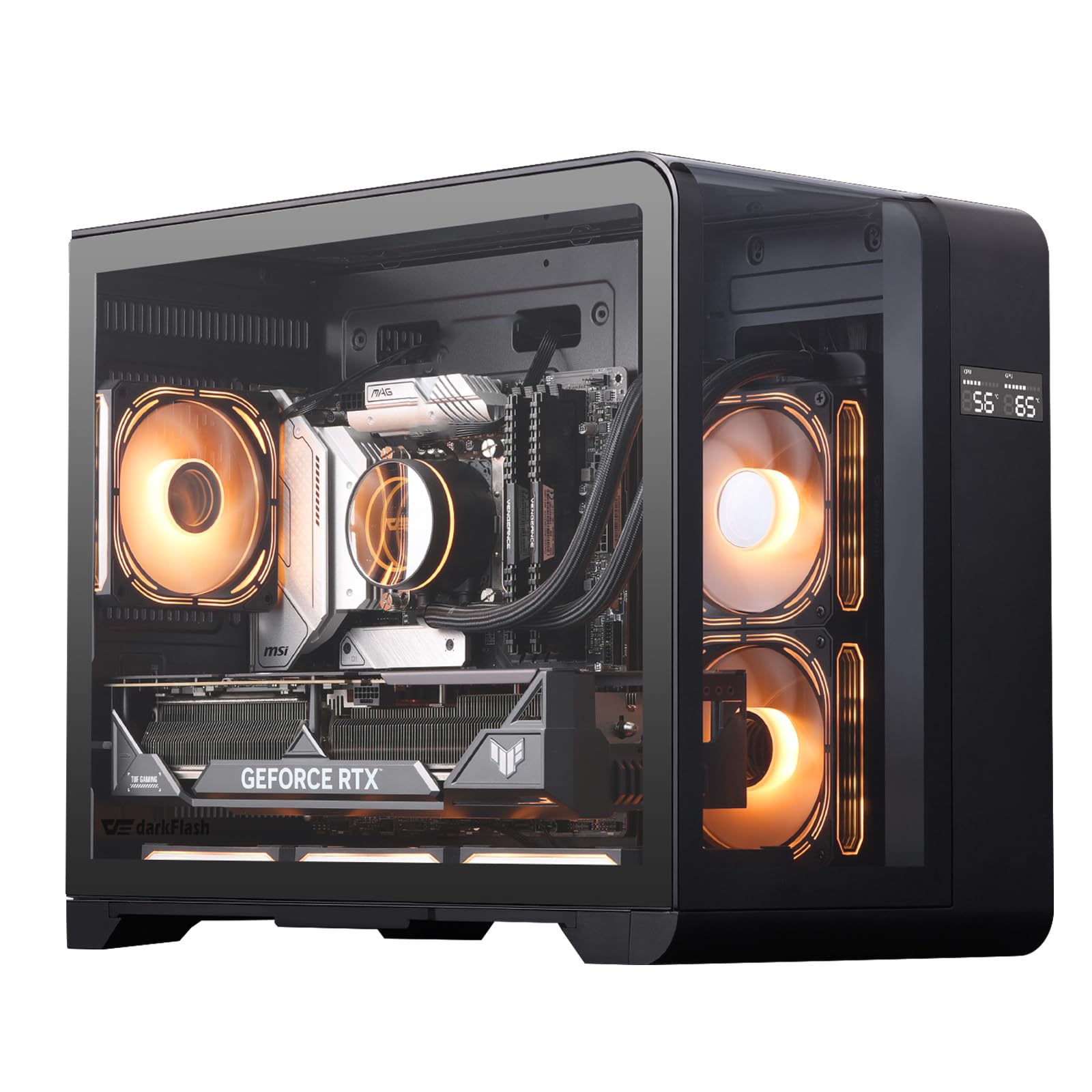
Image 1.1: The darkFlash L280M MATX Gaming PC Case, showcasing its three-sided glass and digital display.
2. Awọn Itọsọna Aabo
- Always disconnect the power supply from the wall outlet before installing or servicing any components inside the PC case.
- Handle tempered glass panels with care. Although durable, they can break if subjected to sharp impacts or excessive force.
- Wear anti-static gloves or use an anti-static wrist strap when handling internal components to prevent electrostatic discharge (ESD) damage.
- Pa awọn ẹya kekere ati awọn skru kuro lati ọdọ awọn ọmọde.
- Rii daju pe fentilesonu to dara ni ayika ọran PC lati ṣe idiwọ igbona.
3. Package Awọn akoonu
Jẹrisi pe gbogbo awọn paati wa ninu package:
- darkFlash L280M MATX PC Case
- Àwọn Fẹ́ẹ̀bùn PWM ARGB 3 x 120mm (tí a ti fi sori ẹrọ tẹ́lẹ̀)
- Accessory box (containing screws, cable ties, and other small parts)
- Afowoyi Olumulo (iwe-ipamọ yii)
4. Eto ati fifi sori
4.1 Ngbaradi Ọran naa
The darkFlash L280M case features removable panels for easy access during installation. Carefully remove the glass side panels and the rear panel to begin component installation.

Image 4.1: The case with its three glass panels and bottom dust filter removed, illustrating access points for component installation.
4.2 Component Installation Guidelines
- Modaboudu: The case supports Micro-ATX motherboards. Align the motherboard with the standoffs and secure it with screws.
- Olutọju Sipiyu: Accommodates CPU air coolers up to 157mm in height.
- Kaadi eya aworan (GPU): Supports GPUs up to 410mm in length.
- Ẹka Ipese Agbara (PSU): The case supports PSUs up to 200mm in length, mounted at the bottom.
- Awọn rediosi: Supports 240mm radiators or two 120mm fans on the side.
- Ibi ipamọ: The chassis supports up to 3 SSDs and 2 HDDs.
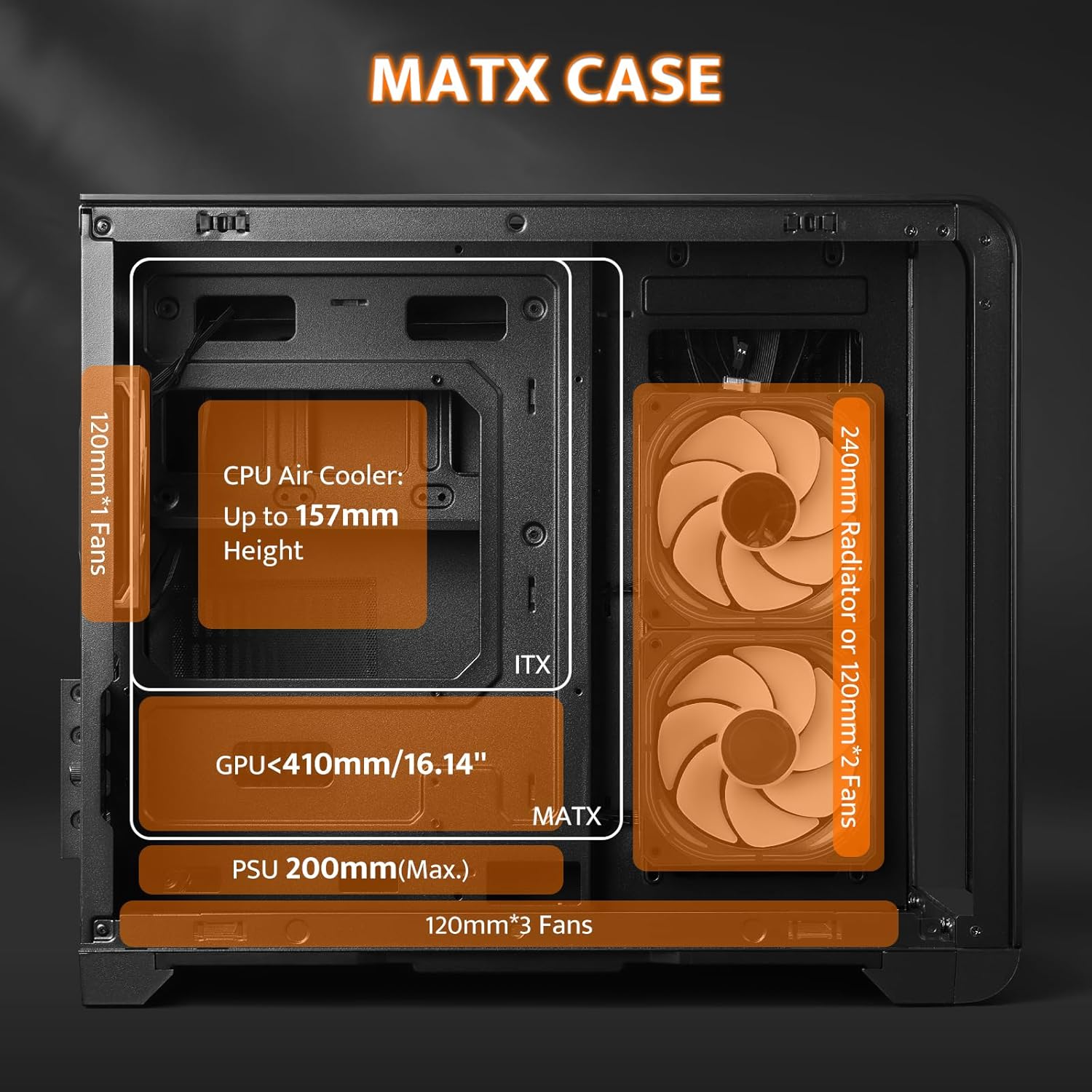
Image 4.2: Internal clearances for various components within the MATX case, including CPU cooler height, GPU length, PSU length, and radiator/fan placement.
4.3 Fan Installation and Cable Management
The case comes with three 120mm PWM ARGB fans pre-installed. Additional fans can be installed as needed. The chassis features a snap-on design and dedicated back positioning holes for efficient cable management, optimizing airflow and stability.
Video 4.3: This video demonstrates the installation of fans and connection of internal cables to the motherboard, including the USB 2.0 header for the digital display.

Àwòrán 4.4: Àwòrán inú view highlighting the back positioning holes for cable management and the drive bays for SSDs and HDDs.
5. Isẹ
5.1 Ifihan Digital
The integrated digital display provides real-time monitoring of CPU and GPU temperature and usage. To enable this feature, connect the display's USB 2.0 cable to a compatible header on your motherboard. Software installation may be required for full functionality.

Image 5.1: The digital display showing CPU and GPU temperature and usage, along with the USB 2.0 connector required for its operation.
5.2 Iwaju Mo / O Panel
The front I/O panel provides convenient access to various ports and controls:
- Bọtini agbara: To turn the system on or off.
- Bọtini atunto: Lati tun eto naa bẹrẹ.
- Bọtini LED: Controls the lighting effects of compatible LEDs. Note that this may require a dedicated ARGB hub or controller for full functionality.
- Awọn ibudo USB 3.0: Fun ga-iyara data gbigbe.
- Awọn ibudo USB 2.0: Fun boṣewa USB awọn ẹrọ.
- Iru Ibudo-C: For modern USB-C devices.
- Àwọn Jack ohùn HD: Fun olokun ati microphones.

Image 5.2: The front I/O panel detailing the power, reset, and LED buttons, along with USB Type-C, USB 3.0, USB 2.0, and HD audio ports.
6. Itọju
6.1 eruku Filter Cleaning
The case includes a dust filter at the bottom to help prevent dust accumulation inside the system. Regularly clean this filter to maintain optimal airflow and component longevity.
- Gently pull out the dust filter from the bottom of the case.
- Clean the filter using compressed air or by rinsing it with water. Ensure it is completely dry before reinserting.
- Slide the clean filter back into its position.
6.2 Gbogbogbo Cleaning
Use a soft, dry cloth to wipe down the exterior of the case. For glass panels, a microfiber cloth and a mild glass cleaner can be used. Avoid abrasive cleaners or solvents.
7. Laasigbotitusita
7.1 Digital Display Not Functioning
- Ensure the USB 2.0 cable from the display is securely connected to a USB 2.0 header on your motherboard.
- Ṣayẹwo awọn olupese ká website for any required software or drivers for the digital display. Install any necessary software.
- Verify that the software is running correctly in your operating system.
7.2 LED/ARGB Lighting Issues
- Confirm that the ARGB fan cables are correctly connected to your motherboard's ARGB header or a dedicated ARGB controller/hub.
- The LED button on the front I/O panel may require a compatible 2-pin controller or a fan with a 2-pin interface to function. If your setup uses a different ARGB control method (e.g., motherboard software), the case's LED button might not be active.
- Consult your motherboard manual for ARGB header locations and software control.
7.3 General System Instability/Overheating
- Ensure all fans are spinning correctly and are not obstructed.
- Verify that cables are neatly managed and not impeding airflow.
- Máa fọ àwọn àlẹ̀mọ́ eruku àti àwọn èròjà inú ilé déédéé.
8. Awọn pato
| Ẹya ara ẹrọ | Ẹ̀kúnrẹ́rẹ́ |
|---|---|
| Brand | darkFlash |
| Orukọ awoṣe | L280M |
| Iru Irú | Midi Tower (Micro ATX) |
| Modaboudu Ibamu | Micro ATX |
| Àwọ̀ | Dudu |
| Ohun elo | Irin, Gilasi Onígboná |
| Awọn iwọn Nkan (D x W x H) | 11.02"D x 16.22"W x 14.96"H |
| Iwọn Nkan | 16.5 iwon |
| GPU Kiliaransi | Ti o de 410mm |
| Sipiyu kula Iga | Ti o de 157mm |
| PSU Ipari | Up to 200mm (Bottom Mount) |
| Radiator Support | 240mm (Side) |
| Awọn onijakidijagan ti a ti fi sii tẹlẹ | 3 x 120mm PWM ARGB Fans |
| Wakọ Bays | 3 x SSD, 2 x HDD |
| Imugboroosi Iho | 7 |
| Iwaju I/O | 1 x Type-C, 1 x USB 3.0, 2 x USB 2.0, HD Audio, Power, Reset, LED Control |
| Pataki Awọn ẹya ara ẹrọ | Built-In Digital Display, Full View Curved Glass, Dust Filter |

Image 8.1: Detailed dimensions of the darkFlash L280M case and pre-installed fan configuration.

Image 8.2: Visual comparison illustrating the size difference between ATX and MATX versions of darkFlash cases.
9. Atilẹyin ọja ati Support
9.1 atilẹyin ọja Alaye
The darkFlash L280M MATX Gaming PC Case comes with a 1-odun atilẹyin ọja Láti ọjọ́ tí a rà á. Àtìlẹ́yìn yìí bo àwọn àbùkù iṣẹ́ ṣíṣe, ó sì ń rí i dájú pé ọjà náà dára. Jọ̀wọ́ pa ẹ̀rí ìrajà rẹ mọ́ fún àwọn ẹ̀tọ́ àtìlẹ́yìn.
9.2 Onibara Support
For technical assistance, troubleshooting, or warranty inquiries, please visit the official darkFlash website or contact their customer support. Refer to the product packaging or the official darkFlash webojula fun awọn julọ lọwọlọwọ alaye olubasọrọ.