
Tẹra P150
Tera P150 Android 12 Barcode Scanner PDA User Manual
Awoṣe: P150
1. Ifihan
This manual provides essential information for the proper setup, operation, and maintenance of your Tera P150 Android 12 Barcode Scanner PDA. Please read this manual thoroughly before using the device to ensure optimal performance and longevity.

Image 1.1: The Tera P150 Android Barcode Scanner PDA, showcasing apẹrẹ didara ati wiwo olumulo rẹ.
2. Eto
2.1 Package Awọn akoonu
Jẹrisi pe gbogbo awọn ohun kan wa ninu package:
- Tera P150 Android Barcode Scanner PDA
- Ọran Idaabobo
- Olugbeja iboju
- Okun Ọwọ
- Okun USB
- Ṣaja Adapter
- Itọsọna olumulo (Itọsọna Ibẹrẹ Ibẹrẹ)

Image 2.1: All components included in the Tera P150 product package.
2.2 Batiri sori ati gbigba agbara
- Wa ibi ipamọ batiri naa ni ẹhin ẹrọ naa.
- Insert the 5000 mAh removable battery, ensuring proper alignment of the contacts.
- Ṣe aabo ideri batiri naa.
- Connect the USB cable to the device and the charger adapter, then plug into a power outlet.
- Allow approximately 3 hours for a full charge.

Image 2.2: The removable 5000 mAh battery, designed for extended use.
2.3 Titan / Pa a
Press and hold the power button located on the side of the device until the screen illuminates (for power on) or a power-off menu appears (for power off).
3. Awọn ilana Iṣiṣẹ
3.1 Android 12 Eto iṣẹ
The Tera P150 operates on Android 12, offering an intuitive user interface, enhanced performance, and improved privacy controls. Navigate using touch gestures similar to other Android devices.

Image 3.1: The Tera P150 displaying multiple applications, demonstrating seamless multitasking capabilities with Android 12.
3.2 Barcode Scanning with Zebra SE4710
The device integrates a Zebra SE4710 scanner engine for efficient barcode reading. To scan:
- Open the scanning application on the device.
- Point the scanner window at the barcode.
- Press the dedicated scan button (if available) or trigger the scan via the on-screen interface.
- Ensure the red laser or illumination covers the entire barcode for accurate capture.

Image 3.2: A user operating the Tera P150 to scan barcodes in a warehouse environment, highlighting the integrated Zebra SE4710 scanner.
3.3 Fọwọkan iboju isẹ
The 5.5-inch full touch screen supports operation with gloves and wet hands, enhancing usability in various work conditions. The display offers a resolution of 1440 x 720 pixels.
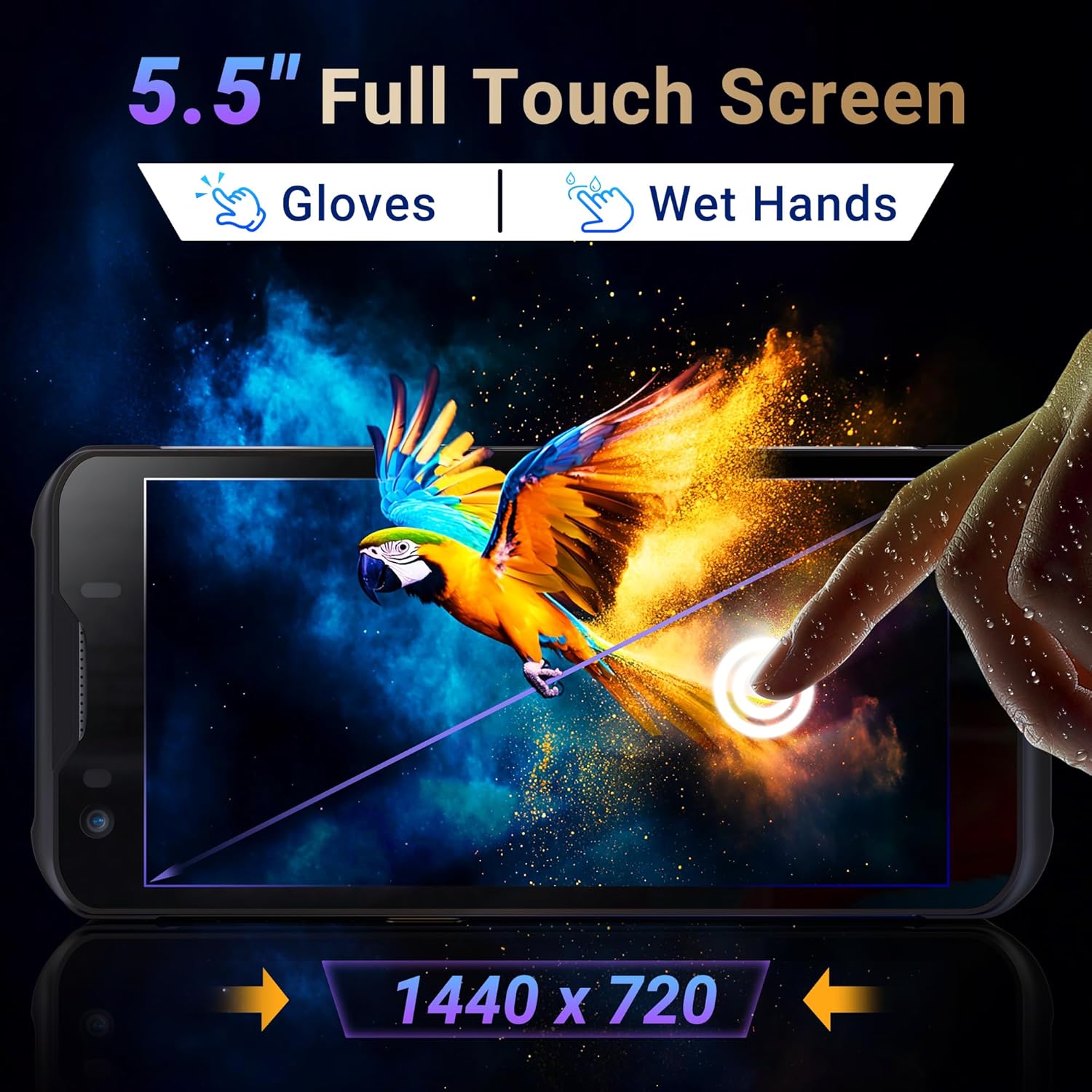
Image 3.3: The Tera P150's 5.5-inch full touch screen, illustrating its responsiveness and clarity.
3.4 kamẹra iṣẹ
The device is equipped with a 13.0 MP rear camera and a 5.0 MP front camera for documentation and communication purposes.

Aworan 3.4: Isunmọ view of the Tera P150, highlighting the 13.0 MP rear camera and 5.0 MP front camera.
4. Itọju
4.1 Rugged Design and IP67 Rating
The Tera P150 features an IP67 rating, indicating resistance to dust and water ingress. It is also designed to withstand drops from up to 4.9 feet (1.5 meters), making it suitable for demanding environments.
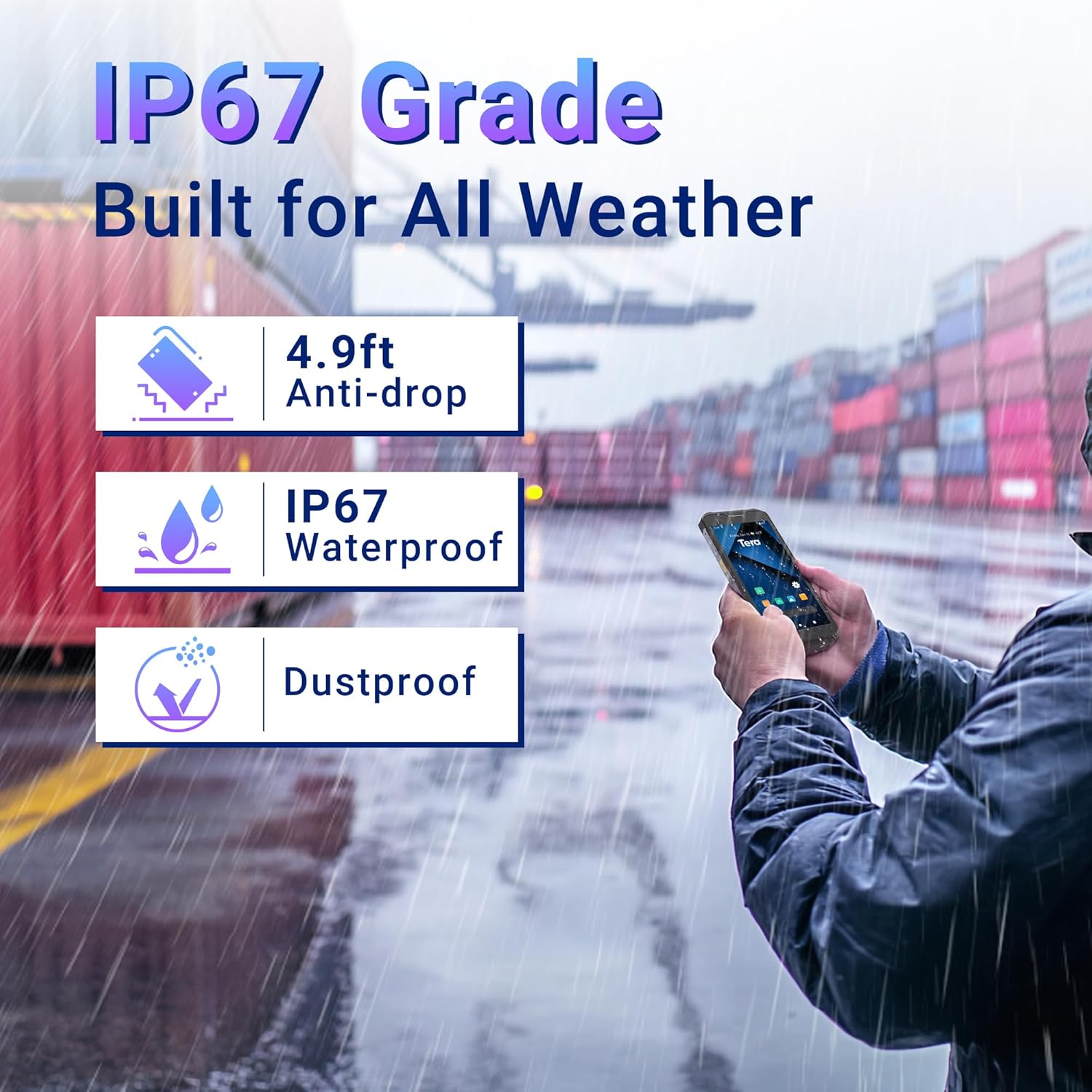
Image 4.1: Visual representation of the Tera P150's IP67 water and dust resistance, and its 4.9ft drop resistance.
Video 4.1: Demonstration of the Tera P150's IP67-rated protection, showcasing its durability against water and drops.
4.2 Ninu
Lo asọ, damp cloth to clean the device. Avoid harsh chemicals or abrasive materials that could damage the screen or casing.
5. Laasigbotitusita
5.1 Ẹrọ Ko Nṣiṣẹ Tan-an
- Rii daju pe batiri ti fi sori ẹrọ daradara ati pe o ti gba agbara ni kikun.
- Connect the device to the charger and attempt to power on.
5.2 Àwọn Ìṣòro Ṣíṣàyẹ̀wò
- Verify the barcode is clean and undamaged.
- Rí i dájú pé àwọn ipò ìmọ́lẹ̀ tó péye wà.
- Check the scanning application settings.
5.3 Performance Lag
- Pa awọn ohun elo abẹlẹ ti ko wulo.
- Ko kaṣe kuro ati igba diẹ files.
- Tun ẹrọ naa bẹrẹ.
6. Awọn pato
| Ẹya ara ẹrọ | Ẹ̀kúnrẹ́rẹ́ |
|---|---|
| Nọmba awoṣe | P150 |
| Eto isesise | Android 12 |
| isise | MTK CPU |
| Àgbo | 4GB |
| ROM (Ipamọ) | 64GB |
| Barcode Scanner | Abila SE4710 |
| Ifihan | 5.5-inch Full Fọwọkan iboju |
| Rating agbara | IP67, 4.9 ft Drop Resistant |
| Batiri | 5000 mAh Removable |
| Kamẹra ẹhin | 13.0 MP |
| Kamẹra iwaju | 5.0 MP |
| Asopọmọra | 4G, GPS, USB |
| Iwọn Nkan | 1.3 iwon |
| Package Mefa | 7.6 x 4.2 x 2.9 inches |
Fidio 6.1: Ipariview of the Tera P150's key features, including its IP67 rating, 4GB RAM, 64GB storage, Android 12 OS, and 5.5-inch touch screen.
7. atilẹyin ọja Information
Please refer to the warranty card included with your product for detailed warranty terms and conditions. Keep your proof of purchase for any warranty claims.
8. Atilẹyin
For technical assistance, troubleshooting, or further inquiries, please contact Tera customer support. Contact information can be found on the official Tera webaaye ayelujara tabi ninu itọsọna Ibẹrẹ Yara.
Ask a question about this manual
Ask about setup, troubleshooting, compatibility, parts, safety, or missing instructions. Manuals+ will review the question and use this page’s manual context to help answer it.