
1. Ifihan
This manual provides detailed instructions for the setup, operation, maintenance, and troubleshooting of your Transformers TF-Crystal 85 Keys Mechanical Keyboard. Please read this manual thoroughly before using the product to ensure proper functionality and longevity.
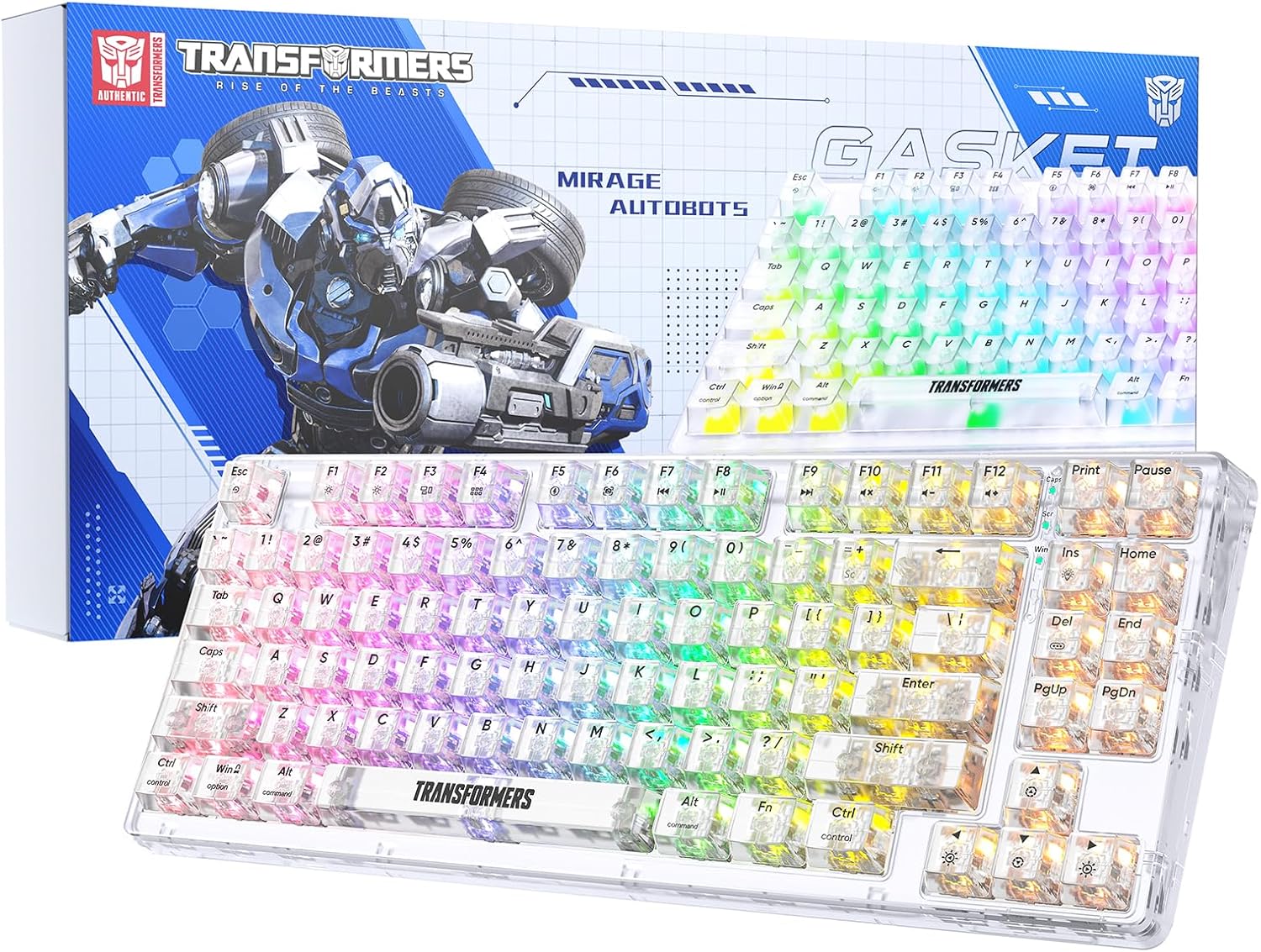
Image 1.1: Transformers TF-Crystal 85 Keys Mechanical Keyboard with its packaging, showcasing the transparent design and RGB lighting.
2. Ọja Ipariview
2.1 Key Awọn ẹya ara ẹrọ
- 85-Ipele bọtini: Compact 75% design retaining essential functions, arrow, and navigation keys.
- Asopọmọra-Ipo Mẹta: Ṣe atilẹyin Bluetooth 5.0, alailowaya 2.4GHz, ati awọn asopọ okun USB-C.
- PCB Gbona-Swappable: Compatible with most 3-pin and 5-pin mechanical switches, allowing for easy customization and replacement.
- Linear Switches: Pre-lubricated switches with a 50 million keystroke lifespan for durability and smooth operation.
- Eto Gasket: Incorporates high-quality gasket materials and a silicone pad to absorb vibrations and reduce typing noise.
- Customizable RGB Backlight: Features 20 built-in backlight modes, 16.8 million color options, and dynamic music rhythm effects.
- Programmable Driver: Enables macro customization, key function remapping, and advanced lighting control.
- Igbesi aye batiri gigun: Equipped with a 4000mAh battery, providing up to 240 hours of continuous use in 2.4GHz mode without backlighting.
- Ibamu gbooro: Supports Mac, Windows, iOS, Android, PC, Laptop, Smartphone, Tablet, Switch, Xbox, and PlayStation.
- Apẹrẹ ti o han gbangba: Features transparent keycaps and base for enhanced aesthetic appeal.
3. Eto
3.1 Ngba agbara si Keyboard
Before initial use, fully charge the keyboard. Connect the provided USB-C cable to the keyboard's USB-C port and the other end to a powered USB port (e.g., computer, wall adapter). The charging indicator will show the charging status.
3.2 Nsopọ nipasẹ Ipo Alailowaya 2.4GHz
- Wa olugba USB 2.4GHz, ni igbagbogbo ti o fipamọ sinu yara kan lori keyboard.
- Pulọọgi olugba USB sinu ibudo USB ti o wa lori kọnputa rẹ.
- Toggle the mode switch on the keyboard to the 2.4G ipo.
- The keyboard will automatically connect to your device.
3.3 Connecting via Bluetooth 5.0 Mode
- Toggle the mode switch on the keyboard to the BT ipo.
- Tẹ mọlẹ fn+1 (tabi fn+2, fn+3) for 3-5 seconds until the indicator light flashes rapidly, indicating pairing mode.
- Lori ẹrọ rẹ (kọmputa, tabulẹti, foonuiyara), mu Bluetooth ṣiṣẹ ki o wa awọn ẹrọ titun.
- Select "TF-Crystal 85" from the list of available devices to pair.
- Once paired, the indicator light will stop flashing and remain solid. You can pair up to three Bluetooth devices using fn+1, fn+2, ati fn+3.
3.4 Nsopọ nipasẹ USB-C Ipo ti firanṣẹ
- So okùn USB-C tí a pèsè mọ́ ibudo USB-C ti keyboard.
- So opin miiran ti okun USB-C si ibudo USB ti o wa lori kọnputa rẹ.
- The keyboard will automatically switch to wired mode and function without battery power.

Image 3.1: Diagram illustrating the three connection modes: Bluetooth 5.0, 2.4GHz wireless, and USB-C wired, compatible with various devices.
4. Awọn ilana Iṣiṣẹ
4.1 Yíyípadà Láàárín Àwọn Ìgbésẹ̀
Use the physical switch located on the keyboard to select between BT (Bluetooth), 2.4G (2.4GHz wireless), and USB-C (wired) modes.
4.2 RGB Backlight Iṣakoso
Àtẹ bọ́tìnnì náà ṣe àfikún ìmọ́lẹ̀ ìpadàsẹ́yìn RGB. Lo awọn akojọpọ bọtini atẹle lati ṣatunṣe:
- Fn + Ins: Cycle through 20 different backlight effects.
- Fn + Del: Switch backlight colors within certain modes.
- Fn + ↑ / ↓: Ṣatunṣe imọlẹ ina ẹhin (awọn ipele 5).
- Fn + ← / →: Adjust backlight effect speed (5 levels).
- Fn + Esc (hold for 3s): Reset backlight settings to default.

Image 4.1: Visual guide for controlling RGB backlight effects, brightness, and speed using Fn key combinations.
4.3 Programmable Driver Usage
The keyboard includes a programmable driver for advanced customization. This driver allows you to:
- Ṣatunkọ Makiro: Record and edit complex key sequences.
- Key Redefinition: Customize the function of individual keys.
- RGB Effect Customization: Fine-tune lighting modes, colors, and speeds, including music rhythm lighting effects.
Refer to the software's dedicated user interface for detailed instructions on using these features.

Image 4.2: Screenshot of the programmable driver interface, showing options for macro editing, RGB effects, and key redefinition.
4.4 Gbona-Swapping Yipada
The TF-Crystal 85 keyboard features a hot-swappable PCB, allowing you to change mechanical switches without soldering. This supports most 3-pin and 5-pin mechanical switches.
- Pa keyboard rẹ tàbí kí o yọ ọ́ kúrò nínú ẹ̀rọ rẹ.
- Lo ohun tí a fi ń fa ìdènà bọtini tí a pèsè láti fi pẹ̀lẹ́pẹ̀lẹ́ yọ ìdènà bọtini tí a fẹ́ kúrò.
- Use the provided switch puller to gently grip the switch from its top and bottom clips, then pull it straight up to remove it.
- Mú àwọn pin ti switch tuntun náà tò pẹ̀lú àwọn ihò tí ó wà lórí PCB. Rí i dájú pé àwọn pin náà tọ́.
- Fi ọwọ́ tẹ switch tuntun náà sí ibi tí ó wà títí tí yóò fi tẹ dáadáa. Má ṣe fipá mú un.
- Rọpo bọtini bọtini.

Image 4.3: Illustration of the hot-swappable feature, showing how to remove and insert 3-pin/5-pin switches and the linear switch specifications.
5. Itọju
5.1 Ninu Keyboard
- Ge asopọ keyboard kuro lati gbogbo awọn orisun agbara ṣaaju ṣiṣe mimọ.
- Lo asọ asọ, ti ko ni lint die-die dampti a fi omi kun tabi ojutu mimọ kekere lati nu awọn bọtini bọtini ati ẹnjini naa.
- Fun eruku ati idoti laarin awọn bọtini, lo afẹfẹ fisinuirindigbindigbin tabi fẹlẹ kekere kan.
- Avoid using harsh chemicals or abrasive materials that could damage the keyboard's surface.
5.2 batiri Itọju
- Yago fun gbigba agbara si batiri ni kikun nigbagbogbo.
- Tọju keyboard ni itura, aye gbigbẹ nigbati o ko ba lo fun awọn akoko ti o gbooro sii.
- Tí a kò bá lo keyboard fún ìgbà pípẹ́, gba agbára rẹ̀ sí ìwọ̀n 50% kí a tó fi pamọ́.
6. Laasigbotitusita
| Isoro | Owun to le Fa | Ojutu |
|---|---|---|
| Keyboard ko dahun ni ipo alailowaya. | Low battery, incorrect mode selected, receiver not connected, Bluetooth not paired. | Charge the keyboard. Ensure the mode switch is set correctly (2.4G or BT). Re-insert the 2.4G receiver. Re-pair Bluetooth. |
| Awọn bọtini kii ṣe iforukọsilẹ tabi titẹ-meji. | Faulty switch, debris under keycap, software issue. | Clean under the keycap. Try hot-swapping the switch with a known working one. Restart your computer. |
| RGB backlight not working or incorrect. | Backlight turned off, incorrect settings, software conflict. | Ṣatunṣe imọlẹ nipa lilo Fn + ↑. Cycle modes with Fn + Ins. Reset backlight with Fn + Esc (hold 3s). Check programmable driver settings. |
| Keyboard not charging. | Faulty USB-C cable, power source issue, keyboard port damage. | Try a different USB-C cable. Use a different USB port or power adapter. Ensure the cable is fully inserted. |
7. Awọn pato
| Ẹya ara ẹrọ | Ẹ̀kúnrẹ́rẹ́ |
|---|---|
| Nọmba awoṣe | TF-Crystal 85 |
| Ifilelẹ bọtini | 85 Keys (75% Compact) |
| Asopọmọra | Bluetooth 5.0, 2.4GHz Alailowaya, USB-C Ti firanṣẹ |
| Yipada Iru | Pre-lubricated Linear Mechanical Switches |
| Yipada s'aiye | 50 Milionu Keystrokes |
| Gbona-Swappable | Bẹẹni (ibaramu 3-pin/5-pin) |
| Imọlẹ ẹhin | RGB (awọn ipo 20, awọn awọ miliọnu 16.8) |
| Agbara Batiri | 4000mAh |
| Battery Life (2.4G, no light) | Titi di wakati 240 |
| Ìgbésí Ayé Bátìrì (Ìmọ́lẹ̀ ẹ̀yìn) | O fẹrẹ to awọn wakati 22 |
| Awọn iwọn (L x W x H) | 34.7 cm x 14 cm x 4.5 cm |
| Ibamu | Mac, Windows, iOS, Android, PC, Laptop, Smartphone, Tablet, Switch, Xbox, PlayStation |

Image 7.1: Visual representation of the keyboard's battery life: 240 hours with backlight off, 22 hours with backlight on, powered by a 4000mAh battery.
8. Atilẹyin ọja ati Support
Transformers is committed to providing exceptional customer service. If you encounter any problems with your TF-Crystal 85 Keys Mechanical Keyboard, our after-sales support team is available to assist you. This includes technical support, exchanges, or installation guidance.
Please contact our customer service for assistance. We guarantee a hassle-free service experience.