
1. Ifihan
This manual provides detailed instructions for the setup, operation, and maintenance of your AHXJKA 15.6-inch Portable Touchscreen Monitor (Model S150T). Please read this manual thoroughly before using the product to ensure proper functionality and to maximize your user experience.

Image: The AHXJKA 15.6-inch Portable Touchscreen Monitor in use, displaying a media player. The monitor is set up on its smart cover case, acting as a stand.
2. Key Awọn ẹya ara ẹrọ
- 15.6-inch Full HD Touch Screen: Features a 1920x1080 resolution with touch capability, providing an interactive display.
- IPS/HDR Technology: Equipped with IPS and HDR for vibrant colors and wide viewing awọn igun.
- Ìwọ̀n Fúyẹ́ àti Tí Ó tọ́: Weighs approximately 1.74 lbs and includes a smart cover case for portability and protection.
- Asopọmọra Wapọ: Includes two Type-C ports, a mini HDMI port, and a 3.5mm audio jack for connecting to various devices.
- Awọn Agbọrọsọ ti A ṣe sinu: Equipped with 8Ω/1W*2 speakers for integrated audio.

Image: Visual representation of the monitor's display characteristics, highlighting brightness, contrast, color depth, low blue light feature, and wide viewigun igun.

Aworan: Examples of the monitor's versatile applications, including collaborative work, financial analysis, and gaming entertainment.
3. Ohun ti o wa ninu Apoti
Jẹrisi pe gbogbo awọn ohun kan wa ninu package:
- AHXJKA Portable Monitor
- Monitor Stand (Smart Cover Case)
- Itọsọna olumulo
- Mini HDMI si HDMI Cable
- Iru-C to Iru-C USB

Image: All components included in the AHXJKA Portable Monitor package.
4. Eto ati Asopọ
The AHXJKA portable monitor offers multiple connection options for various devices. Ensure your device supports the necessary output for video and touch functionality.
4.1. Connectivity Overview

Aworan: Pariview of available cables and connection methods for laptops.

Aworan: Alaye view of the monitor's ports and controls, indicating compatibility with smartphones, tablets, laptops, PCs, Switch, Camera, Xbox, Raspberry Pi, and Computer.
4.2. Enabling Touch Functionality
For touch functionality, a specific USB-C connection is required in addition to the video signal. Ensure any protective film is removed from the screen for optimal touch response.
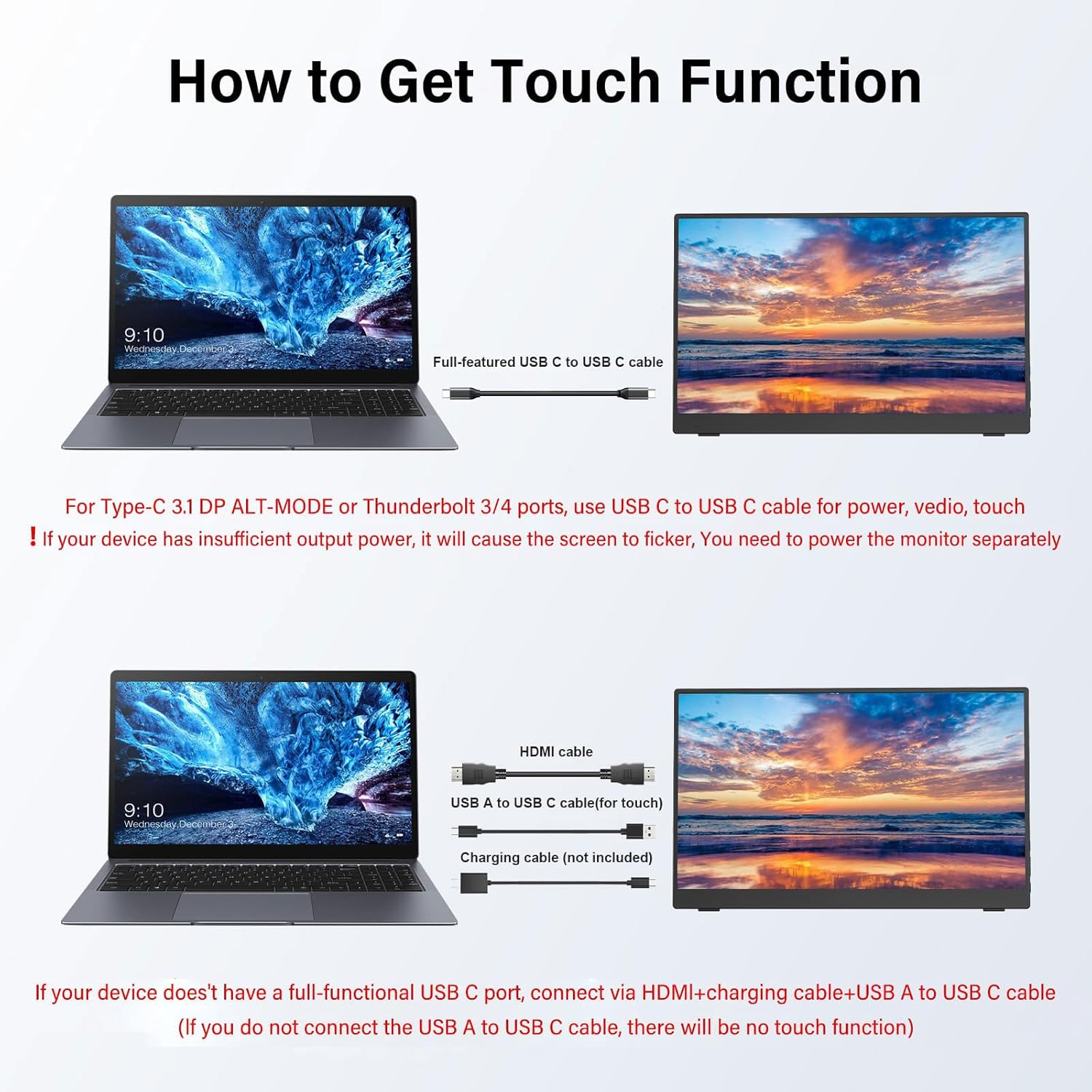
Image: Instructions for enabling touch functionality via USB-C or HDMI with a separate USB-A to USB-C cable.
4.3. Awọn ọna asopọ
Below are common connection methods for your portable monitor:
4.3.1. HDMI Connection (for Video)
Connect the monitor to your laptop or PC using the Mini HDMI to HDMI cable for video output. For touch functionality, an additional USB-A to Type-C cable must be connected from your computer to the monitor's Type-C port. Power can be supplied via a separate USB-A to Type-C cable connected to a power adapter or your computer's USB port.
Video: Demonstrates connecting the monitor to a laptop via HDMI for video and a USB-A to Type-C cable for touch input, along with a separate power connection.
4.3.2. Type-C Connection (Full-Featured)
If your device (laptop, smartphone, or tablet) has a full-featured USB-C port (supporting DisplayPort Alt Mode and power delivery), you can connect it to the monitor using a single Type-C to Type-C cable. This cable will transmit video, audio, touch data, and power simultaneously. If your device's USB-C port does not provide sufficient power, you may need to connect an additional USB-A to Type-C cable to a power adapter for external power.
Video: Illustrates connecting the monitor to a laptop using a single Type-C cable for video, touch, and power, and also shows phone connection.
4.3.3. Foonuiyara Asopọ
For smartphones with full-featured USB-C ports, connect using a Type-C to Type-C cable. This enables screen mirroring or extended display with touch functionality. Ensure your phone supports video output over USB-C. If the phone cannot power the monitor, use an external power source connected to the monitor's charging port.
Video: Demonstrates connecting a smartphone to the portable monitor via a Type-C cable, showcasing screen mirroring and touch interaction.
5. Awọn ilana Iṣiṣẹ
5.1. Power On/Off and Menu Navigation
- Power Button/Return: Press and hold to power the monitor on or off. During menu navigation, a short press acts as a 'Return' or 'Back' function.
- Bọtini MENU: Press to access the On-Screen Display (OSD) menu.
- Awọn atunṣe: To adjust brightness, press the Power Button/Return upwards. To adjust volume, press downwards. If both need simultaneous adjustment, adjust one first, then use the MENU button to switch to the other setting.
5.2. Awọn iṣẹ iboju ifọwọkan
The monitor supports multi-touch gestures for intuitive interaction:
- Fọwọkan Nikan: Tap to select or activate items.
- Fọwọkan pupọ: Use multiple fingers for specific actions (e.g., two-finger scroll).
- Iṣakoso ifaworanhan: Drag a finger across the screen to scroll or move items.
- Iṣakoso Sún: Use a pinch-to-zoom gesture with two fingers to enlarge or reduce content.

Image: Illustration of ten-point touch capabilities and various control gestures.

Image: Demonstrates touch, click, enlarge, and pinch gestures on the monitor.
6. Itọju ati Itọju
- Ninu iboju: Lo asọ asọ, ti ko ni lint die-die dampened with water or a screen cleaner. Avoid harsh chemicals, alcohol, or abrasive materials.
- Ninu ile Casing: Pa atẹle naa nu casing pẹlu asọ ti o gbẹ.
- Ibi ipamọ: When not in use, store the monitor in its protective smart cover case to prevent scratches and damage. Avoid exposing it to extreme temperatures or humidity.
- Mimu: Handle the monitor with care. Avoid dropping it or applying excessive pressure to the screen.
7. Laasigbotitusita
Ti o ba pade awọn ọran pẹlu atẹle rẹ, tọka si awọn solusan ti o wọpọ wọnyi:
- Ko si ifihan agbara/Iboju dudu:
- Ensure all cables (HDMI, Type-C) are securely connected to both the monitor and the source device.
- Verify the source device is powered on and configured to output video to an external display.
- Check if the monitor is receiving sufficient power. Connect an external power adapter if using HDMI or if the Type-C source cannot provide enough power.
- Try a different cable or port on both the monitor and the source device.
- Iṣẹ́ ìfọwọ́kan kò ṣiṣẹ́:
- Ensure the correct USB-C connection for touch data is established (either a full-featured Type-C cable or a separate USB-A to Type-C cable for touch).
- Remove any screen protectors that may interfere with touch sensitivity.
- Verify that your source device (laptop, phone) supports touch input to an external monitor and that the necessary drivers are installed (for Windows PCs).
- Ensure the monitor is receiving adequate power.
- Iboju didan:
- This often indicates insufficient power. Connect the monitor to an external power adapter using the provided USB-A to Type-C charging cable.
- Rí i dájú pé okùn fídíò náà kò bàjẹ́ àti pé ó so mọ́ ara rẹ̀ dáadáa.
- Ko si Ohun:
- Check the monitor's volume settings via the OSD menu.
- Ensure your source device's audio output is directed to the external monitor.
- If using the 3.5mm audio jack, ensure headphones or speakers are properly connected.
- Àwọn Ìṣòro Dídára Àwòrán (Fífọ́jú, Tí a yípadà):
- Adjust the resolution and refresh rate settings on your source device to match the monitor's native resolution (1920x1080).
- Ṣayẹwo okun fidio fun ibajẹ tabi awọn asopọ alaimuṣinṣin.
8. Awọn pato
| Brand | AHXJKA |
| Nọmba awoṣe | S150T |
| Iwon iboju | 15.6 inches |
| Ipinnu | Awọn piksẹli 1920 x 1080 (FHD 1080p) |
| Apakan Ipin | 16:9 |
| Panel Iru | IPS |
| HDR atilẹyin | Bẹẹni |
| Afi ika te | Yes (10-point touch) |
| Imọlẹ Aworan | 250 cd/m² |
| Ipin Itansan | 1000:1 |
| Ijinle Awọ | Awọn awọ Milionu 16.7 |
| Iboju Iboju | Matte |
| Ọja Mefa | 0.4 x 8.69 x 13.9 inches |
| Iwọn Nkan | 3.39 iwon |
| Awọn Agbọrọsọ ti a ṣe sinu | 8Ω/1W*2 |
| Asopọmọra | 2x Type-C (Full-featured), 1x Mini HDMI, 1x 3.5mm Audio Jack |
9. Atilẹyin ọja ati Support
For warranty information and technical support, please refer to the warranty card included in your product packaging or contact AHXJKA customer service through the official channels provided at the time of purchase. Please have your model number (S150T) and purchase details ready when contacting support.