Ọrọ Iṣaaju
Thank you for choosing the CRUA 27-inch 4K UHD 144Hz IPS Gaming Monitor. This monitor is designed to deliver an immersive visual experience with its high resolution, fast refresh rate, and vibrant color reproduction. This manual provides essential information for the proper installation, operation, and maintenance of your new monitor. Please read it thoroughly before use and retain it for future reference.
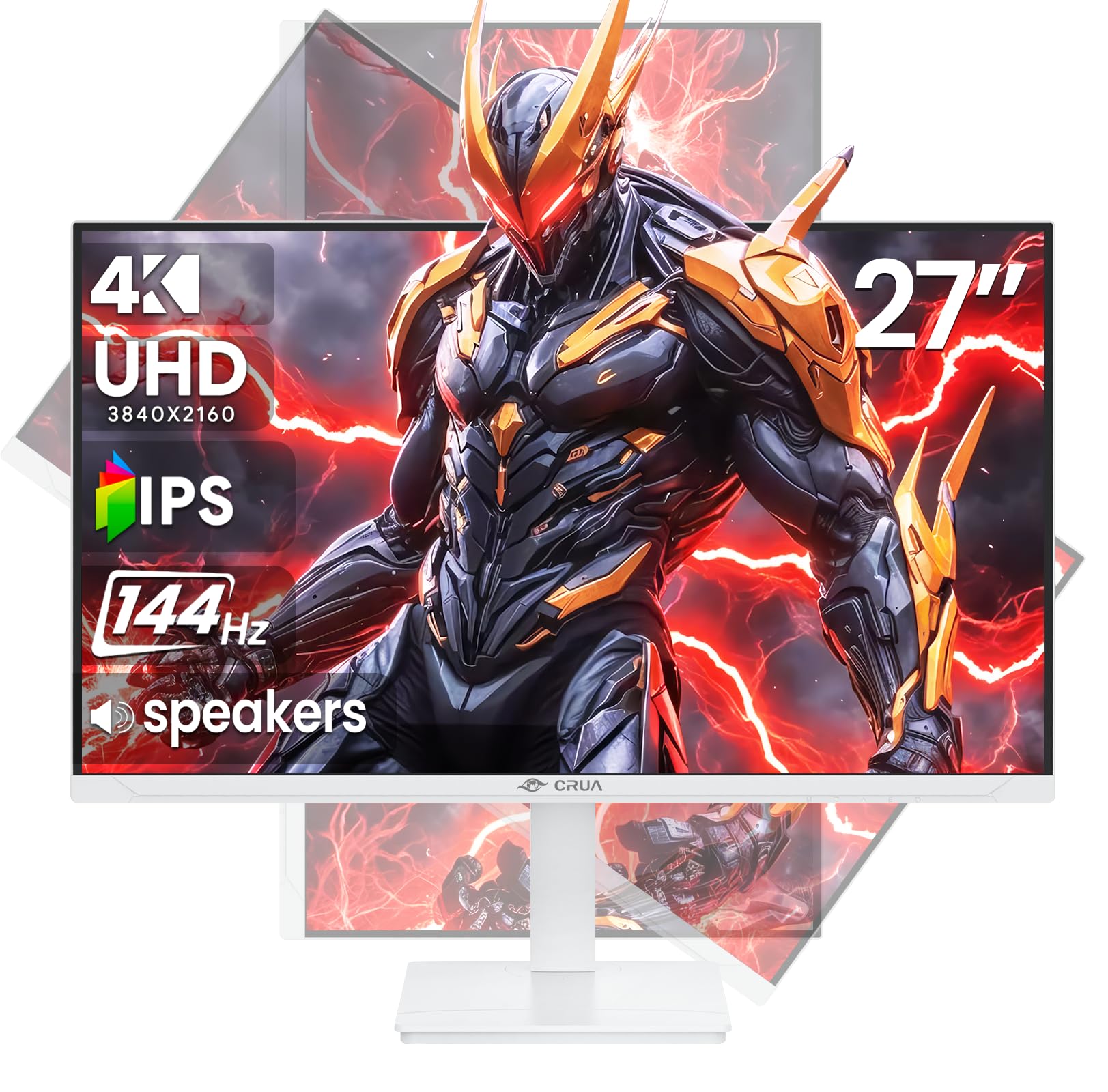
Aworan: Iwaju view of the CRUA 27-inch 4K UHD 144Hz IPS Gaming Monitor.
Ohun ti o wa ninu Apoti
Jọwọ ṣayẹwo awọn awọn akoonu ti rẹ package. Ti awọn ohun kan ba nsọnu tabi bajẹ, kan si alagbata rẹ.
- 27-inch Monitor
- DP Cable
- Base and Support
- Itọsọna olumulo
- Ibi ti ina elekitiriki ti nwa
Ọja Awọn ẹya ara ẹrọ
- 27" 4K Display with IPS Panel: Experience ultra-clear visuals with a 3840x2160P resolution.
- Oṣuwọn Isọdọtun 144Hz: Enjoy fluid and sharp motion, ideal for competitive gaming and fast-paced content.
- 120% sRGB Color Accuracy: Delivers rich and accurate tones with 350cd/m² brightness and 1000:1 high-contrast.
- Awọn Agbọrọsọ ti A ṣe sinu: Provides clear audio for daily use.
- Full Ergonomic Adjustment: Features height, pivot, tilt, and rotation adjustments for optimal viewing awọn igun.
- Awọn aṣayan Asopọmọra pupọ: Equipped with 2x HDMI 2.1 and 2x DP 1.4 ports.
- AMD FreeSync Support: Ó ń mú kí ìwọ̀n ìtúnṣe aláwòrán náà dọ́gba pẹ̀lú GPU rẹ fún eré tí kò ní omijé.
- Ògiri Ògiri: Supports VESA 75mm x 75mm wall mounts for flexible installation.
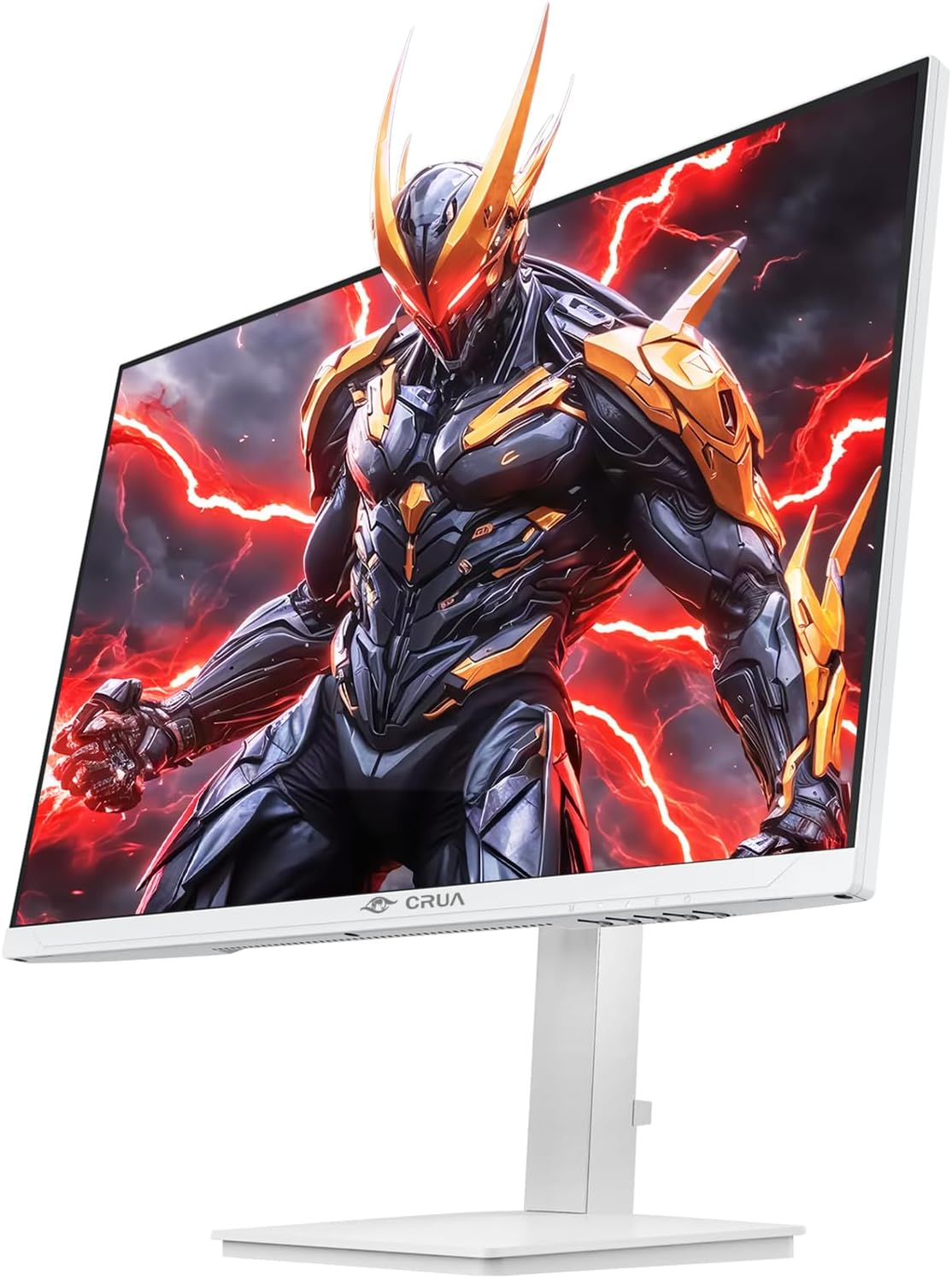
Aworan: Iwaju view of the CRUA 27-inch 4K UHD 144Hz IPS Gaming Monitor displaying a game scene.

Aworan: Ẹyin view of the CRUA 27-inch 4K UHD 144Hz IPS Gaming Monitor showing the stand and RGB lighting.

Aworan: Ẹyin view of the CRUA 27-inch 4K UHD 144Hz IPS Gaming Monitor highlighting the input ports (2x DP 1.4, 2x HDMI 2.1, and 3.5mm Audio Port).

Image: Diagram illustrating the adjustable height (110mm), tilt (-5° to +15°), swivel (±30°), and pivot (90°) features of the CRUA 27-inch 4K UHD 144Hz IPS Gaming Monitor.
Awọn ilana iṣeto
1. Nto Iduro
- Fara yọ atẹle naa kuro ki o duro awọn paati lati apoti.
- So ọrun imurasilẹ si nronu atẹle. Rii daju pe o tẹ ni aabo sinu aaye tabi ti wa ni ṣinṣin pẹlu awọn skru ti o ba pese.
- Attach the base to the stand neck, securing it with the thumb screw or other fasteners.
- Gbe atẹle ti o pejọ sori iduro, dada alapin.
2. Iṣagbesori odi (aṣayan)
The monitor supports VESA 75mm x 75mm wall mounts. Remove the stand before attaching a compatible wall mount bracket (not included). Follow the instructions provided with your wall mount.
3. Nsopọ Cables
- Agbara: Connect the power supply to the monitor's power input and then to a power outlet.
- Input fidio: Connect one end of the provided DP cable (or an HDMI cable) to the corresponding port on your computer's graphics card and the other end to a DP 1.4 or HDMI 2.1 port on the monitor.
- Ijade Olohun (Aṣayan): If using external speakers or headphones, connect them to the 3.5mm audio jack on the monitor.
4. Ibẹrẹ Agbara-On
Press the power button on the monitor. The monitor should automatically detect the input signal. If not, you may need to manually select the input source using the OSD menu.
Awọn ilana Iṣiṣẹ
1. Agbara Tan / Paa
Tẹ bọtini agbara ti o wa lori iboju naa lati tan tabi pa a.
2. OSD Akojọ Lilọ kiri
The On-Screen Display (OSD) menu allows you to adjust various monitor settings. Navigate the menu using the joystick or buttons typically located on the back or bottom of the monitor.
- Tẹ joystick/bọtini lati ṣii akojọ aṣayan OSD.
- Move the joystick up/down or use corresponding buttons to navigate through menu options.
- Gbe joystick naa si apa osi/ọtun tabi lo awọn bọtini ti o baamu lati ṣatunṣe awọn iye tabi tẹ awọn akojọ aṣayan-isalẹ sii.
- Press the joystick/button again to confirm selections or exit sub-menus.
3. Aṣayan Orisun Input
If the monitor does not automatically detect the correct input, open the OSD menu, navigate to "Input Source," and select the active input (e.g., HDMI1, HDMI2, DP1, DP2).
4. Siṣàtúnṣe Ifihan Eto
Nínú àkójọ OSD, o le ṣe àtúnṣe àwọn ètò bíi:
- Imọlẹ/Itọtọ: Satunṣe awọn ìwò luminance ati itansan awọn ipele.
- Eto awọ: Iwọn otutu awọ ti o dara, gamma, ati awọn iye RGB kọọkan.
- Didara aworan: Select preset modes (e.g., Standard, Game, Movie) or customize sharpness and dynamic contrast.
- Ipinu & Oṣuwọn isọdọtun: Ensure your computer's display settings match the monitor's native 4K UHD (3840x2160P) resolution and 144Hz refresh rate for optimal performance.
- AMD FreeSync: Enable FreeSync in the OSD menu and your graphics card control panel for adaptive synchronization.
5. Eto Audio
Adjust the volume of the built-in speakers or connected external audio devices through the OSD menu's audio section. You can also mute the audio if desired.
6. Awọn atunṣe Ergonomic
Ṣatunṣe atẹle naa si ayanfẹ rẹ viewing position:
- Giga: Fi ọwọ́ rọra tì tàbí fa ohun èlò náà sókè tàbí sísàlẹ̀ ní ẹ̀gbẹ́ ibi tí a gbé e sí.
- Tẹ: Tilt the screen forward or backward.
- Swivel: Yi iboju naa pada si apa osi tabi ọtun lori ipilẹ rẹ.
- Pivot: Rotate the screen 90 degrees for vertical orientation.
Itoju
Ninu iboju
- Máa pa monitor náà nígbà gbogbo kí o sì yọ okùn agbára kúrò kí o tó sọ ọ́ di mímọ́.
- Lo asọ rirọ, ti ko ni lint ni sere dampened pẹlu omi tabi a specialized iboju regede.
- Maṣe fun sokiri regede taara sori iboju.
- Yago fun lilo awọn afọmọ abrasive, ọti-lile, tabi awọn ojutu ti o da lori amonia, nitori wọn le ba oju iboju jẹ.
Gbogbogbo Itọju
- Jeki atẹle naa kuro ni oorun taara, awọn orisun ooru, ati eruku ti o pọ ju.
- Rii daju pe fentilesonu to peye ni ayika atẹle lati ṣe idiwọ igbona.
- Ma ṣe gbe awọn nkan ti o wuwo sori atẹle tabi awọn kebulu rẹ.
- Yago fun fifọwọkan iboju pẹlu awọn nkan didasilẹ.
Laasigbotitusita
| Isoro | Owun to le Solusan |
|---|---|
| Ko si aworan loju iboju |
|
| Ko si ohun lati ọdọ awọn agbohunsoke |
|
| Pipa Pipa tabi ipalọlọ |
|
| Awọn bọtini ko dahun |
|
For further assistance, please refer to the CRUA support webojula tabi olubasọrọ onibara iṣẹ.
Awọn pato
| Ẹya ara ẹrọ | Ẹ̀kúnrẹ́rẹ́ |
|---|---|
| Nọmba awoṣe | CR270E |
| Iwon iboju | 27 inches |
| Ipinnu | 4K UHD (3840 x 2160 awọn piksẹli) |
| Oṣuwọn sọtun | 144Hz |
| Panel Iru | IPS |
| Apakan Ipin | 16:9 |
| Awọ Gamut | 120% sRGB |
| Imọlẹ | Káńdélà 350 (cd/m²) |
| Ipin Itansan | 1000:1 |
| Asopọmọra | 2x DP 1.4, 2x HDMI 2.1, 1x 3.5mm Audio Jack |
| Amuṣiṣẹpọ Adaptive | AMD FreeSync |
| Ergonomics | Height, Pivot, Tilt, Rotate Adjustable |
| Ògiri Ògiri | VESA 75mm x 75mm |
| Awọn Agbọrọsọ ti a ṣe sinu | Bẹẹni |
| Ọja Mefa | 2.5 x 24 x 14 inches |
| Iwọn Nkan | 11.38 iwon |
Atilẹyin ọja ati Support
CRUA provides high-quality computer monitors and premium services. For warranty information, technical support, or any questions regarding your monitor, please visit the official CRUA website or contact their customer service team. Details can typically be found on the product packaging or the CRUA brand store on Amazon.
Ibi iwifunni: Refer to your purchase documentation or the CRUA official webAaye fun awọn alaye olubasọrọ atilẹyin tuntun julọ.