
Bonacell B0DT8G5RST
Bonacell Wireless Controller Instruction Manual
Model: B0DT8G5RST
Ọrọ Iṣaaju
Thank you for choosing the Bonacell Wireless Controller. This manual provides detailed instructions for setting up, operating, and maintaining your controller. Please read this manual carefully before use to ensure optimal performance and longevity of your device.

Image: The Bonacell Wireless Controller, black with blue illuminated buttons, shown alongside its white USB receiver adapter.
Ọja Awọn ẹya ara ẹrọ
- Ibamu gbooro: Supports PS4, PS5, PC (Windows), Android, and iOS devices.
- Gbigbọn Meji Meji: Enhances gaming immersion with realistic haptic feedback.
- 6-Axis Gyroscope Sensor: Provides precise motion control for supported games.
- Iṣẹ Turbo: Enables continuous rapid input for specific buttons.
- Jack Audio 3.5mm: Allows connection of headphones for in-game audio.
- Paadi ọwọ: Integrated touchpad for additional control options.
- RGB Multi-color Buttons: Customizable lighting effects for personalized aesthetics.
- Igbesi aye batiri gigun: Batiri 1000mAh ti a ṣe sinu rẹ pese lilo igba pipẹ.

Aworan: Isunmọ views highlighting the controller's 360-degree joysticks, 3.5mm headphone jack, and 6-axis gyroscope sensor.
Eto ati Asopọmọra
1. Gbigba agbara Alakoso
The controller is equipped with a 1000mAh battery. Before first use, or when the battery is low, charge the controller using the provided Type-C cable or a compatible charging base.
- Akoko gbigba agbara: O fẹrẹ to awọn wakati 2.5.
- Akoko Lilo: Titi di wakati 16 lori idiyele ni kikun.

Image: Visual representation of the controller's battery specifications, including its 1000mAh capacity, working time, and charging duration.
2. Connecting to PS5 (Wireless Receiver)
To play PS5 games, the controller must be connected via the wireless receiver. Direct Type-C cable connection does not support PS5 games.
- Igbesẹ 1: Plug the wireless receiver adapter into a USB port on your PS5 console. Briefly press the pairing button on the adapter.
- Igbesẹ 2: On the Bonacell Wireless Controller, press and hold the Pinpin bọtini ati ki o si mu awọn P button simultaneously for 5 seconds to enter pairing mode.
- Igbesẹ 3: Once successfully paired, the lights on both the controller and the adapter will remain illuminated.
Note: For the first connection, it is recommended to activate the device with a USB cable before attempting wireless pairing.
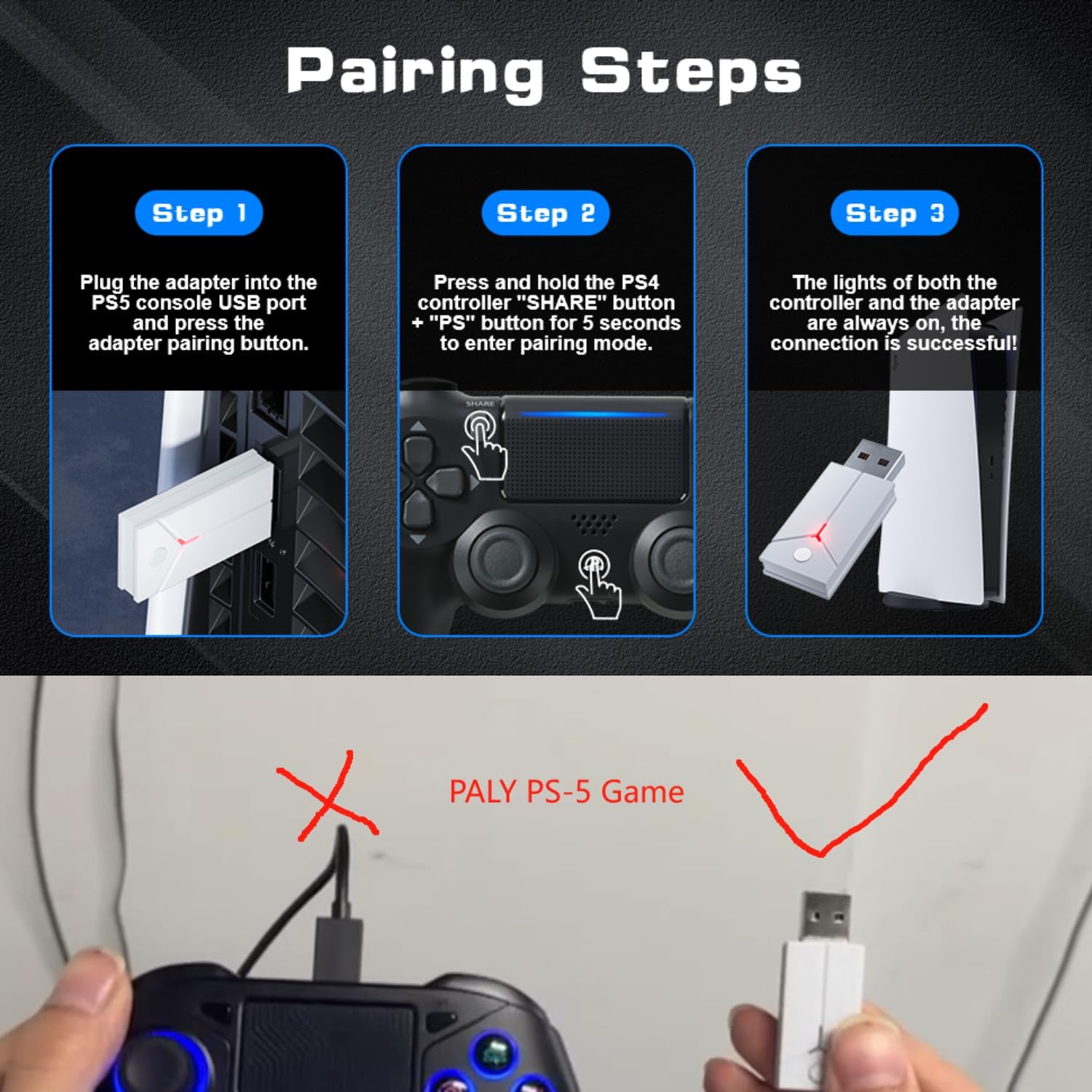
Image: A three-step visual guide demonstrating how to pair the controller with a PS5 console using the USB adapter.
3. Nsopọ mọ PC (Onífóònù)
Connect the controller to your PC directly using the Type-C data cable.
4. Connecting to PC (Bluetooth)
- Igbesẹ 1: Ensure your PC's Bluetooth function is enabled.
- Igbesẹ 2: On the Bonacell Wireless Controller, press and hold the Pinpin bọtini ati awọn P button simultaneously for 3 seconds to enter pairing mode.
- Igbesẹ 3: On your PC, search for and select the controller from the list of available Bluetooth devices to complete the pairing.
5. Connecting to Android and iOS (Bluetooth)
Supports iOS 13+ devices.
- Igbesẹ 1: Activate the Bluetooth function on your mobile phone or tablet.
- Igbesẹ 2: On the Bonacell Wireless Controller, press and hold the Pinpin bọtini ati awọn P button simultaneously for 3 seconds to enter pairing mode.
- Igbesẹ 3: On your mobile device, search for and select the controller from the list of available Bluetooth devices to complete the pairing.

Image: An illustration showing the Bonacell Wireless Controller's compatibility with various platforms such as PS5, PS4, PC, Android, and iOS.
Awọn ilana Iṣiṣẹ
1. RGB Multi-color Button Customization
- To change the light color: Press and hold the L3 bọtini ati awọn R3 button simultaneously for 3 seconds. The controller will vibrate for 1 second, indicating that the light color can now be changed.
- To switch light effect modes: Press and hold the SET bọtini ati awọn R3 button simultaneously. Cycle through modes: Colorful → Monochrome → Colorful Transformation → Monochrome Breathing.
2. Iṣẹ́ Turbo
Iṣẹ́ Turbo yìí gba ààyè láti tẹ̀ bọ́tìnì kíákíá nígbà gbogbo. Èyí lè wúlò nínú àwọn eré tó nílò ìgbésẹ̀ kíákíá àti àtúnṣe.
Specific instructions for activating and deactivating the Turbo function are typically found in the game's control settings or may involve a combination of the Turbo button (if present) and another action button. Refer to the controller's quick start guide or product packaging for exact button combinations if not detailed here.

Image: An illustration highlighting the dual vibration motors and the Turbo function capability of the controller.
Itoju
- Ninu: Lo asọ asọ ti o gbẹ lati nu oludari naa. Yago fun lilo awọn kẹmika lile tabi awọn ohun elo abrasive.
- Ibi ipamọ: Tọju olutọju naa ni itura, aye gbigbẹ kuro lati orun taara ati awọn iwọn otutu to gaju.
- Itọju Batiri: Lati pẹ aye batiri, yago fun gbigba agbara ni kikun oludari nigbagbogbo. Gba agbara rẹ nigbagbogbo, paapaa ti kii ba lo fun awọn akoko gigun.
Laasigbotitusita
- Alakoso ko sopọ:
- Rii daju pe oludari ti gba agbara.
- Verify the correct pairing procedure for your device (PS5, PC, Android/iOS).
- For PS5, ensure you are using the wireless receiver.
- For Bluetooth connections, ensure Bluetooth is enabled on your host device and the controller is in pairing mode.
- Try restarting both the controller and the host device.
- Àwọn bọ́tìnì tàbí àwọn joysticks tí kò dáhùn:
- Rii daju pe oludari ti sopọ daradara.
- Ṣàyẹ̀wò fún àwọn ìdènà tàbí ìdọ̀tí tó wà ní àyíká àwọn bọ́tìnì/àwọn joysticks.
- If connected via PC, ensure drivers are up to date.
- Gbigbọn ko ṣiṣẹ:
- Ensure the game supports vibration feedback.
- Ṣayẹwo awọn eto inu-ere lati rii daju pe gbigbọn ṣiṣẹ.
Awọn pato
| Ẹya ara ẹrọ | Ẹ̀kúnrẹ́rẹ́ |
|---|---|
| Orukọ ọja | Alailowaya Adarí |
| Nọmba awoṣe | B0DT8G5RST |
| Awọn iwọn | 165 x 105 x 45 mm |
| Iwọn | 0.26 kg (Item Package Weight: 300 g) |
| Agbara Batiri | 1000mAh litiumu Iwon |
| Akoko Lilo | Titi di wakati 16 |
| Akoko gbigba agbara | O fẹrẹ to awọn wakati 2.5 |
| Ọna gbigba agbara | Base or Type-C charging |
| Asopọmọra | 2.4GHz USB Receiver, Bluetooth, USB-C (wired) |
| Ibamu | PS4, PS5, PC (Windows), Android (iOS 13+) |
| Key Awọn ẹya ara ẹrọ | Dual Shock Motor, Six-Axis Gyroscope, Touchpad, 3.5mm Audio Jack, Turbo Function, RGB Buttons |
| Ohun elo | ABS |
Atilẹyin ọja ati Support
For warranty information or technical support, please refer to the product packaging or contact Bonacell customer service through the retailer's platform where the product was purchased.
Ask a question about this manual
Ask about setup, troubleshooting, compatibility, parts, safety, or missing instructions. Manuals+ will review the question and use this page’s manual context to help answer it.