
Strong Leap-UNA
STRONG Leap-UNA 2K Android TV Streaming Stick User Manual
Model: Leap-UNA
Àmì ìtajà: Lágbára
Ọrọ Iṣaaju
The STRONG Leap-UNA TV Streaming Stick is a compact and powerful device designed to transform your television into a smart TV, providing instant access to a vast array of streaming content. Powered by Android TV 11, it offers seamless 2K resolution streaming with Wi-Fi 5 connectivity. This manual provides detailed instructions for setting up, operating, and maintaining your Leap-UNA streaming stick to ensure an optimal entertainment experience.
Alaye Aabo
- Ka gbogbo awọn ilana ṣaaju lilo ẹrọ naa.
- Ma ṣe fi ẹrọ naa han si ojo, ọrinrin, tabi awọn iwọn otutu to gaju.
- Rii daju pe fentilesonu to dara ni ayika ẹrọ lati ṣe idiwọ igbona.
- Lo oluyipada agbara nikan ti a pese pẹlu ẹrọ naa.
- Ma ṣe gbiyanju lati tunto tabi tun ẹrọ naa funrararẹ. Tọkasi gbogbo iṣẹ si oṣiṣẹ oṣiṣẹ.
- Jeki ẹrọ naa kuro ni oorun taara ati awọn orisun ooru.
Package Awọn akoonu
Jọwọ ṣayẹwo pe gbogbo awọn nkan wa ati ni ipo to dara:
- STRONG Leap-UNA 2K Android TV Streaming Stick
- Isakoṣo latọna jijin
- Power Adapter (or USB cable for power)
- HDMI Extender (if included)
- Afowoyi Olumulo (iwe-ipamọ yii)
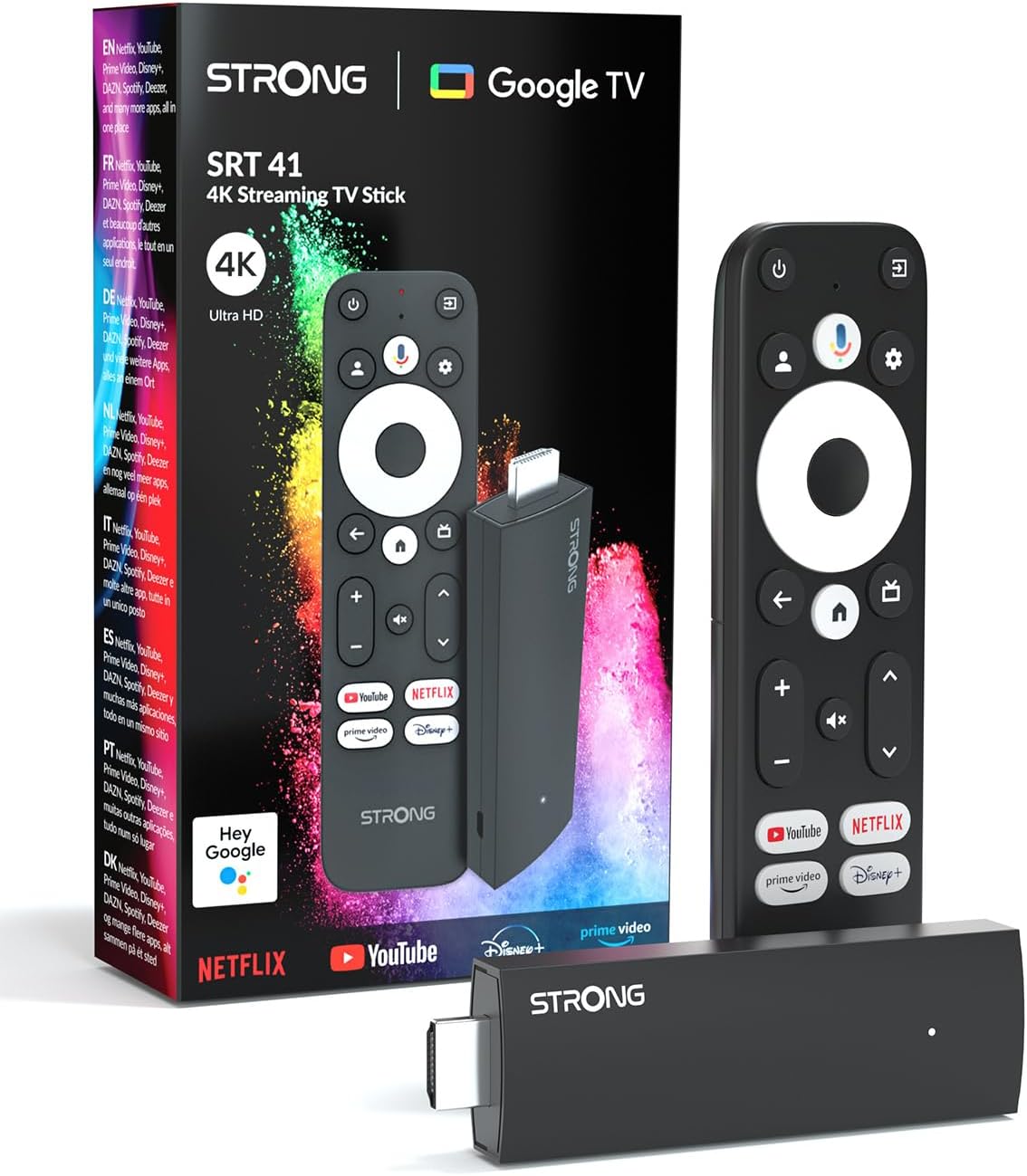
Image: The STRONG Leap-UNA streaming stick, its remote control, and the product packaging. This shows the main components included in the box.
Ọja Pariview
The Leap-UNA stick is designed for ease of use and portability. It connects directly to your TV's HDMI port.
Awọn ẹya ẹrọ:
- Streaming Stick: Compact device with an HDMI connector for TV and a Micro USB port for power.
- Isakoṣo latọna jijin: Features dedicated buttons for power, navigation, volume, Google Assistant, and quick access to popular streaming services like Netflix and YouTube.

Image: A close-up of the STRONG Leap-UNA streaming stick, highlighting its compact design and connectivity options including HDMI and Micro USB ports.
Ṣeto
Follow these steps to set up your STRONG Leap-UNA streaming stick:
- Sopọ si TV: Plug the STRONG Leap-UNA streaming stick directly into an available HDMI port on your television. If space is limited, use an HDMI extender (if provided).
- Agbara Tan: Connect the power adapter to the Micro USB port on the streaming stick and then plug the adapter into a power outlet. The device will power on automatically.
- Yan Iṣawọle HDMI: Use your TV's remote control to select the correct HDMI input source to which the Leap-UNA stick is connected.
- Pọ Iṣakoso Latọna jijin: Follow the on-screen instructions to pair your remote control. This usually involves pressing and holding specific buttons on the remote close to the stick.
- Sopọ si Wi-Fi: On the screen, select your Wi-Fi network from the list and enter the password. Ensure you have a stable internet connection for optimal streaming.
- Iṣeto akọọlẹ Google: Sign in with your Google account. This is necessary to access the Google Play Store, Google Assistant, and other Google services. If you don't have one, you can create one.
- Fi sori ẹrọ Awọn ohun elo: After initial setup, you can download and install your favorite streaming applications like Netflix, Amazon Prime Video, YouTube, and Disney+ from the Google Play Store.

Image: Visual representation of the simple setup process: 1. Connect the stick to your TV. 2. Connect to your internet box (Wi-Fi). 3. Start streaming your content.
Awọn ilana Iṣiṣẹ
Lilo Iṣakoso Latọna jijin:
The included remote control allows you to navigate the Android TV interface and control your streaming experience.
- Paadi Lilọ kiri: Use the circular pad to move through menus and select items.
- Bọtini Pada: Pada si iboju ti tẹlẹ.
- Bọtini Ile: Pada si iboju ile Android TV.
- Bọtini Iranlọwọ Google: Press to activate voice commands.
- Awọn bọtini iwọn didun: Ṣatunṣe iwọn didun TV.
- Awọn bọtini ohun elo ti o yasọtọ: Quickly launch Netflix, YouTube, Prime Video, and Disney+ (if available).

Image: The remote control for the STRONG Leap-UNA, highlighting its dedicated app buttons and the wide range of applications available through Google Play.
Iṣakoso Ohun pẹlu Oluranlọwọ Google:
The integrated Google Assistant allows you to control your device and search for content using your voice. Press the Google Assistant button on your remote and speak your command. Example pẹlu:
- "Ṣi Netflix"
- "Wa awọn fiimu iṣe"
- "Play [Movie Title]"
- "Ibo ni oju ojo wa?"

Image: The STRONG Leap-UNA remote control positioned in front of a TV screen, illustrating the use of Google Assistant for voice commands, such as "Avvia Netflix" (Start Netflix).
Chromecast ti a ṣe sinu:
With Chromecast built-in, you can cast content directly from your smartphone, tablet, or computer to your TV. Simply open a compatible app on your mobile device and tap the Cast icon ▶ to send the content to your TV.

Image: A TV screen displaying content being cast via Google Cast, with a smartphone in the foreground demonstrating the casting functionality.
Itoju
To ensure the longevity and optimal performance of your STRONG Leap-UNA streaming stick, follow these maintenance guidelines:
- Ninu: Lo asọ asọ ti o gbẹ lati nu ẹrọ naa. Maṣe lo awọn olutọpa olomi tabi awọn aerosols.
- Afẹfẹ: Ensure the device is placed in a well-ventilated area and that its vents are not blocked.
- Awọn imudojuiwọn sọfitiwia: The device may receive automatic software updates. Ensure it is connected to the internet to receive these updates, which improve performance and add new features.
- Ibi ipamọ: Nigbati o ko ba wa ni lilo fun awọn akoko ti o gbooro sii, fi ẹrọ naa pamọ si ibi ti o tutu, ti o gbẹ.
Laasigbotitusita
If you encounter issues with your STRONG Leap-UNA streaming stick, refer to the following common problems and solutions:
| Isoro | Owun to le Fa | Ojutu |
|---|---|---|
| Ko si agbara/Ẹrọ ti ko tan | Power cable not connected properly; Faulty power adapter; Power outlet issue. | Check all power connections. Try a different power outlet. Ensure the power adapter is working. |
| Ko si aworan lori TV | Incorrect HDMI input selected; Loose HDMI connection; TV compatibility issue. | Ensure your TV is on the correct HDMI input. Reconnect the HDMI cable. Try a different HDMI port on your TV. |
| Isakoṣo latọna jijin ko dahun | Batteries are low or dead; Remote not paired; Obstruction between remote and stick. | Replace batteries. Re-pair the remote control (refer to Setup section). Ensure no obstructions. |
| Buffering or poor streaming quality | Weak Wi-Fi signal; Internet speed issues; Network congestion. | Move the stick closer to your Wi-Fi router. Restart your router. Check your internet speed. Reduce other network activity. |
| Awọn ohun elo kọlu tabi didi | App error; Insufficient memory; Software glitch. | Restart the app. Clear the app's cache (Settings > Apps > [App Name] > Clear cache). Restart the streaming stick. |
Awọn pato
| Ẹya ara ẹrọ | Ẹ̀kúnrẹ́rẹ́ |
|---|---|
| Brand | Alagbara |
| Orukọ awoṣe | Leap-UNA |
| Eto isesise | Android TV 11 |
| Ipinnu | 2K |
| Asopọmọra Technology | Bluetooth, HDMI, IR, Wi-Fi (Wi-Fi 5) |
| Awọn iṣẹ Intanẹẹti atilẹyin | Netflix, Amazon Prime Video, Disney+, YouTube |
| Ramu Iwon | 1 GB |
| Awọn iwọn | 9L x 3W x 1.5H sẹntimita |
| Awọn ẹrọ ibaramu | TV, smartphone, tablet, personal computer, laptop |
| Àwọ̀ | Dudu |
Atilẹyin ọja ati Support
STRONG products are designed for reliability and performance. For warranty information and technical support, please refer to the warranty card included with your product or visit the official STRONG website. You can also contact customer support through the details provided on the packaging or website for assistance with any issues not covered in this manual.
Fun alaye tuntun ati atilẹyin, jọwọ ṣabẹwo: www.strong.tv
Ask a question about this manual
Ask about setup, troubleshooting, compatibility, parts, safety, or missing instructions. Manuals+ will review the question and use this page’s manual context to help answer it.