
ClokoWe T800
ClokoWe Mini pirojekito T800 olumulo Afowoyi
awoṣe: T800
1. Ifihan
This manual provides detailed instructions for the safe and effective use of your ClokoWe Mini Projector T800. Please read this manual thoroughly before operating the device and retain it for future reference.
Alaye Aabo
- Ma wo taara sinu pirojekito lẹnsi nigbati awọn lamp wa lori.
- Rii daju pe fentilesonu to dara ni ayika pirojekito lati ṣe idiwọ igbona.
- Jeki pirojekito kuro lati omi tabi awọn olomi miiran.
- Lo oluyipada agbara nikan ti a pese pẹlu ẹrọ naa.
- Má ṣe gbìyànjú láti tú tàbí tún ẹ̀rọ ìṣiṣẹ́ náà ṣe fúnra rẹ. Pe olùrànlọ́wọ́ oníbàárà fún ìrànlọ́wọ́.
2. Package Awọn akoonu
Jẹrisi pe gbogbo awọn ohun kan wa ninu package:
- ClokoWe Mini Projector T800
- Okun HDMI
- Isakoṣo latọna jijin
- Okun agbara
- Afowoyi Olumulo (iwe-ipamọ yii)
3. Ọja Ipariview
Familiarize yourself with the projector's components and features.
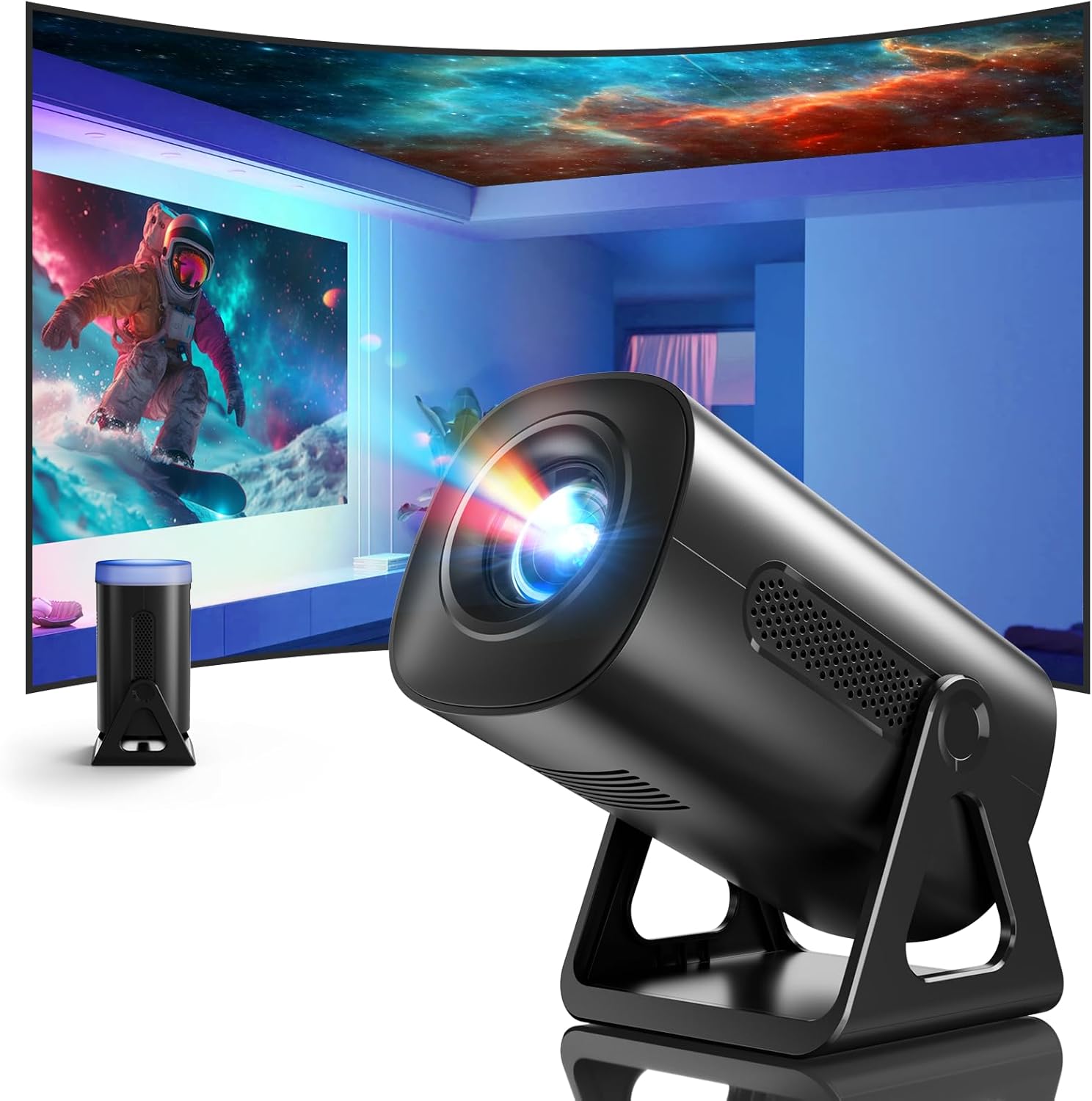
Aworan 3.1: Iwaju view of the ClokoWe Mini Projector T800, showcasing its compact design and projection capability.
Awọn ẹya pataki:
- Native 1080p Resolution with 4K Support
- 270° Rotatable Stand for flexible projection angles
- Integrated Star Projector with 6 Galaxy Projection Modes and 7 Ambient Night Light Colors
- Dual Band WiFi 6 (2.4G/5G) for stable wireless connectivity
- Bluetooth 5.2 HiFi Speaker for enhanced audio
- Automatic Keystone Correction and 50%-100% Zoom function
- Multiple connectivity options: USB, HDMI, AV, Audio

Image 3.2: Dimensions and weight of the projector, highlighting the 270-degree rotatable stand.
4. Eto
4.1 Asopọ agbara
- So okùn agbára pọ̀ mọ́ ibudo ìtẹ̀wọlé agbára ti ẹ̀rọ atọ́nà náà.
- So opin keji okun ina sinu ibudo ina deede.
- Ina Atọka agbara yoo tan imọlẹ.
4.2 Ifisipo ati Atunse
The 270° rotatable stand allows for flexible placement and projection.

Image 4.1: The projector's 270-degree rotation feature, enabling projection onto walls, floors, or ceilings.
- Ipo: Gbe awọn pirojekito lori kan idurosinsin, alapin dada.
- Atunse igun: Rotate the projector body on its stand to achieve the desired projection angle (up to 270 degrees).
- Idojukọ: Use the focus ring on the projector lens to sharpen the image.
- Atunse okuta bọtini: The projector features automatic keystone correction. If the image appears trapezoidal, the device will automatically adjust it to a rectangular shape. Manual adjustments may also be available in the settings menu.

Image 4.2: Demonstration of automatic keystone correction and image zoom capabilities.
5. Awọn ilana Iṣiṣẹ
5.1 Ibẹrẹ Agbara Lori
- Tẹ bọtini agbara lori pirojekito tabi isakoṣo latọna jijin.
- The projector will start up and display the main interface.
5.2 Asopọmọra
The projector supports various input sources and wireless connections.

Aworan 5.1: Pariview of supported device connections via HDMI, USB, and Audio interfaces.
5.2.1 WiFi Connection (Dual Band WiFi 6)
- Navigate to the 'Settings' menu on the projector.
- Select 'Network' or 'WiFi Settings'.
- Choose your desired 2.4G or 5G WiFi network from the list.
- Tẹ ọrọ igbaniwọle sii ki o si sopọ.

Image 5.2: Demonstrating Dual Band WiFi 6 connectivity and wired screen mirroring with a smartphone.
5.2.2 Bluetooth Connection (Bluetooth 5.2)
- Lọ sí 'Ètò' kí o sì yan 'Bluetooth'.
- Tan Bluetooth kí o sì wá àwọn ẹ̀rọ tó wà.
- Yan agbọrọsọ Bluetooth rẹ tabi agbekọri lati inu atokọ lati so pọ.

Image 5.3: The projector's Bluetooth 5.2 capability for connecting to external audio devices.
5.2.3 HDMI/USB/AV Connection
- Connect your device (e.g., laptop, TV stick, game console) to the corresponding HDMI, USB, or AV port on the projector.
- Select the correct input source from the projector's main menu using the remote control.
5.3 Projection Modes (Star Projector & Night Light)
The projector includes integrated ambient lighting features.

Image 5.4: The projector's ability to display 7 night light colors and 6 galaxy projection modes.
- Isọtẹlẹ Agbaaiye: Access the 'Star Projector' or 'Galaxy Modes' option in the menu to select from 6 different galaxy patterns.
- Imọlẹ Ayika Afẹfẹ: With the lens cover on, select from 7 ambient light colors to use the projector as a night light.
5.4 Aworan Atunṣe
- Iṣẹ Sún: Adjust the projection size from 50% to 100% via the projector's menu settings.
- Didara aworan: The projector supports native 1080p resolution and 4K input. Ensure your source content is of high quality for the best viewiriri iriri.
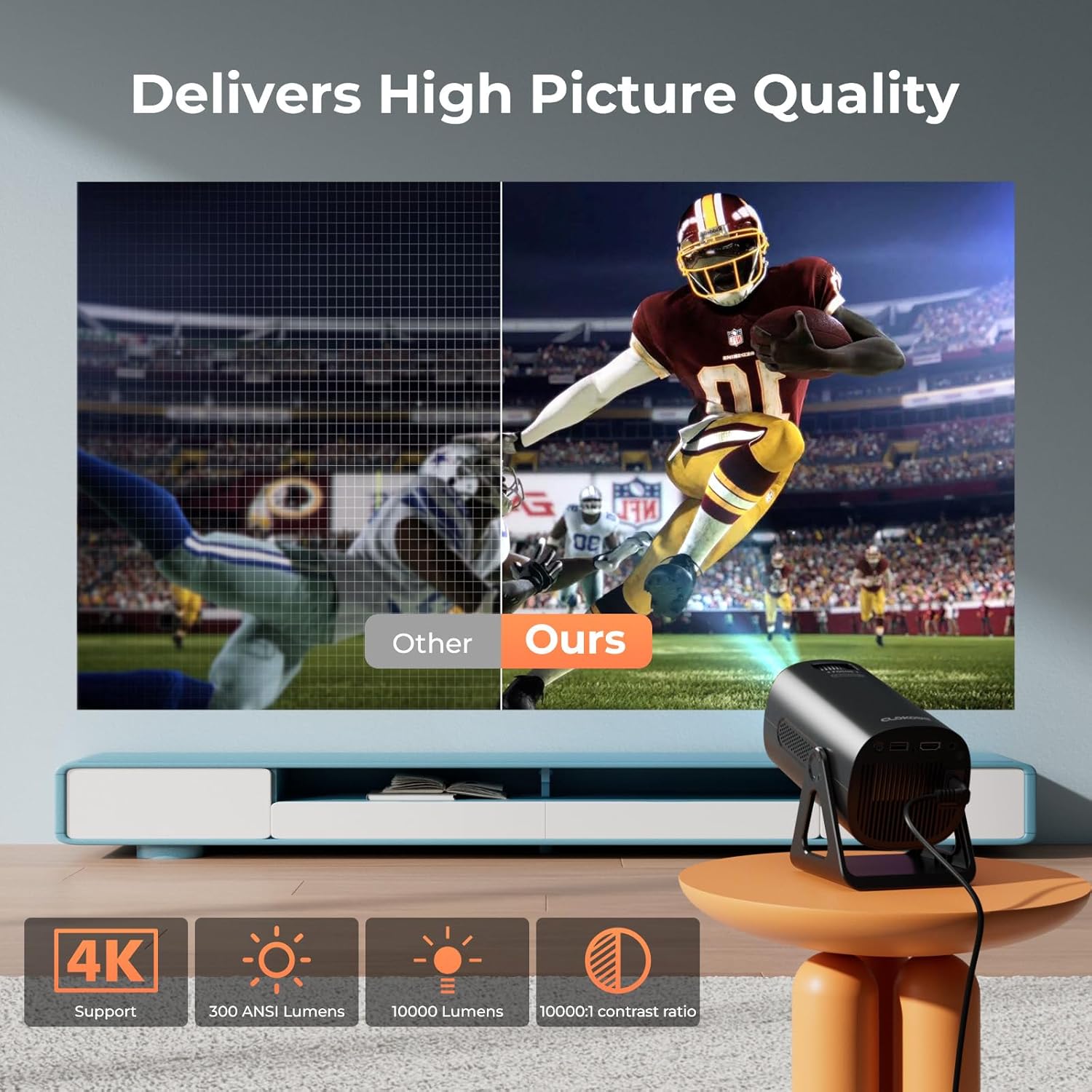
Image 5.5: Visual comparison of picture quality, emphasizing 4K support and brightness specifications.
6. Itọju
- Fifọ lẹnsi: Lo asọ, asọ ti ko ni lint ti a ṣe apẹrẹ pataki fun awọn lẹnsi opiti lati rọra nu awọn lẹnsi pirojekito naa. Maṣe lo awọn afọmọ abrasive.
- Yiyọ eruku kuro: Regularly clean the projector's vents with a soft brush or compressed air to prevent dust buildup, which can affect performance and lifespan.
- Ibi ipamọ: Tí o kò bá lò ó fún ìgbà pípẹ́, tọ́jú ẹ̀rọ ìfihàn náà sí ibi tí ó tutù tí ó sì gbẹ, ó yẹ kí o fi sínú àpótí ìpamọ́ tàbí àpótí ààbò tí ó wà níbẹ̀ tẹ́lẹ̀.
- Agbara Pa: Always power off the projector correctly and allow it to cool down before unplugging or moving it.
7. Laasigbotitusita
Awọn oran ti o wọpọ ati Awọn ojutu:
- Ko si Agbara:
• Ensure the power cord is securely connected to both the projector and the power outlet.
• Check if the power outlet is functional. - Kò sí Àwòrán/Àmì:
• Verify that the correct input source (HDMI, USB, AV) is selected in the projector's menu.
• Check the connection cables between the projector and the source device.
• Ensure the source device is powered on and outputting a signal. - Aworan ti ko boju mu:
• Adjust the focus ring on the projector lens.
• Ensure the projection surface is flat and the projector is stable.
• Check if the lens is clean. - Aworan jẹ Trapezoidal:
• The automatic keystone correction should adjust this. If not, check for manual keystone adjustment options in the settings. - Ko si Ohun:
• Check the volume settings on both the projector and the source device.
• If using Bluetooth, ensure the external speaker/headphones are properly paired and connected.
• If using HDMI, ensure the audio output is correctly configured on the source device. - Àwọn Ìṣòro Ìsopọ̀ WiFi/Bluetooth:
• Ensure the projector is within range of the WiFi router or Bluetooth device.
• Restart the projector and the network device.
• Re-enter WiFi passwords carefully.
8. Awọn pato
| Ẹya ara ẹrọ | Sipesifikesonu |
|---|---|
| Nọmba awoṣe | T800 |
| Ipinnu Ifihan | 1280 x 720 (Native 1080p, 4K Support) |
| Asopọmọra Technology | 3.5mm Jack, Bluetooth 5.2, HDMI, USB, Wi-Fi 6 (2.4G/5G) |
| Pataki Ẹya | Portable, 270° Rotatable Stand, Star Projector, Ambient Night Light, Auto Keystone Correction, Zoom |
| Niyanju Lilo | Business, Education, ere, Home Cinema |
| Iwọn Nkan | 2.38 iwon |
| Package Mefa | 9.13 x 6.69 x 5.28 inches |
9. Atilẹyin ọja ati Support
ClokoWe products are designed for reliability and performance. For warranty information, technical support, or service inquiries, please refer to the warranty card included in your package or visit the official ClokoWe website. Please have your model number (T800) and purchase details ready when contacting support.