

Image: The COLORROOM K10 Android 14 Tablet, showcasing its design and included protective case.
Ọrọ Iṣaaju
This manual provides essential instructions for setting up, operating, maintaining, and troubleshooting your COLORROOM K10 Android 14 Tablet. Please read this guide thoroughly to ensure proper use and to maximize your tablet's performance and longevity. The K10 features an 11-inch IPS display, an octa-core processor, 12GB RAM, 128GB internal storage expandable up to 1TB, an 8000mAh battery with 18W PD fast charging, dual-band WiFi6, Bluetooth 5.0, GPS, and FM Radio.
Ohun ti o wa ninu Apoti
Lẹhin ṣiṣi silẹ, rii daju pe gbogbo awọn nkan ti o wa ni isalẹ wa:
- COLORROOM Android 14 Tablet
- Okun USB
- Adapter agbara
- Shock-proof Case
Ṣeto
1. Ngba agbara si tabulẹti
Before first use, fully charge the tablet. Connect the provided USB cable to the tablet's charging port and the power adapter, then plug the adapter into a wall outlet. The tablet supports 18W PD fast charging. A full charge typically takes several hours.
2. Agbara lori / Paa
- Lati Fi agbara: Press and hold the Power button until the COLORROOM logo appears.
- Lati Paarẹ: Tẹ mọlẹ bọtini agbara, lẹhinna yan "Agbara kuro" lati awọn aṣayan.
- Lati Tun bẹrẹ: Tẹ mọlẹ bọtini agbara, lẹhinna yan "Tun bẹrẹ" lati awọn aṣayan.
3. Oṣo oluṣeto akọkọ
Follow the on-screen instructions to complete the initial setup, which includes selecting your language, connecting to a Wi-Fi network, and signing in with your Google account.
4. Nsopọ si Wi-Fi
- Lọ si Eto > Nẹtiwọọki & Intanẹẹti > Wi-Fi.
- Yipada Wi-Fi On.
- Yan nẹtiwọki ti o fẹ lati inu akojọ.
- Tẹ ọrọ igbaniwọle sii ti o ba ṣetan, lẹhinna tẹ ni kia kia Sopọ. The tablet supports dual-band WiFi (2.4/5GHz) for stable connections.
5. Fífẹ̀ sí ibi ìpamọ́
The tablet supports up to 1TB expandable storage via a microSD card (not included). Locate the microSD card slot, insert the card gently until it clicks into place, and follow any on-screen prompts to format it if necessary.
6. Installing the Protective Case
Carefully align the tablet with the provided shock-proof case and gently press it into place, ensuring all ports and buttons are accessible and the tablet is securely fitted.
Awọn ilana Iṣiṣẹ
1. Ipilẹ Lilọ kiri
- Fọwọkan: Fọwọ ba aami kan lati ṣii ohun elo kan tabi yan ohun kan.
- Ra: Fa ika rẹ kọja iboju lati yi lọ tabi lilö kiri laarin awọn iboju.
- Fun pọ: Lo ika meji lati sun sinu tabi ita lori awọn aworan ati web awọn oju-iwe.
- Bọtini Ile: Pada si iboju ile.
- Bọtini Pada: Pada si iboju ti tẹlẹ.
- Bọtini Awọn ohun elo aipẹ: Displays recently opened applications.
2. Multitasking
The tablet's octa-core processor and 12GB RAM allow for efficient multitasking. You can run multiple applications simultaneously. Use the recent apps button to switch between open applications or use split-screen mode for two apps side-by-side.
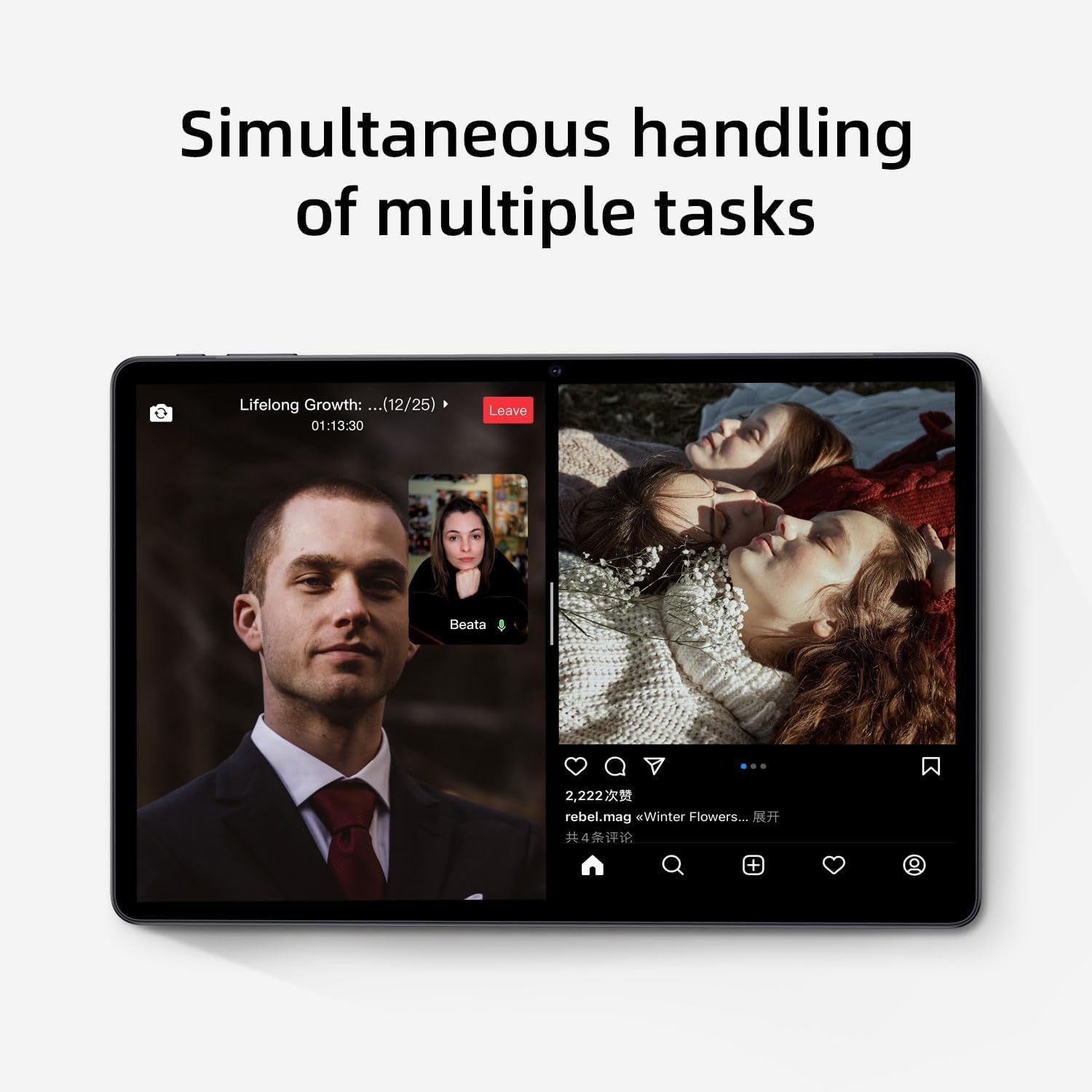
Image: The tablet screen showing two applications running simultaneously in split-screen mode, illustrating its multitasking feature.
3. Media Sisisẹsẹhin
The 11-inch IPS display with 1920x1200 resolution provides clear and vibrant visuals for streaming videos, viewing photos, and playing games. Use pre-installed media players or download your preferred apps from the Google Play Store.
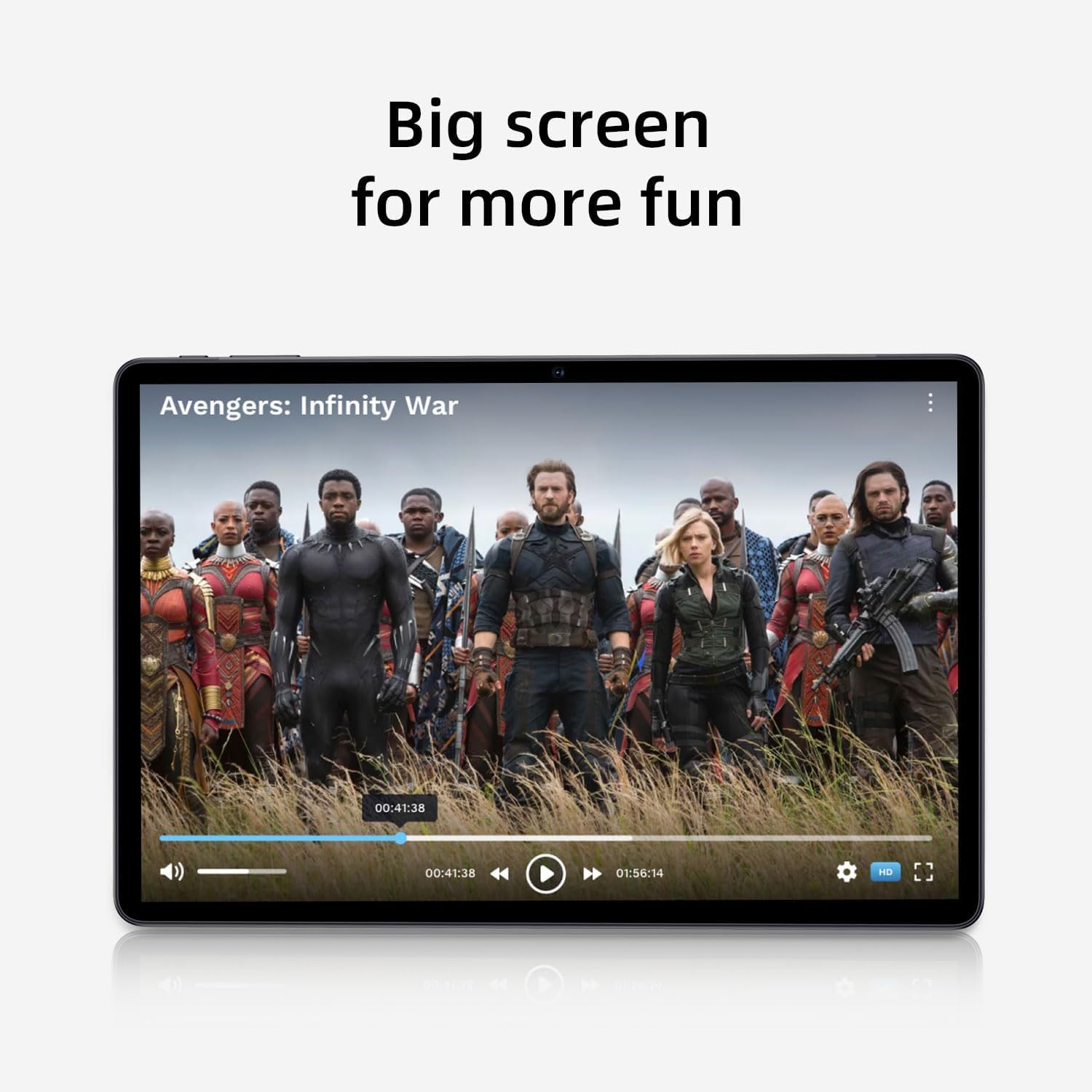
Image: The tablet screen showing a video playing, highlighting the display quality for entertainment.
4. Lilo GPS
The tablet includes built-in GPS functionality. To use navigation apps, ensure location services are enabled in Eto > Ipo. Download a navigation app from the Google Play Store for turn-by-turn directions.
5. Using FM Radio
To use the FM Radio, connect wired headphones (not included) to the tablet's audio jack. The headphones act as an antenna. Open the pre-installed FM Radio app and scan for available stations.
6. Bluetooth Asopọmọra
To pair Bluetooth devices (e.g., headphones, speakers):
- Lọ si Eto > Awọn ẹrọ ti a ti sopọ > Awọn ayanfẹ asopọ > Bluetooth.
- Yi Bluetooth pada On.
- Rii daju pe ẹrọ Bluetooth rẹ wa ni ipo sisopọ.
- Yan ẹrọ rẹ lati inu akojọ awọn ẹrọ ti o wa ki o tẹle eyikeyi awọn ilana loju iboju lati pari isopọmọ.
7. Lilo kamẹra
Open the Camera app from the home screen or app drawer. Tap the shutter button to take photos or switch to video mode to record videos. Adjust settings like flash, timer, and camera mode within the app interface.
Itoju
1. Ninu Tablet
Lo asọ ti ko ni lint lati nu iboju ati ara tabulẹti naa. Fun agidi smudges, die-die dampen awọn asọ pẹlu omi tabi a iboju-ninu ojutu. Yago fun awọn kẹmika lile tabi awọn ohun elo abrasive.
2. Itọju batiri
- Yago fun awọn iwọn otutu to gaju, nitori wọn le ba igbesi aye batiri jẹ.
- Ma ṣe jẹ ki batiri naa ṣan patapata nigbagbogbo.
- Use the provided charger for optimal charging.
- The 8000mAh battery provides extended usage; however, proper care ensures long-term performance.

Image: A visual representation of the tablet's 8000mAh battery capacity, emphasizing its long-lasting power.
3. Software imudojuiwọn
Regularly check for system updates to ensure your tablet has the latest features and security patches. Go to Eto > Eto > Imudojuiwọn eto.
4. Ibi ipamọ Management
Lorekore tunview rẹ sori ẹrọ apps ati files. Yọ awọn ohun elo ti a ko lo kuro ki o paarẹ ti ko wulo files to free up the 128GB internal storage. Utilize the 1TB expandable storage for large media files.
Laasigbotitusita
Táblẹ́ẹ̀tì Kò Lágbára
- Rii daju pe tabulẹti ti gba agbara to. Sopọ mọ ohun ti nmu badọgba agbara ati ki o duro iṣẹju diẹ ṣaaju ki o to pinnu lati tan-an.
- Tẹ mọlẹ bọtini Agbara fun o kere ju iṣẹju 10-15 lati tun fi agbara mu bẹrẹ.
Awọn oran Asopọ Wi-Fi
- Tun olulana Wi-Fi rẹ bẹrẹ ati tabulẹti.
- Gbagbe nẹtiwọki ni awọn eto Wi-Fi ki o tun sopọ.
- Rii daju pe o wa laarin ifihan Wi-Fi.
O lọra Performance
- Pa awọn ohun elo ti ko lo ti nṣiṣẹ ni abẹlẹ.
- Ko data kaṣe kuro fun awọn ohun elo ti a lo nigbagbogbo.
- Ṣayẹwo fun ati fi sori ẹrọ eyikeyi awọn imudojuiwọn eto to wa.
- Consider performing a factory reset as a last resort (back up your data first). Go to Eto > Eto > Tun awọn aṣayan > Pa gbogbo data rẹ (atunṣe ile-iṣẹ).
Touchscreen ko dahun
- Tun tabulẹti bẹrẹ.
- Rii daju pe iboju jẹ mimọ ati laisi idoti tabi ọrinrin.
Awọn pato

Image: The tablet shown with its physical dimensions, including screen size and overall device measurements.
| Orukọ awoṣe | K10 |
| Eto isesise | Android 14 |
| isise | Octa-core (Unisoc) |
| Àgbo | 12GB |
| Ibi ipamọ inu | 128GB |
| Expandable Ibi ipamọ | Títí dé 1TB (microSD) |
| Iwon iboju | 11 inches |
| Ipinnu iboju | 1920x1200 IPS |
| Agbara Batiri | 8000mAh |
| Gbigba agbara | 18W PD Fast Charge |
| Wi-Fi | Dual-band (2.4/5GHz) 802.11ac |
| Bluetooth | Bluetooth 5.0 |
| GPS | Bẹẹni |
| Redio FM | Bẹẹni |
| Iwọn Nkan | 2.33 iwon |
| Ọja Mefa | 10.1 x 3.5 x 0.35 inches |
Alaye atilẹyin ọja
This COLORROOM K10 Tablet is covered by a standard manufacturer's warranty. The specific terms and duration of the warranty may vary by region. Please retain your proof of purchase for warranty claims. For detailed warranty information, including coverage and how to make a claim, please refer to the warranty card included with your product or visit the official COLORROOM webojula.
Atilẹyin
For further assistance, technical support, or to inquire about service, please visit the COLORROOM official support webojula tabi kan si wọn onibara iṣẹ Eka. Alaye olubasọrọ le ṣee ri ni igbagbogbo lori olupese webaaye tabi lori awọn ohun elo apoti.