
DOOGEE Tab E3Pro
DOOGEE Tab E3 Pro 13-inch Android Tablet User Manual
Model: Tab E3Pro
1. Ifihan
The DOOGEE Tab E3 Pro is a high-performance 13-inch Android tablet designed for both productivity and entertainment. Featuring a vibrant FHD+ display with a 90Hz refresh rate, a powerful Helio G100 Octa-Core processor, and a large 11000mAh battery, it offers a seamless user experience. This manual provides essential information for setting up, operating, maintaining, and troubleshooting your device.
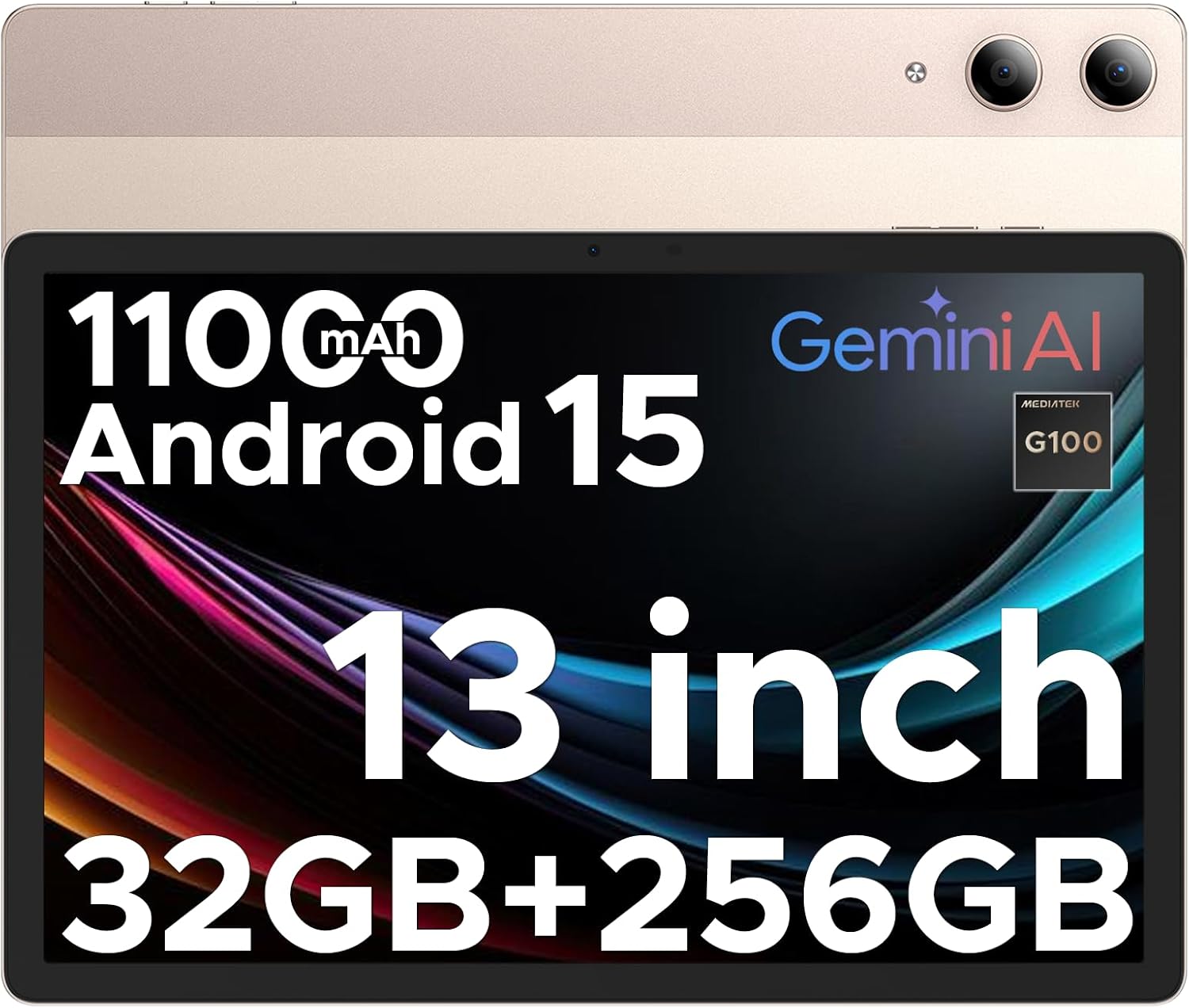
Image: The DOOGEE Tab E3 Pro tablet, showcasing its large screen and sleek design.
2. Eto
2.1. Package Awọn akoonu
Ṣaaju ki o to bẹrẹ, rii daju pe gbogbo awọn nkan wa ninu package:
- 1* DOOGEE Tab E3 Pro Tablet
- 1* Iru-C okun USB
- 1* Ṣaja
- 1* SIM Card Remover
- 1 * Apoti Iṣakojọpọ
- 1 * Itọsọna olumulo
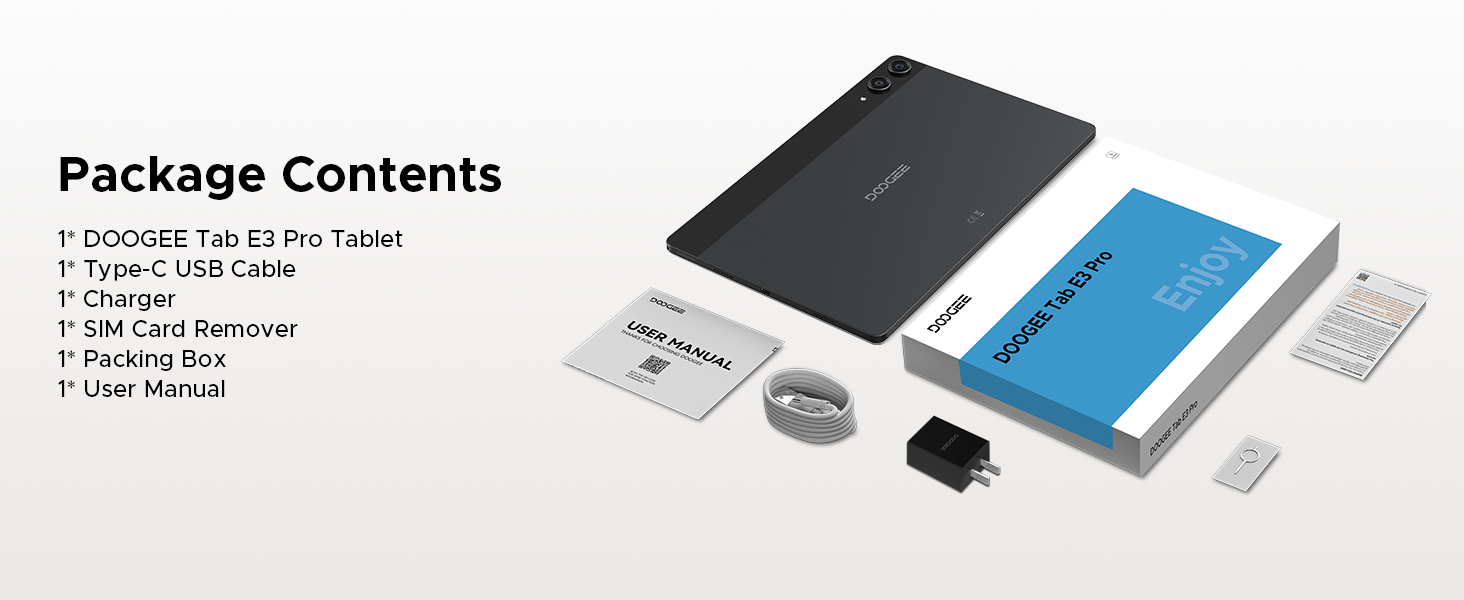
Image: A visual representation of all items included in the DOOGEE Tab E3 Pro package.
2.2. Ngba agbara si tabulẹti
Connect the provided Type-C USB cable to the tablet's charging port and the other end to the charger. Plug the charger into a power outlet. The tablet supports 18W fast charging. A full charge ensures extended usage time.
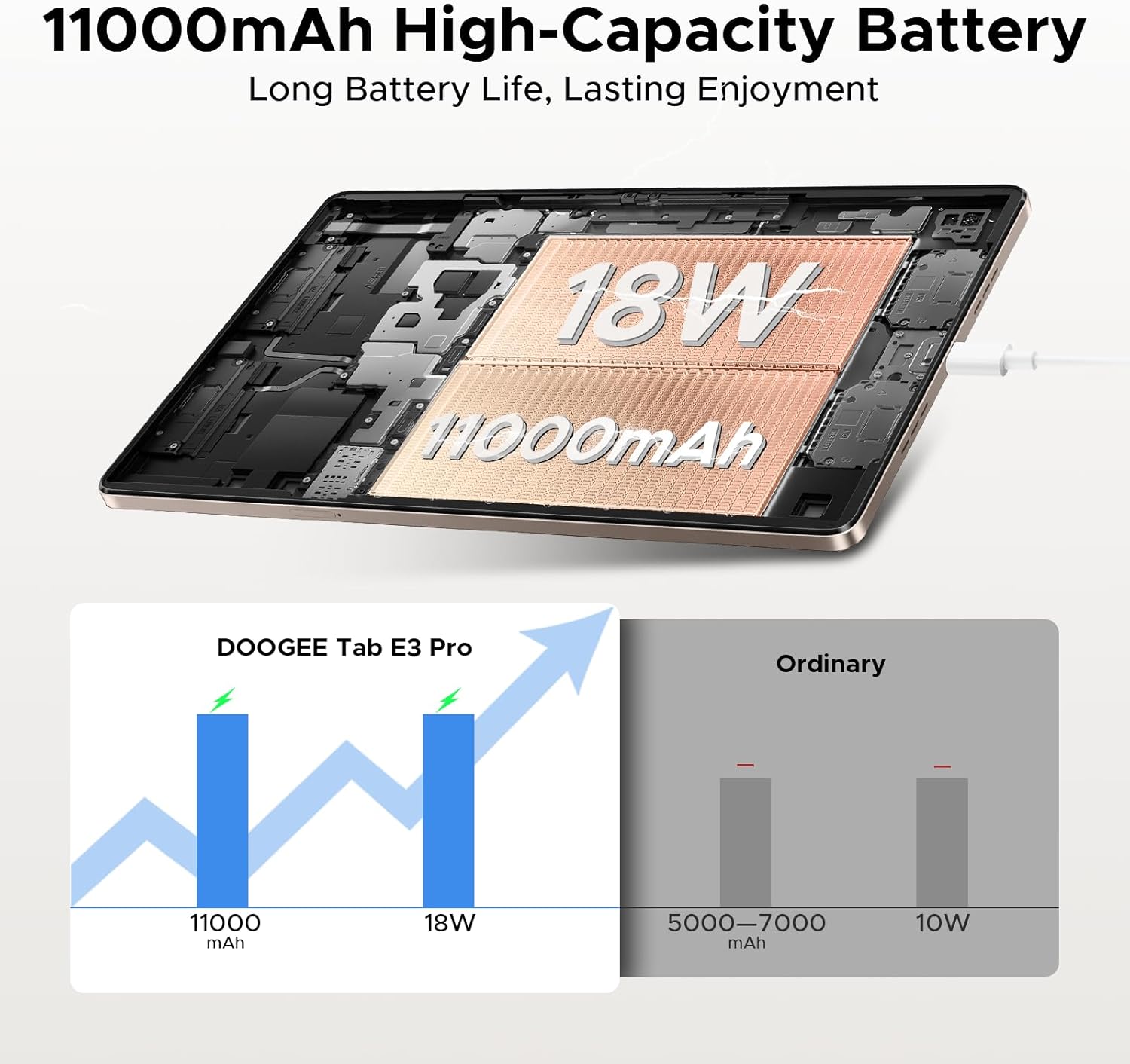
Image: The DOOGEE Tab E3 Pro connected to its 18W fast charger, illustrating the charging process and battery capacity.
2.3. Inserting SIM/TF Card
The DOOGEE Tab E3 Pro supports dual SIM card slots, allowing for two Nano SIMs or one Nano SIM and one TF (microSD) card for expanded storage up to 2TB. Use the provided SIM card remover tool to open the SIM tray. Carefully place the card(s) into the tray according to the diagram and reinsert it into the tablet.
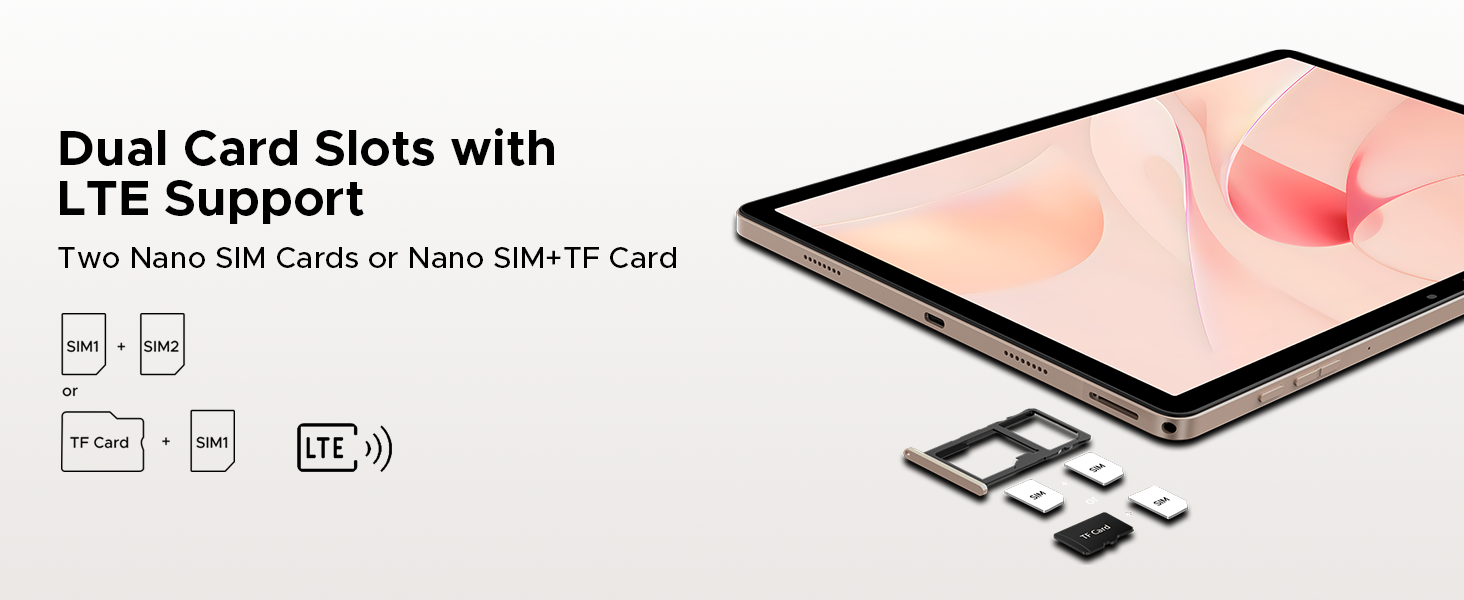
Image: Diagram showing the dual SIM card slots and options for two Nano SIMs or one Nano SIM plus a TF card.
2.4. Initial Power On and Face Unlock Setup
Press and hold the power button until the DOOGEE logo appears. Follow the on-screen instructions to complete the initial setup, including language selection, Wi-Fi connection, and Google account login. For enhanced security, you can set up Face Unlock during this process or later in the tablet's security settings.
3. Ṣiṣẹ rẹ tabulẹti
3.1. Ìrírí Ìfihàn àti Ìrírí Ìrírí
The Tab E3 Pro features a 13-inch IPS FHD+ display with a resolution of 1920x1200 pixels and an 84.6% screen-to-body ratio, providing an immersive viewing experience. The 90Hz refresh rate ensures smooth scrolling and fluid visuals for videos and games. An Eye-Caring Mode is available to reduce blue light emission, protecting your eyes during prolonged use.
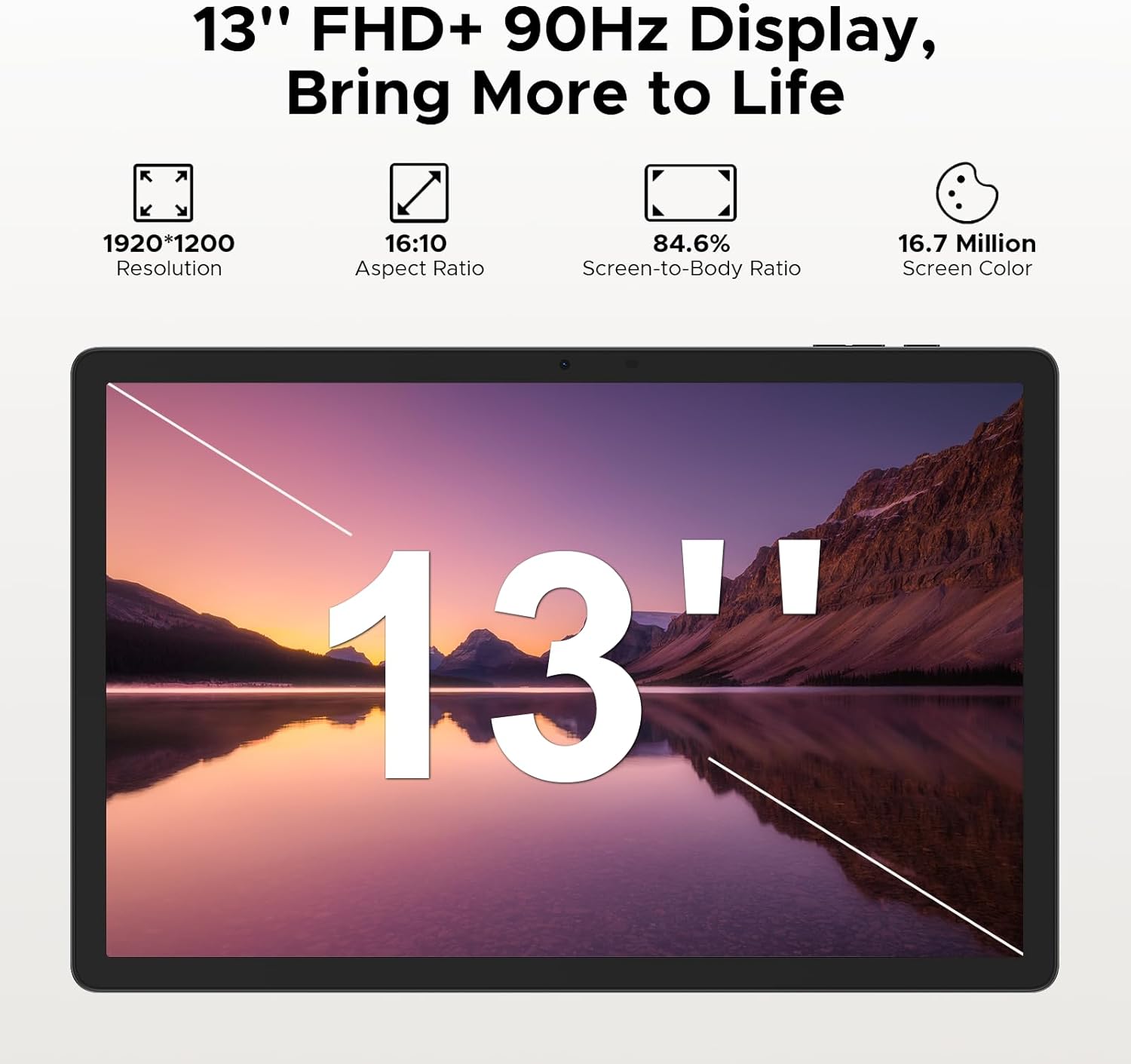
Image: The 13-inch FHD+ display of the DOOGEE Tab E3 Pro, highlighting its resolution, aspect ratio, screen-to-body ratio, and screen color capabilities.
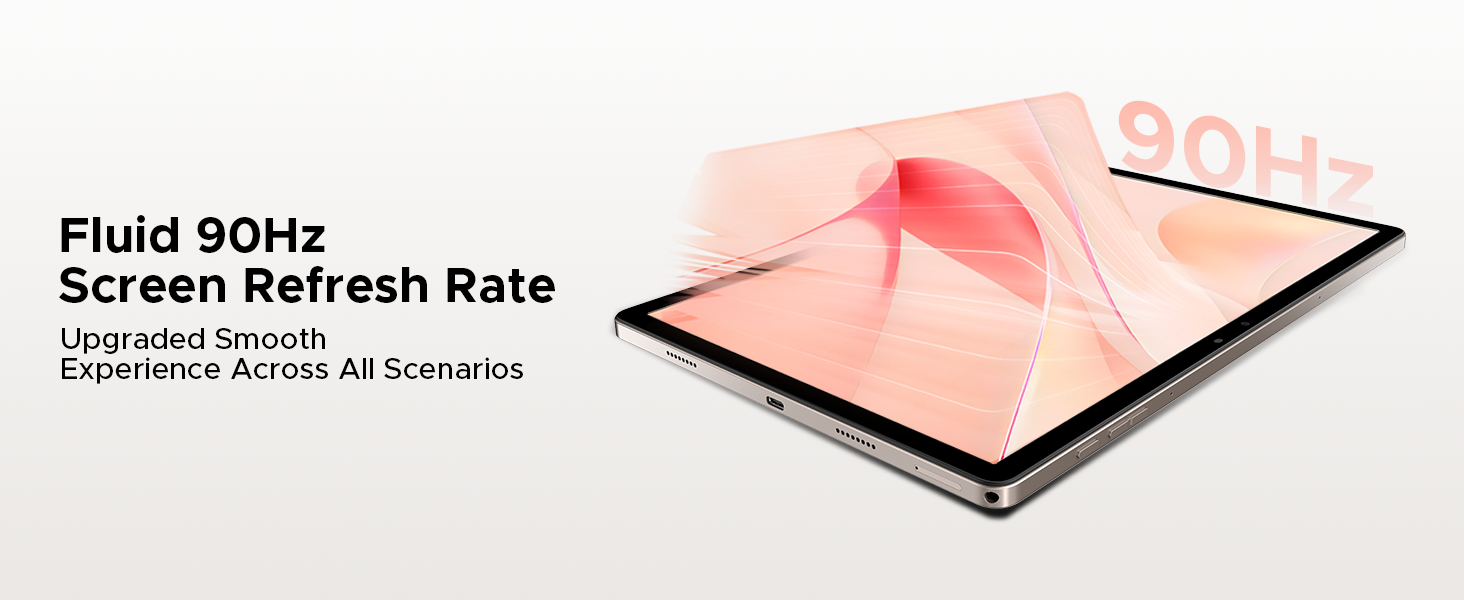
Image: Visual representation of the 90Hz screen refresh rate, indicating smooth performance across various scenarios.
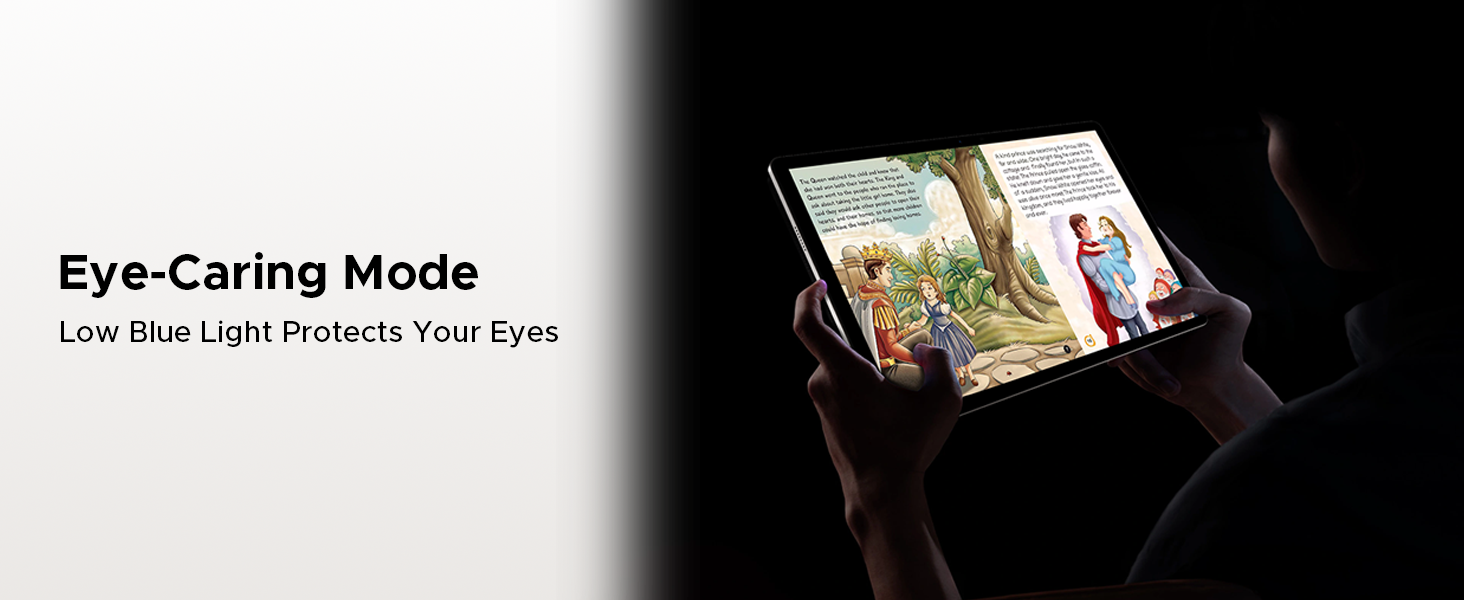
Image: A person using the tablet in Eye-Caring Mode, demonstrating its low blue light protection feature.
3.2. Išẹ ati Ibi ipamọ
Powered by the Helio G100 Octa-Core processor and running on the latest Android 15 system, the tablet delivers robust performance for multitasking, gaming, and productivity. It comes with 32GB of RAM (8GB physical + 24GB virtual) and 256GB of internal storage, expandable up to 2TB via a microSD card (sold separately).
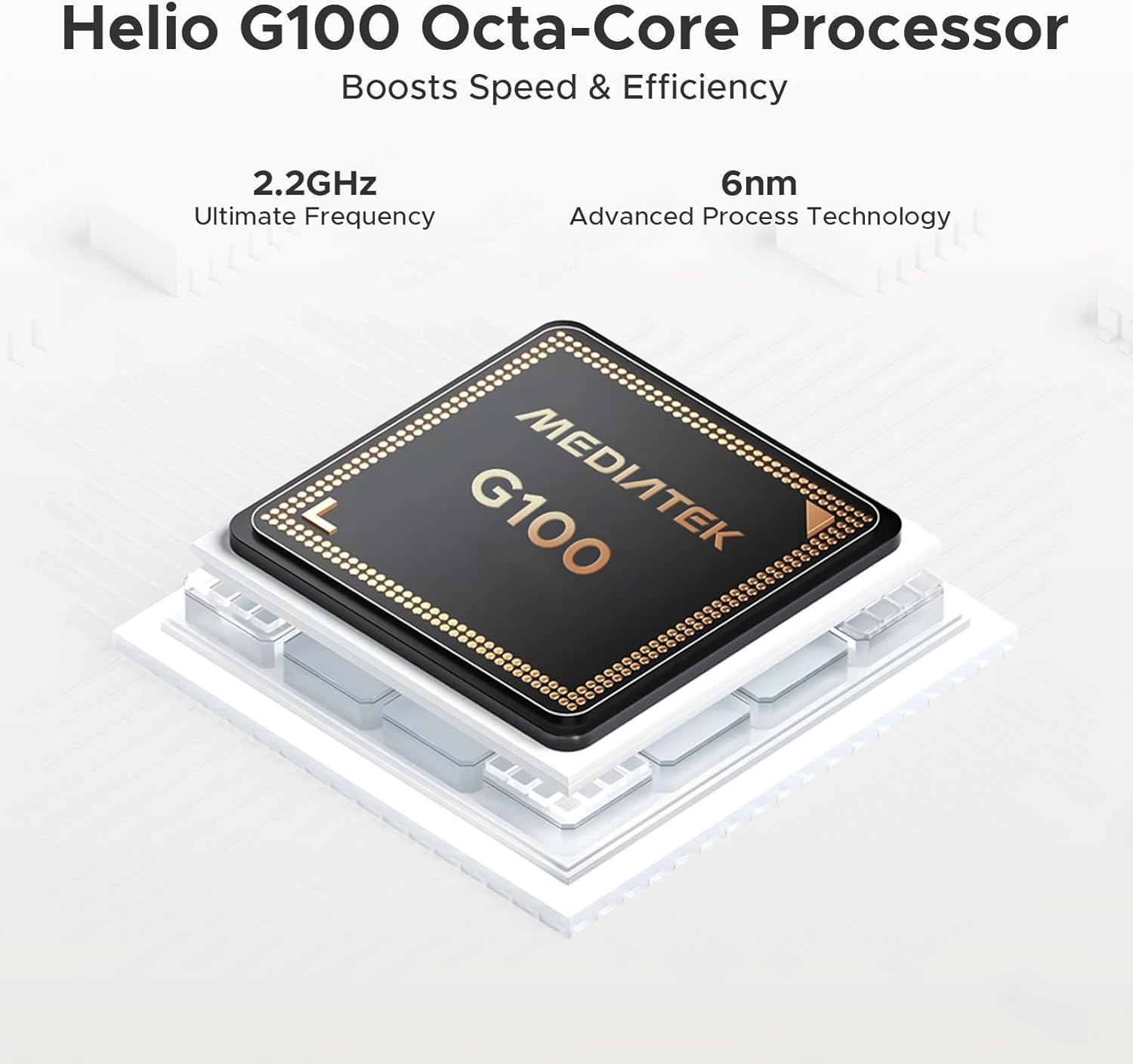
Aworan: A alaye view of the MediaTek Helio G100 Octa-Core processor, highlighting its 2.2GHz ultimate frequency and 6nm advanced process technology.
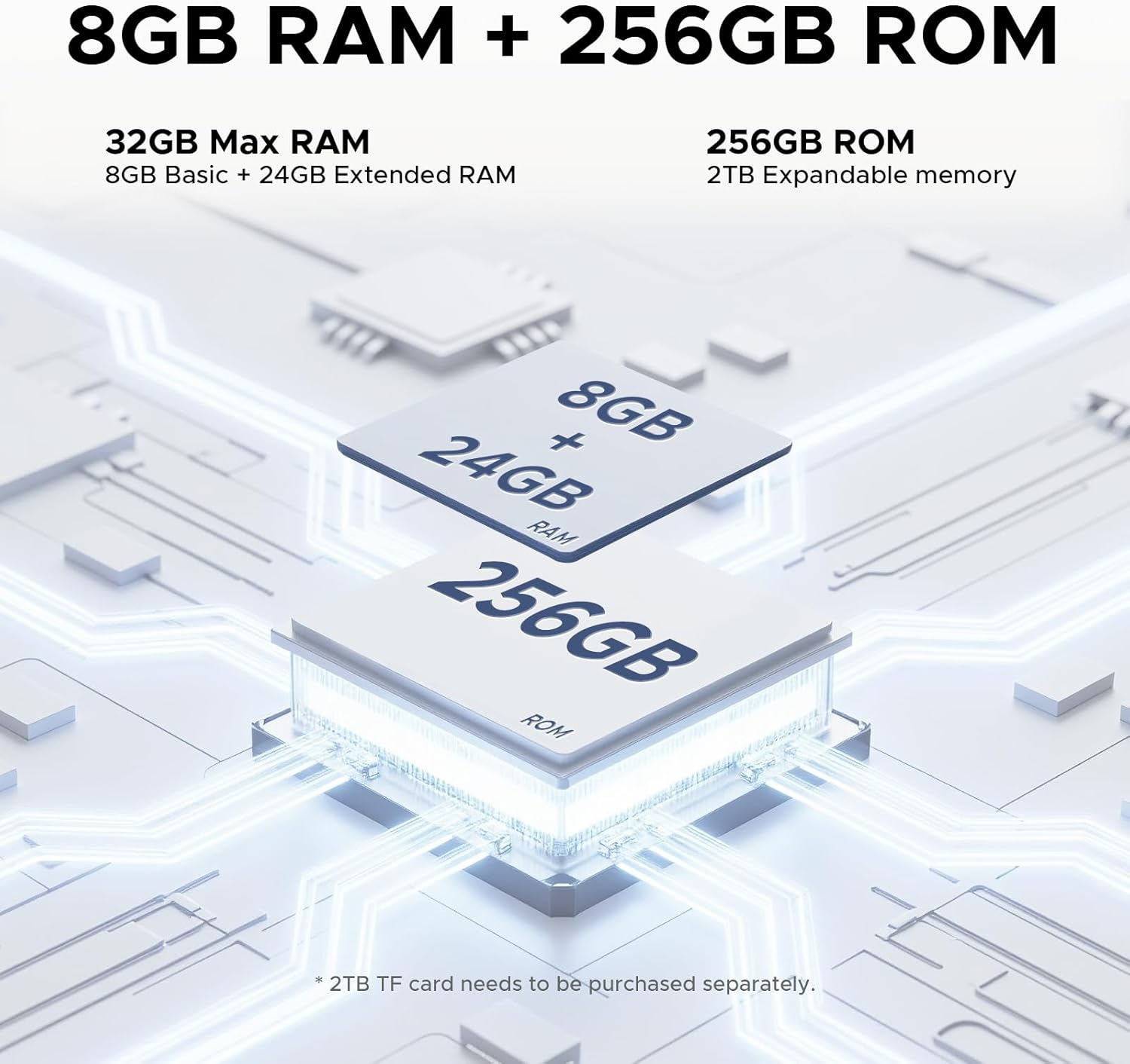
Image: Illustration of the 8GB RAM (expandable to 32GB) and 256GB ROM, with a note about 2TB expandable memory.
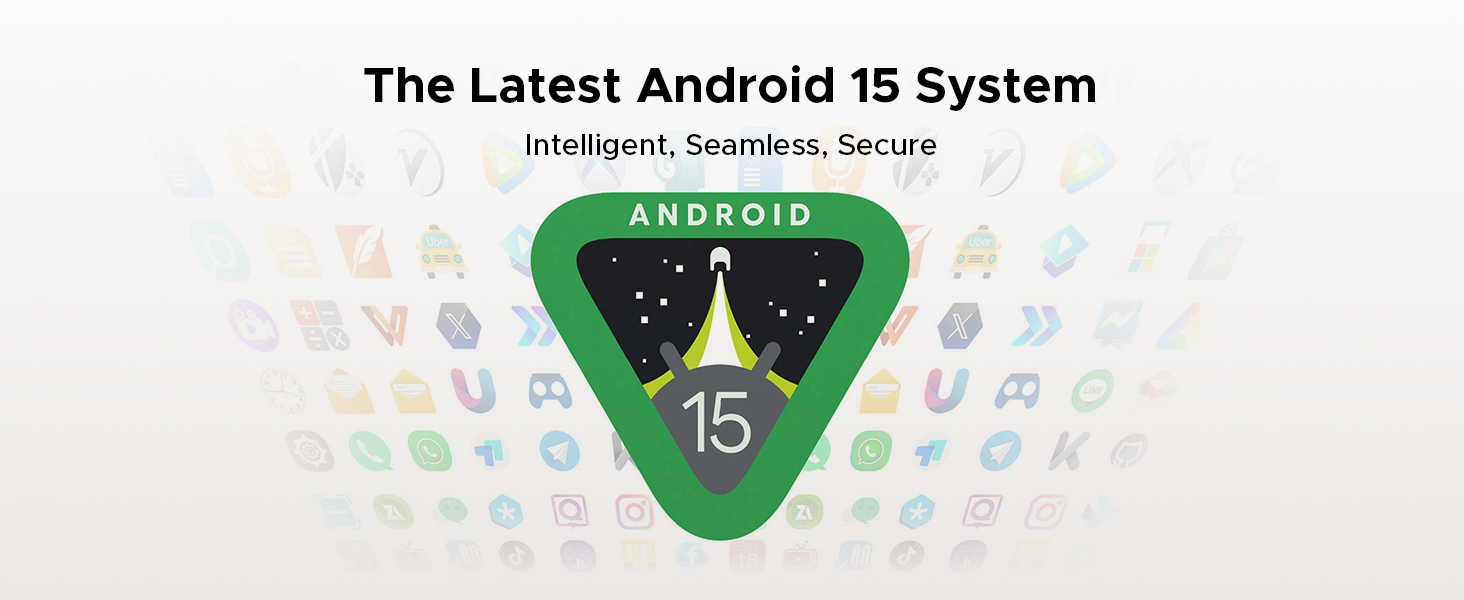
Image: The Android 15 logo, indicating an intelligent, seamless, and secure operating system.
3.3. Awọn ẹya ara ẹrọ kamẹra
Capture moments with the 13MP rear camera and 8MP front camera. Both support 2K video recording, anti-flicker, portrait mode, and beauty filters, making them suitable for video calls, selfies, and content creation.

Image: Depiction of the tablet's 13MP main camera and 8MP front camera, with example photos taken by the cameras.
3.4. Ohùn àti Ìsopọ̀mọ́ra
Experience rich audio with the built-in 1217 BOX quad-speaker system. The tablet supports Bluetooth 5.2 for wireless audio accessories and includes a standard 3.5mm headphone jack. Stay connected with dual-band 2.4G/5G WiFi and LTE support for mobile data.
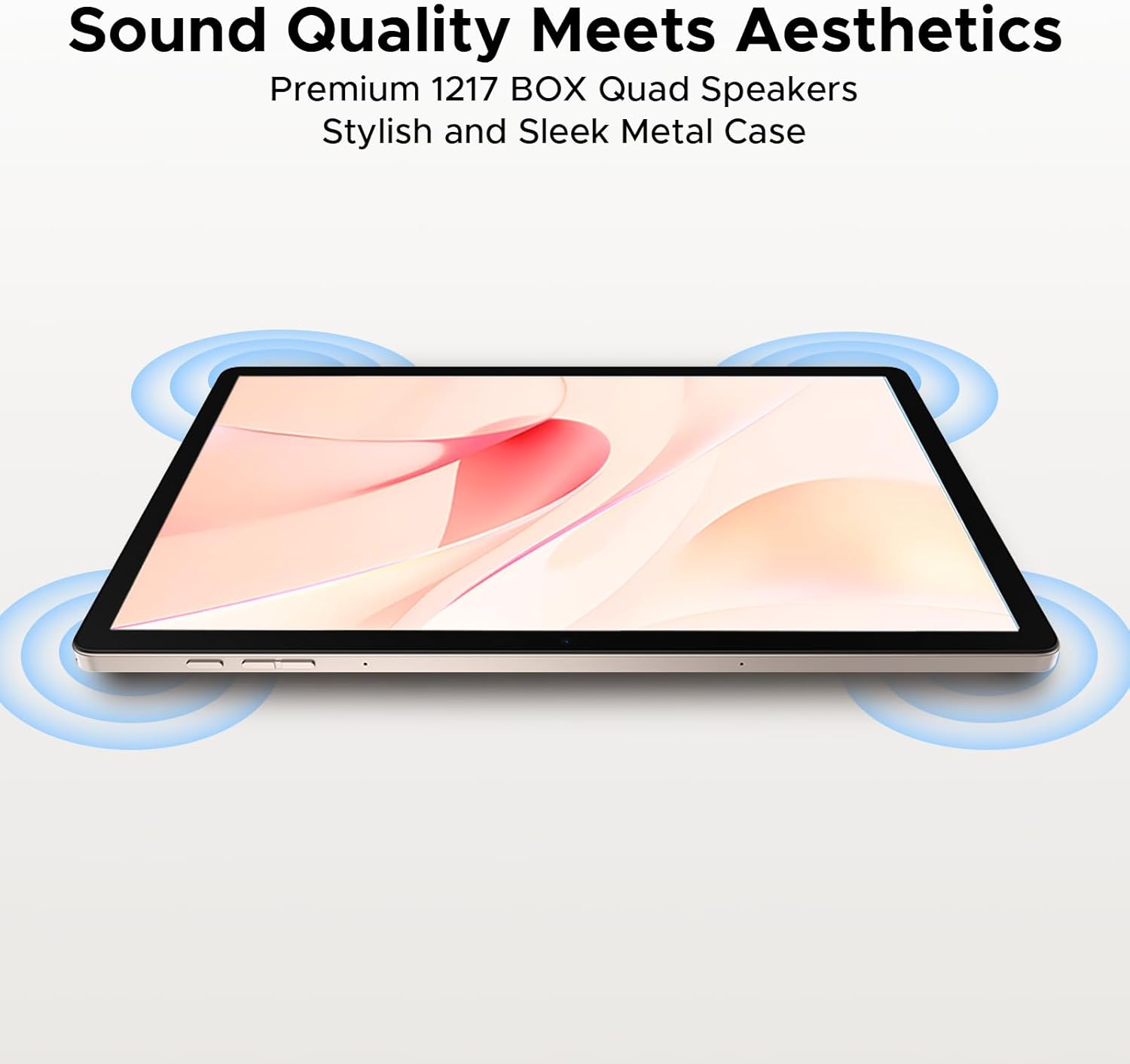
Image: The tablet with sound waves emanating from its four corners, illustrating the premium 1217 BOX quad-speaker system.
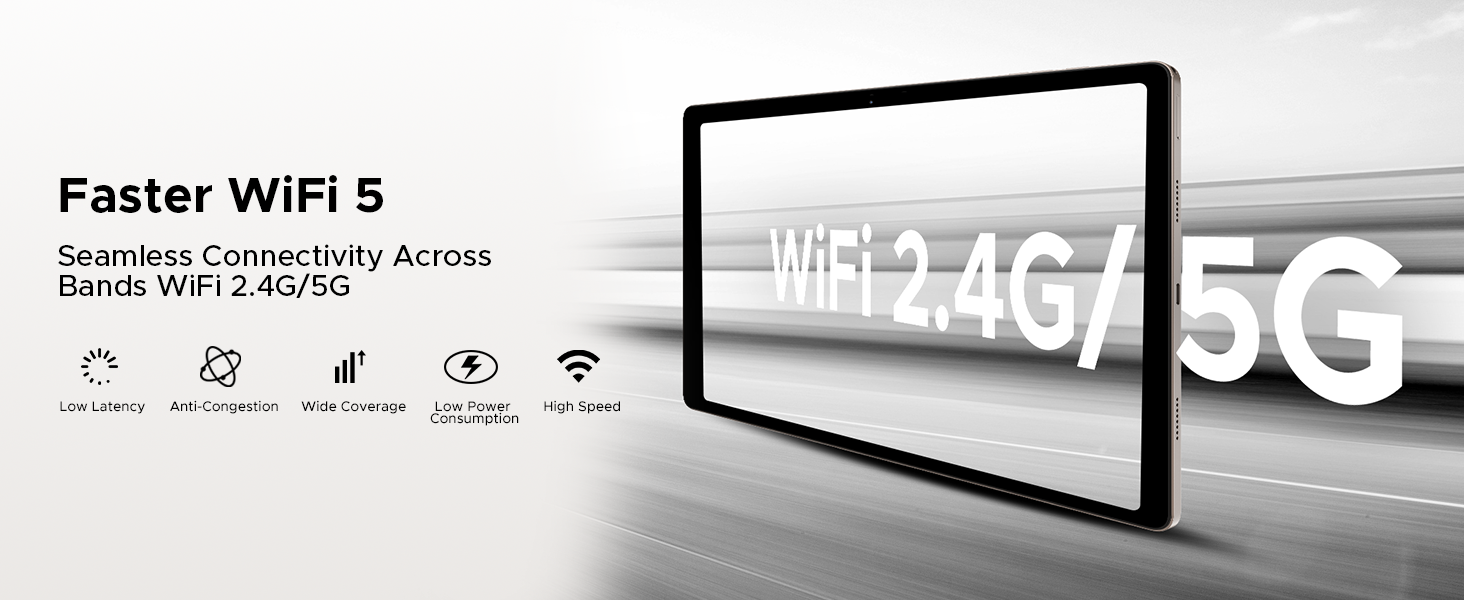
Image: Graphic illustrating the tablet's dual-band 2.4G/5G WiFi capabilities for fast and seamless connectivity.
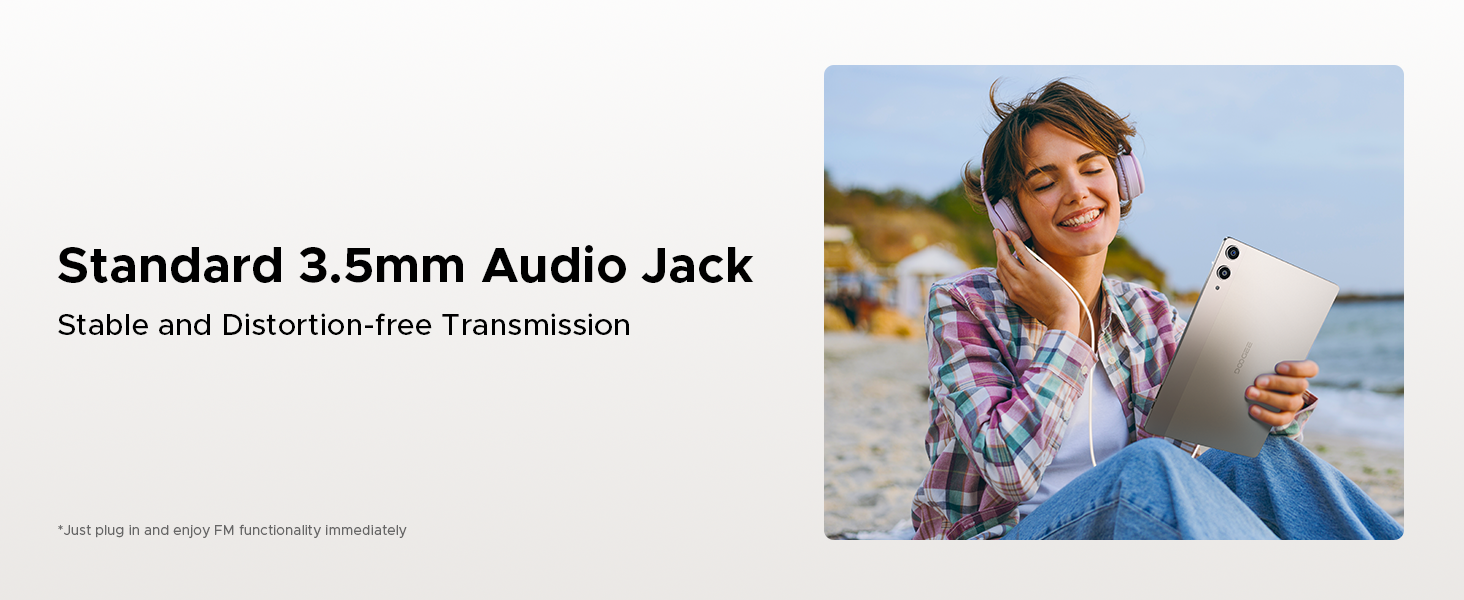
Image: A person enjoying music with wired headphones connected to the tablet's 3.5mm audio jack.
3.5. Olùrànlọ́wọ́ Gemini AI
The tablet integrates the intelligent Gemini AI assistant to streamline daily tasks. Gemini AI supports various functions including content creation, information retrieval and summarization, image analysis, code development, language learning, and smart assistance. Utilize Gemini Live for conversational interaction and task assistance, and Gemini Deep Research for in-depth reports and analysis.

Image: A circular diagram showing the various functions of the built-in Gemini AI, such as Content Creation, Image Analysis, and Smart Assistant.
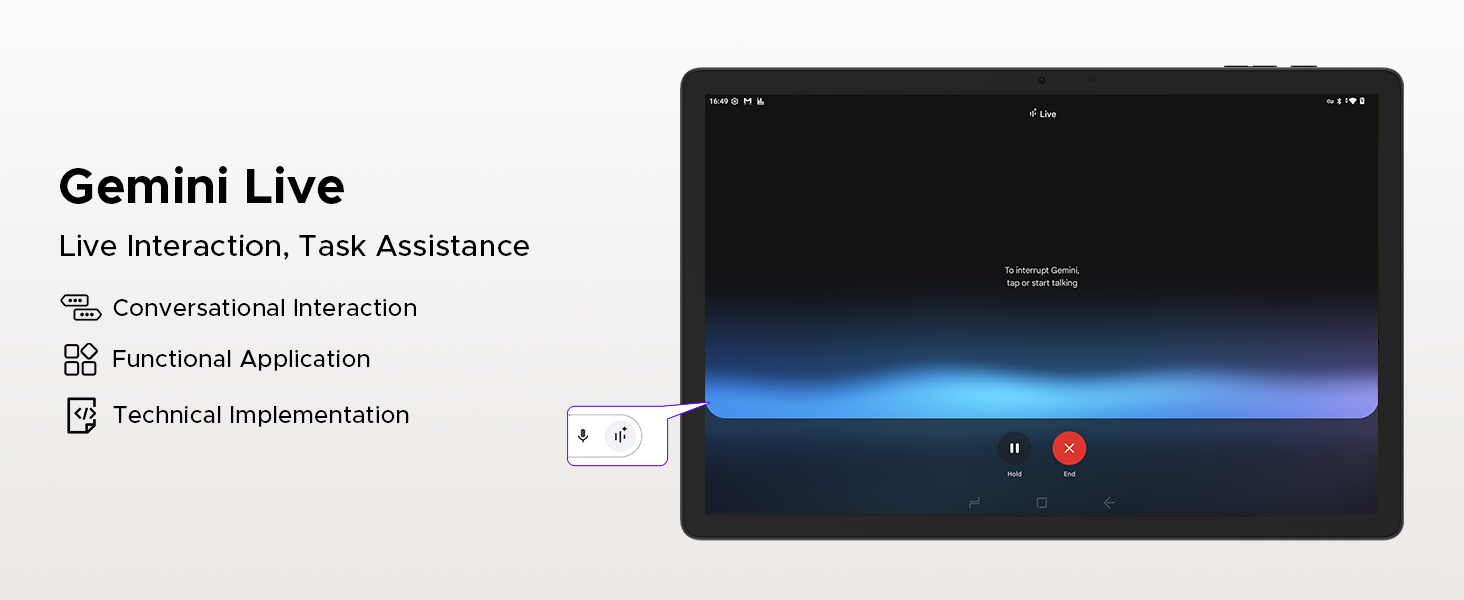
Image: A screenshot of the Gemini Live interface on the tablet, demonstrating conversational interaction and task assistance.
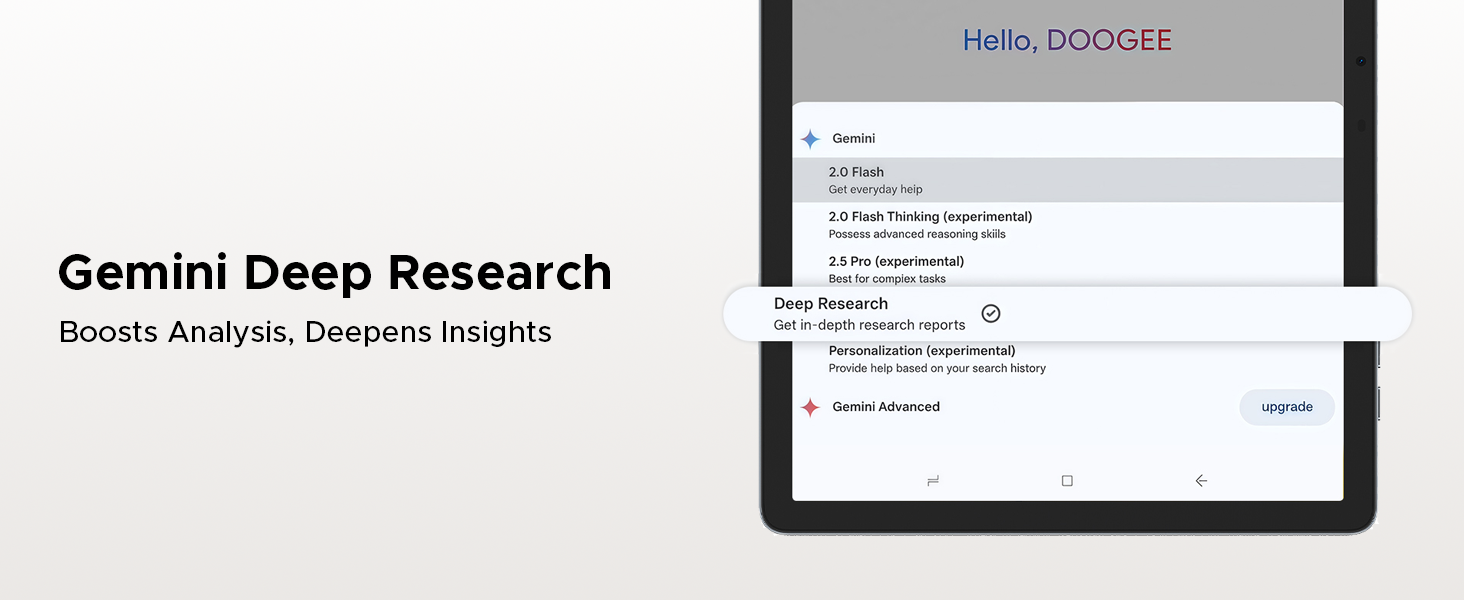
Image: A tablet screen displaying options for Gemini Deep Research, indicating its capability for in-depth analysis and insights.
3.6. Navigation and Productivity
The Tab E3 Pro includes a high-precision GPS system supporting GPS, Glonass, Galileo, and Beidou for accurate navigation. For productivity, it features built-in PC-level WPS Office, enabling seamless work on documents, spreadsheets, and presentations on the go.
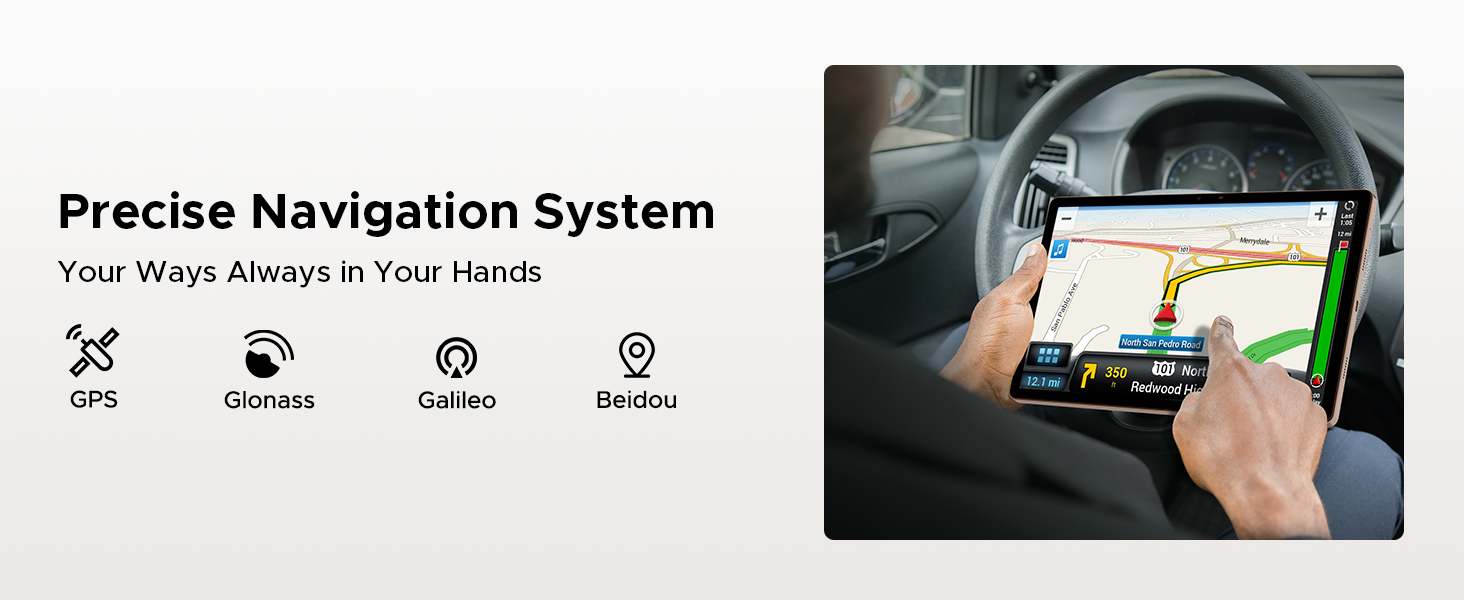
Image: A person using the tablet for navigation in a car, showing the precise GPS system in action.
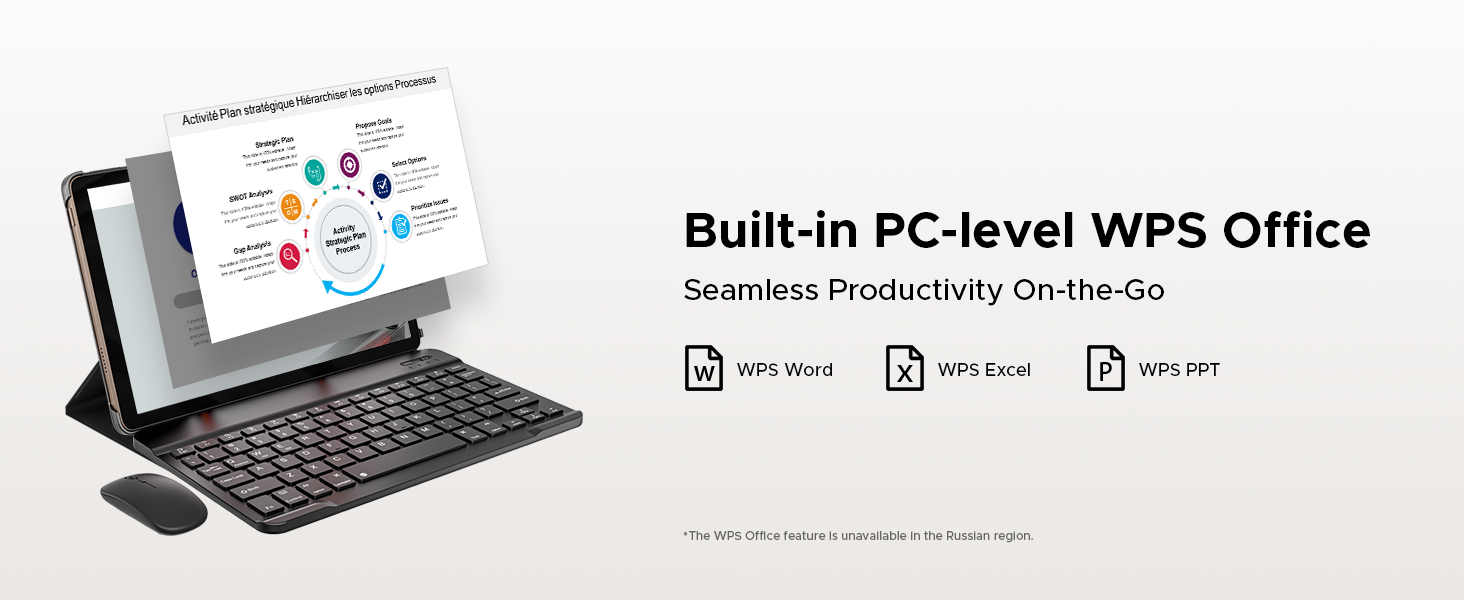
Image: The tablet connected to a keyboard and mouse, displaying WPS Office applications for seamless productivity.
4. Itọju
4.1. Itọju batiri
To maximize battery lifespan, avoid extreme temperatures. Do not fully discharge the battery regularly; instead, charge it when the battery level is low. Use only the provided charger and cable for optimal charging performance.
4.2. Nu Táblẹ́ẹ̀tì Rẹ
Lo asọ ti ko ni lint lati nu iboju ati ara tabulẹti naa. Fun agidi smudges, die-die dampen the cloth with water or a screen-cleaning solution. Avoid using harsh chemicals or abrasive materials, as they can damage the screen and finish.
5. Laasigbotitusita
5.1. Wọpọ Oran ati Solusan
- Tabulẹti ko tii: Rii daju pe batiri ti gba agbara. So ṣaja pọ ki o duro fun iṣẹju diẹ ṣaaju igbiyanju lati tan-an lẹẹkansi.
- Iboju ko dahun: Try restarting the tablet by holding the power button for about 10-15 seconds until it powers off, then power it on normally.
- Awọn ohun elo kọlu tabi didi: Close background applications. Clear the cache of the problematic app in Settings > Apps. If the issue persists, uninstall and reinstall the app.
- Iṣẹ ṣiṣe ti o lọra: Gba aaye ibi-itọju laaye nipasẹ piparẹ ti ko wulo files or apps. Restart the tablet regularly.
- Awọn oran Asopọmọra Wi-Fi: Tun olulana Wi-Fi rẹ bẹrẹ ati tabulẹti. Gbagbe nẹtiwọki ni awọn eto tabulẹti ki o tun sopọ.
If you encounter issues not listed here or if the suggested solutions do not resolve the problem, please refer to the support section for further assistance.
6. Awọn pato
| Ẹya ara ẹrọ | Ẹ̀kúnrẹ́rẹ́ |
|---|---|
| Brand | DOOGEE |
| Orukọ awoṣe | TABE3PRO |
| Eto isesise | Android 15 |
| Iwon iboju | 13 inches |
| Ipinnu Iboju ti o pọju | 1920x1200 Pixels (FHD+) |
| Oṣuwọn sọtun | 90Hz |
| isise | Helio G100 Octa-Core |
| Àgbo | 32GB (ti ara 8GB + foju foju 24GB) |
| Ibi ipamọ inu | 256GB |
| Expandable Ibi ipamọ | Títí dé 2TB (microSD) |
| Agbara Batiri | 11000mAh |
| Gbigba agbara | 18W Yara Ngba agbara |
| Kamẹra ẹhin | 13MP |
| Kamẹra iwaju | 8MP |
| Ohun | 1217 BOX Quad Speakers, 3.5mm Audio Jack |
| Asopọmọra | Dual-band 2.4G/5G WiFi, Bluetooth 5.2, LTE (Dual SIM) |
| Lilọ kiri | GPS, Glonass, Galileo, Beidou |
| Awọn iwọn (LxWxH) | 11.89 x 7.78 x 0.31 inches (302.1 x 197.5 x 7.9 mm) |
| Iwọn | 2.58 iwon (718g) |
| Àwọ̀ | Wura |
7. Atilẹyin ọja ati Support
7.1. atilẹyin ọja Information
Your DOOGEE Tab E3 Pro comes with a standard manufacturer's warranty. Please refer to the warranty card included in your package for specific terms, conditions, and duration. Keep your proof of purchase for warranty claims.
7.2. Onibara Support
For technical assistance, troubleshooting, or service inquiries, please visit the official DOOGEE support website or contact their customer service. You can find contact details on the DOOGEE brand store page on Amazon or in your product documentation.
DOOGEE Brand Store: https://www.amazon.com/stores/DOOGEE/page/A39652BD-4C9E-4786-9C34-8ABB68DE0373
Ask a question about this manual
Ask about setup, troubleshooting, compatibility, parts, safety, or missing instructions. Manuals+ will review the question and use this page’s manual context to help answer it.