
DOOGEE TabA9
DOOGEE Tab A9 Android 15 Tablet User Manual
Model: Tab A9 | Brand: DOOGEE
1. Ifihan
Thank you for choosing the DOOGEE Tab A9 Android 15 Tablet. This manual provides essential information for setting up, operating, and maintaining your device. Please read it thoroughly to ensure optimal performance and longevity of your tablet.
The DOOGEE Tab A9 is a 10-inch tablet running on the latest Android 15 system, powered by a Unisoc T310 quad-core processor. It features 12GB RAM, 64GB ROM (expandable up to 2TB), a 6580mAh battery, dual speakers, 8MP AI camera, 5MP front camera, and supports Face ID.

Aworan: Iwaju ati sẹhin view of the DOOGEE Tab A9 tablet, highlighting its 6580mAh battery, 5G WiFi, 10.1-inch IPS display, Android 15, 12GB RAM, 64GB ROM, and Unisoc T310 processor.
2. Ohun ti o wa ninu Apoti
- DOOGEE Tab A9 Tablet
- Ṣaja
- Iru-C Okun USB
3. Device Ìfilélẹ
Familiarize yourself with the physical components of your DOOGEE Tab A9 tablet.

Aworan: Apa view of the DOOGEE Tab A9 tablet, illustrating the placement of buttons and ports such as the power button, volume rocker, and USB-C port.
- Bọtini agbara: Ó wà ní ẹ̀gbẹ́, a máa ń lò ó láti tan/pa tàbí jí/sùn ẹ̀rọ náà.
- Awọn bọtini iwọn didun: Ṣatunṣe iwọn didun ohun.
- Ibudo Iru-C USB: Fun gbigba agbara ati gbigbe data.
- Jack Audio 3.5mm: Fun sisopọ olokun.
- Kamẹra iwaju (5MP): Located above the screen, for video calls and selfies.
- Kámẹ́rà ẹ̀yìn (8MP): Ti wa ni ẹhin, fun yiya awọn fọto ati awọn fidio.
- Awọn Agbọrọsọ Meji: Located on the sides/bottom for enhanced audio experience.
4. Eto
4.1 Ibẹrẹ Agbara Lori
- Tẹ mọlẹ Bọtini agbara until the DOOGEE logo appears.
- Tẹle awọn itọnisọna loju iboju lati yan ede rẹ, sopọ si Wi-Fi, ati ṣeto akọọlẹ Google rẹ.
4.2 Gbigba agbara si tabulẹti
Connect the provided Type-C USB cable to the tablet's charging port and the other end to the charger. Plug the charger into a power outlet. The battery icon on the screen will indicate charging status.

Image: Visual representation of the 6580mAh large battery and 10W fast charging capability of the DOOGEE Tab A9 tablet.
4.3 Fi Kaadi SD Micro kan sii (Aṣayan)
The tablet supports storage expansion up to 2TB via a Micro SD card (not included). Locate the SIM/SD card tray on the side of the tablet. Use the provided ejector tool to open the tray and insert the Micro SD card as shown in the diagram (refer to device layout section for tray location). Ensure the tablet is powered off before inserting or removing the card.
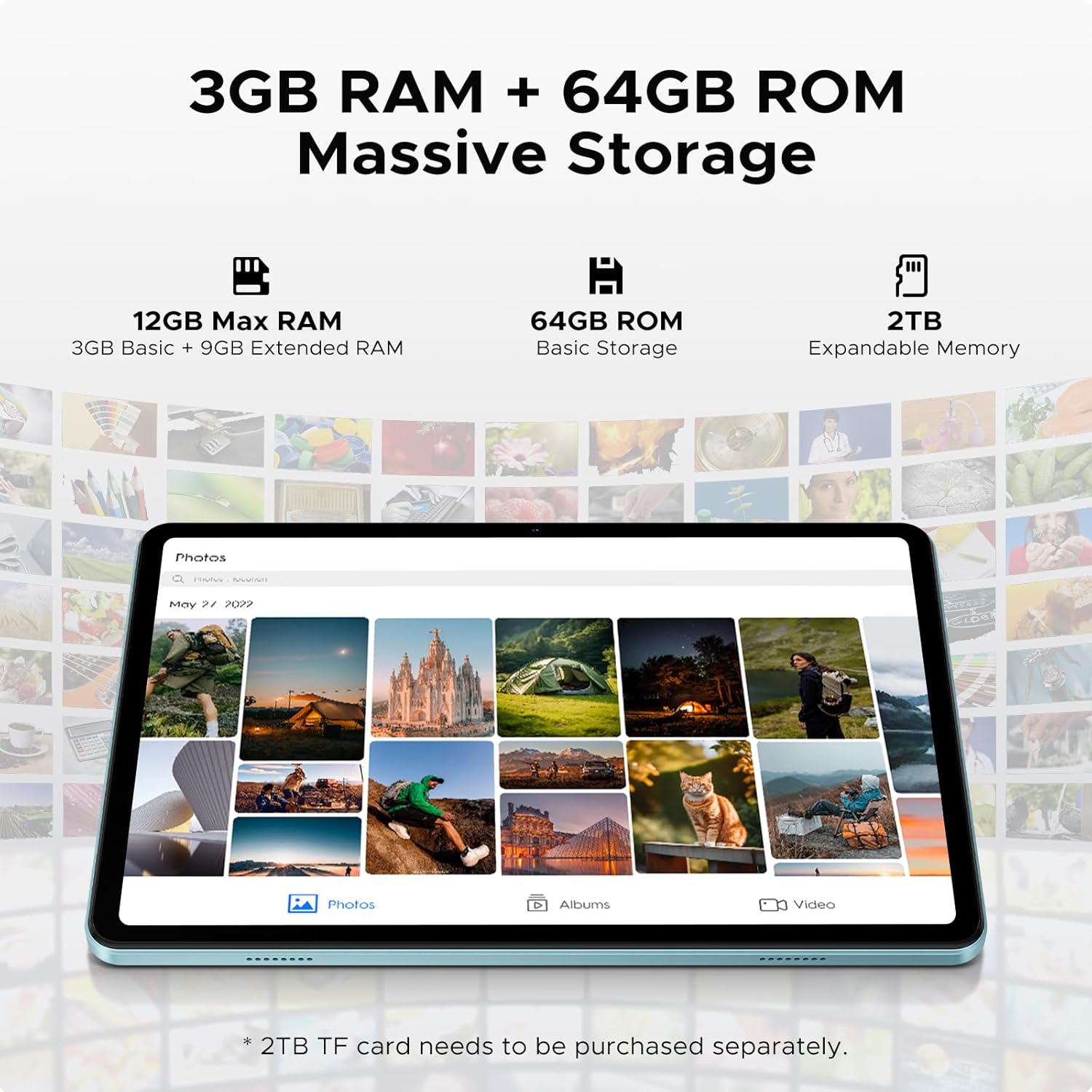
Image: Details on the tablet's 12GB Max RAM (3GB Basic + 9GB Extended RAM) and 64GB ROM Basic Storage, with a note about 2TB Expandable Memory via TF card (sold separately).
5. Awọn ilana Iṣiṣẹ
5.1 Ipilẹ Lilọ kiri
- Fọwọkan: Fọwọ ba aami kan tabi aṣayan lati yan.
- Ra: Fa ika rẹ kọja iboju lati yi lọ nipasẹ awọn oju-iwe tabi akoonu.
- Fun pọ-si- Sun-un: Lo ika meji lati sun sinu tabi ita lori awọn aworan tabi web awọn oju-iwe.
5.2 Nsopọ si Wi-Fi
- Lọ si Eto > Nẹtiwọọki & Intanẹẹti > Wi-Fi.
- Turn on Wi-Fi. The tablet will scan for available networks.
- Yan nẹtiwọki ti o fẹ ki o tẹ ọrọ igbaniwọle sii ti o ba ṣetan.
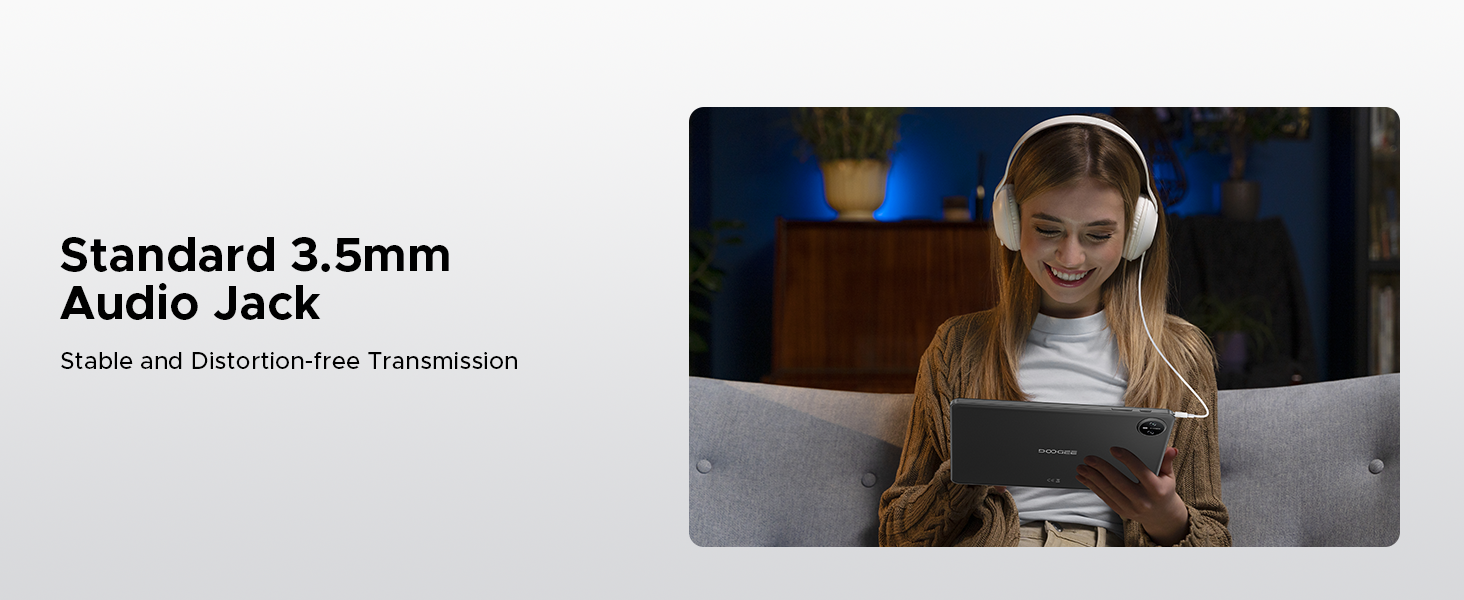
Image: Diagram illustrating the benefits of Faster WiFi 5 connectivity, including low latency, anti-congestion, wide coverage, low power consumption, and high speed.
5.3 Lilo ID oju
The DOOGEE Tab A9 supports facial recognition for quick and secure unlocking.
- Lọ si Eto > Aabo & asiri > Ṣii silẹ oju.
- Tẹle awọn ilana loju iboju lati forukọsilẹ oju rẹ.
- Once registered, you can unlock your tablet by simply looking at the front camera.
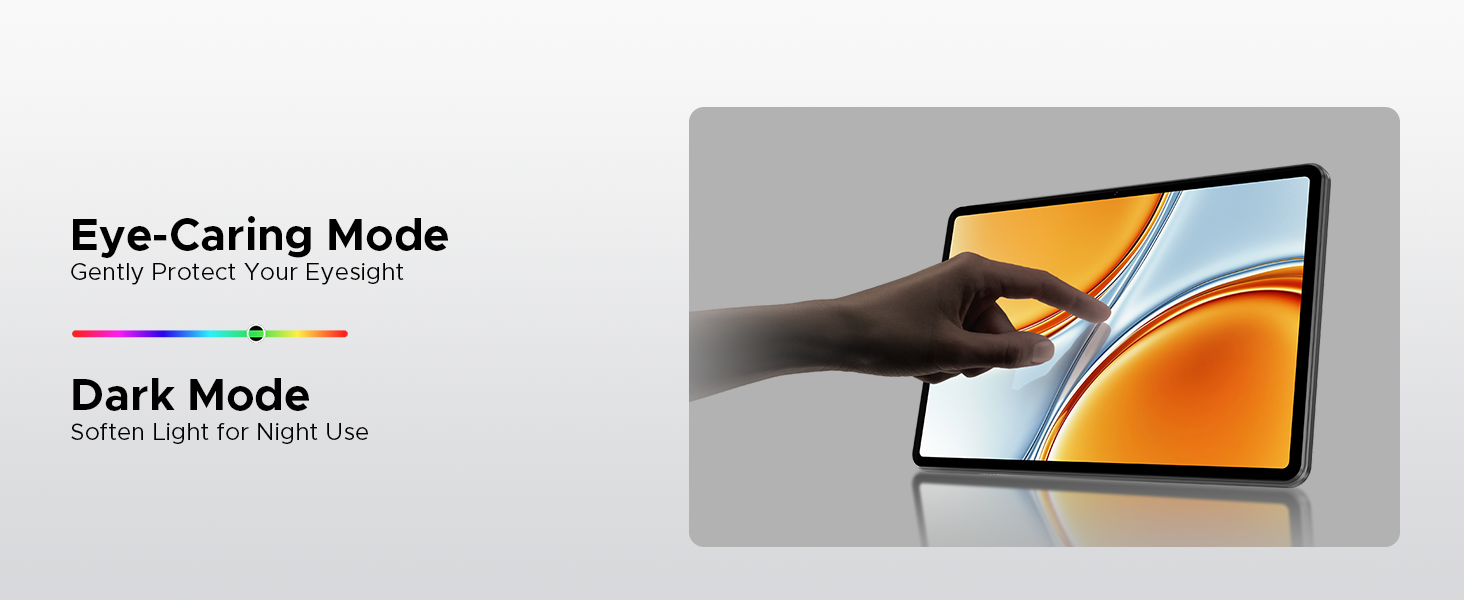
Image: A visual demonstrating the Facial Recognition Unlock feature for effortless access to the tablet.
5.4 kamẹra isẹ
Capture moments with the 8MP rear camera and 5MP front camera.
- Ṣii awọn Kamẹra ohun elo.
- Fọwọ ba bọtini titiipa lati ya fọto kan.
- Yipada laarin awọn kamẹra iwaju ati ẹhin nipa lilo aami yi pada kamẹra.
- Explore various modes like Beauty Mode for enhanced photos.

Image: Depiction of the 8MP main camera and 5MP front camera, highlighting their use for capturing lively moments and video calls.
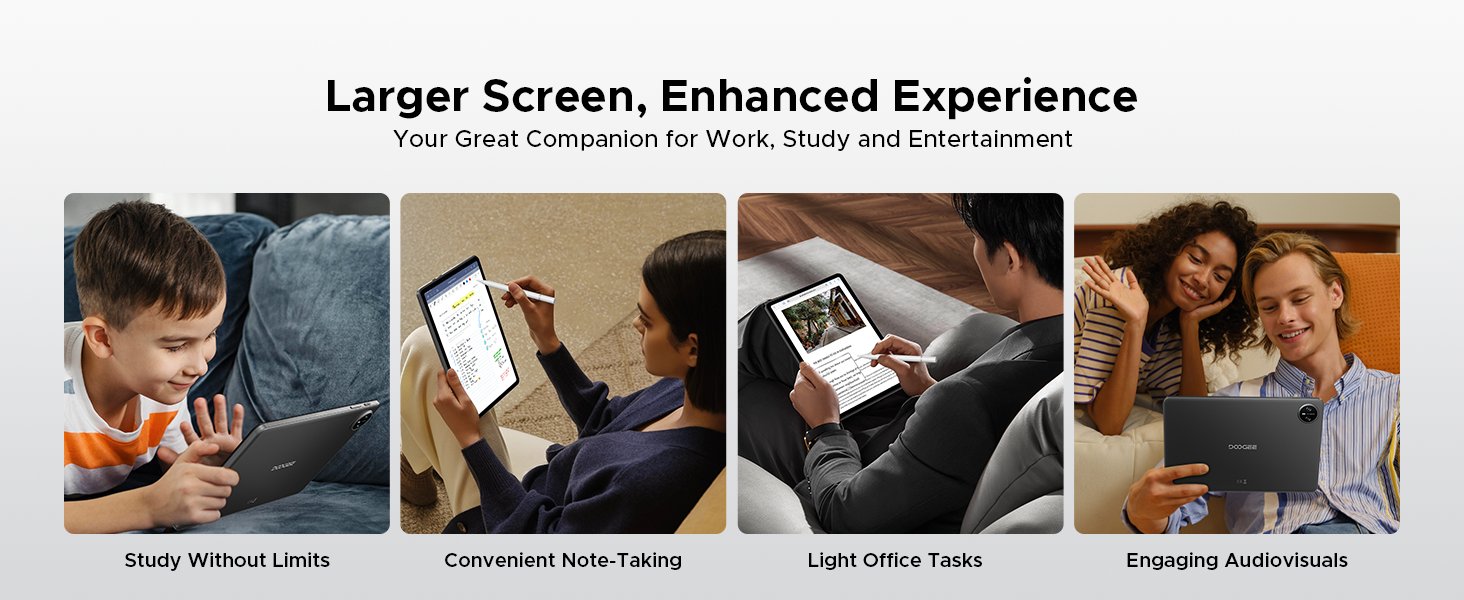
Image: A visual demonstrating the "Beauty Mode" feature for enhancing photos.
5.5 Split-Screen Multitasking
The tablet supports efficient split-screen multitasking, allowing you to use two apps simultaneously.
- Open the first app you want to use.
- Rọ sókè láti ìsàlẹ̀ iboju náà kí o sì di mọ́lẹ̀ láti wọlé sí àwọn àpù tuntun.
- Tap the app icon at the top of the app's card and select "Split screen".
- Choose the second app from your recent apps or app drawer.
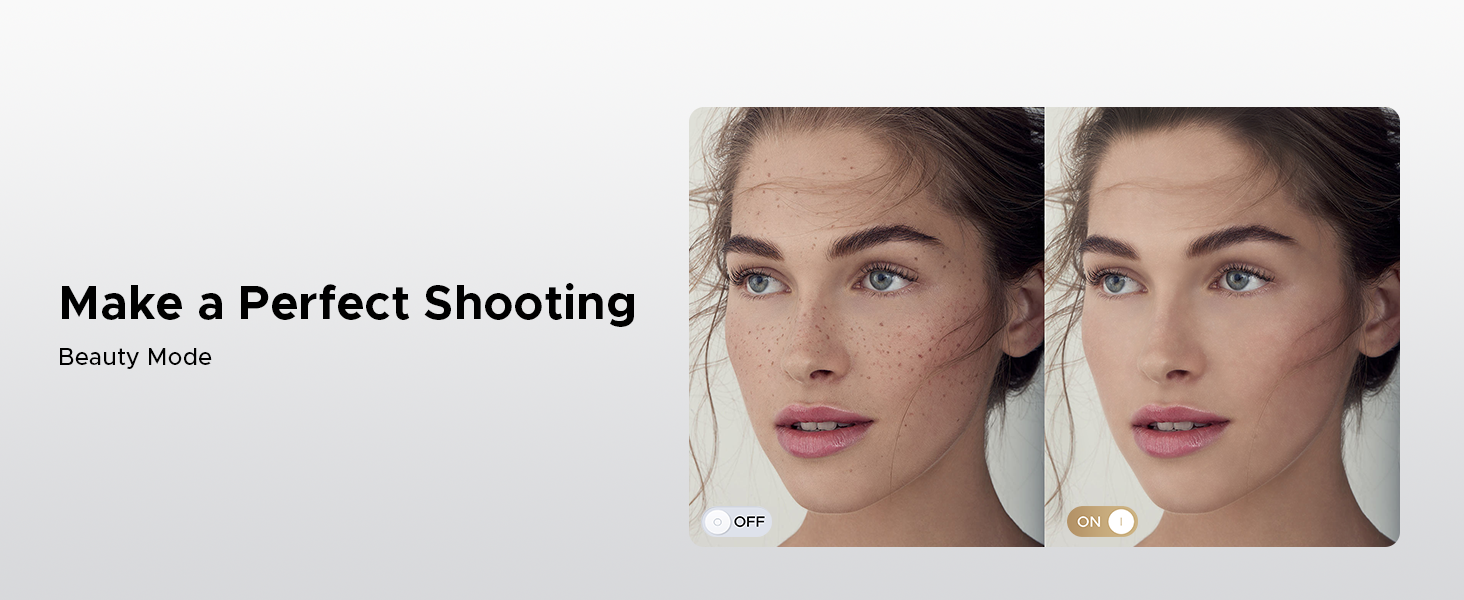
Image: A user demonstrating efficient split-screen multitasking on the DOOGEE Tab A9 tablet, with two applications open side-by-side.
6. Key Awọn ẹya ara ẹrọ
Ètò Android 15 6.1
The DOOGEE Tab A9 runs on the latest Android 15, offering enhanced performance, improved app launch speeds, and a more secure privacy management system.
Image: The Android 15 system logo, emphasizing intelligence, seamlessness, and security.
Image: Features of the Fortified Privacy Shield in Android 15, including precision permission control, robust data encryption, timely security patches, and proactive app screening.
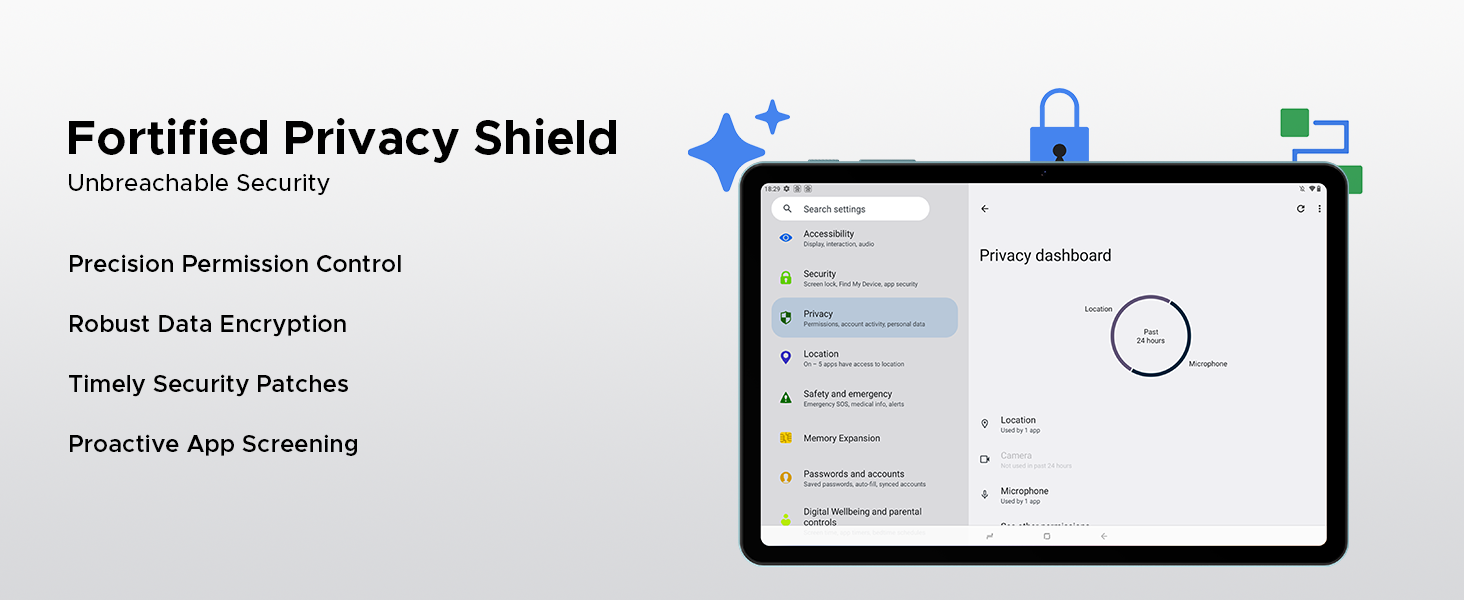
Image: Illustrations of additional Android 15 features such as Bedtime Mode, Multi-user System, and Parental Control.
6.2 Unisoc T310 Quad-Core Processor
Equipped with the Unisoc T310 processor, the tablet delivers smooth performance for daily tasks, web browsing, and office software, while maintaining low power consumption.

Image: Diagram showcasing the Unisoc T310 Quad-Core Processor, highlighting its powerful quad-core design, 2.0GHz ultimate frequency, and 12nm advanced process technology.
6.3 10.1" IPS HD Display
Enjoy a wide field of view and vibrant colors on the 10.1-inch IPS HD display with 1280x800 resolution.
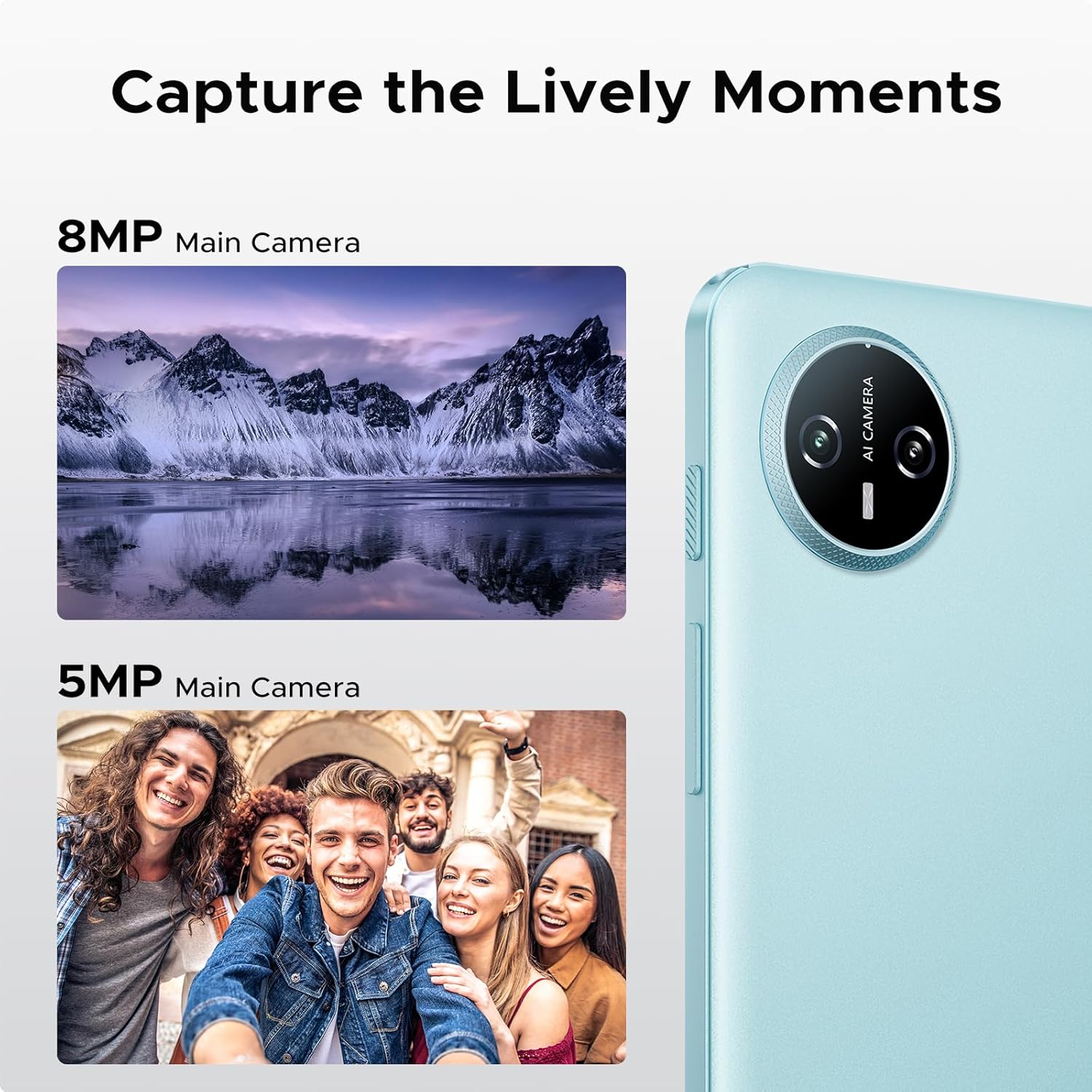
Image: Specifications of the 10.1-inch IPS HD display, including 1280*800 resolution, 16:10 aspect ratio, 80.2% screen-to-body ratio, 1200:1 contrast, 16.7 million screen colors, and 2.5D cover glass.
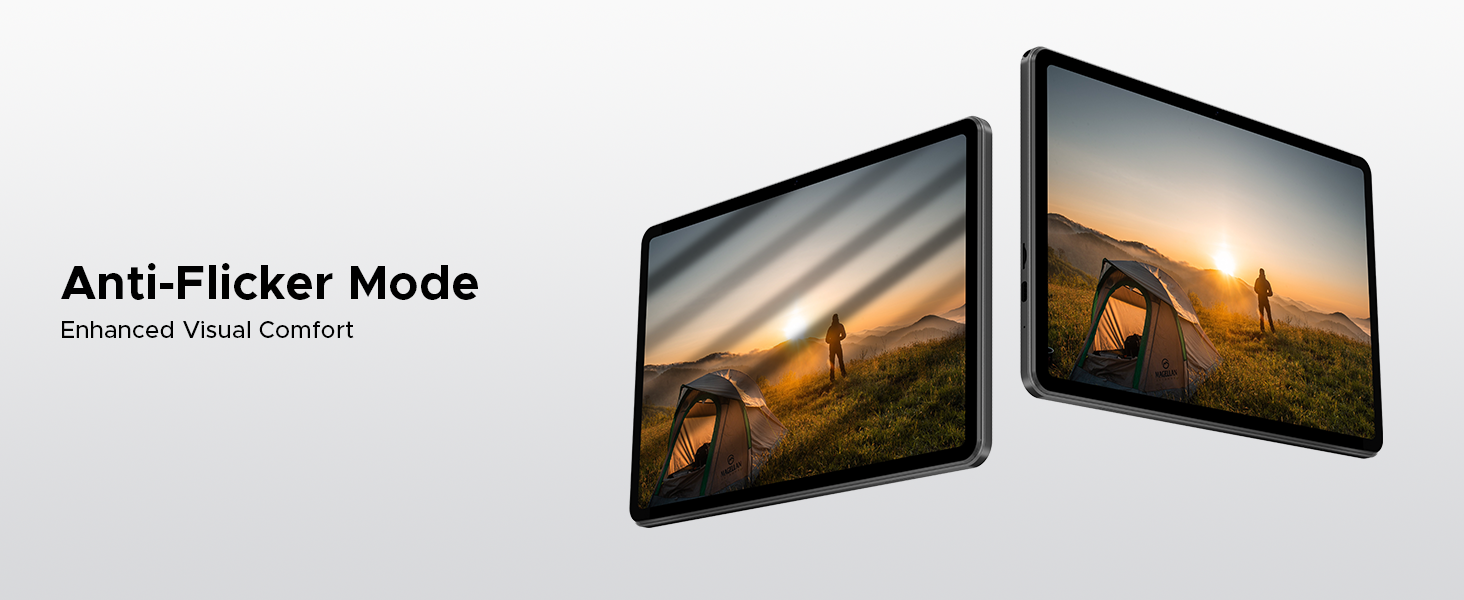
Image: Visuals explaining Eye-Caring Mode to gently protect eyesight and Dark Mode to soften light for night use.
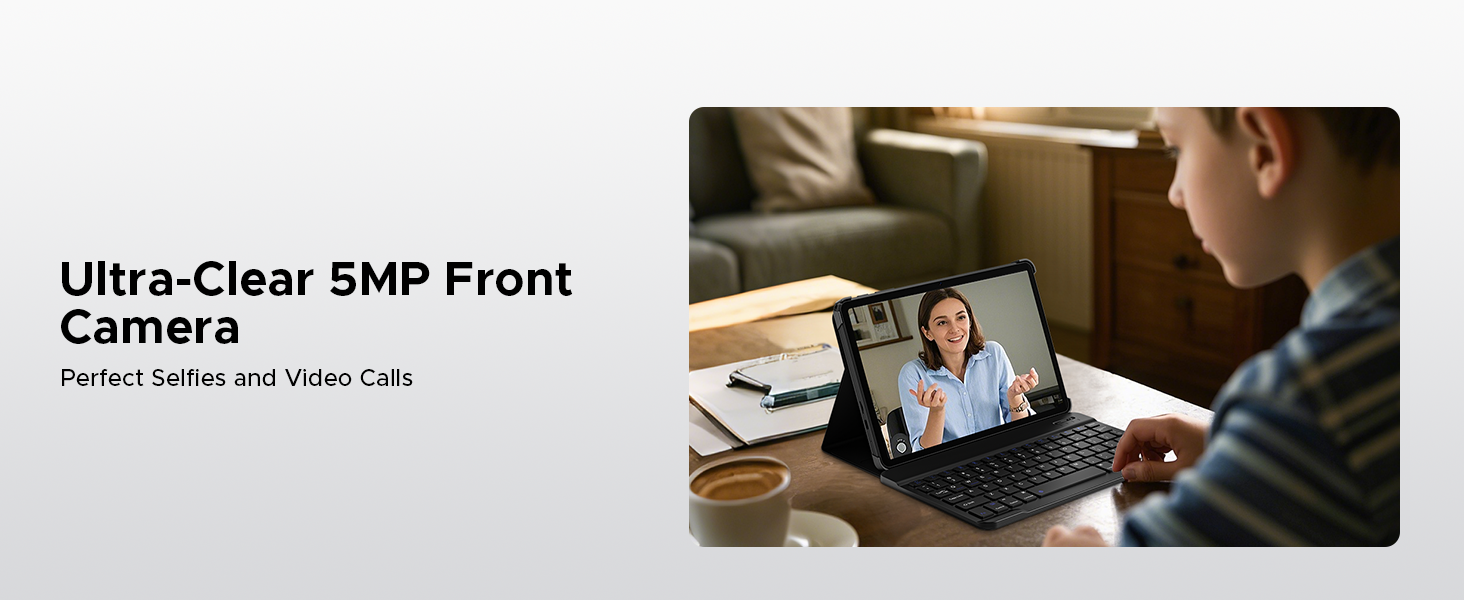
Image: Various usage scenarios for the tablet, including studying, note-taking, light office tasks, and engaging with audiovisuals.
6.4 Dual Speakers
Experience crystal-clear sound with the premium 1217 BOX dual speakers.

Image: Illustration of the 1217 BOX Dual Speakers, indicating sound follows the picture for an immersive experience.
6.5 Built-in WPS Office
The tablet comes with built-in PC-level WPS Office for seamless productivity on-the-go, supporting Word, Excel, and PowerPoint documents.

Image: Tablets displaying WPS Word, Excel, and PPT applications, demonstrating the built-in PC-level WPS Office suite.
7. Itọju ati Itọju
- Keep the tablet dry. Moisture can damage the internal circuits.
- Avoid extreme temperatures. High temperatures can shorten the life of electronic devices and deform certain plastics.
- Do not drop, knock, or shake the tablet. Rough handling can break internal circuit boards and fine mechanics.
- Lo ṣaja ati awọn ẹya ẹrọ ti a fọwọsi nikan.
- Nu iboju naa pẹlu asọ ti ko ni lint. Yẹra fun lilo awọn kẹmika lile.
8. Laasigbotitusita
| Isoro | Owun to le Solusan |
|---|---|
| Tablet won't turn on. | Rii daju pe batiri ti gba agbara. So ṣaja pọ ki o duro fun iṣẹju diẹ ṣaaju igbiyanju lati tan-an lẹẹkansi. |
| Iboju ko dahun. | Perform a forced restart by holding the power button for about 10-15 seconds. If the issue persists, contact support. |
| Awọn oran asopọ Wi-Fi. | Restart your Wi-Fi router. Go to Settings > Network & internet > Wi-Fi and try reconnecting. Forget the network and re-add it if necessary. |
| Awọn ohun elo n kọlu tabi didi. | Clear the cache of the problematic app (Settings > Apps > [App Name] > Storage & cache > Clear cache). If it continues, uninstall and reinstall the app. Ensure sufficient storage space. |
| Batiri n ṣan ni kiakia. | Reduce screen brightness, close unused apps running in the background, disable unnecessary notifications, and turn off Wi-Fi/Bluetooth when not in use. |
9. Awọn pato
- Awoṣe: Taabu A9
- Eto isesise: Android 15
- Olupilẹṣẹ: Unisoc T310 Quad-Core, 1.8 GHz
- Ramu: 12GB (Ipilẹ 3GB + Ti gbooro sii 9GB)
- Ibi ipamọ inu: 64GB ROM
- Ibi ipamọ ti o gbooro: Up to 2TB via Micro SD (TF card)
- Ifihan: 10.1-inch IPS HD, 1280 x 800 pixels
- Kamẹra Tẹhin: 8MP AI kamẹra
- Kamẹra iwaju: 5MP
- Batiri: 6580mAh litiumu polima
- Asopọmọra: 5G Wi-Fi, Bluetooth
- Awọn ibudo: USB Iru-C, 3.5mm Audio Jack
- Awọn iwọn: 24.25 x 16.09 x 0.97 cm
- Ìwúwo: 900 g
- Awọn ẹya pataki: Face ID, OTG Support, Dual Speakers, GMS Certified
10. Awọn fidio ọja osise
Watch these official videos for more information and visual guides on your DOOGEE Tab A9 tablet.
DOOGEE Tab A9 Android tablets
Yi fidio pese ohun loriview of the DOOGEE Tab A9 Android tablet, showcasing apẹrẹ rẹ ati awọn iṣẹ pataki rẹ.
DOOGEE Tablet Android 15-Tab A9
A detailed look at the DOOGEE Tab A9, highlighting its Android 15 operating system and user experience.
DOOGEE 10 Inch Tablet Tab A9 Android Tablets
This video focuses on the 10-inch display and overall design of the DOOGEE Tab A9, suitable for various uses.
DOOGEE Tab A9 Android 15 Tablet
A concise video highlighting the key selling points of the DOOGEE Tab A9 Android 15 Tablet.
11. Atilẹyin ọja ati Support
DOOGEE n pese atilẹyin pipe fun awọn ọja rẹ.
- Atilẹyin ọja: This product typically comes with a 2-year limited warranty. Please refer to your purchase documentation for specific terms and conditions.
- Pada: A 30-day money-back guarantee and free return policy may apply. Check with your retailer for details.
- Iṣẹ onibara: For technical assistance or customer support, please visit the official DOOGEE webojula tabi kan si wọn onibara iṣẹ awọn ikanni.
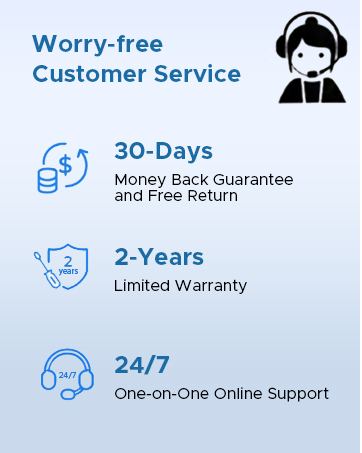
Image: Information on DOOGEE's customer service, including 30-day money back guarantee, 2-year limited warranty, and 24/7 online support.
Ask a question about this manual
Ask about setup, troubleshooting, compatibility, parts, safety, or missing instructions. Manuals+ will review the question and use this page’s manual context to help answer it.