
1. Alaye Aabo pataki
Please read all instructions carefully before using the DOYO 180° PC Racing Wheel. Retain this manual for future reference.
- Ma ṣe fi ẹrọ naa han si awọn iwọn otutu to gaju, ọriniinitutu, tabi imọlẹ orun taara.
- Yago fun sisọ silẹ tabi tẹriba ẹrọ si awọn ipa to lagbara.
- Ma ṣe gbiyanju lati tunto tabi yi ẹrọ naa pada. Eyi yoo sọ atilẹyin ọja di ofo.
- Jeki ẹrọ naa kuro ninu omi ati awọn olomi miiran.
- Lo awọn kebulu ti a pese nikan ati awọn ẹya ẹrọ.
- Rii daju pe fentilesonu to dara lakoko lilo lati ṣe idiwọ igbona.
2. Package Awọn akoonu
Daju pe gbogbo awọn nkan wa ninu apo rẹ:
- DOYO 180° PC Racing Wheel Unit
- Pedal Unit (Accelerator and Brake)
- Okun Asopọ USB
- Itọsọna olumulo
3. Ọja Ipariview
3.1 irinše
The DOYO 180° PC Racing Wheel system consists of the main steering wheel unit and a separate pedal unit.
Olusin 3.1: Pariview of the DOYO 180° PC Racing Wheel and Pedal Unit.
3.2 Key Awọn ẹya ara ẹrọ
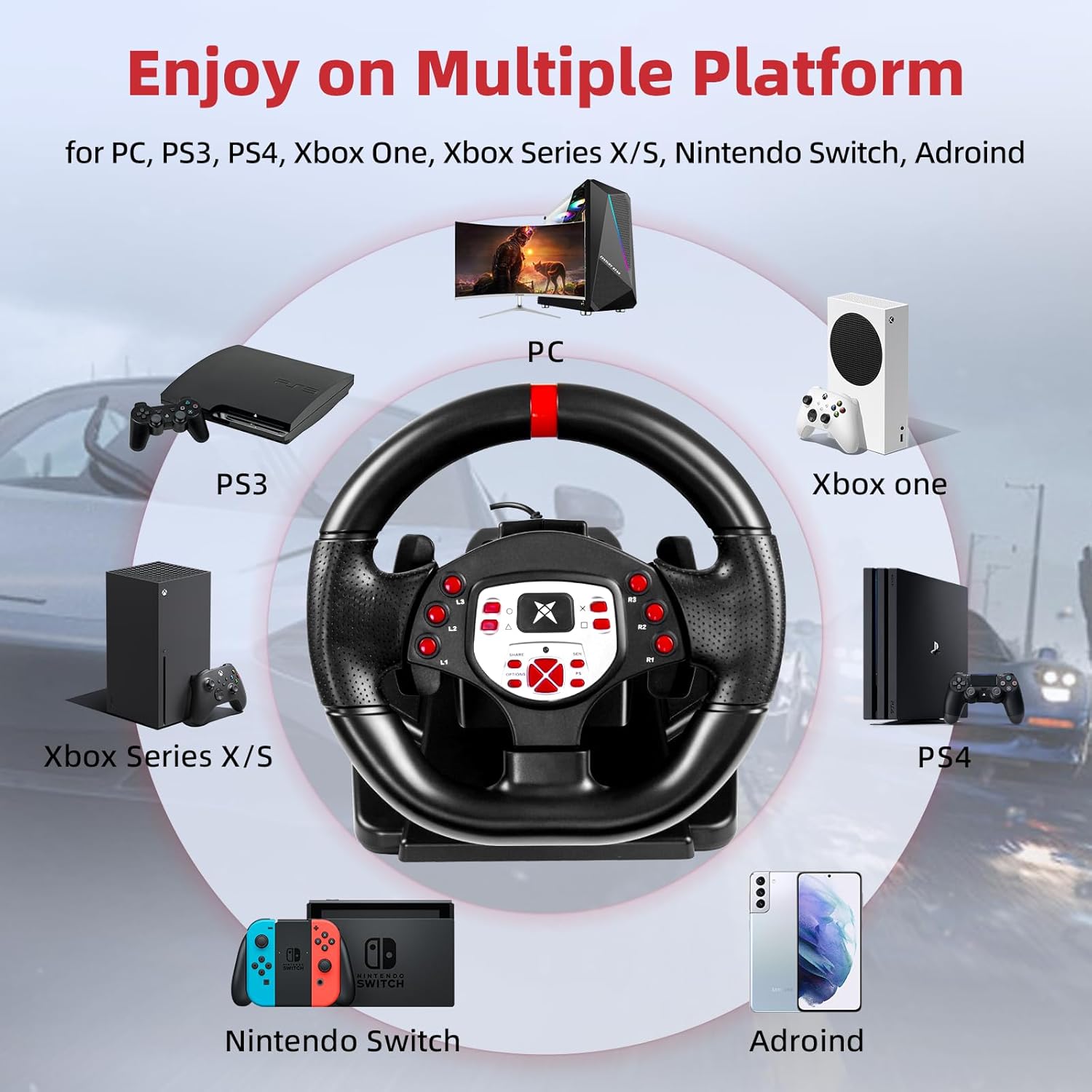
- Ibamu gbooro: Supports PC, PlayStation 4 (PS4), PlayStation 3 (PS3), and Nintendo Switch.
- 180° Yiyi: The steering wheel offers 180 degrees of rotation for realistic driving simulation.
- Gbigbọn Meji Meji: Built-in dual motors provide realistic vibration feedback based on in-game events.
- Adjustable Height & Tilt: The steering wheel's height and tilt can be adjusted to suit various user preferences and seating positions.
- Àwọn Olùyípadà Paddle: Integrated paddle shifters allow for quick and responsive gear changes.
- Linear Pedal Design: The pedal unit features a linear design for precise control over acceleration and braking.
- Strong Fixation: Equipped with four large suction cups on the base for stable mounting on flat surfaces.
- Multi-level Sensitivity Adjustment: Allows users to fine-tune steering sensitivity for different games and driving styles.

Nọmba 3.2: Alaye view of the racing wheel's controls and features.
4. Awọn ilana iṣeto
4.1 Connecting the Steering Wheel
The DOYO Racing Wheel is designed for plug-and-play functionality across supported platforms.

Figure 4.1: Multi-platform compatibility of the racing wheel.
4.1.1 PC Asopọ
- Connect the USB cable from the steering wheel unit to an available USB port on your PC.
- The system should automatically detect and install the necessary drivers. If not, manual driver installation may be required (refer to DOYO support webaaye).
4.1.2 PS3/PS4 Connection
- Rii daju pe console rẹ ti wa ni pipa.
- Connect the USB cable from the steering wheel unit to an available USB port on your PS3 or PS4 console.
- Power on your console. The wheel should be recognized as a controller.
4.1.3 Nintendo Switch Connection
- Go to System Settings > Controllers and Sensors > Pro Controller Wired Communication and set it to 'On'.
- Connect the USB cable from the steering wheel unit to the Nintendo Switch dock's USB port.
- The wheel should be recognized and ready for use.
4.2 Síso Ẹ̀yà Pẹdalì pọ̀
Connect the cable from the pedal unit to the designated port on the back of the steering wheel unit.

Figure 4.2: Connection point for the foot pedal unit.
4.3 Mounting the Steering Wheel
The steering wheel base is equipped with four large suction cups for secure mounting.
- Place the steering wheel unit on a clean, flat, and smooth surface (e.g., a desk or table).
- Press down firmly on the steering wheel base to engage the suction cups.
- Ensure the wheel is stable before use.
Video 4.3: Demonstration of the DOYO 180 Degree PC Racing Wheel and its features, including setup and usage.
5. Awọn ilana Iṣiṣẹ
5.1 Steering Wheel Rotation
The steering wheel provides 180 degrees of rotation, allowing for 90 degrees to the left and 90 degrees to the right from the center position.

Figure 5.1: The steering wheel's 180-degree rotation range.
5.2 Height and Tilt Adjustment
To adjust the steering wheel's position for optimal comfort:
- Locate the adjustment knob or lever on the steering wheel base.
- Rotate the knob or release the lever to unlock the adjustment mechanism.
- Adjust the tilt angle and telescopic length (up to 5cm) to your desired position.
- Secure the adjustment by rotating the knob or engaging the lever.

Figure 5.2: Steering wheel height and tilt adjustment.
5.3 Paddle Shifters
Use the paddle shifters located behind the steering wheel for manual gear changes in compatible games. The left paddle typically shifts down, and the right paddle shifts up.

Figure 5.3: Dual paddle shifters for gear control.
5.4 Pedal Unit Operation
The linear pedal unit provides progressive control for acceleration and braking. Press the right pedal for acceleration and the left pedal for braking.
5.5 Gbigbọn esi
The dual motor vibration system provides immersive feedback, simulating road conditions, collisions, and other in-game effects.

Figure 5.4: Illustration of dual motor vibration feedback.
5.6 Atunse ifamọ
The steering wheel features a multi-level sensitivity adjustment. Refer to the on-screen display or indicator on the wheel to select your preferred sensitivity level (e.g., Grade 1-7).

Figure 5.5: Sensitivity adjustment dial on the steering wheel.
6. Itọju
To ensure the longevity and optimal performance of your DOYO Racing Wheel:
- Ninu: Use a soft, dry cloth to wipe down the steering wheel and pedal unit. Do not use abrasive cleaners or solvents.
- Ibi ipamọ: Tọju ẹrọ naa ni itura, aye gbigbẹ kuro lati orun taara ati awọn iwọn otutu to gaju nigbati ko si ni lilo.
- Itọju USB: Avoid bending or twisting cables excessively.
7. Laasigbotitusita
If you encounter issues with your DOYO Racing Wheel, please refer to the following common solutions:
| Isoro | Owun to le Solusan |
|---|---|
| Wheel not recognized by console/PC |
|
| Ko si esi gbigbọn |
|
| Pedals ko fesi |
|
| Steering sensitivity too high/low |
|
If the problem persists, please contact DOYO customer support for further assistance.
8. Awọn pato
- Nọmba awoṣe: R180C-PC
- ASIN: B0DXBNTWZG
- Igun Yiyi: 180 iwọn
- Ibamu: PC, PS4, PS3, Nintendo Yipada
- Gbigbọn: Dual Motor Feedback
- Atunṣe: 4 afamora Agolo
- Ìwọ̀n Nkan: Isunmọ 7.24 poun (3.28 kg)
- Awọn iwọn idii: 13 x 11.5 x 10.5 inches (33 x 29.2 x 26.7 cm)
- Olupese: DOYO
9. Atilẹyin ọja ati Support
DOYO products come with a limited warranty. For detailed warranty information, product support, or to report any issues, please refer to the warranty card included with your product or visit the official DOYO website. Please have your model number (R180C-PC) and purchase information ready when contacting support.